Crafting a Mekanism Digital Miner
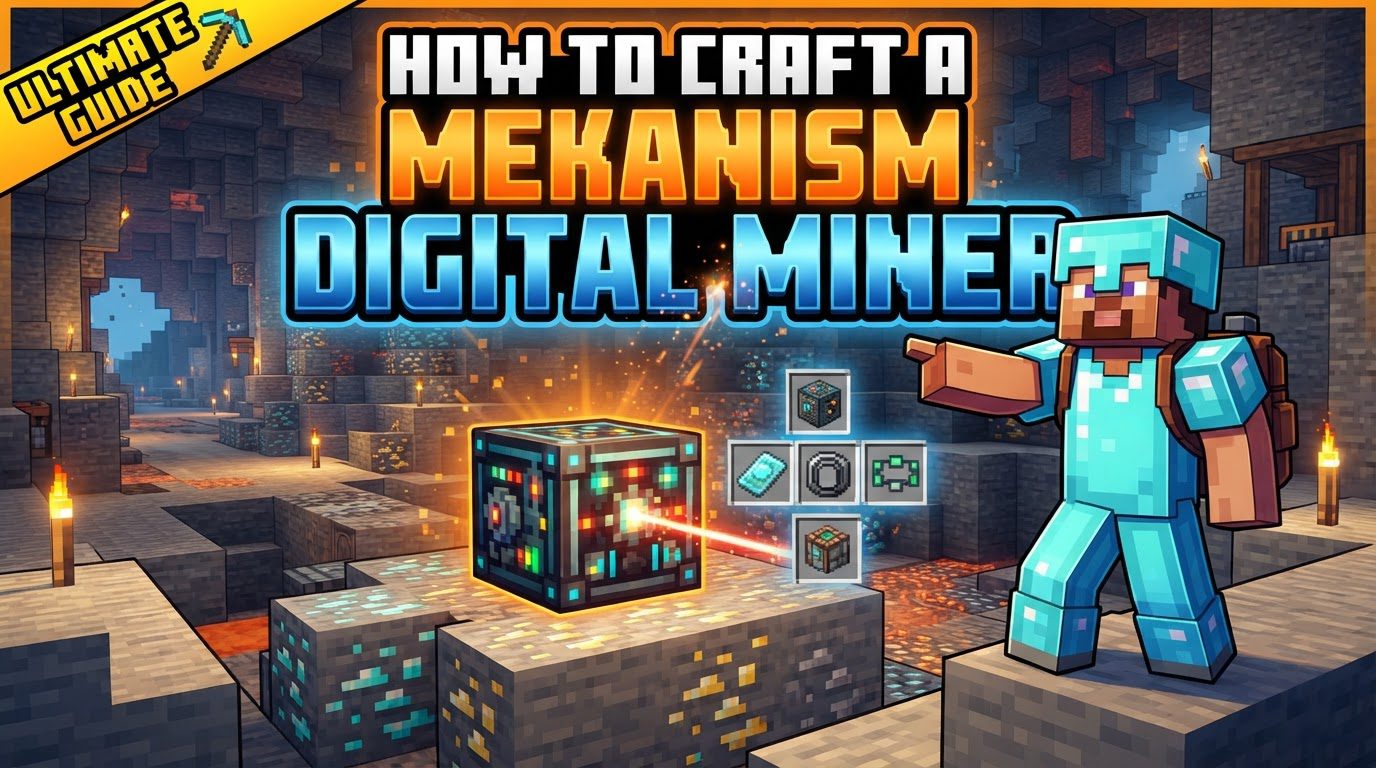
The Mekanism Digital Miner stands as a pinnacle of automation in Minecraft, offering an unparalleled method for extracting valuable resources from the world. This advanced machine streamlines the mining process by intelligently scanning and acquiring blocks within a defined area, teleporting them directly into its internal inventory. Its sophisticated features allow players to precisely control what is mined, where it is mined, and how the process is managed, making it an indispensable tool for any resource-intensive endeavor.
Understanding the Digital Miner’s Core Mechanics
To effectively utilize the Digital Miner, it’s crucial to grasp its fundamental operational principles:
- Teleports Mined Blocks: One of the most distinctive features is its ability to “magically-teleport” any mined blocks directly into its internal storage. This eliminates the need for collection systems or manual retrieval, vastly simplifying resource gathering.
- Configurable Area: Players have full control over the miner’s operational range. Through its graphical user interface (GUI), you can define both a mining radius, determining the horizontal spread, and specific Y-values (depth) to target particular layers of the world.
- Filters: The Digital Miner’s intelligence is powered by its flexible filtering system. You can instruct it to mine specific blocks using several filter types:
- ItemStack: Targets an exact item or block type.
- OreDict (Tag): Utilizes ore dictionary entries (now often referred to as tags) such as
forge:oresfor general ore mining,*ore*as a wildcard, or specific tags likeoreDiamond. - Material: Filters based on the material properties of blocks.
- Mod ID: Mines all blocks originating from a specific Minecraft mod.
- Replacement Blocks: For players concerned about leaving unsightly holes, the miner can be supplied with a chosen block material. If enabled, it will replace each mined block with this material, maintaining the integrity of the landscape.
- Silk Touch: An optional Silk Touch mode allows the miner to preserve block properties, such as mining ore blocks directly instead of their drops (e.g., diamond ore instead of diamonds). However, enabling this mode significantly increases power consumption by six times.
- Upgrades: The Digital Miner supports specialized upgrades to enhance its performance. Both Speed and Energy upgrades can be installed, with up to eight of each. Installing eight of either type provides a powerful 10x effect, dramatically boosting mining speed or energy capacity.
- Power: As a high-tech machine, the Digital Miner requires substantial Redstone Flux (RF) to operate. It can be powered via energy ports, using universal cables or energy conduits, or by inserting charged energy items directly into its dedicated energy slot.
- Automation: For seamless integration into larger bases, the miner includes automation features. Auto-eject allows it to automatically send mined items to connected inventories, while auto-pull enables it to fetch replacement blocks from adjacent inventories.
- Redstone Control: Its operation can be toggled using a Redstone signal, providing another layer of automated control over when it should be active or inactive.
Step-by-Step Guide to Digital Miner Usage
Deploying and operating your Digital Miner effectively involves a series of straightforward steps:
- Place and Power: Begin by placing the Digital Miner in your desired location. Once positioned, it requires a steady supply of power. Connect it using compatible energy transfer mechanisms like Universal Cable or Energy Conduit, or by placing charged energy items directly into its energy slot.
- Configure Area: Right-click on the Digital Miner to open its GUI. Navigate to the “Config” button. Here, you will define the boundaries of its operation by setting the desired mining radius and specifying the minimum and maximum Y-levels (depth) for its scanning area.
- Set Filters: This is a critical step for dictating what the miner will target. In the GUI, create filters based on your needs:
- For precise targeting, place the exact item or block you wish to mine into an ItemStack filter slot.
- For broader categories, use an OreDict (Tag) filter. Examples include
forge:oresto target all registered ores,*ore*as a wildcard for anything containing “ore” in its name, or specific tags likeoreDiamondfor only diamond ore. - To mine all blocks from a specific mod, input its Mod ID into the corresponding filter type.
- You can also enable Inverse Mode, which instructs the miner to mine everything *except* the blocks specified in your active filters.
- Optional Settings: Customize the miner’s behavior further based on your preferences:
- Toggle Silk Touch mode if you wish to preserve block properties, remembering the increased power cost.
- Enable auto-eject to automatically push mined items into connected storage systems.
- Activate auto-pull if you are using replacement blocks and want the miner to automatically fetch them from adjacent inventories.
- Supply replacement blocks to the miner’s inventory if you’ve enabled the replacement feature.
- Start Mining: Once all configurations are complete and power is supplied, press the “Start” button located in the main interface of the Digital Miner’s GUI to commence mining operations.
- Reset for Re-scan: It’s important to note that the Digital Miner does not automatically re-scan its area for new blocks or changes. If you make changes to its configuration (e.g., filters, radius) or if the world within its area changes significantly (e.g., new chunks load, blocks are placed/removed), you must stop the miner and then press the “Reset” button to force a new scan before restarting.
Important Tips for Optimal Performance
Maximizing the efficiency of your Digital Miner involves smart planning and resource management:
- Energy Management: The Digital Miner is a power-hungry machine, especially when operating with a large mining area or Silk Touch enabled. Always ensure a stable and ample power supply to prevent interruptions in its operation. Invest in robust energy generation and storage solutions.
- Upgrades are Key: Don’t underestimate the impact of upgrades. Installing Speed upgrades will drastically reduce mining time, while Energy upgrades will increase the miner’s internal buffer, allowing it to store more power and operate longer during peak demand or temporary power fluctuations. Aim for the full eight upgrades of each type for maximum benefit.
- Filter Wisely: Strategic use of filters can save immense amounts of time and energy. For general ore gathering, broad OreDict filters like
forge:oresor*ore*are highly efficient. For specific resources, precise ItemStack or tag filters are best. - Automation: Leverage the auto-eject and auto-pull features. Connect the miner to a well-organized storage system to automatically sort and store mined resources, and to a supply of common blocks if you’re using the replacement feature.
- Chunk Loading: For continuous operation, particularly in remote areas or while you are away, ensure the chunk where your Digital Miner is placed is chunk-loaded. This can be achieved using chunk anchor upgrades or other chunk-loading mechanisms provided by various mods.
Common Mistakes to Avoid
Being aware of potential pitfalls can prevent frustration and ensure smooth operation:
- Redstone Setting: Always double-check the Redstone tab in the miner’s GUI. If it’s set to anything other than “Ignored” and isn’t receiving the correct Redstone signal, the miner will not operate, leading to confusion.
- Insufficient Power: A common issue is a lack of sufficient power. If your mining area is vast, or you’re using Silk Touch, the miner’s power consumption can quickly outpace your supply, causing it to stop or fail to start. Monitor your energy network.
- Full Inventory: If the Digital Miner’s internal inventory becomes full and auto-eject is either disabled or not properly connected to an external inventory, the miner will cease operations until space is cleared. Ensure your output system can handle the influx of mined items.
- Incorrect Filters: Filters can be tricky. If the miner isn’t picking up the blocks you expect, verify your filter settings. Sometimes, an OreDict entry might be slightly off, or an ItemStack filter needs the exact variant of a block.
- Placement in Claims: On multiplayer servers, placing a Digital Miner within a claimed land area that you do not own or have appropriate permissions for may prevent it from functioning correctly due to protection mechanisms.
- Not Resetting: As mentioned, the miner does not automatically re-scan. If you change its configuration or the world around it (e.g., new ore veins are generated or exposed), you must “Reset” the miner after stopping it to force a new scan and update its operational data.
Tags:
YOU MAY ALSO LIKE...