How to create custom advancements using a datapack
Understanding Custom Advancements with Datapacks
Minecraft’s advancement system provides players with a guided progression through the game, offering challenges and rewards. While the vanilla advancements cover many aspects of gameplay, custom advancements, created using datapacks, unlock a vast potential for server owners, map makers, and modpack creators to tailor unique experiences. These custom advancements allow for personalized goals, storytelling, and integration with custom content, all without requiring client-side modifications.
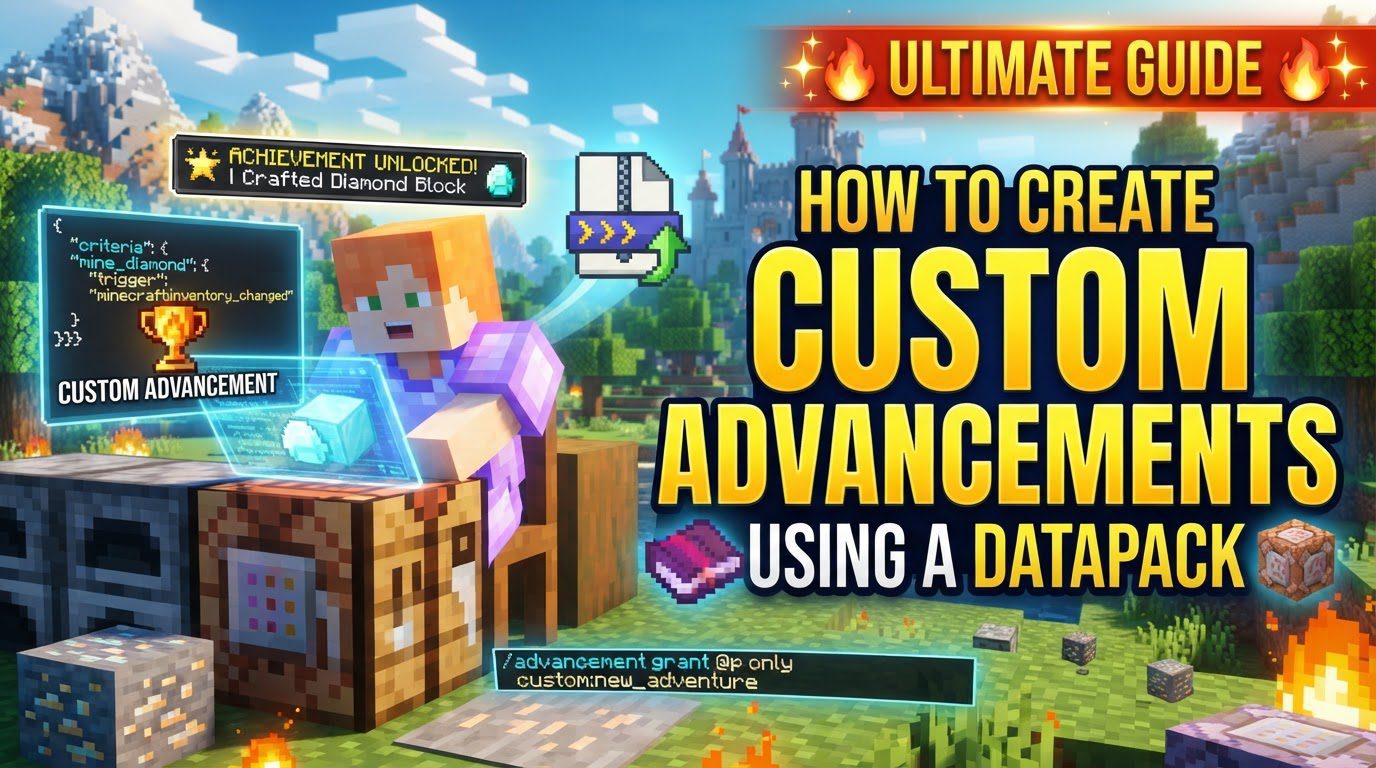
At its core, creating custom advancements revolves around defining specific events and conditions using JSON files within a datapack. Each advancement is a distinct JSON file, specifying how it looks, what triggers it, and what happens when it’s completed. Understanding the fundamental components is crucial for successful implementation.
Key Mechanics of Advancements
- JSON Files: Advancements are defined using structured JSON files, which dictate every aspect of their behavior and appearance.
displaySection: This part controls the visual presentation of an advancement. It includes elements such as an icon (the item displayed), a title (the name shown), a description (the text explaining the advancement), the frame type (e.g., task, goal, challenge), a background image (for root advancements), and whether a toast notification appears and if an announcement is made in chat upon completion.criteriaSection: This is the heart of any advancement, defining the conditions that must be met for it to be completed. It consists of one or more triggers and their associated conditions.- Optional
rewardsSection: Upon completing an advancement, players can receive various rewards. These can include items from loot tables, experience points, unlocking new recipes, or executing custom functions (commands defined in a separate JSON file). - Hierarchy and Tabs: Advancements are organized hierarchically. Child advancements typically link to a “root” advancement using the
parentfield. This root advancement acts as the main entry point and forms a new tab in the in-game advancement menu, grouping related advancements together. Triggers: These define the specific in-game events that Minecraft actively monitors to check for advancement completion. Examples includeconsume_item(when a player eats or drinks something),player_killed_entity(when a player kills a mob), or the always-activeticktrigger (useful for root advancements to ensure they are always visible).Conditions: These are specific requirements associated with a trigger. For instance, if the trigger isconsume_item, a condition might specify that the item consumed must be a “golden_apple”. Conditions refine when a trigger actually counts towards advancement completion.pack.mcmeta: This file is absolutely essential. Located in the root of your datapack folder, it tells Minecraft that the folder is a valid datapack, specifying its format version and providing a brief description. Without a correctpack.mcmeta, your datapack will not be loaded by the game.
Step-by-Step Process for Creating Custom Advancements
Creating your first custom advancement involves a structured approach, starting with folder organization and progressing to JSON file creation and in-game testing.
-
Create Datapack Folder Structure:
- Navigate to your Minecraft world’s save folder. Inside, locate the
datapacksfolder. - Create a new folder for your datapack (e.g.,
my_custom_pack). This will be the root of your datapack. - Inside
my_custom_pack, create a folder nameddata. - Inside
data, create another folder for your custom namespace (e.g.,tutorial). This namespace helps prevent conflicts with other datapacks or vanilla assets. - Finally, inside your namespace folder (e.g.,
tutorial), create a folder namedadvancement(note: it must be singular, notadvancements). This is where all your advancement JSON files will reside.
- Navigate to your Minecraft world’s save folder. Inside, locate the
-
Create
pack.mcmeta:- In the main datapack folder you created (e.g.,
my_custom_pack), create a new text file namedpack.mcmeta. - Open this file with a text editor and add the following JSON content:
{
    "pack": {
        "pack_format": 61,
        "description": "My custom advancements for the tutorial"
    }
}
Note: The
pack_formatnumber is crucial and changes with Minecraft versions. For example,61is for Minecraft 1.21.4. Always check the current version’s requiredpack_format.
- In the main datapack folder you created (e.g.,
-
Create Root Advancement (Your Custom Tab):
- Inside your
advancementfolder, create a subfolder (e.g.,custom). - Inside this
customfolder, create a JSON file namedroot.json. This file will define the main tab for your custom advancements. - Populate
root.jsonwith content similar to this:{ "display": { "icon": { "item": "minecraft:stone" }, "title": "My Custom Goals", "description": "A collection of unique challenges!", "background": "minecraft:textures/gui/advancements/backgrounds/stone.png", "frame": "task", "show_toast": false, "announce_to_chat": false }, "criteria": { "always_visible": { "trigger": "minecraft:tick" } } }The
ticktrigger in the criteria ensures the tab is always visible in the advancement menu. For root advancements, it’s best practice to setshow_toastandannounce_to_chattofalseto avoid spam.
- Inside your
-
Create Child Advancements:
- In the same
advancementfolder (or a subfolder within it, likecustom), create a JSON file for each individual advancement you want to make (e.g.,eat_apple.json). - Each child advancement JSON file needs a
parentfield, linking it to your root advancement. The format for the parent isyour_namespace:subfolder/root_advancement_name(e.g.,tutorial:custom/root). - Here’s an example for
eat_apple.json:{ "display": { "icon": { "item": "minecraft:apple" }, "title": "An Apple a Day", "description": "Eat a delicious apple.", "frame": "task", "show_toast": true, "announce_to_chat": true }, "parent": "tutorial:custom/root", "criteria": { "ate_apple": { "trigger": "minecraft:consume_item", "conditions": { "item": { "items": [ "minecraft:apple" ] } } } }, "rewards": { "experience": 5 } }This advancement uses the
consume_itemtrigger and specifically checks for anapple. It grants 5 experience points upon completion.
- In the same
-
Install and Test:
- Once your datapack folder structure and JSON files are complete, place the entire datapack folder (e.g.,
my_custom_pack) into your world’sdatapacksdirectory. - Start or load your Minecraft world.
- In-game, open chat and use the command
/reloadto load your datapack. Minecraft will parse the files. Watch for any error messages in the chat or server console. - Verify that your datapack has loaded correctly by using
/datapack list. It should appear in the enabled list. - Test your advancement in-game by fulfilling its criteria (e.g., eating an apple).
- For debugging or quick testing, you can manually grant an advancement using the command:
/advancement grant <player> only <your_namespace>:<subfolder>/<advancement_id>(e.g.,/advancement grant @p only tutorial:custom/eat_apple).
- Once your datapack folder structure and JSON files are complete, place the entire datapack folder (e.g.,
Important Tips for Datapack Creation
- Online Generators: Tools like Misode’s Datapack Generator can be incredibly helpful for generating advancement JSON structures, especially for complex conditions or triggers. They provide a visual interface to build your advancements, reducing syntax errors.
- Naming Conventions: Always use lowercase letters and avoid spaces for all folder names (datapack root,
data, namespace,advancement, and any subfolders) and JSON filenames. Use underscores (_) for separation if needed. - Code Editor with Extensions: A good code editor like VS Code, paired with extensions such as “Datapack Helper Plus,” offers syntax highlighting, autocompletion, and error checking for JSON and Minecraft-specific files, significantly streamlining the development process.
- Advancement Frame Types: The
frameproperty in thedisplaysection determines the visual border of the advancement icon.task: The default, simple square frame.goal: An octagon-shaped frame, typically used for more significant objectives.challenge: A star-shaped frame, often reserved for difficult or endgame achievements.
- Diverse Rewards: Beyond basic experience, explore other reward types:
loot: Specifies a loot table to drop items.recipes: Unlocks crafting recipes for the player.functions: Executes a custom function (a sequence of commands) defined in your datapack.
requirementsField: For more complex logic, therequirementsfield allows you to combine multiple criteria with AND/OR logic. It uses nested arrays of arrays, where inner arrays represent OR conditions (any one must be met) and outer arrays represent AND conditions (all inner conditions must be met).- NBT Data in Conditions: You can specify NBT (Named Binary Tag) data within conditions to check for very specific item properties (e.g., an item with a custom name, lore, or specific enchantments). This allows for highly detailed and unique advancement conditions.
Common Mistakes to Avoid
Even experienced creators can stumble upon common pitfalls. Being aware of these can save significant debugging time:
- Typos in JSON Files: JSON syntax is strict. A missing comma, misplaced bracket, or misspelled key can render an entire file unreadable by Minecraft, preventing the advancement from loading. Use a JSON validator or a good code editor.
- Incorrect
advancementFolder Name: The folder inside your namespace that holds your advancement JSONs must be namedadvancement(singular), notadvancements(plural). - Missing or Incorrect
pack.mcmeta: Without a validpack.mcmetafile at the root of your datapack folder, Minecraft will not recognize or load your datapack at all. Double-check thepack_formatfor your Minecraft version. - Incorrect
parentPath: If a child advancement’sparentfield points to a non-existent or incorrectly referenced root/parent advancement, it will not appear in the advancement tree. The path must match the namespace, subfolders, and filename of the parent exactly. - Not Reloading the Datapack: Any changes made to your datapack files after Minecraft has loaded require an in-game
/reloadcommand to take effect. Simply saving the file is not enough. - Outdated NBT/Component Syntax: Minecraft updates (especially from 1.20.5 onwards) frequently change how item NBT data and components are structured in commands and advancements. Always refer to the latest Minecraft Wiki documentation for current syntax if you’re using detailed item conditions.
- Advancements Not Appearing: If an advancement doesn’t show up in the game, systematically check:
- Your JSON for syntax errors.
- The
parentpath is correct and points to a valid parent. - The trigger and conditions are correctly defined and can actually be met in-game.
- Use
/advancement grantto manually test if the advancement ID is valid and can be granted, which can help pinpoint if the issue is with the JSON structure or the trigger conditions.
By following these guidelines and paying close attention to detail, you can effectively create custom advancements that enhance your Minecraft experience and provide engaging new goals for players.
Tags:
YOU MAY ALSO LIKE...