Customizing Superflat World Layers, Explained
Minecraft’s Superflat world type offers a unique canvas for players, providing a boundless, flat landscape ideal for creative builds, redstone contraptions, or unique survival challenges. While the default Superflat world is a simple stack of dirt, grass, and bedrock, the true power lies in its extensive customization options. In Minecraft Java Edition, players can meticulously define every aspect of their Superflat world, from the types and thickness of block layers to the overarching biome and even the presence of structures. This customization is achieved through a specific text string known as a “preset code,” which acts as a blueprint for world generation.
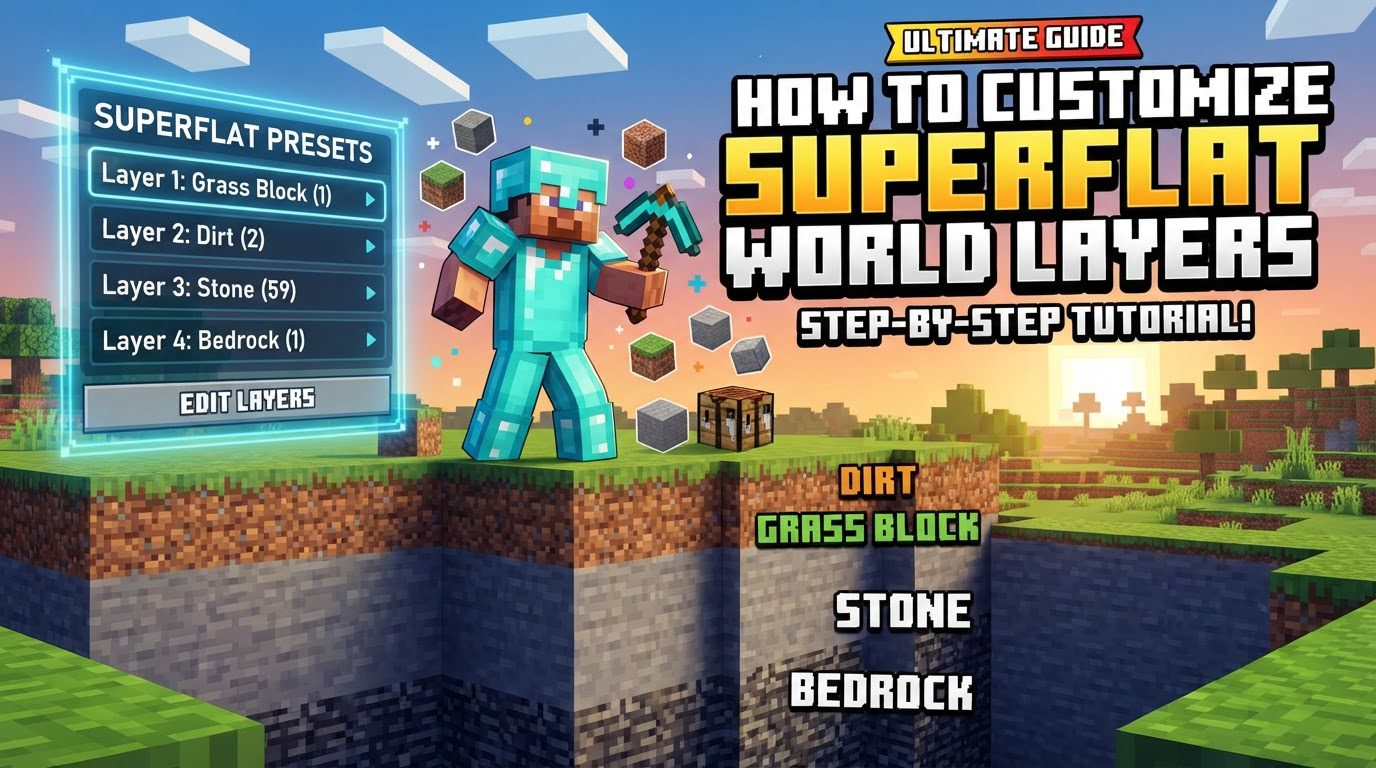
Understanding the Superflat Preset Code
The Superflat preset code is the heart of its customization. This compact string of characters dictates how your world will be formed, layer by layer, and what features it will contain. It is composed of several distinct parts, each separated by a semicolon, that collectively define the world’s characteristics.
- Version Number: The code always begins with a version number, typically
2;for modern Minecraft Java Edition versions. This number indicates the format of the preset string, ensuring compatibility with the game’s generation engine. - Layer Definitions: This is arguably the most crucial part, as it specifies the exact sequence and type of blocks that will form your world’s vertical structure. Layers are defined from the bottom-most Y-level (closest to bedrock) upwards.
- Each block type is identified by its Minecraft ID, which always follows the format
minecraft:block_name(e.g.,minecraft:bedrock,minecraft:dirt,minecraft:stone). - For a single layer of a specific block, you simply list its ID:
minecraft:grass_block. - To specify multiple consecutive layers of the same block, you use the format
number*minecraft:block_name. For instance,250*minecraft:airwould create 250 layers of air, effectively raising the ground level significantly. - Individual layer definitions are separated by commas. An example layer definition segment could look like this:
250*minecraft:air,minecraft:grass_block,3*minecraft:dirt,minecraft:bedrock. This would create 250 layers of air, followed by one layer of grass, three layers of dirt, and finally one layer of bedrock at the very bottom. - Biome ID: Following the layer definitions and separated by a semicolon, you specify the biome for your Superflat world. This determines the overall environment, including sky color, foliage color, and temperature. Biome IDs also follow the
minecraft:biome_nameformat (e.g.,minecraft:plains,minecraft:desert,minecraft:forest). For example,minecraft:plainswould set the entire world to the plains biome. - Structure Decorators: The final optional part of the preset code allows you to enable various generated structures and features within your customized world. These are listed after the biome ID, separated by another semicolon, with individual decorators separated by commas.
- Common decorators include:
village(generates villages),mineshaft(generates abandoned mineshafts),stronghold(generates strongholds),lake(generates water lakes),lava_lake(generates lava lakes), anddungeon(generates dungeons). - A particularly important decorator is
decoration. This enables biome-specific features such as trees, tall grass, flowers, and other natural elements that would typically populate the selected biome, making the world feel more alive. - An example structure decorator segment might be:
village,mineshaft,decoration.
Step-by-Step Customization Process (Java Edition)
Customizing your Superflat world in Minecraft Java Edition is a straightforward process once you understand the preset code. Follow these steps to bring your unique world vision to life:
- Create a New World: From the Minecraft main menu, click “Singleplayer,” then “Create New World.”
- Select “Superflat” World Type: On the “Create New World” screen, locate the “World Type” button. Click it repeatedly until it displays “Superflat.”
- Access Customization Options: Once “Superflat” is selected, click the “Customize” button that appears below the “World Type” option.
- Open Presets: In the “Customize Superflat World” screen, click the “Presets” button. This will display a list of predefined Superflat presets, along with a text box at the top.
- Edit the Preset Code: The text box at the top contains the current preset code. This is where you will input your custom string.
- Start your code with the version number, typically
2;. - Immediately after the version number, define your block layers. Remember to separate each layer definition with a comma and end the entire layer section with a semicolon. For example:
2;250*minecraft:air,minecraft:grass_block,3*minecraft:dirt,minecraft:bedrock; - Next, specify your desired biome ID, followed by another semicolon. Building on the previous example:
2;250*minecraft:air,minecraft:grass_block,3*minecraft:dirt,minecraft:bedrock;minecraft:plains; - Finally, add any structure decorators you wish to include, separated by commas, after the last semicolon. For instance:
2;250*minecraft:air,minecraft:grass_block,3*minecraft:dirt,minecraft:bedrock;minecraft:plains;village,mineshaft,decoration - Apply Your Preset: After entering your custom preset code, click the “Use Preset” button. The preview on the left side of the screen should update to reflect your changes.
- Finalize World Creation: Click “Done” to exit the customization screens. Then, click “Create New World” to generate your uniquely customized Superflat world.
Essential Tips for Success
To ensure a smooth and successful Superflat world customization experience, keep these important tips in mind:
- Use
minecraft:Prefix: Every block ID in your preset code must be prefixed withminecraft:. Forgetting this will result in syntax errors and prevent your preset from working correctly. - Maximum Layer Limit: Be mindful of the vertical build limit. The maximum number of layers you can define is 255. Exceeding this limit can lead to unexpected game behavior, including crashes, as the game engine is not designed to handle world generation beyond this vertical constraint.
- Layer Order Matters: The order of blocks in your layer definition directly corresponds to their vertical position in the world. The leftmost block in your code will be at the lowest Y-level, and subsequent blocks will stack upwards.
- Finding Block IDs: If you’re unsure of a specific block’s ID, a quick search online for “Minecraft block ID” will provide comprehensive lists.
- Saving Custom Presets: Minecraft allows you to save your custom Superflat settings as a preset for future use. This is particularly useful if you have complex or frequently used configurations.
- Multiplayer Server Customization: For multiplayer servers, Superflat customization is handled in the server’s configuration files. You must set
level-type=flatin theserver.propertiesfile. Thegenerator-settingsentry in the same file can then be used to define a JSON object containing your preset code, allowing the server to generate a custom Superflat world for all players.
Common Pitfalls to Avoid
While customizing Superflat worlds is powerful, it’s easy to encounter issues if you’re not careful. Being aware of these common mistakes can save you a lot of frustration:
- Syntax Errors: The preset code is highly sensitive to syntax. Forgetting commas between layer definitions, semicolons between sections, or mistyping block IDs will cause the preset to be invalid and prevent the world from generating as intended. Double-check your code carefully.
- Missing
minecraft:Prefix: As mentioned, this is a frequent oversight. Always ensure every block ID starts withminecraft:. - Exceeding the Layer Limit: Going over 255 layers can crash your game. Always keep your total layer count within this safe boundary.
- Editing a World After Creation: It’s crucial to understand that Superflat settings are applied during world generation. If you modify your Superflat preset code and then load an existing world, only newly generated chunks (those you haven’t explored yet) will reflect the changes. Existing chunks will remain as they were initially generated. To modify existing chunks, you would need to use external tools like NBTExplorer or in-game commands, which is a more advanced process.
- Expecting All Features from Preset Code: While the preset code is robust, it doesn’t describe every single setting related to features and structures. Some aspects, particularly the finer details of structure generation and feature distribution, are often tied to the base preset or the selected biome’s default properties rather than being fully configurable within the simple preset string.
By understanding the structure of the preset code, following the steps carefully, and heeding these tips and warnings, you can unlock the full potential of Superflat worlds in Minecraft Java Edition, creating truly unique and personalized environments for your adventures.
Tags:
YOU MAY ALSO LIKE...