How to enable cheats / commands in Minecraft
Welcome, fellow crafters and adventurers! In the vast and ever-evolving worlds of Minecraft, the ability to use cheats or commands opens up a universe of possibilities, from creative building and testing mechanics to recovering from tricky situations or simply having fun with game rules. However, enabling these powerful tools comes with specific steps and important considerations, varying slightly depending on whether you’re playing Java Edition or Bedrock Edition, and whether you’re starting a new world or modifying an existing one. This comprehensive guide will walk you through the precise methods to activate cheats, ensuring you have full control over your Minecraft experience.
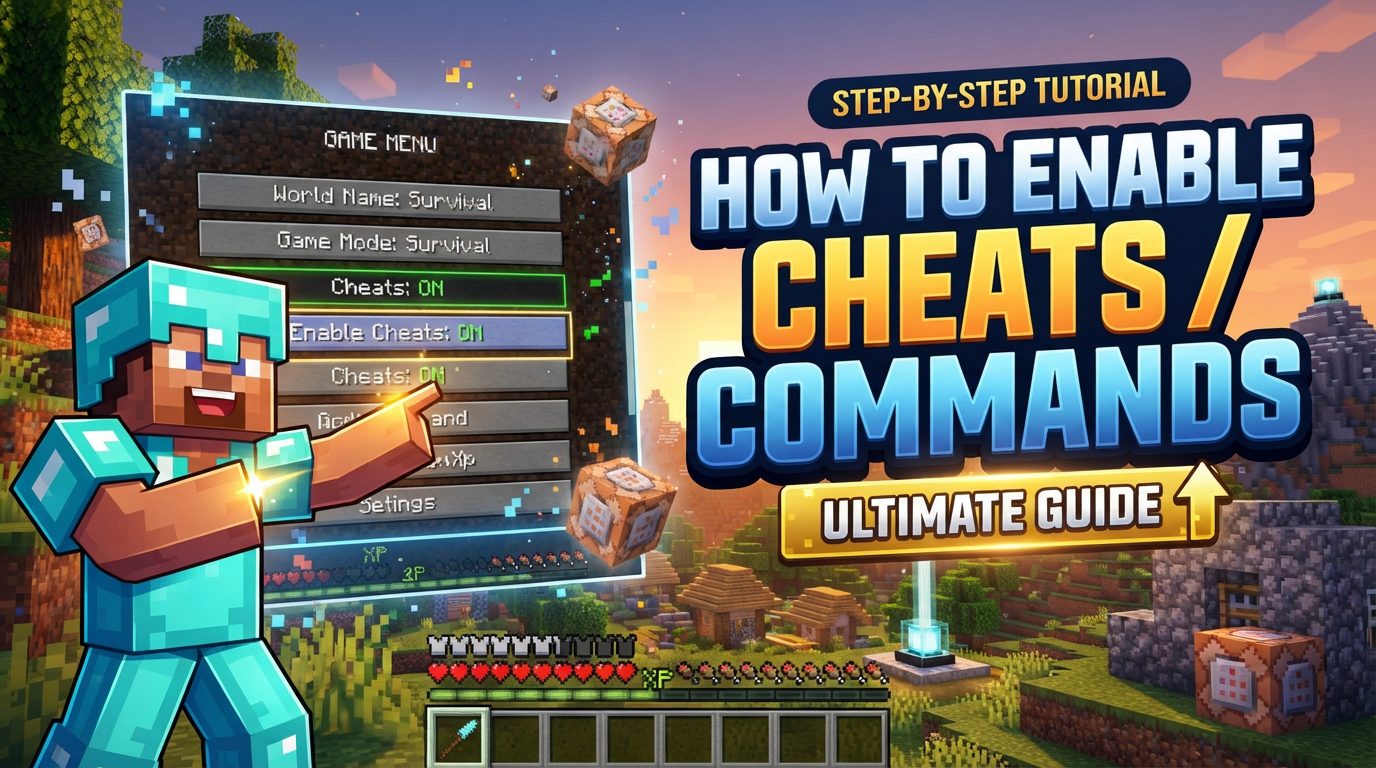
It’s crucial to understand upfront that enabling cheats is not about crafting an item or finding a hidden ingredient. Instead, it’s a fundamental game setting found within your world’s configuration. Before we dive into the specifics, please note a universal truth across all editions and methods: enabling cheats in any world will permanently disable achievements or advancements for that specific world. This is an irreversible change for that save file, so consider this implication carefully before proceeding.
Enabling Cheats in Minecraft Java Edition
For New Worlds (Java Edition)
When embarking on a fresh adventure in Java Edition, enabling cheats from the get-go is the most straightforward method. This ensures that command functionality is available from the moment your world loads.
- Launch Minecraft and from the main menu, select “Singleplayer”.
- Click on the “Create New World” button.
- On the world creation screen, you’ll see a list of various options. Locate the setting labeled “Allow Cheats” and toggle it to “ON”.
- Proceed to fill out any other desired world creation information, such as world name, game mode, or difficulty.
- Finally, click “Create New World” to generate your world with cheats enabled.
Once the world loads, you can open your chat window (usually by pressing ‘T’ or ‘/’) and start typing commands like `/gamemode creative` or `/give @p diamond_sword` to test their functionality.
For Existing Worlds (Java Edition – Temporary Method)
Sometimes you might find yourself in an existing Java Edition single-player world where you didn’t initially enable cheats, but now require command access. Minecraft offers a temporary solution through the “Open to LAN” feature.
- Load the single-player world where you wish to temporarily enable cheats.
- Once in-game, press the “Esc” key to open the game menu.
- Click on the “Open to LAN” option.
- In the “Open to LAN” settings, you will find an option to “Allow Cheats”. Toggle this setting to “ON”.
- Optionally, you can adjust the game mode for other players connecting via LAN or the port number.
- Click “Start LAN World”.
Important Note: This method provides temporary cheat access. Once you quit and rejoin the world, cheats will be disabled again, and you will need to repeat these steps to re-enable them. This is ideal for short-term needs without permanent modifications.
For Existing Worlds (Java Edition – Permanent, Advanced Method)
For those seeking a permanent solution for an existing Java Edition world without starting anew, a more advanced method involving direct file editing is available. This requires external tools and careful execution.
- First, ensure your world is completely closed. You cannot edit world files while the game is actively running that world.
- You will need to use an NBT (Named Binary Tag) editor. A commonly used tool for this purpose is NBT Explorer.
- Navigate to your Minecraft save files. On Windows, this is typically found at
%APPDATA%/.minecraft/saves/. Locate the folder corresponding to your specific world name. - Inside your world’s folder, find and open the file named
level.datusing your NBT editor. - Within the NBT editor, you will need to locate the NBT tag named
AllowCommands. - Change the value of the
AllowCommandstag: set it to1to enable cheats, or0to disable them. - Crucial Warning: Before making any manual edits to world files, it is highly recommended to back up your world folder. Incorrect edits can corrupt your save file.
- Save the changes within your NBT editor and close it.
- Reopen Minecraft and load your world. Cheats should now be permanently enabled.
This method is for advanced users comfortable with file system navigation and third-party tools. Always proceed with caution and a backup.
Enabling Cheats in Minecraft Bedrock Edition
For New Worlds (Bedrock Edition)
Bedrock Edition offers a straightforward way to enable cheats when creating a new world, similar to Java Edition.
- Open Minecraft Bedrock Edition and select “Play” from the main menu.
- Click “Create New”, then select “Create New World”.
- On the world creation screen, scroll down the options on the left-hand side until you reach the “Cheats” section.
- Toggle the setting labeled “Activate Cheats” to “ON”.
- A warning message will appear, informing you that activating cheats will disable achievements for this world. Confirm this message to proceed.
- Once confirmed, you can adjust any other desired world settings.
- Finally, click “Create” to generate your new world with cheats enabled.
With cheats active, you can access commands through the chat by typing ‘/’ followed by your desired command.
For Existing Worlds (Bedrock Edition)
One of the key differences between Java and Bedrock Editions for single-player worlds is that Bedrock allows you to enable cheats directly from the in-game settings for an existing world, making it a permanent change without needing external tools or temporary LAN sessions.
- Load the existing Bedrock Edition world where you want to enable cheats.
- Pause the game (usually by pressing ‘Esc’ or the equivalent button on your controller) and go to “Settings”.
- Within the settings menu, navigate to the “Game” section. This is usually the default tab.
- Scroll down through the game settings until you find the “Cheats” section.
- Toggle the “Activate Cheats” setting to “ON”.
- Just like with new worlds, a warning message will appear confirming that achievements will be disabled for this world. Confirm this message.
- Exit the settings. Cheats are now permanently enabled for your existing Bedrock world.
For Bedrock Edition Servers
Enabling cheats on a Bedrock Edition server involves modifying server-side settings and granting operator (OP) status to players. The exact steps might vary slightly depending on your server host or if you’re running a self-hosted server.
- First, ensure your Bedrock server is stopped. You cannot make changes to server properties while it’s running.
- Access your server’s control panel. This might be a web interface provided by your hosting company or directly accessing the server files if self-hosting.
- Look for a “Startup” tab, “Files” section, or directly locate the
server.propertiesfile. - Find the setting related to cheats. It might be labeled “Allow Cheats” in a graphical interface, or appear as
allow-cheats=falsewithin theserver.propertiesfile. - Change this setting to
true(e.g.,allow-cheats=true). - Save the changes to your server’s configuration.
- Restart your server for the changes to take effect.
- Even with cheats allowed server-wide, individual players usually need operator (OP) status to execute commands. You can grant yourself OP status using the server console command
/op(replacewith your actual Minecraft username). Alternatively, some server panels allow you to manage player permissions or edit apermissions.jsonfile.
Once these steps are completed, players with OP status will be able to use commands on the Bedrock server.
Important Considerations and Platform Differences Summary
As highlighted throughout this guide, the process of enabling cheats, while fundamentally similar, has distinct nuances between Minecraft Java and Bedrock Editions, particularly concerning existing worlds and server configurations.
- Achievement Disablement: This is a critical and consistent rule. Regardless of the edition or method used, activating cheats for any world will permanently disable achievements and advancements for that specific save.
- New Worlds: Both Java and Bedrock Editions offer a direct and easy-to-find toggle during the world creation process to enable cheats from the start.
- Existing Single-player Worlds:
- Java Edition: Primarily relies on the “Open to LAN” method for temporary cheat activation. For permanent changes to an existing world, advanced users must resort to manually editing the
level.datfile using an NBT editor, which carries a risk and requires world backups. - Bedrock Edition: Provides a more user-friendly approach, allowing players to activate cheats directly from the in-game settings of an existing world, making the change permanent without external tools.
- Java Edition: Primarily relies on the “Open to LAN” method for temporary cheat activation. For permanent changes to an existing world, advanced users must resort to manually editing the
- Servers:
- Java Edition Servers: Typically focus on granting operator (OP) status to players via the server console or server management tools. The server itself generally allows commands by default for OP players.
- Bedrock Edition Servers: Require a two-step process: first, enabling the “Allow Cheats” setting in the server’s properties or control panel, and then separately granting operator (OP) status to specific players who will use the commands.
Understanding these differences is key to efficiently managing your Minecraft worlds and servers. Whether you’re a builder, an explorer, or a server administrator, mastering the art of enabling commands will unlock a new dimension of control and creativity within your blocky adventures. Always remember the implications for achievements and consider backing up your worlds when making significant changes.
Tags:
YOU MAY ALSO LIKE...