Enabling Parental Controls for Minecraft (Step by Step)
Minecraft offers an expansive and creative world for players of all ages, but ensuring a safe and controlled environment for children is a top priority for many parents. Fortunately, a robust system for parental controls is available, primarily centered around Microsoft Family Safety. This comprehensive guide will walk you through the process of setting up and managing these controls, helping you tailor your child’s Minecraft experience to be both fun and secure.
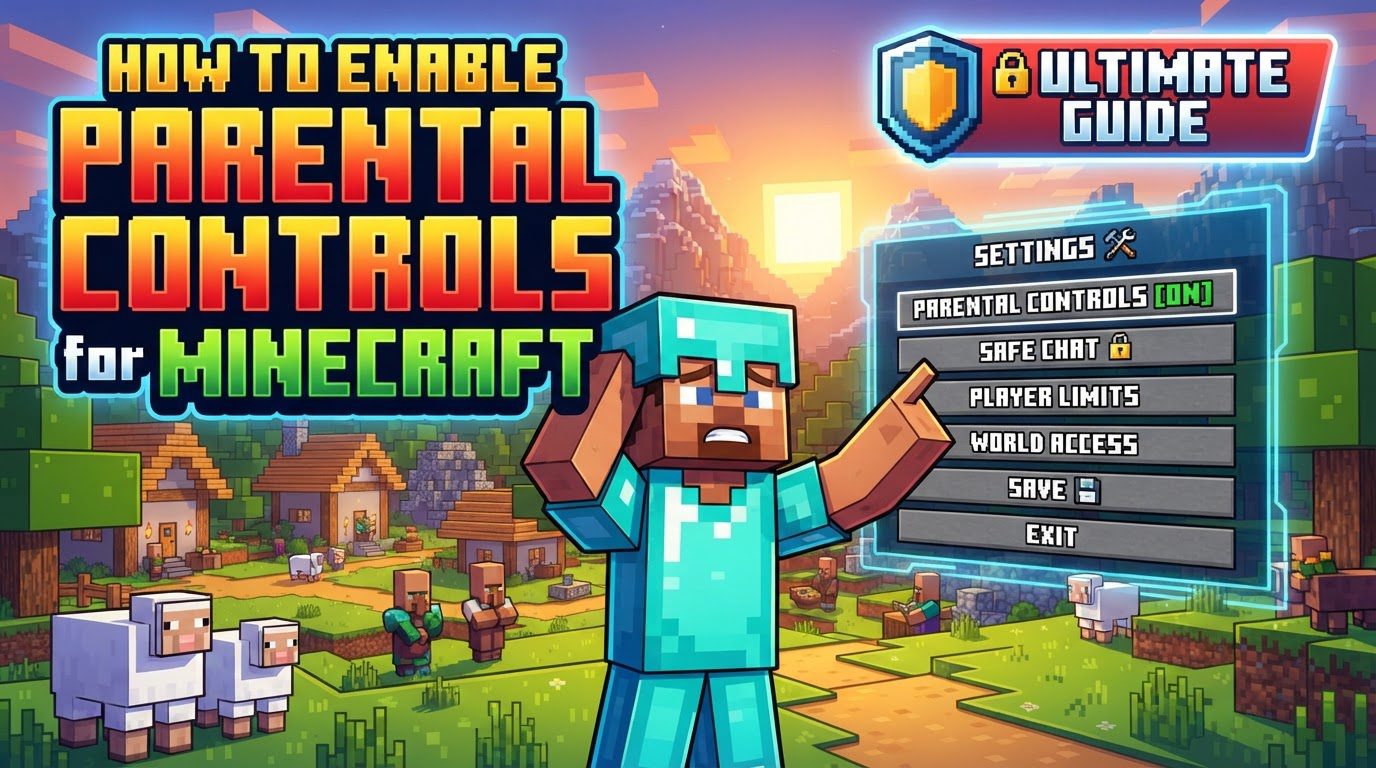
The core mechanism for managing Minecraft parental controls is through Microsoft Family Safety. This system is designed to provide parents with granular control over various aspects of their child’s online activity, regardless of the device used to play Minecraft. With Microsoft Family Safety, parents can manage crucial aspects such as who their child plays with, what in-game purchases they can make, the type of chat they see, and how long they play. The key areas of control encompass multiplayer access, in-game chat features, marketplace purchases, content restrictions, and screen time limits.
It’s important to note that while Microsoft Family Safety is the primary hub, console platforms like Nintendo Switch, PlayStation, and Xbox also provide their own layers of parental controls. These platform-specific settings can be configured in addition to the Microsoft Family settings, and in cases where settings conflict, the most restrictive setting will always take precedence. All major Minecraft editions, including Minecraft: Bedrock Edition, Minecraft: Java Edition, Minecraft Dungeons, and Minecraft Realms, require an Xbox Live or Microsoft account. This universal requirement is what enables parents to effectively set up and manage these accounts and their associated controls for their children.
Step-by-Step Process for Enabling Parental Controls
To effectively manage your child’s Minecraft experience, follow these steps to establish and customize parental controls.
Set Up Microsoft Family Safety
-
Open `family.microsoft.com` in a browser and sign in with the parent’s Microsoft account. This is the foundational step that creates your family group, allowing you to link and manage child accounts.
-
Select “Add a family member” and choose “Member” for an existing child account or create a new child account. This action brings your child’s account under your supervision within the Microsoft Family Safety framework. If your child already has a Microsoft account, you can add them. Otherwise, you’ll be guided through creating a new one.
-
Accept the invitation on the child’s device or via their email to link the accounts. For the parental controls to take effect, the child’s account must formally accept the invitation to join the family group. This ensures proper linkage and activation of the management features.
Adjust Xbox/Microsoft Account Settings (for multiplayer, chat, and purchases)
Once your family group is established, you can fine-tune specific game-related settings through the Xbox ecosystem, which is deeply integrated with Minecraft.
-
Navigate to `account.xbox.com/settings` or use the Xbox Family Settings app. Both options provide a gateway to manage the online safety and privacy settings for accounts linked to your Microsoft family group.
-
Select the child’s profile you wish to manage. Each child in your family group will have their own profile that you can individually configure, allowing for tailored settings based on their age and your preferences.
-
Under “Online Safety” or “Privacy & Online Safety,” adjust settings such as “You can join multiplayer games,” “You can create and join clubs,” and “Others can communicate with voice, text, or invites.” These options typically allow you to choose between “Block,” “Friends,” or “Allow,” giving you control over your child’s ability to interact with others in the game, join multiplayer worlds, and engage in communication. This is critical for managing who your child can play with and how they communicate.
-
To restrict marketplace purchases, go to “Money” within the child’s profile on `family.microsoft.com` and toggle on “Needs approval to buy things” or set a spending limit. This prevents unauthorized in-game purchases, including items from the Minecraft Marketplace. Additionally, Realms access, which is a subscription service for private servers, may also be restricted by setting an age-appropriate content rating for child profiles, ensuring they only access content suitable for their age.
Customize In-Game Chat Settings (within Minecraft)
Beyond the broader Xbox/Microsoft account settings, Minecraft itself offers specific controls for in-game chat that can further refine the communication experience.
-
From Minecraft’s main menu, select “Options…” and then “Chat Settings…”. This path leads to the in-game configurations that directly impact how chat messages are displayed and handled within the game.
-
Switch “Chat” to “Commands Only” or “Hidden” to control communication. Setting chat to “Commands Only” will restrict the chat window to only display game commands, effectively blocking player-to-player text chat. Choosing “Hidden” will completely remove the chat display, ensuring no communication is seen.
-
Set “Web Links” and “Prompt on Links” to “Off” to prevent receiving potentially harmful links. This crucial setting helps protect your child from clicking on external links that could lead to inappropriate content or phishing attempts, enhancing their online safety.
Important Tips for Effective Parental Control
Beyond the direct configuration steps, several best practices can enhance the effectiveness of your parental controls and foster a safer gaming environment.
-
Always set up the Microsoft Family Group first, as all other controls depend on it. This foundational step is non-negotiable; without a properly configured family group, many of the advanced controls for Minecraft will not function as intended.
-
Communicate with your child about why parental controls are being set to build trust and understanding of online safety. Open dialogue about the reasons behind these settings, such as protection from inappropriate content or managing screen time, can help your child understand and accept the boundaries, promoting a healthier relationship with technology.
-
Keep Minecraft updated to ensure access to the newest security fixes and player safety features, as controls are not provided for versions earlier than 1.16.4. Game updates often include crucial patches that address vulnerabilities and introduce new safety measures, making it essential to keep the game current for optimal protection.
-
Consider playing on private or whitelisted family-friendly servers, as these offer more control over who interacts with your child. Public servers can be unpredictable; private or whitelisted servers, where only invited players can join, provide a much more secure and controlled environment for social interaction.
-
Regularly monitor your child’s Minecraft activity, including servers joined, content watched, and interactions, through platform logs or screen recording apps. Active monitoring allows you to stay informed about their online experiences and identify any potential issues that may arise, even with controls in place.
-
Establish clear boundaries for game time using platform-level parental controls to ensure balanced play. Utilizing screen time limits available through Microsoft Family Safety or console-specific settings helps prevent excessive gaming and promotes a healthy balance with other activities.
-
For mobile devices, leverage native parental control features like Screen Time for iOS or Google Family Link for Android to manage app time limits. These device-level controls offer an additional layer of management for mobile gaming, allowing you to set specific time limits for the Minecraft app itself.
Common Mistakes to Avoid
Even with the best intentions, certain oversights can undermine the effectiveness of parental controls. Be aware of these common pitfalls.
-
Not establishing Microsoft Family Safety as the foundation: This is the most critical mistake. Without Microsoft Family Safety set up correctly, many other controls for Minecraft that rely on the Microsoft account ecosystem will not be effective, leaving gaps in your child’s protection.
-
Overlooking platform-specific controls: While Microsoft Family Safety is central, console-level parental controls on Switch, PlayStation, and Xbox add an extra layer of security. Failing to configure these means you might miss out on comprehensive protection, as the most restrictive setting always takes precedence.
-
Failing to set age restrictions: Ensure the age settings on a child’s account are accurate. Content and communication restrictions are often based on the declared age, so an incorrect age can lead to inappropriate content or permissions being granted.
-
Ignoring in-game chat settings: Even with broader communication controls at the Xbox account level, specific in-game chat options within Minecraft itself can further limit exposure to unwanted language or links. Neglecting these can leave an avenue for unfiltered communication.
-
Assuming parental controls apply universally: If a child logs into a different, unmanaged account or an older, unpatched version of Minecraft, the set controls may not apply. Controls are tied to specific accounts and game versions, so vigilance is required.
-
Forgetting about user-generated content: Custom mods or servers can introduce inappropriate content that bypasses game safeguards. This requires vigilant monitoring and restriction of downloads or access from untrusted sources, as these elements are often outside the scope of standard parental controls.
By diligently following these steps and tips, and being mindful of common mistakes, you can create a safe, controlled, and enjoyable Minecraft experience for your child, empowering them to explore, build, and interact responsibly within the game’s vast world.
Tags:
YOU MAY ALSO LIKE...