

Enabling Split-screen Multiplayer on Console, Explained
Minecraft offers an immersive experience for players of all ages, and one of its most cherished features on console platforms is the ability to play with friends and family side-by-side using split-screen multiplayer. This guide will walk you through the process of setting up split-screen, addressing common questions, and providing essential tips to ensure a smooth and enjoyable experience on your PlayStation, Xbox, or Nintendo Switch.
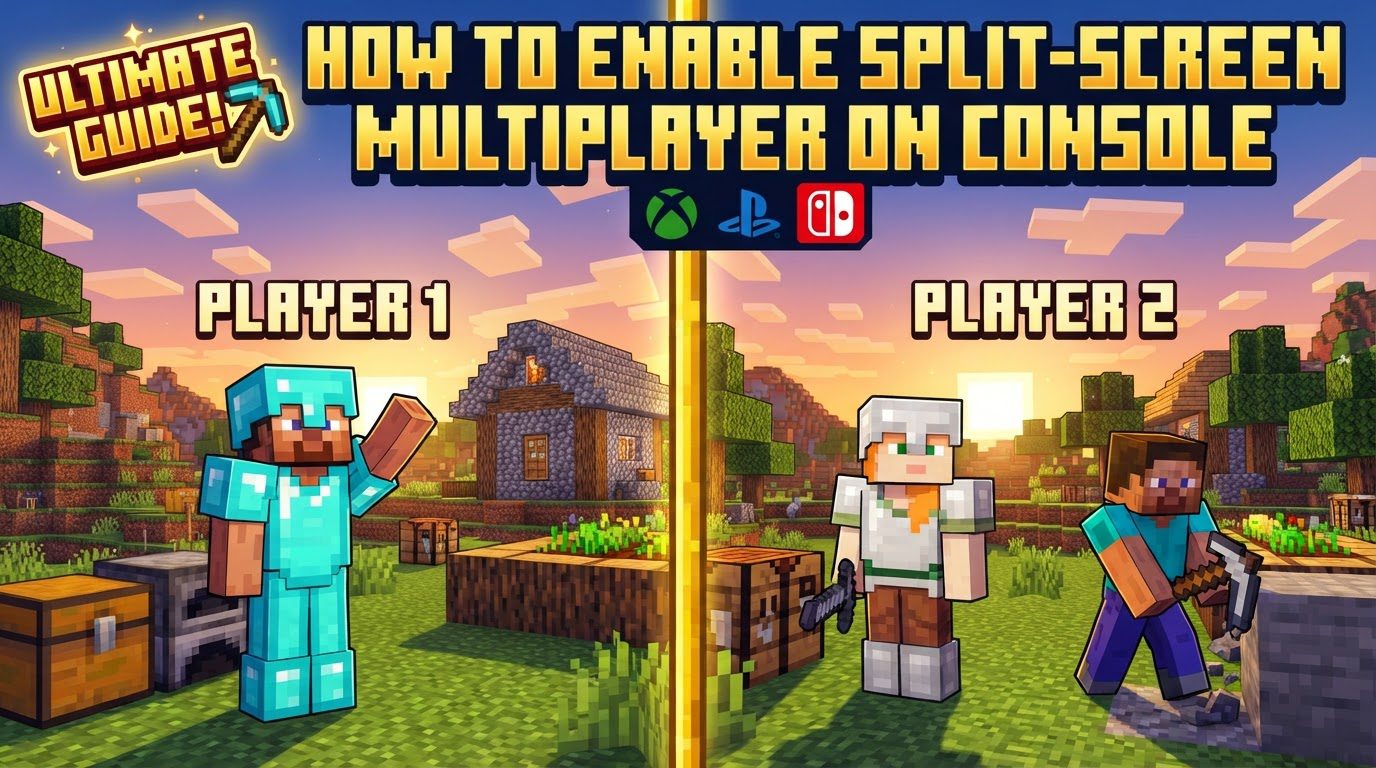
Understanding Split-Screen Multiplayer in Minecraft
Split-screen multiplayer in Minecraft is a console-exclusive feature that allows multiple players to share the same screen on a single console. This means you and your companions can explore, build, and survive in the same world without needing multiple consoles or separate online connections (for local play). Here are the fundamental aspects to be aware of:
- Bedrock Edition Exclusivity: Split-screen functionality is available specifically in Minecraft: Bedrock Edition. This is the version commonly found on PlayStation, Xbox, and Nintendo Switch. It is not supported on the Java Edition or older Legacy Console Editions on newer consoles.
- Player Limit: The Bedrock Edition supports up to four players simultaneously in split-screen mode on a single console. This allows for a small group of friends or family to join in the fun together.
- Platform Availability: This feature is exclusive to console versions, including PlayStation (PS4, PS5), Xbox (Xbox One, Xbox Series X/S), and Nintendo Switch. PC or mobile versions of Bedrock Edition do not support local split-screen.
- Display Requirements: To enable split-screen, your console must be connected to a high-definition display, such as a TV or monitor, with a minimum resolution of 720p. This connection must be made via an HDMI cable. Attempting to play split-screen on a display that doesn’t meet this resolution requirement will prevent the feature from working.
- Controller Requirement: Each player participating in split-screen multiplayer needs their own dedicated controller. This means for two players, you’ll need two controllers; for four players, you’ll need four controllers, and so on.
Step-by-Step Guide to Enabling Split-Screen
Getting started with split-screen multiplayer in Minecraft is a straightforward process. Follow these general steps to bring your friends into your blocky world:
- Launch Minecraft and Host a World: The first player, who will act as the host, needs to launch Minecraft: Bedrock Edition on their console. From the main menu, they should either create a new world or load an existing one. It’s crucial for the host to be fully loaded into the game world before other players attempt to join.
- Ensure Compatible Display Connection: Double-check that your console is properly connected to a high-definition TV or monitor via HDMI, ensuring it supports at least 720p resolution. This is a foundational requirement for split-screen to activate.
- Connect Additional Controllers: Power on and connect the second controller (and any subsequent controllers for more players) to your console. Ensure they are recognized by the system and are ready for use.
- Select a Console User Profile: Once the additional controller is connected, the second player will typically be prompted to select a console user profile. They can choose an existing profile on the console or, depending on the console, opt to play as a guest. For subsequent players, repeat this step.
- Join the Game In-World: With the first player already in the game world, the second player, using their connected controller, needs to press a specific button to join. This button is usually indicated by an on-screen prompt, such as the “Options” button on PlayStation, the “Menu” button on Xbox, or the “+” button on Nintendo Switch. This action signals to the game that another player wishes to join.
- Automatic Screen Split: Upon the second player successfully joining, the game screen will automatically split, adapting to accommodate both players. The screen will typically divide into two or four sections, depending on the number of players, allowing each participant their own view of the game world.
- Add More Players: To add more players (up to the maximum of four), simply repeat steps 3 through 6 for each additional player. Ensure each player has their own controller and selects a profile before attempting to join the game in progress.
Important Tips for a Smooth Split-Screen Experience
To maximize your enjoyment and avoid common hurdles, consider these essential tips:
- Host Account and Microsoft Accounts: The host player typically needs to be signed into their Microsoft account within Minecraft. For players joining on PlayStation and Nintendo Switch, it’s important to note that guest accounts or secondary console profiles cannot sign in to their own Microsoft accounts within the game. This means their progress might not be saved to a cloud profile, and certain online features might be unavailable to them.
- Disabling the “Multiplayer game” Toggle for Local Play: If your intention is purely local split-screen play without any online components, it is highly recommended to turn off the “Multiplayer game” toggle within the world settings. This can prevent the game from attempting to connect to online services, which might require online subscriptions unnecessarily or cause connectivity issues when playing strictly locally.
- Utilizing Console User Accounts: To ensure proper functionality and save progress for all players, it’s often beneficial for each player to have their own separate console user account. On PlayStation consoles, you can create new user profiles or use guest accounts for temporary play. On Nintendo Switch, having two distinct user profiles on the console can help resolve various issues related to player recognition and saving.
- Online Play Requirements: If you plan to play split-screen with other players joining from different consoles online, or if any of your local split-screen players wish to access online features, all accounts involved generally need to be signed into a Microsoft account within Minecraft. Furthermore, all players engaging in online play will typically require an active online subscription service relevant to their console (e.g., PlayStation Plus for PlayStation, Xbox Game Pass Core/Live Gold for Xbox, or Nintendo Switch Online for Nintendo Switch).
- Sharing Online Subscription Benefits: For Xbox and PlayStation users, a useful feature is setting your primary account’s console as the “Home Xbox” or “Primary PS4/PS5.” This setting allows other user accounts on that same console to share the benefits of your online subscription, such as Xbox Game Pass Core/Live Gold or PlayStation Plus. This means if the host has an active subscription and has set their console as primary, other local split-screen players on that console may be able to access online features without needing their own separate subscriptions.
- Nintendo Switch Controller Specifics: The Nintendo Switch has unique controller requirements for split-screen. Each player needs a complete Joy-Con pair (two individual Joy-Cons) or a Pro Controller. It’s crucial to understand that a single Joy-Con held horizontally will not work for Minecraft split-screen multiplayer. Additionally, for split-screen to function, the Nintendo Switch console often needs to be docked to a TV. Handheld mode typically does not support split-screen.
- Optimizing Performance: Minecraft can be demanding, especially with multiple players. Playing in Survival mode often provides smoother performance compared to Creative mode, which can be more resource-intensive. If you encounter lag or frame drops, particularly on older consoles, reducing the render distance in the game’s video settings can significantly improve performance by reducing the amount of world the console needs to process and display.
Common Mistakes to Avoid
Being aware of these common pitfalls can save you time and frustration when setting up split-screen:
- Insufficient Resolution: One of the most frequent issues is trying to enable split-screen on a TV or monitor that does not support at least 720p resolution. The game will simply not allow split-screen to activate if this requirement is not met. Always ensure your display is compatible and connected via HDMI.
- Incorrect Minecraft Edition: Remember that split-screen is primarily a feature of Minecraft: Bedrock Edition. If you are attempting to play on an older Legacy Console Edition (which might still be accessible on some newer consoles) or the Java Edition (on PC), split-screen will not work as expected. Ensure you are launching the correct version of the game.
- Improper Controller Connection: Ensure all controllers are not only powered on but also correctly paired and connected to the console. Sometimes, a controller might seem connected but isn’t fully recognized by the game. If issues arise, try reconnecting the controllers or even restarting Minecraft after all controllers are properly linked.
- Forgetting to Activate the Second Player In-Game: A common mistake is for the second player to just connect their controller and expect to appear in the game. The second player must actively press the designated button (e.g., Options, Menu, +) on their controller *after* the first player has fully loaded into a world. This action explicitly tells the game to activate the split-screen mode.
- Leaving the “Multiplayer game” Toggle On for Local Play: As mentioned previously, if you only intend to play local split-screen, leaving the “Multiplayer game” toggle enabled in the world settings can sometimes cause unnecessary complications. It might prompt for online subscriptions or create connectivity issues if the game tries to establish an online connection when only local play is desired.
- Underestimating Guest Account Limitations: While guest accounts are convenient for quick local play, they come with limitations. Guest accounts may not be able to play online, or more importantly, they might not retain their game progress, inventory, or achievements in the same way a full, signed-in user profile would. For long-term play, it’s better for each player to have their own console user profile.
- Ignoring Performance Issues on Nintendo Switch: While possible, Minecraft split-screen on Nintendo Switch can sometimes be prone to performance issues. Players might experience noticeable frame drops, lag, or even crashes, especially in busy areas or with many entities. While reducing render distance helps, some users might find the experience unplayable. It’s an important consideration for Switch players.
By following these guidelines and being mindful of these common pitfalls, you can set up and enjoy split-screen multiplayer in Minecraft on your console, sharing the adventure with friends and family right from your couch.
Tags:
YOU MAY ALSO LIKE...


