

Enabling the Latest Snapshot in the Launcher (Step by Step)
Minecraft snapshots represent an exciting, yet often challenging, aspect of the game’s development cycle. These special releases are experimental, unfinished testing versions of upcoming Java Edition updates. Released periodically by Mojang Studios, typically on a weekly basis every Wednesday, snapshots offer players an early glimpse into the future of Minecraft. They are designed to introduce new, unrefined features, including innovative items, fascinating mobs, versatile blocks, and groundbreaking game mechanics. The primary purpose of these releases is to allow the dedicated Minecraft community to test these additions thoroughly and provide invaluable feedback to the developers, helping to shape the final product.
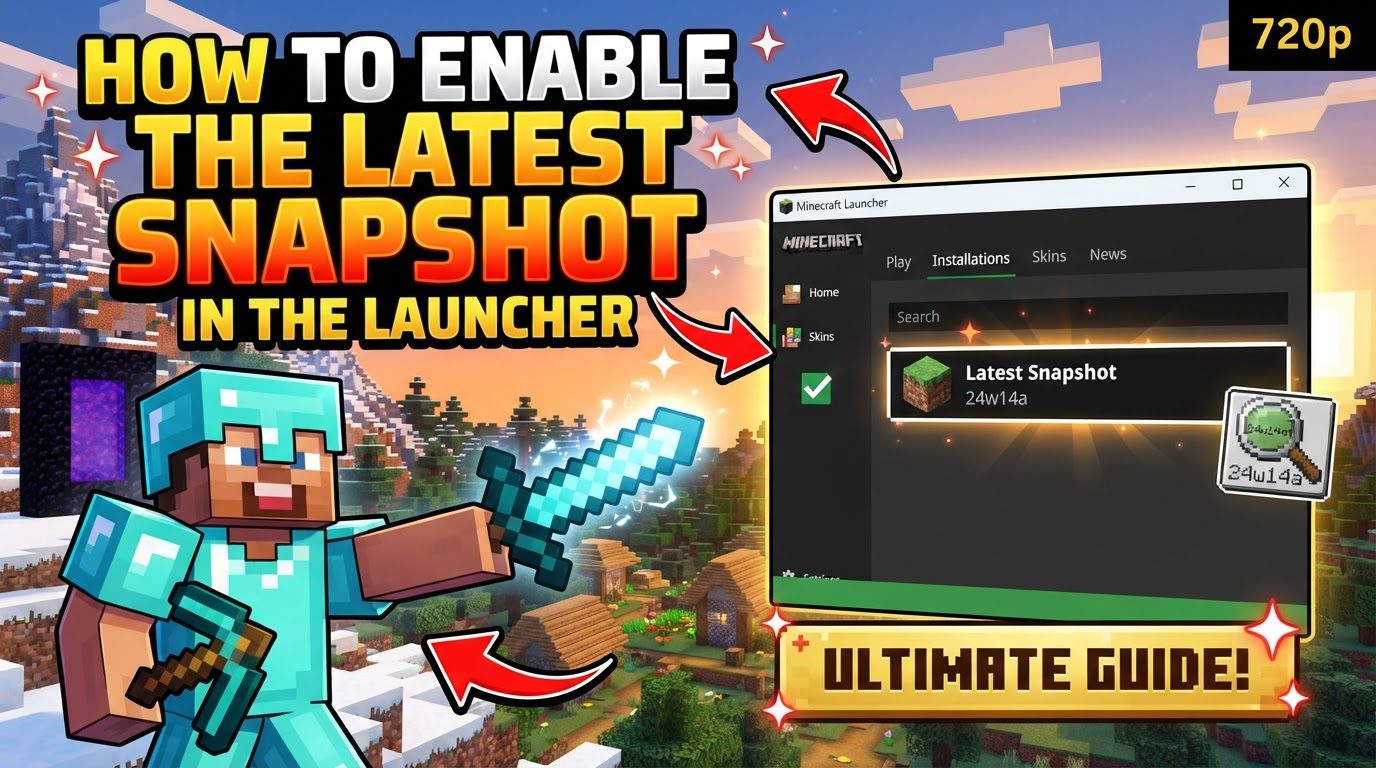
It is crucial for players to understand that snapshots are inherently unstable. By their very nature as development builds, they may contain numerous glitches, unexpected bugs, and unpolished elements. A significant risk associated with playing on snapshots is the potential for them to corrupt existing game worlds. Therefore, caution and preparedness are paramount when venturing into these experimental versions. It is also important to note the distinction for other editions of Minecraft: the Bedrock Edition utilizes “builds” or “betas” for testing its new content, which serve a similar purpose but are distinct from the “snapshots” concept exclusive to the Java Edition.
Enabling Snapshots: A Step-by-Step Guide
To begin exploring the cutting-edge features offered in Minecraft snapshots, you must first enable them within your Minecraft Launcher. The process is straightforward, but requires careful attention to ensure you select the correct options.
-
Open the Minecraft Launcher: Your journey begins by launching the official Minecraft Launcher. This is the central hub from which you manage all your Minecraft installations, versions, and game launches.
-
Navigate to the “Installations” Tab: Once the launcher is open, direct your attention to the top navigation bar. You will find several tabs there, including “Play,” “Installations,” and “Skins.” Click on the “Installations” tab to access your list of game versions and profiles.
-
Enable the “Snapshots” Checkbox: Within the “Installations” tab, observe the options presented. There will be a series of checkboxes that filter the types of installations displayed. Locate the “Snapshots” checkbox. It is essential that this box is enabled or ticked. If it is currently unchecked, click on it to turn it on. Enabling this option tells the launcher to display available snapshot versions, making them selectable for play.
-
Select or Create a Snapshot Installation: After enabling snapshots, you have two primary methods to start playing the latest experimental version:
-
Method 1: Using the “Latest Snapshot” Option Directly: Return to the main “Play” screen of the launcher. To the left of the prominent “Play” button, you will find a dropdown menu that typically displays your currently selected game version (e.g., “Latest Release”). Click on this dropdown menu. With the “Snapshots” checkbox enabled in the “Installations” tab, you should now see “Latest Snapshot” as an available option. Select it to automatically configure your launcher to run the most recent snapshot.
-
Method 2: Creating a New Installation for the Snapshot: Alternatively, and often recommended for better organization, you can create a dedicated installation profile for the snapshot. Go back to the “Installations” tab. Click on the “New Installation” button. A new window will appear, prompting you to configure the new profile. You can give this installation a descriptive name, such as “Snapshot Testing” or “Experimental World,” which is entirely optional but helpful for distinguishing it from your main game versions. Crucially, from the “Version” dropdown list within this window, select “Latest Snapshot.” After making your selections, click the “Create” button to save your new snapshot installation profile.
-
-
Launch the Game: Once you have either selected “Latest Snapshot” from the main dropdown or created and selected your new snapshot installation, return to the “Play” tab. Ensure that the version displayed next to the “Play” button is indeed “Latest Snapshot” or the name of your newly created snapshot profile. Then, simply click the large “Play” button to launch the game using the selected snapshot version.
-
Enable Experimental Features in New Worlds: When you create a brand-new world while playing on a snapshot, it’s vital to remember an additional step. Many of the newest and most significant features introduced in snapshots are initially hidden behind experimental toggles. During the world creation process, navigate through the settings and actively enable these experimental features. This ensures you can access and test all the cutting-edge content that the snapshot has to offer.
Important Considerations and Best Practices
Venturing into the world of Minecraft snapshots requires a thoughtful approach. While they offer exciting new content, their experimental nature means that certain precautions and best practices should be followed to ensure a smooth and enjoyable experience, while safeguarding your existing progress.
-
Always Back Up Your Worlds: This is arguably the most critical tip when dealing with snapshots. Before you even consider loading an existing Minecraft world into a snapshot version, create a comprehensive backup of that world. Snapshots are known for their instability and can, in some instances, corrupt world data beyond recovery. A backup provides a safety net, allowing you to revert to a stable state if anything goes wrong.
-
Consider Creating New Worlds for Snapshots: To further protect your valuable main saves, it is highly recommended to create entirely new worlds specifically for playing in snapshots. This completely isolates your experimental gameplay from your long-term survival or creative builds. By doing so, you mitigate the risk of accidentally loading a beloved world into an unstable snapshot and facing potential corruption.
-
Multiplayer Requires Version Consistency: If you plan to play multiplayer with friends using a snapshot, ensure that all participating players are using the exact same snapshot version. Discrepancies in versions will lead to connection errors and an inability to join the same server or world. Communication among players is key to a successful multiplayer snapshot experience.
-
Realms and Snapshots: For those who enjoy playing on Minecraft Realms, accessing snapshots requires an active Java Edition Realms subscription. While Realms are generally designed for stable play, Mojang often provides specific instructions or limitations regarding snapshot compatibility. Always check official announcements if you intend to use a snapshot with your Realm.
-
Stay Informed with Patch Notes: Snapshots are constantly evolving. New features are added, bugs are fixed, and sometimes, existing mechanics are altered. To stay abreast of all these changes, regularly check the official Minecraft website or reputable community resources for the latest snapshot’s patch notes. Understanding these notes will help you anticipate changes, adapt your gameplay, and provide more informed feedback.
-
Game Mechanics Can Change: Be aware that game mechanics are fluid in snapshots. Something that works perfectly in one snapshot might be subtly changed or even entirely broken in the next. This is particularly relevant for complex builds like automatic farms or redstone contraptions. What functions consistently across different snapshot versions is not guaranteed, and you may need to adapt or rebuild elements as updates roll out.
Common Mistakes to Avoid When Using Snapshots
While the allure of new content is strong, being aware of common pitfalls can save you a lot of frustration and potential loss of progress. Avoiding these mistakes will help ensure a more positive snapshot testing experience.
-
Not Backing Up Worlds: As emphasized, this is the most critical error. Playing important, existing worlds on a snapshot without first creating a backup is a significant risk. If the snapshot corrupts your world data, which is a very real possibility, your progress could be permanently lost without a recovery option. Always take the time to copy your world saves before launching them in any snapshot.
-
Expecting Stability: Snapshots are, by definition, development builds. They are not intended for stable, long-term gameplay. Expecting them to be as polished and bug-free as official releases is a mistake. They are prone to bugs, unexpected crashes, and features that might be unpolished or incomplete. Embrace the experimental nature and prepare for potential disruptions.
-
Forgetting to Enable Snapshots: A frequent oversight is neglecting to tick the “Snapshots” option in the “Installations” tab. If this checkbox is not enabled, snapshot versions will simply not appear in your version dropdown lists, leading to confusion and an inability to select them for play. Always double-check this setting if you cannot find the “Latest Snapshot” option.
-
Attempting on Bedrock Edition: Snapshots are a feature exclusive to the Java Edition of Minecraft. Players attempting to find or enable snapshots on the Bedrock Edition will be unsuccessful because Bedrock uses a different system for testing experimental content, typically referred to as “betas” or “previews.” Ensure you are using the Java Edition launcher if you wish to access snapshots.
-
Not Enabling Experimental Features in New Worlds: Many of the most exciting new features in snapshots are introduced as “experimental” toggles during world creation. Forgetting to enable these specific toggles when starting a new world means you might miss out on the very content you wanted to test. Always check the world creation settings for these options to fully experience the snapshot’s offerings.
Tags:
YOU MAY ALSO LIKE...


