Fixing a MOTD That Gets Cut Off by Nested Components (Step by Step)
The Message of the Day (MOTD) is a crucial first impression for any Minecraft server, welcoming players and conveying essential information. However, an improperly formatted or overly complex MOTD, particularly one that uses “nested components” or extensive formatting, can often appear cut off or even prevent players from seeing your server on the list. This guide will provide a comprehensive overview of how to diagnose and fix such issues, ensuring your server’s message is always displayed clearly and correctly.
Understanding Minecraft MOTD Mechanics
Before diving into solutions, it’s vital to grasp how the Minecraft MOTD functions. The server’s MOTD is primarily defined within the server.properties file, located in your Minecraft server’s root directory. This plain text file contains various configuration settings for your server, including the line that specifies your MOTD.
Minecraft MOTDs support a rich array of color and formatting codes. These are typically applied using the section sign character (§) followed by a specific character (e.g., §c for red, §l for bold). When editing the server.properties file directly, it is often necessary to use the Unicode escape sequence for the section sign, which is \u00A7. For instance, \u00A7c would render text in red, and \u00A7l would make it bold. Understanding this distinction is fundamental to applying formatting correctly.
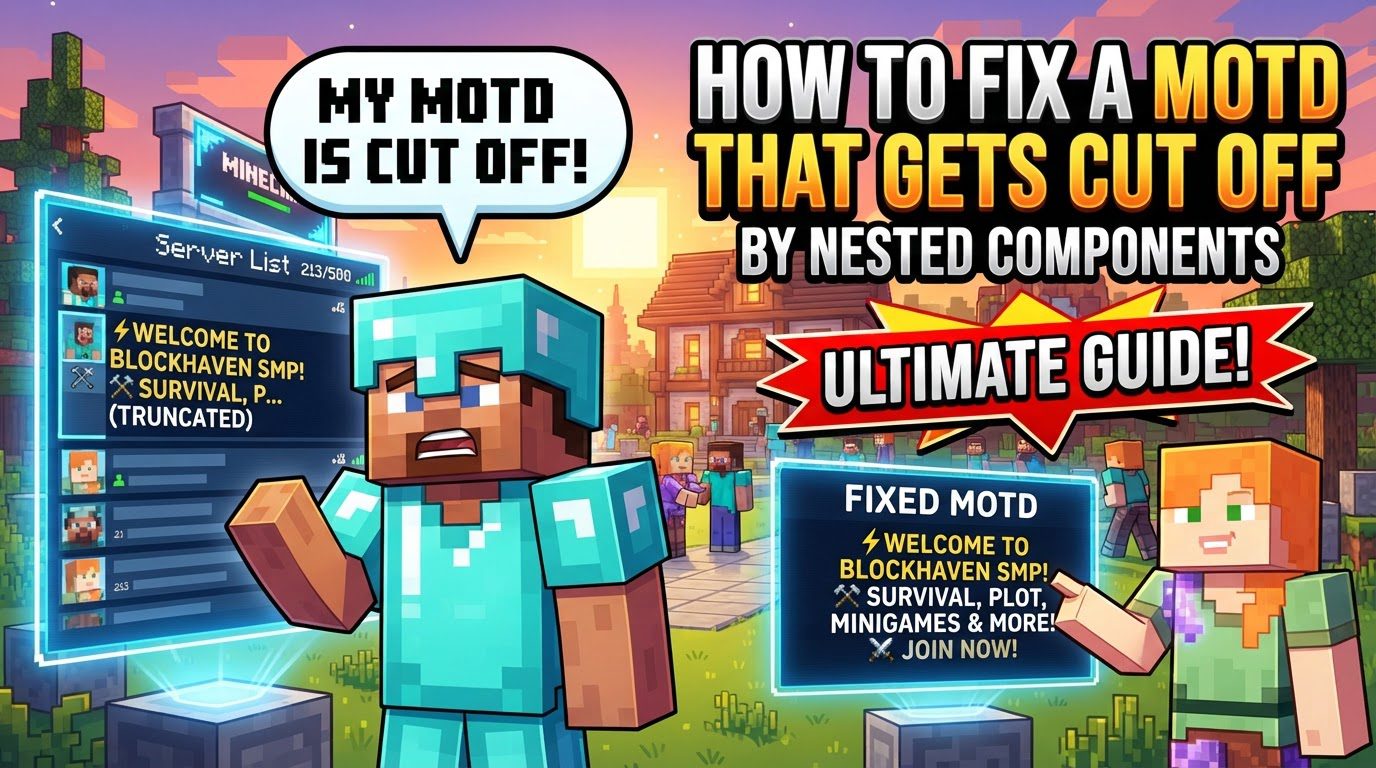
For Minecraft Java Edition, the MOTD is designed to display on two distinct lines. This two-line structure is important because each line has its own strict character limitation. Specifically, there is a visible character limit of 45 characters per line for Java Edition MOTDs. Crucially, the color and formatting codes themselves (like \u00A7c or \u00A7l) do not count towards this 45-visible-character limit. This distinction allows for rich formatting without significantly reducing the textual content you can display.
Beyond the per-line limit, there’s also an overarching character constraint. An MOTD exceeding approximately 59 characters in total (including all formatting codes and visible text across both lines) may lead to a “communication error” being reported by the server list. This error prevents players from even seeing your server’s status or MOTD, making it appear offline or unreachable. It’s a critical threshold to be aware of when designing your message.
Furthermore, special characters, such as decorative symbols or non-standard punctuation, require careful handling. If you wish to include characters like a heart symbol (♥), you must convert them to their escaped Unicode form. For example, ♥ must be written as \u2665 in the server.properties file to display correctly without causing errors or being rendered as question marks.
Step-by-Step Process to Fix Your MOTD
Correcting a cut-off or problematic MOTD involves a precise series of steps:
-
Access
server.properties:The first step is to locate and open the
server.propertiesfile. This file is found in the main directory of your Minecraft server. If you are using a hosting provider, you will typically access this file through their web-based file manager or via an FTP client. -
Locate the MOTD line:
Once you have opened
server.properties, search for the line that begins withmotd=. This is the line where your server’s current message is defined. It might contain a default message or your previous attempt at customization. -
Edit the MOTD:
Carefully replace the existing text after
motd=with your desired new message. It’s often best to start with a simple, unformatted message to ensure basic functionality before adding complex styling. -
Apply Formatting:
-
To incorporate colors and other formatting (like bold, italics, or underlines), use the Unicode escape sequence
\u00A7followed by a single character. For instance,\u00A7cwill make the subsequent text red, and\u00A7lwill make it bold. You can combine these, such as\u00A7c\u00A7lfor bold red text. Remember that these codes do not contribute to your visible character count. -
To create a two-line MOTD, which is the standard display for Java Edition, insert the newline character
\nat the exact point where you want the line break to occur. The text before\nwill be on the first line, and the text after it will be on the second line.
-
-
Check Length Carefully:
This is a critical step for preventing cut-off MOTDs. Ensure that each line of your MOTD contains no more than 45 visible characters. When counting, explicitly exclude all formatting codes (e.g.,
\u00A7c,\u00A7l) and the newline character (\n). Focus only on the characters that players will actually see on their screen. Also, be mindful of the approximately 59-character total limit to avoid “communication errors.” -
Save and Restart:
After making all your edits and verifying the length, save the
server.propertiesfile. It is absolutely essential to then restart your Minecraft server for these changes to take effect. The server reloads its configuration files only during startup, so simply saving the file without a restart will not update your MOTD.
Important Tips for MOTD Design
Crafting an effective and error-free MOTD can be streamlined with a few key practices:
-
Utilize Online Minecraft MOTD Generators:
These tools are invaluable resources. They allow you to design your MOTD with a live preview, showing exactly how it will appear in the Minecraft client. Furthermore, these generators automatically handle correct character escaping (converting
§to\u00A7) and manage line breaks, often generating the complete, ready-to-pastemotd=line for yourserver.propertiesfile. This significantly reduces the chances of manual errors. -
Prioritize Conciseness:
Due to the strict character limits (45 visible characters per line, and approximately 59 total characters), it is crucial to keep your message brief and impactful. Focus on conveying the most important information or a compelling server tagline within these constraints. Every word counts, so choose them wisely.
-
Be Aware of Visual Length:
While formatting codes don’t count towards the character limit, certain formatting, such as bold characters (
\u00A7l), can take up more visual space than regular characters. This visual difference can affect how your MOTD appears centered or aligned in the server list. Even if the character count is correct, a heavily bolded line might visually appear longer or off-center compared to a line of regular text. Test your MOTD in the game client to ensure it looks as intended.
Common Mistakes to Avoid
Many MOTD issues stem from easily preventable errors. Being aware of these pitfalls can save you significant time and frustration:
-
Exceeding Character Limits:
This is by far the most common reason for a cut-off MOTD. Having more than 45 visible characters per line for Java Edition will inevitably result in your message being truncated. Even more critically, exceeding approximately 59 characters in total (across both lines, including all formatting codes) can cause a “communication error” to be reported by the server list, making your server appear unavailable. Always double-check your character count, focusing on visible characters first, then the total.
-
Incorrect Formatting Codes:
A frequent error is attempting to use the ampersand symbol (
&) instead of the section sign (§) or its Unicode escape (\u00A7) for color and formatting directly inserver.properties. While some plugins or server wrappers might interpret&, the native Minecraft server requires§or, more reliably in theserver.propertiesfile,\u00A7. Using the incorrect symbol will either result in the code being displayed as plain text or being misinterpreted, leading to improper display or errors. -
Not Escaping Special Characters:
Characters that are not standard ASCII text, or even the section sign itself, must be properly escaped using their Unicode representations. For example, a heart symbol (
♥) needs to be written as\u2665. If you want to literally display the section sign (§) in your MOTD, it must be escaped as\u00A7. Failing to escape these characters can lead to them being rendered incorrectly (e.g., as question marks or blank spaces) or causing parsing errors in the MOTD. -
Forgetting Server Restart:
As mentioned previously, changes made to the
server.propertiesfile are not dynamically applied. If you edit your MOTD and then simply refresh your Minecraft client, you will not see the changes. You must restart your Minecraft server entirely for the new configuration to be loaded and take effect. This is a common oversight that leads server owners to believe their changes aren’t working. -
Server Panel Interference:
Some hosting control panels or server management tools have their own MOTD configuration interfaces. In certain cases, these panels might overwrite the
server.propertiesfile upon server startup or reconfigure it based on their own settings. If you find your MOTD changes are consistently being reverted or not applied, check your hosting panel’s specific MOTD settings or contact your host’s support to ensure your manual edits toserver.propertiesare not being undone by the panel.
By understanding these core mechanics, following the step-by-step process, and avoiding common pitfalls, you can effectively troubleshoot and perfect your Minecraft server’s MOTD. A well-crafted MOTD not only enhances your server’s presentation but also ensures players receive your intended message clearly, without any frustrating cut-offs or errors.
Tags:
YOU MAY ALSO LIKE...