Fixing “failed to Connect to Server” on Console, Explained
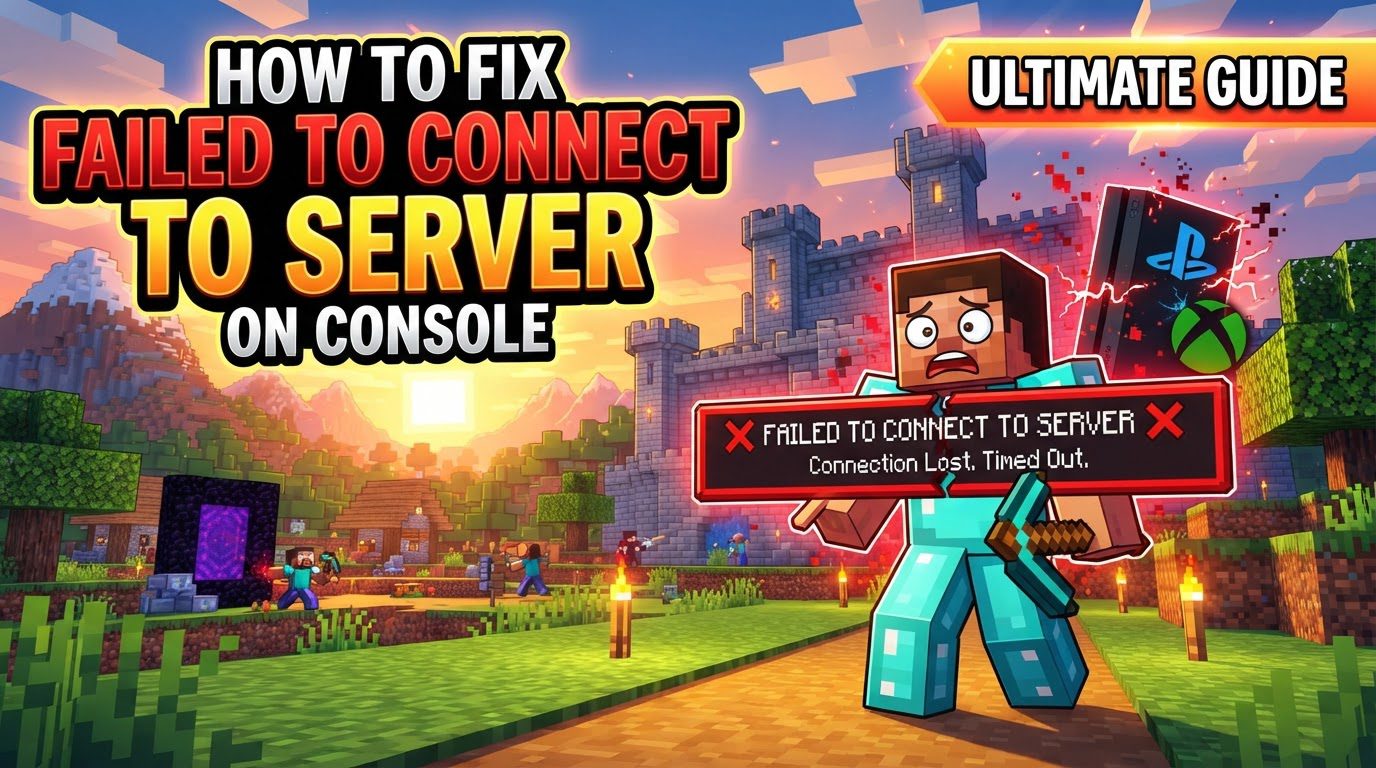
Encountering the “failed to connect to server” error in Minecraft on consoles can be a frustrating experience, interrupting your adventures with friends or on your favorite online worlds. This comprehensive guide will walk you through the various causes of this common issue and provide a step-by-step troubleshooting process to get you back into the game. Fixing this error often requires a combination of internet troubleshooting, game-specific checks, and console adjustments.
Understanding the Root Causes
Before diving into solutions, it’s crucial to understand the underlying reasons why you might be encountering connection issues. Several factors, ranging from simple oversight to complex network configurations, can prevent your console from connecting to a Minecraft server.
- Internet Connectivity: The most frequent culprit is an unstable, slow, or entirely absent internet connection. Minecraft, especially for multiplayer, relies heavily on a consistent and robust internet connection to transfer data between your console and the server. Any interruption or significant slowdown can lead to connection timeouts and errors.
- Software Version Mismatch: Minecraft is regularly updated with new features, bug fixes, and performance improvements. If your game version differs from the server’s version, it creates an incompatibility that prevents a successful connection. Both your game and the server must be running the exact same software version.
- Incorrect Server Details: When manually adding a server, even a small typo in the server IP address or port number will lead to a connection failure. Servers are identified by these specific details, and any deviation will direct your console to the wrong, or a non-existent, address.
- Server Status: Sometimes, the problem isn’t on your end at all. The target server itself might be offline due to maintenance, unexpected technical issues, or simply because the host has closed it down. Attempting to connect to an offline server will always result in a failure.
- Corrupted Data/Cache: Over time, your console and game accumulate temporary files and cached data to improve loading times and performance. If these files become corrupted, they can interfere with the game’s ability to establish network connections, leading to errors.
- Account and Subscription Validity: Multiplayer access on consoles often requires specific conditions to be met. This includes being properly signed into a Microsoft account, ensuring it’s the correct account linked to your game, and possessing an active online service subscription (such as PlayStation Plus, Xbox Game Pass Core, or Nintendo Switch Online) if you intend to play online multiplayer.
- Network Restrictions: Your home network or even your console’s settings can impose restrictions. Firewalls (both on your router and potentially on your console), strict Network Address Translation (NAT) types, or network policies implemented by workplaces or schools can block the necessary ports or protocols Minecraft uses to connect to external servers.
- In-Game Multiplayer Settings: For private worlds hosted by a friend, the host’s specific in-game settings can be a barrier. If the host’s world has multiplayer disabled, or if cross-play settings are misconfigured for players on different console platforms, others will be unable to join.
- Temporary Glitches: Minor software bugs or transient issues within the console’s operating system or the Minecraft application itself can occasionally cause connection problems. These are often temporary and can be resolved with simple restarts.
Step-by-Step Troubleshooting Process
Follow these steps systematically to diagnose and resolve the “failed to connect to server” error.
- Internet Connection Check:
- First, confirm that your console has a stable and active internet connection. Navigate to your console’s network settings to ensure it’s connected to your Wi-Fi or wired network.
- Run a speed test directly from your console’s browser, if available, or on a device connected to the same network. This will assess the quality and speed of your connection.
- Perform a power cycle on your router and modem. Unplug both devices from their power sources for at least 30 seconds, then plug them back in and wait for them to fully reboot and re-establish an internet connection. This often resolves minor network glitches.
- If you are currently using a Wi-Fi connection, try connecting your console directly to your router using an Ethernet cable. A wired connection offers greater stability and can rule out wireless interference as a cause.
- Restart Game and Console:
- Completely close the Minecraft application. Do not just suspend it; ensure it’s fully quit from your console’s dashboard. Then, relaunch the game.
- Perform a full restart of your console. This clears temporary system files and can resolve minor software bugs that might be interfering with network functions.
- Verify Game and Account:
- Ensure your Minecraft game is fully updated to the latest available version. Console updates are often automatic, but it’s wise to manually check for updates.
- Within Minecraft, navigate to your profile or account settings, sign out of your Microsoft account, and then sign back in. This can refresh your account’s connection to the game services.
- Confirm that you have an active online service subscription (e.g., Xbox Game Pass Core for Xbox, Nintendo Switch Online for Switch, or PlayStation Plus for PlayStation) if you are attempting to play multiplayer. These subscriptions are mandatory for online play on most console platforms.
- Double-check that you are signed in with the correct Microsoft account that owns Minecraft or has access to its online features.
- Check Server Details and Status:
- If you are manually entering server details, carefully double-check the server IP address and port number for any typos or incorrect digits. Even a single error will prevent connection.
- Use external resources, such as the server’s official website, social media channels, or dedicated server status checkers, to confirm that the server is currently online and operational.
- If you are attempting to join a friend’s world, communicate with them to confirm they are currently online and that their world settings are configured to allow multiplayer connections.
- Advanced Network Settings (if basic steps fail):
- Check your console’s Network Address Translation (NAT) type in its network settings. An “Open” or “Moderate” NAT type offers the best connectivity for online gaming. A “Strict” NAT type can severely limit your ability to connect to other players or servers.
- Temporarily disable any firewalls on your router or within your console’s settings. Alternatively, ensure that Minecraft is specifically listed as an allowed application or service within your firewall rules. Remember to re-enable firewalls after testing for security.
- Consider changing your console’s DNS settings. Public DNS servers like Google’s (Primary: 8.8.8.8, Secondary: 8.8.4.4) or Cloudflare’s (1.1.1.1) can sometimes offer more reliable resolution than your ISP’s default servers.
- If applicable to your console’s operating system, look for an option to flush the DNS cache. This clears old DNS entries that might be causing resolution issues.
- Specific Game Workarounds:
- If you’re trying to join a friend’s game and repeatedly fail, try loading into one of your own single-player worlds first. Once loaded, save and quit that world, and then immediately attempt to join your friend’s world. This can sometimes reset the game’s network state.
- Ask the host of the game to send you a direct game invite through your console’s friends list or the in-game invite system. This method can bypass some connection issues.
- As a last resort, if all other steps have failed, consider uninstalling Minecraft from your console and then reinstalling it. Before doing this, ensure you back up any important worlds or save data, as uninstallation will typically delete local saves.
Important Tips for Success
Keep these additional considerations in mind to enhance your chances of a successful connection:
- Version Consistency: Always ensure that all players attempting to connect to a specific server or world are running the exact same version of Minecraft. Version discrepancies are a common cause of connection failures.
- Wi-Fi Signal Strength: If you are using a wireless connection, try to minimize the physical distance between your console and your Wi-Fi router. Obstacles like walls can also degrade signal quality, leading to instability.
- Bandwidth Management: Temporarily halt any other bandwidth-intensive activities on your home network. This includes large downloads, video streaming on other devices, or online gaming by other household members. This ensures Minecraft has sufficient bandwidth.
- Minecraft Bedrock Edition Settings: For Minecraft Bedrock Edition, the host of the world must confirm that the “Multiplayer Game” option is enabled within their world settings. Additionally, if players are on different console platforms, ensure that cross-play settings are correctly configured and active.
- Realm Status: If you are connecting to a Minecraft Realm, verify that the Realm is currently active and that the Realm owner’s subscription is current and has not expired. Inactive Realms cannot be joined.
- Test Different Servers: To help pinpoint the problem, try to connect to a different server (e.g., a public server, or another friend’s world). If you can connect to other servers successfully, the issue might be specific to the original server you were trying to join.
Common Mistakes to Avoid
Being aware of these common pitfalls can save you time and frustration:
- Overlooking Updates: One of the most frequent mistakes is failing to update Minecraft to its latest version. This leads to version incompatibility errors that prevent server connections.
- Incorrect Input: Carelessly mispelling the server’s IP address or port number during manual entry is a common and easily avoidable error. Always double-check your input.
- Ignoring Basic Network Troubleshooting: Many players jump to complex solutions without first performing basic network checks like restarting their router or verifying their internet speed. These simple steps often resolve the issue.
- Lack of Online Subscriptions: Forgetting that console multiplayer almost always requires a platform-specific online service subscription (like PlayStation Plus or Xbox Game Pass Core) is a common oversight.
- Strict NAT: Operating with a strict NAT type can severely limit your online connectivity, making it difficult to join many servers or play with friends. Addressing your NAT type is crucial for consistent online play.
- Firewall Interference: Not checking if console or router firewalls, or other security software on your network, are actively blocking Minecraft’s connection to external servers.
- Incomplete Restarts: Sometimes, simply closing the game or putting the console into rest mode isn’t enough. A full, hard reboot of all relevant devices-the game, the console, and your network router/modem-is often necessary to clear deeper issues.
- Host Configuration Errors: If you are trying to join a friend’s world, the person hosting the multiplayer game might not have the correct in-game settings enabled for others to join, such as having multiplayer disabled or incorrect cross-play settings.
By systematically working through these steps and avoiding common mistakes, you should be able to resolve the “failed to connect to server” error and get back to enjoying Minecraft on your console.
Tags:
YOU MAY ALSO LIKE...