Grouping Blocks Using Datapack Tags
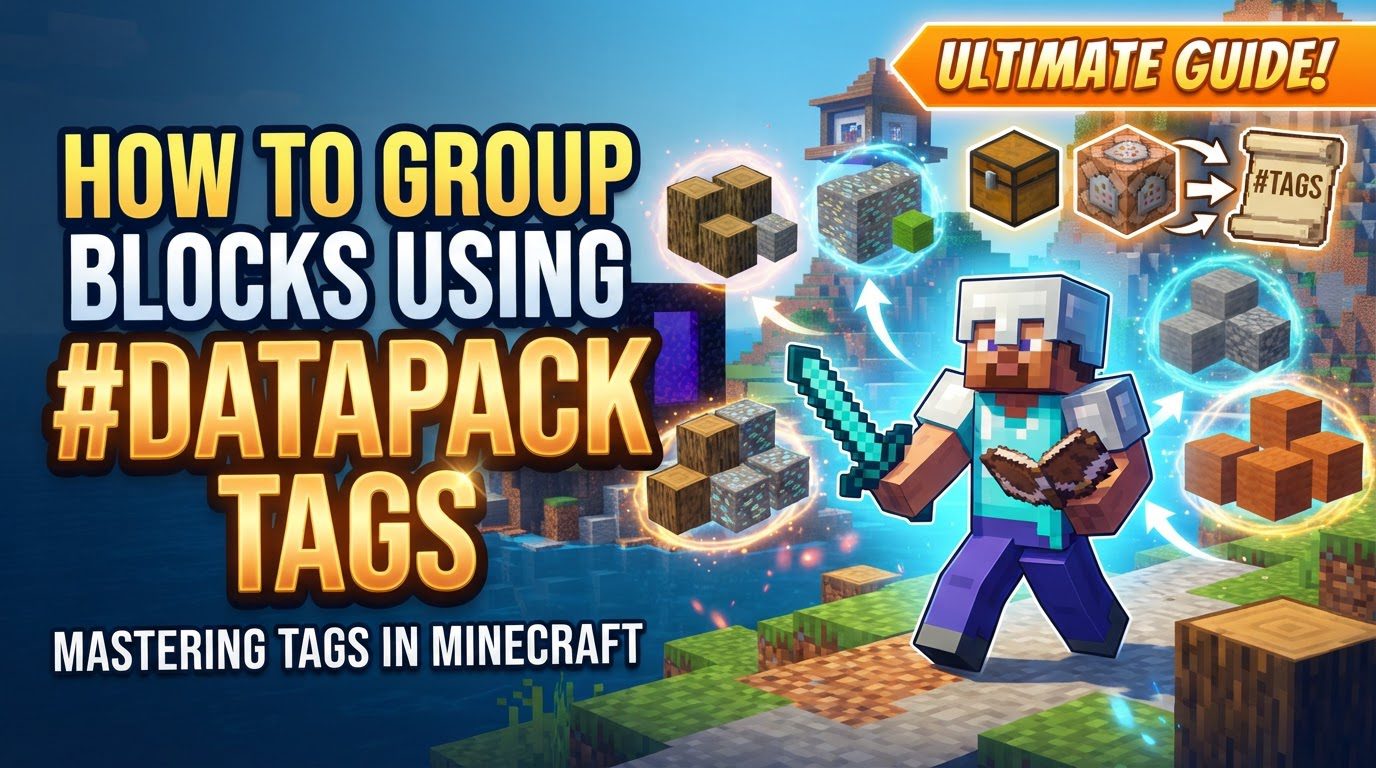
Minecraft datapack tags offer a powerful mechanism for grouping various game elements, including blocks, items, and fluids. This grouping simplifies complex game logic and streamlines command usage within your custom content. Among these, block tags are particularly versatile, allowing creators to define collections of blocks that can then be referenced with a single, concise identifier.
Understanding Block Tags
Block tags are essentially JSON files that serve as definitions for a collection of block IDs or references to other existing tags. These specialized files reside within your datapack’s file structure, specifically located under data//tags/blocks/. The primary advantage of using block tags is their ability to represent multiple individual blocks through a single reference, such as #your_namespace:your_tag. This single reference can then be utilized across various game components, including commands, crafting recipes, and advancements, significantly reducing redundancy and improving maintainability.
The core of a block tag JSON file is its values array. This array explicitly lists the specific block IDs that belong to the group. For example, you might include "minecraft:stone" or "minecraft:cobblestone". Beyond individual blocks, the values array can also reference other existing tags by prefixing their resource location with a hash symbol (#), such as "#minecraft:planks". This allows for the creation of hierarchical and interconnected tag structures.
Another important aspect of block tag JSON files is the optional replace field. By default, this field is set to false. When replace is false, your tag will append its defined values to any existing tag with the same name that might come from vanilla Minecraft or other datapacks. If you set "replace": true, your tag will completely override and replace any existing tag with that name, ensuring only your specified values are used. This field must be used with caution to avoid unintended alterations to game behavior.
Minecraft itself leverages block tags extensively for various built-in mechanics. For instance, the game uses tags to determine which blocks can form the base of a beacon or which blocks are required to summon a Wither. Understanding these vanilla implementations can provide valuable insights into how to structure your own custom tags.
Step-by-Step Process for Creating Block Tags
Creating and implementing your own block tags involves a clear, sequential process within your Minecraft datapack.
1. Create Your Datapack
The first step is to establish a standard Minecraft datapack. This requires creating a folder within your world’s datapacks directory and ensuring it contains a valid pack.mcmeta file. This file provides essential information about your datapack, such as its description and format version.
2. Navigate to the Block Tags Folder
Inside your newly created datapack folder, you need to establish the specific directory structure where block tags reside. This path is data//tags/blocks/. Replace with a unique identifier for your datapack, such as your in-game name or a project name. This namespace helps prevent conflicts with other datapacks or vanilla Minecraft resources.
3. Create the Tag JSON File
Within the blocks folder you just created, you will create a new JSON file. The name of this file will define the path and resource location of your tag. For example, if you name your file my_custom_blocks.json, the tag’s full resource location will be your_namespace:my_custom_blocks. Ensure the file has the .json extension.
4. Define the Tag Content
Open your newly created .json file using a text editor. The content of this file will define your block tag:
- Start with a root JSON object:
{}. - Inside this object, add a
"values"array. This array will contain the Minecraft IDs of the blocks you wish to group. Each block ID should be a string, for example:"minecraft:stone","minecraft:cobblestone","minecraft:dirt". - To include other existing tags within your new tag, you must prefix their resource location with a hash symbol (
#). For instance, to include all blocks that are part of the vanilla planks tag, you would add"#minecraft:planks"to yourvaluesarray. This allows for complex nesting of tags. - Optionally, you can add the
"replace"field. If you want your tag to completely override any existing tag with the same name, include"replace": true. If you want your tag’s values to be added to an existing tag (the default behavior), you can either omit this field or explicitly set"replace": false.
A conceptual example of the JSON structure would look like this:
{"values": ["minecraft:stone","minecraft:cobblestone","#minecraft:planks"],"replace": false}
5. Use the Tag
Once your tag is defined, you can reference it in various game contexts. One of the most common applications is within commands. For example, to check if the block directly below the command executor is one of your custom blocks, you could use the command: /execute if block ~ ~-1 ~ #your_namespace:my_custom_blocks run say Hi! This command concisely checks against all blocks defined in your tag without needing to list each block individually.
6. Reload the Datapack
After making any changes to your tag JSON files or any other part of your datapack, you must reload the datapacks in your Minecraft world for the changes to take effect. This is done by executing the command /datapack reload in-game.
Important Tips for Effective Tag Management
- Consistent Naming Convention: Adopt a clear and consistent naming convention for your tags. Many creators opt for plural forms for block tags (e.g.,
blocks,ores) to improve readability and organization. - Utilize a Code Editor: Using a dedicated code editor like VS Code, especially with a datapack-specific extension, can greatly assist in writing JSON. These tools often provide syntax highlighting, auto-completion, and error checking, which are invaluable for preventing common mistakes.
- Power with
execute if block: Tags truly shine when used withexecute if blockcommands. They enable incredibly concise and efficient checks for multiple block types, drastically simplifying command block chains and functions. - Review Vanilla Minecraft Data Files: Examine the built-in tags and data files within Minecraft’s JAR file. This provides excellent examples of existing tag structures and helps you understand how block IDs are formatted.
- Always Use the
#Prefix: When referencing other tags within your JSON’svaluesarray or when using a tag in commands, remember that the#prefix is mandatory. Forgetting it will cause Minecraft to interpret the reference as a specific block ID rather than a tag.
Common Mistakes to Avoid
While powerful, block tags can be finicky if not created correctly. Be mindful of these common pitfalls:
- Incorrect File Path or Name: Ensure your JSON file is precisely located in the correct directory (
data//tags/blocks/) and has the.jsonextension. Any deviation will prevent Minecraft from finding your tag. - JSON Syntax Errors: Even a small mistake like a missing comma, an extra bracket, or mismatched quotation marks can render your JSON file invalid and prevent the tag from loading. Use a JSON linter or a good code editor to catch these errors.
- Case Sensitivity: Minecraft is case-sensitive. Block IDs (e.g.,
minecraft:stonevs.minecraft:Stone) and tag names must match their exact capitalization. - Forgetting the
#Prefix for Other Tags: This is a very common error. When including other tags in yourvaluesarray (e.g.,"#minecraft:planks") or using them in commands, the#symbol is absolutely mandatory. Without it, the game will look for a block namedminecraft:planks, not the tag. - Misunderstanding
replace: Setting"replace": truecan have significant consequences. If used carelessly, it can unintentionally remove vanilla game content or content from other datapacks that share the same tag name. Always understand the implications before using it. - Using Tags Where They Are Not Supported: Not all Minecraft mechanics or commands are designed to work directly with tags. For example, while you can check for block tags, directly checking a player’s inventory for an item tag might have specific limitations or require different approaches. Always verify if a particular command or game mechanic supports tag references.
- Namespace Conflicts: To prevent conflicts with vanilla Minecraft or other mods and datapacks, always use a unique namespace for your custom tags. This ensures your tags are distinct and avoids unintended interactions.
Tags:
YOU MAY ALSO LIKE...