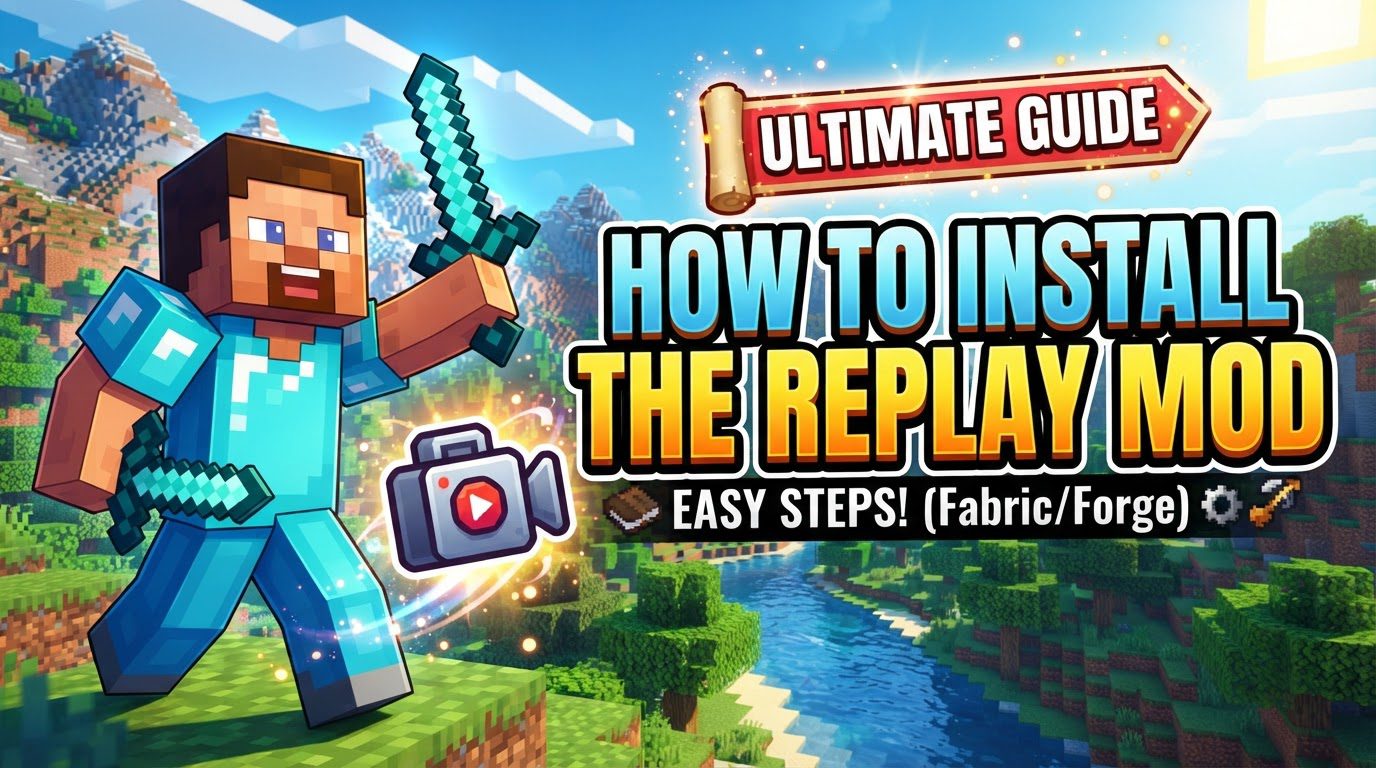
Installing the Replay Mod (Step by Step)
Unlocking Cinematic Potential: A Comprehensive Guide to Installing the Replay Mod
The Replay Mod for Minecraft is an invaluable tool for content creators and players looking to capture and immortalize their in-game experiences. This powerful modification records your gameplay, offering the unique ability to re-watch your adventures from any angle and transform them into stunning cinematic videos. By utilizing a sophisticated system of “position keyframes” to define precise camera locations and “time keyframes” to meticulously control the pace and duration of your playback, the Replay Mod empowers you to craft professional-grade video content directly within the Minecraft environment. While recordings can be edited extensively within the game itself to create intricate camera paths and dynamic sequences, the final step of exporting these masterpieces as standard video files, such as MP4s, necessitates the installation of an additional, crucial component: FFmpeg. This guide will walk you through the essential steps to get the Replay Mod up and running, ensuring you can begin recording and producing your own captivating Minecraft narratives.
Step-by-Step Installation Process
Installing the Replay Mod involves several key stages, from acquiring the necessary files to configuring your Minecraft launcher. Follow these steps carefully to ensure a smooth setup:
-
Download Replay Mod:
Your first step is to obtain the Replay Mod itself. Navigate to the official website and download the correct `.jar` file that specifically matches your current version of Minecraft. Compatibility is paramount, so double-check that the mod version aligns perfectly with your game version.
-
Download Mod Loader (Fabric/Forge):
The Replay Mod, like most Minecraft modifications, requires a mod loader to function within the game. The choice of mod loader depends on your Minecraft version:
-
For Minecraft versions 1.14 and above, you will need to download and install Fabric. Additionally, the Fabric API is a mandatory dependency for the Replay Mod when using Fabric, so ensure you download its `.jar` file as well.
-
For Minecraft versions 1.12.2 and below, your mod loader of choice will be Minecraft Forge. Download the appropriate Forge installer for your specific game version.
-
-
Install Mod Loader:
Once you have downloaded the correct mod loader installer (either Fabric or Forge), run the executable file. This installer will automatically set up the necessary profiles and configurations within your Minecraft launcher, preparing it to load mods.
-
Locate Minecraft Directory:
To place your mod files, you need to find your `.minecraft` folder. Open your Minecraft launcher, navigate to the “Installations” tab, and then hover your mouse over the Fabric (or Forge) installation you just created. A small folder icon will appear; click on this icon to directly open your `.minecraft` directory.
-
Create ‘mods’ Folder:
Inside your `.minecraft` directory, you might find a folder named `mods`. If this folder does not exist, you will need to create it manually. It is crucial that the folder name is all lowercase: `mods`.
-
Place Mod Files:
Now, take the downloaded Replay Mod `.jar` file and, if you are using Fabric, the Fabric API `.jar` file, and drag and drop them directly into the `mods` folder you just located or created. These files must reside within this specific directory for the game to recognize them.
-
Download FFmpeg:
To export your recorded replays as standard video files (e.g., MP4), you will need FFmpeg. Download the latest release of FFmpeg from its official source. This is a critical component for video rendering outside of the game.
-
Install FFmpeg:
Once downloaded, FFmpeg will typically come as a compressed `.zip` file. Extract the contents of this `.zip` file directly into your `.minecraft` folder. It is essential that the `ffmpeg.exe` file (or its equivalent for other operating systems) is accessible within this directory. This allows the Replay Mod to locate and utilize FFmpeg for video export operations.
-
Launch Minecraft:
With all files in place, open your Minecraft launcher. Select your newly configured Fabric (or Forge) profile from the profile dropdown menu. Once the correct profile is chosen, start the game. If all steps were followed correctly, the Replay Mod will now be active in your game.
Important Tips for Optimal Use
To get the most out of your Replay Mod experience and avoid common pitfalls, keep the following tips in mind:
-
Ensure Version Compatibility:
Always double-check that the versions of the Replay Mod, your chosen mod loader (Fabric or Forge), and the Fabric API (if applicable) are all compatible with your specific Minecraft version. Mismatched versions are a frequent cause of issues.
-
Increase Allocated RAM:
Running Minecraft with mods, especially one that records and processes video data, can be resource-intensive. Consider increasing the amount of RAM allocated to your Minecraft installation through the launcher settings. This can significantly improve performance and stability.
-
Automatic Recording:
The Replay Mod is designed for convenience. Recordings will automatically begin when you join any world or server. You will typically see a recording icon appear on your screen, indicating that your gameplay is being captured.
-
Manually Control Recordings:
While recordings start automatically, you have full control. You can manually pause or stop ongoing recordings at any time by accessing the Escape menu within the game.
-
Accessing Replay Mod Settings:
To delve into the Replay Mod’s extensive settings and features, click on the “Replay Viewer” button, which is accessible directly from the main menu of Minecraft. Alternatively, if you have the Mod Menu installed, you can access Replay Mod settings via the “Mods” button within the in-game pause screen.
-
Mastering Keyframes:
The core of creating cinematic replays lies in understanding keyframes. Use “Position Keyframes” to precisely mark where your camera should be located at specific moments in your recording. Complement these with “Time Keyframes” to dictate the speed and duration of the camera’s movement between those defined positions, allowing for dynamic and controlled playback.
-
Toggle Mouse Cursor:
While in the Replay Viewer, you can typically toggle the visibility of your mouse cursor by pressing the ‘T’ key. This is useful for precise editing without the cursor obstructing your view.
-
Add Event Markers:
During live recording, you can press the ‘M’ key to add event markers. These markers serve as useful reference points for later editing, helping you quickly jump to significant moments in your replay footage.
Common Mistakes to Avoid
To ensure a smooth and successful experience with the Replay Mod, be aware of these common errors:
-
Not Installing the Correct Mod Loader (Fabric/Forge):
The Replay Mod cannot run on its own. It absolutely requires a compatible mod loader to integrate with Minecraft. Failing to install Fabric or Forge, or installing the wrong one for your Minecraft version, will prevent the mod from loading.
-
Forgetting Fabric API (When Using Fabric):
If you are using Fabric as your mod loader, the Fabric API is not optional; it is a mandatory dependency for the Replay Mod. Without the Fabric API `.jar` file in your `mods` folder, the Replay Mod will not function correctly.
-
Not Installing FFmpeg:
While the Replay Mod allows you to record and edit within Minecraft, you will be unable to export your meticulously crafted replays as video files (e.g., MP4) without FFmpeg. This is a crucial external tool for video rendering.
-
Incorrect FFmpeg Placement:
It’s not enough to just download FFmpeg; its files must be extracted directly into your `.minecraft` folder. If `ffmpeg.exe` (or its equivalent) is not directly accessible within this directory, the Replay Mod will fail to find and use it for video exports.
-
Dragging Time Keyframes to Adjust Speed:
A common mistake when trying to modify the speed of playback is to directly drag “Time Keyframes.” This often leads to unintended consequences, such as erratic slow-motion or sped-up playback. Instead, control the timing and speed precisely by carefully placing your time keyframes and utilizing the specific play buttons and settings available in the Replay Viewer.
-
Messed Up Blocks After Mod Updates:
If you notice that blocks appear corrupted or incorrect in your replays after updating Minecraft or changing other installed mods, this is a known issue. To resolve this, it is recommended to create a new world with the exact same seed after you have made your mod changes and before recording any new replays. This helps ensure that the replay data correctly interprets the current game state.
Tags:
YOU MAY ALSO LIKE...