Modifying Block Entity NBT Using the Data Command (Step by Step)
The /data command in Minecraft Java Edition offers unparalleled control over the detailed information stored within the game world. Introduced in Minecraft Java Edition 1.13, it superseded the older /entitydata and /blockdata commands, providing a unified and powerful interface to interact with NBT (Named Binary Tag) data. This guide focuses specifically on how to leverage the /data command to modify the NBT of block entities, such as chests, furnaces, and command blocks, enabling advanced customization and automation within your Minecraft world.
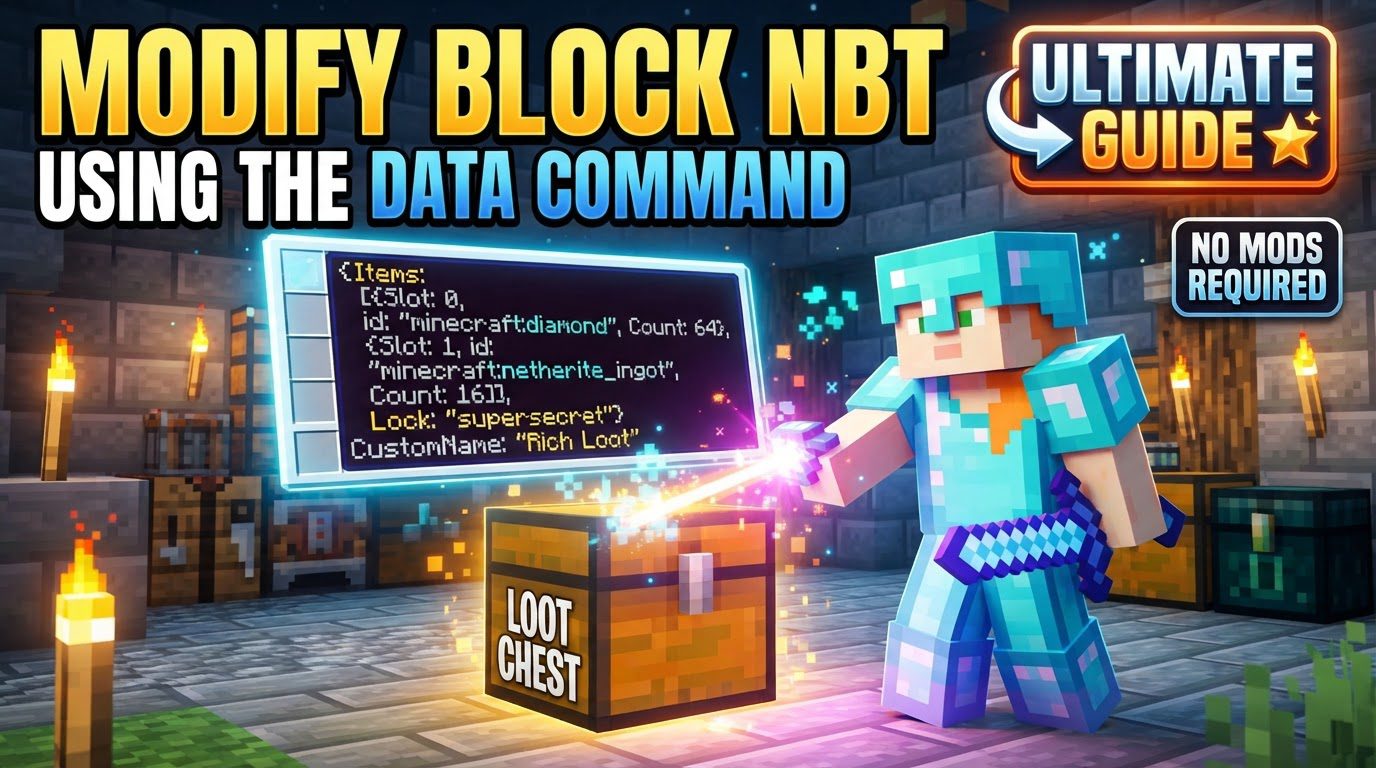
Understanding NBT and the /data Command
At its core, NBT is a tree-like data structure that Minecraft uses to store complex, hierarchical information about almost everything in the game. This includes the contents of a chest, the remaining burn time in a furnace, the command stored in a command block, or even the health and inventory of an entity. Manipulating this data directly allows for precise control over game mechanics.
Key Mechanics of the /data Command
- NBT Data: As mentioned, NBT is a fundamental data storage format in Minecraft. It organizes data into tags, which can be simple values (like numbers or strings) or complex structures (like lists of items or compounds of properties). Understanding this hierarchical structure is crucial for effective use of the
/datacommand. - Command Structure: The
/datacommand is versatile, offering four primary operations:get: Used to read and display the NBT data of a specified target. This is invaluable for inspecting the current state and understanding the data structure.merge: Allows you to combine new NBT data with existing data. If a tag in your new data matches an existing tag, it overwrites the old one; otherwise, new tags are added. This is great for adding or updating multiple tags at once.modify: Provides the most granular control. This operation allows for precise edits to specific NBT tags, including setting new values, appending to lists, inserting elements, or merging compound tags at a particular path.remove: Used to delete a specific NBT tag from the target’s data structure.
- Targets: The
/datacommand can operate on three types of targets:block: Targets a block entity at specific X, Y, Z coordinates. This is our primary focus for this guide.entity: Targets an entity, which can be a mob, an item, or another non-block entity. Entity selectors are used here.storage: Targets a custom NBT storage area, useful for storing arbitrary data that can be accessed by commands.
- NBT Paths: To pinpoint specific pieces of data within the complex NBT structure, you use NBT paths. These paths navigate through the hierarchy:
- Dot notation (e.g.,
Items[0].id) is used to access fields within compound tags. - Square brackets (e.g.,
Items[0]) are used to access elements within lists or arrays by their index. You can also target elements based on their content, likeInventory[{Slot:3b}].
- Dot notation (e.g.,
- Data Types: NBT supports a variety of data types, which is important to remember when setting values:
- Numbers: Integers (e.g.,
10), floats (e.g.,10.5f), doubles (e.g.,10.5d), bytes (e.g.,1b), shorts (e.g.,10s), and longs (e.g.,10L). - Text: Strings (e.g.,
"Hello World"). - Booleans: Represented as bytes (
0bfor false,1bfor true). - Collections: Lists (ordered sequences of tags), arrays (sequences of a specific numeric type), and compounds (unordered collections of named tags).
- Numbers: Integers (e.g.,
Step-by-step Process: Modifying Block Entity NBT using /data modify block
The /data modify block subcommand is your primary tool for making precise changes to block entity data. Follow these steps for effective modification:
1. Identify the Target Block Entity
Before you can modify any data, you need to know exactly which block entity you’re targeting. This requires its precise X, Y, and Z coordinates. For instance, if you want to modify a chest located at 1 64 1, these coordinates will be used in your command.
2. Determine the NBT Path
This is often the most critical and potentially challenging step. You need to understand the internal structure of the block entity’s NBT data to find the specific tag you wish to change. The best way to do this is by using the /data get command:
- To inspect the full NBT data of a chest at
1 64 1, you would type:/data get block 1 64 1
This command will output the entire NBT structure of the block entity, often in SNBT (Stringified NBT) format, which resembles JSON. Carefully examine this output to identify the exact path to the tag you intend to modify. For example, if you want to change the ID of the first item in a chest, you might see a structure like Items:[{Slot:0b,id:"minecraft:stone",Count:1b}]. From this, you can deduce the path to the item’s ID is Items[0].id.
3. Choose the modify Subcommand
The /data modify command offers several subcommands for different modification scenarios:
set: This is the most common subcommand. It either replaces an existing tag with a new value or creates a new tag if the specified path doesn’t exist. This is ideal for changing a single property.append: Adds a new element to the end of an NBT list.prepend: Adds a new element to the beginning of an NBT list.insert: Inserts a new element into an NBT list at a specific numerical index.merge: Merges a compound tag into an existing compound tag at the specified path. This works similarly to the main/data mergecommand but applies only to a sub-path.
4. Construct the Command
Once you have your target coordinates, NBT path, and chosen subcommand, you can assemble your full command. The general syntax for setting a value is:
/data modify block set value
Let’s look at a practical example. To change the first item (at slot 0) in a chest located at 1 64 1 to a Diamond Block, you would use:
/data modify block 1 64 1 Items[0].id set value "minecraft:diamond_block"
You can also copy data from another source using the from keyword:
/data modify block set from block
This allows you to dynamically transfer NBT data between different block entities, entities, or even custom storage.
5. Execute the Command
Finally, type your constructed command into the chat window (by pressing T in Java Edition) and press Enter. Alternatively, for more complex or automated setups, you can place the command within a command block and activate it.
Important Tips for Success
- Always Use
/data getFirst: This cannot be stressed enough. Before attempting any modifications, always use/data get blockto inspect the NBT structure. This prevents errors caused by incorrect paths or misunderstandings of the data types. - Master SNBT Format: NBT data is often displayed as SNBT, which closely resembles JSON. Pay meticulous attention to syntax: curly braces
{}for compounds, square brackets[]for lists, colons:for key-value pairs, and double quotes""for strings. A single misplaced character can invalidate your command. - Data Types Matter: Ensure that the value you are trying to set matches the expected data type of the NBT tag. For example, a byte tag expects a value like
1b, a double expects1.0d, and a string expects"your_text". Using the wrong type will likely result in an error. - Context for Lists/Arrays: When working with lists or arrays within NBT, the
append,prepend, andinsertsubcommands of/data modifyare essential. Remember thatinsertrequires you to specify the exact position where the new element should be placed. - Target Selectors (for entities): While this guide focuses on block entities, if you ever use
/data modify entity, remember that selectors like@e[type=item,limit=1,sort=nearest]are crucial for targeting the correct entity. For/data modify entity, the selector must resolve to a single entity. To modify multiple entities, wrap the command in anexecute as run data modify entity @scommand.
Common Mistakes to Avoid
Even experienced users can make mistakes. Being aware of these common pitfalls can save you time and frustration:
- Modifying Player NBT Directly: You cannot directly change a player’s NBT data (such as their inventory, health, or experience) using
/data modifyor/data merge. For player-specific changes, use dedicated commands like/effect,/xp,/attribute, or/item replace. - Incorrect NBT Paths: This is arguably the most frequent error. A path that is slightly off, missing an index, or using the wrong key name will prevent the command from executing correctly. Always double-check with
/data get. - Incorrect Data Types: Providing a string where a number is expected, or vice-versa, will lead to errors. Pay attention to the suffixes for numeric types (e.g.,
bfor byte,sfor short,ffor float,dfor double,Lfor long). - Missing or Mismatched Braces/Quotes: The SNBT syntax is strict. Ensure that every opening brace
{or bracket[has a corresponding closing one}or], and that all string values are enclosed in double quotes"". - Targeting Multiple Entities with
data modify entity: The/data modify entitycommand is designed to work on a single entity. If your target selector resolves to more than one entity, the command will fail. For batch modifications, use anexecute as run data modify entity @swrapper. - Attempting to Add Custom Tags to Entities: While you can add custom tags to
/data storage, entities generally do not allow arbitrary custom tags to persist. The game will often remove unknown or non-standard tags from entities, as they are not part of the entity’s defined NBT structure.
By understanding these principles and practicing with the /data command, you will unlock a new level of control and creativity in your Minecraft builds and command block creations.
Tags:
YOU MAY ALSO LIKE...