

Optimizing Minecraft Settings for a Low-end PC — A Quick Guide
Optimizing Minecraft to run smoothly on a low-end PC can transform your gameplay experience from a struggle to an enjoyable adventure. This comprehensive guide will walk you through essential in-game settings, beneficial modifications, and crucial system-level adjustments to maximize your frames per second (FPS) and reduce stuttering.
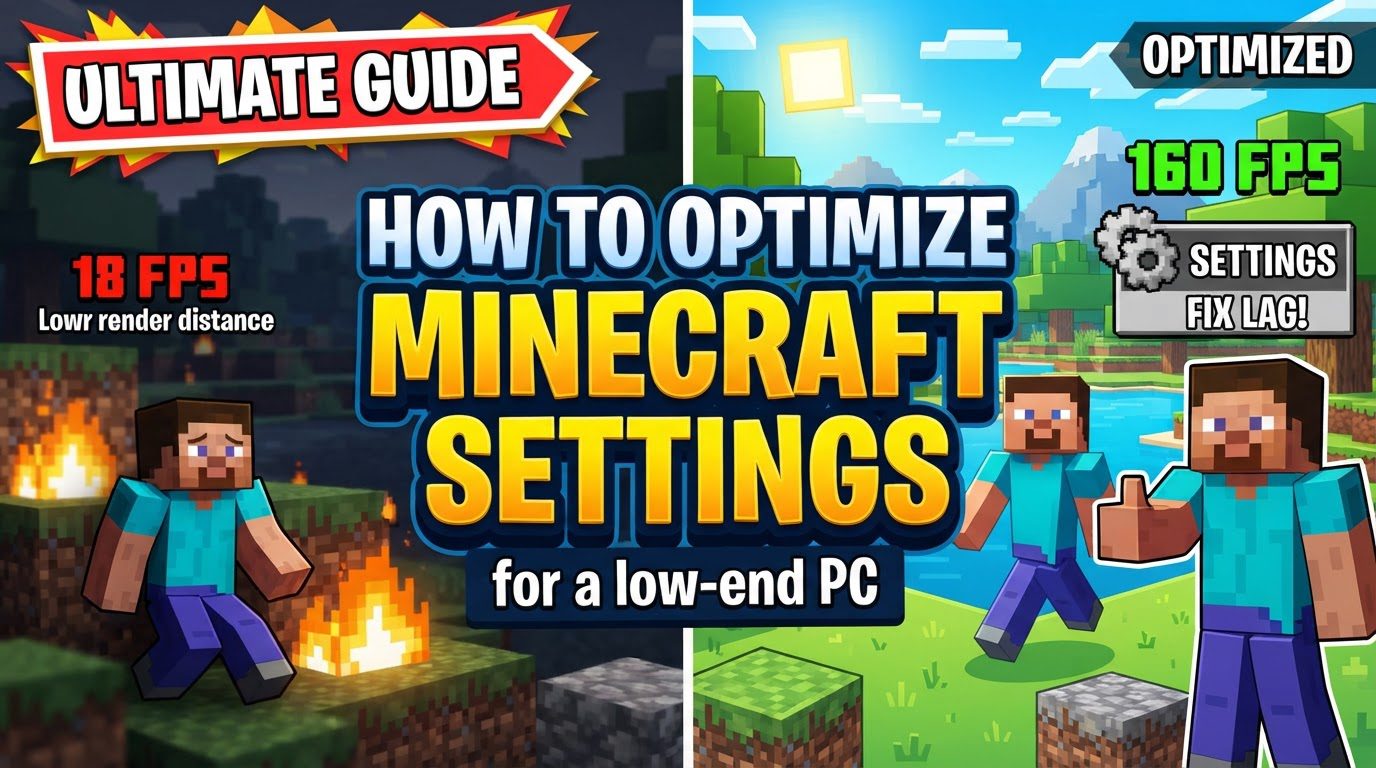
Key Mechanics of Minecraft Performance
Understanding how Minecraft interacts with your hardware is the first step toward effective optimization. Several core mechanics heavily influence performance, particularly on less powerful systems.
- Render Distance & Simulation Distance: These two critical settings dictate how much of the game world is loaded and processed around your character. Render Distance controls the visual range of blocks and entities, while Simulation Distance affects how many chunks are actively simulated for things like redstone, mob AI, and plant growth. Both are significant contributors to both CPU and GPU load. Crucially, the performance cost associated with these settings increases exponentially with higher values, meaning even a small reduction can yield substantial improvements.
- Graphics Settings: Minecraft offers various visual enhancements that, while aesthetically pleasing, demand considerable resources. Features such as smooth lighting, dynamic shadows, detailed clouds, and particle effects add visual fidelity but place significant strain on your computer’s graphics processing unit (GPU) and central processing unit (CPU). Disabling or simplifying these can free up valuable performance.
- CPU Dependence: The Java Edition of Minecraft is notably reliant on single-threaded CPU performance for its core game logic. This means that a CPU with fewer, but faster, individual cores will often deliver a better Minecraft experience than a CPU with many slower cores, even if the latter has a higher overall processing capacity. Optimizing CPU usage is therefore paramount.
- RAM Allocation: Proper memory allocation is vital for stable performance. While Minecraft needs sufficient Random Access Memory (RAM) to run effectively, allocating either too little or, surprisingly, too much RAM can lead to performance issues, including noticeable stuttering and lag spikes. Java’s garbage collection process, which manages memory, can become inefficient with excessive allocation, causing pauses.
Step-by-Step Optimization Process
Follow these steps to systematically adjust your Minecraft settings and system configurations for optimal performance.
In-Game Video Settings
These adjustments are made directly within Minecraft’s options menu.
- Open Video Settings: Begin by navigating to “Options” from the main menu, then selecting “Video Settings.” This is where the majority of your in-game optimizations will occur.
- Set Graphics to Fast: Change the “Graphics” option from “Fancy” or “Fabulous!” to “Fast.” This immediately disables many complex visual effects, such as transparent leaves and more detailed block textures, significantly reducing GPU workload.
- Adjust Render and Simulation Distance: This is one of the most impactful changes you can make.
- Reduce “Render Distance” to 8 chunks or less. For extremely low-end systems, consider going as low as 4-6 chunks.
- Set “Simulation Distance” to around 5-6 chunks. If performance is still an issue, you can try reducing it further, even to 2 chunks, though this will significantly limit active world elements.
- Turn Off or Reduce Visuals: Systematically disable or simplify other demanding visual features:
- Set “Smooth Lighting” to “Off.” This removes softer, more realistic lighting transitions, opting for a simpler, less resource-intensive block-based lighting model.
- Turn off “Clouds” entirely, or set them to “Fast” if you prefer some cloud presence. This reduces the rendering of dynamic cloud textures.
- Set “Particles” to “Minimal” or “Decreased.” This reduces the number and density of visual effects like explosions, rain splashes, and potion effects.
- Turn off “Entity Shadows.” Shadows cast by mobs and players add a layer of realism but are computationally expensive.
- Set “Biome Blend” to 3×3 or lower. This controls the smoothness of color transitions between biomes; lower values reduce the processing required for these blends.
- Turn off “V-Sync.” While V-Sync can prevent screen tearing, it can also cap your framerate and introduce input lag, which is detrimental on a low-end system.
- Disable “See Through Leaves” if applicable. This makes leaf blocks opaque, reducing rendering complexity.
- Reduce “Cloud Distance” and “Entity Distance” to lower levels. These settings control how far away clouds and entities are rendered, respectively.
- Turn off “FOV effects” in accessibility settings. This disables visual distortions that occur during actions like sprinting or taking damage, which can sometimes consume resources.
- Set Max Framerate to Unlimited: While it might seem counterintuitive for a low-end PC, setting your “Max Framerate” to “Unlimited” allows the game to render as many frames as possible. This can sometimes lead to a more consistent framerate, though lower-to-mid-end PCs might still experience stuttering if the hardware can’t maintain a high average FPS.
RAM Allocation
Correctly allocating memory ensures Minecraft has the resources it needs without being overfed.
- Allocate RAM: In your Minecraft launcher settings (usually under “Installations” > “Edit” > “More Options” > “JVM Arguments”), allocate 2-4GB of RAM to Minecraft. This range provides a good balance for vanilla gameplay, ensuring enough memory for the game world without inducing excessive garbage collection pauses.
Performance-Enhancing Modifications
Mods specifically designed for optimization can provide significant FPS boosts beyond what in-game settings alone can offer.
- Install Optimization Mods: Utilize powerful optimization mods. Sodium (for the Fabric mod loader) is highly recommended for drastically improving rendering performance. It can be paired with Lithium (also for Fabric) for physics and game logic optimization, yielding even better results. Alternatively, OptiFine has historically been a popular choice, providing extensive graphical settings and performance enhancements, though for Fabric users, Sodium often delivers superior raw performance gains.
System-Level Optimization
Beyond Minecraft’s settings, your operating system and hardware configuration play a crucial role.
- Ensure Minecraft Uses Your Dedicated GPU: If your PC has both an integrated and a dedicated graphics card, make sure Minecraft is utilizing the more powerful dedicated GPU. In Windows Graphics Settings, set Minecraft to “High Performance.”
- Update Graphics Card Drivers Regularly: Outdated drivers can severely hinder performance. Always ensure your graphics card drivers (NVIDIA, AMD, or Intel) are up to date by downloading the latest versions from the manufacturer’s website.
- Set Your Power Plan to “High Performance”: In Windows settings, navigate to Power Options and select “High Performance” or “Ultimate Performance.” This ensures your CPU and other components run at their maximum clock speeds without throttling.
- Disable Hardware Acceleration in Other Programs: Applications like web browsers (especially Chrome), Discord, or Spotify often use hardware acceleration, consuming GPU resources in the background. Disable this feature in their respective settings when playing Minecraft.
- Disable Unnecessary Startup and Background Applications: Prevent programs from launching with Windows or running in the background. Use the Task Manager (Ctrl+Shift+Esc) to disable unnecessary startup items and check background processes in Windows settings. This frees up RAM and CPU cycles.
- Consider Lowering Display Resolution or Playing in Windowed Mode: Reducing your monitor’s display resolution or playing Minecraft in a smaller windowed mode drastically reduces the number of pixels your GPU needs to render, leading to significant FPS gains.
- Set the Java Process Priority to “High”: Open Task Manager, go to the “Details” tab, find the ‘javaw.exe’ process (for Minecraft), right-click it, and set its priority to “High.” This tells your operating system to allocate more CPU resources to Minecraft.
Important Tips for Sustained Performance
These additional practices can help maintain and improve your Minecraft experience on a low-end PC.
- Close Background Programs: Before launching Minecraft, shut down any unnecessary applications. Browsers (especially Chrome with many tabs), updaters, chat clients, and other software consume valuable RAM and CPU resources that Minecraft could otherwise use.
- Utilize Performance-Focused Clients: As mentioned, consider using mod loaders like Fabric in conjunction with performance mods like Sodium. Many users find this combination to be more performant than OptiFine, especially on very low-end hardware.
- Pre-generate Worlds: For single-player worlds or server hosts, using a mod like Chunky to pre-generate chunks before playing can significantly reduce CPU strain during gameplay. This offloads the chunk generation process from real-time play, leading to smoother exploration.
- Monitor Temperatures: Overheating components can lead to “thermal throttling,” where your CPU or GPU automatically reduces its performance to prevent damage. Ensure your PC is running at a cool temperature. Regularly clean out dust from your computer’s fans and vents, especially for laptops, to improve airflow.
- Avoid Complex Terrain: Certain biomes or generated structures can be much more demanding to render. Lower-end PCs may struggle significantly in areas with dense forests, towering mountains, intricate cave systems, jungles with dense foliage, or the chaotic landscapes of the Nether and End dimensions. Stick to simpler biomes when possible.
- Mouse Polling Rate: For users with newer gaming mice, a very high polling rate (e.g., 8,000 Hz) can sometimes cause micro-stuttering or jitter on lower-end systems. Keep your mouse’s polling rate at 1,000 Hz or lower (e.g., 500 Hz) to avoid this potential issue.
Common Mistakes to Avoid
Being aware of these pitfalls can prevent performance regressions and system instability.
- Allocating Too Much RAM: While sufficient RAM is crucial, over-allocating memory can be detrimental. Assigning an excessive amount of RAM (e.g., 16GB for vanilla Minecraft) can paradoxically cause stuttering due to Java’s garbage collection pauses becoming longer and more disruptive. For vanilla Minecraft, stick to 2-4GB. For heavily modded packs, rarely allocate more than 8GB, as going higher often yields diminishing returns or negative effects.
- Ignoring System-Level Optimizations: Focusing solely on in-game settings without addressing your operating system, drivers, and background processes will limit your potential performance gains. A holistic approach that includes system-level tweaks is essential for low-end PCs.
- Running Other Intensive Applications: Having other CPU- or GPU-intensive programs open simultaneously with Minecraft, such as video editors, streaming software, or other games, will inevitably compete for resources and negatively impact Minecraft’s performance. Always close such applications before playing.
- Using Realtime Priority for Java: While setting the
javaw.exeprocess priority to “High” is beneficial, setting it to “Realtime” in Task Manager is highly discouraged. “Realtime” priority can cause system instability, potentially leading to your entire operating system freezing or crashing, as it deprives even critical system processes of necessary CPU time. Always use “High” instead.
Tags:
YOU MAY ALSO LIKE...


