Referencing Multiple IDs in a Single Datapack Tag Field (Step by Step)
Minecraft datapacks offer a powerful system for customizing gameplay, and a fundamental component of this system is the use of tags. Tags are JSON files designed to group multiple IDs together, providing a flexible way to reference collections of blocks, items, functions, and more, without having to list each individual ID every time. Understanding how to effectively reference multiple IDs within a single tag field is crucial for creating robust and manageable datapacks.
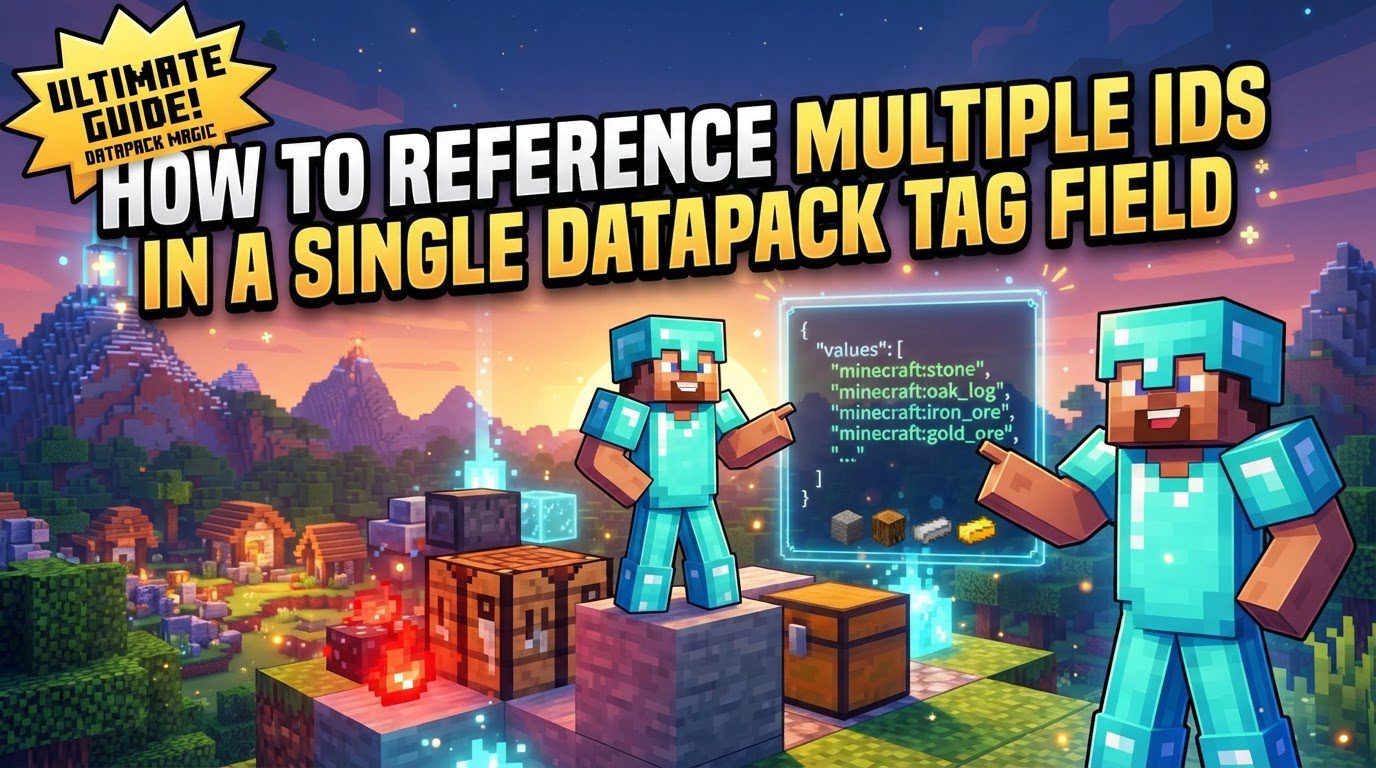
At their core, datapack tags are structured around two primary fields: replace and values. The values field is an array, serving as the central container for all the identifiers or other tag references you wish to include in your group. This array can accommodate various types of entries, allowing for both direct identification of specific elements and the inclusion of entire categories defined by other tags. For instance, an entry can be a straightforward resource location string, such as "minecraft:apple", directly adding that item to the tag. Alternatively, an entry can be an object, offering more control, like {"required": false, "id":"minecraft:stick"}, which specifies an ID along with a status indicating whether its presence is mandatory.
Tags are meticulously organized within your datapack based on their registry type. This means that tags for items will reside in a different location than tags for blocks or functions. Common examples of these organizational paths include /tags/item for items, /tags/block for blocks, and /tags/function for functions. This structured approach helps maintain order and clarity within your datapack. A particularly powerful feature of tags is their ability to reference other tags. By using a hash symbol (#) followed by the target tag’s resource location (e.g., #minecraft:logs), you can seamlessly incorporate the contents of one tag into another. This allows for the creation of hierarchical and interconnected tag systems, greatly simplifying complex groupings and ensuring consistency across your datapack.
Step-by-Step Process for Referencing Multiple IDs
Implementing a tag that references multiple IDs involves a clear, sequential process to ensure proper functionality within your Minecraft world. Follow these steps to create and utilize your custom tags:
-
1. Create your datapack structure:
Before defining any tags, you must establish the correct folder hierarchy within your datapack. Begin by navigating to your world’s save folder, then into the
datapacksfolder. Inside your specific datapack folder, create a folder nameddata. Within thisdatafolder, you will create another folder that serves as your unique namespace (e.g.,my_datapack). Finally, inside your namespace folder, create a folder namedtags. The full path should resemble/datapacks//data//tags. -
2. Create category folders:
Within the newly created
tagsfolder, you need to further organize your tags by category. These subfolders correspond to the type of IDs you are grouping. For example, if you are creating a tag for blocks, you would create a folder namedblock. For items, it would beitem, and for functions,functions. This ensures that the game correctly recognizes and applies your tags to the appropriate registry type. For instance, the path for a block tag would be.../tags/block/. -
3. Create the tag JSON file:
Inside the appropriate category folder (e.g.,
blockfor block tags), create a new JSON file. The file name should be lowercase and can include underscores for readability (e.g.,my_custom_blocks.json). This file will contain the actual definition of your tag. -
4. Define the tag content:
Open your newly created JSON file with a text editor. The basic structure of any tag file requires two main fields:
replaceandvalues. The file should start and end with curly braces{}, enclosing these two fields. For example:{ "replace": false, "values": [] }The
replacefield, typically set tofalse, determines how your tag interacts with existing tags of the same path. Thevaluesfield, an empty array initially, is where you will list all the IDs. -
5. List IDs in the
valuesarray:This is the core step for referencing multiple IDs. Populate the
valuesarray with the resource locations of the items, blocks, or functions you wish to include. You can use several formats for entries within this array:- Direct string IDs: Simply list the full resource location of an item or block as a string, e.g.,
"minecraft:stone","minecraft:dirt". Each ID must be enclosed in double quotes and separated by commas. - Object entries with
requiredstatus: For more control, especially when dealing with optional content, you can use an object. This object must contain an"id"field for the resource location and can optionally include a"required"field (e.g.,{"required": false, "id":"minecraft:stick"}). Setting"required": falseensures your datapack loads even if the specified ID is not found in the game. - Referencing other tags: To include all IDs from another tag, use the hash symbol (
#) followed by the full resource location of the tag you want to reference (e.g.,"#minecraft:logs"). This allows for powerful nested groupings.
An example
valuesarray combining these methods might look like this:"values": [ "minecraft:oak_planks", {"id": "minecraft:birch_planks", "required": false}, "#minecraft:wooden_slabs", "my_datapack:custom_block" ] - Direct string IDs: Simply list the full resource location of an item or block as a string, e.g.,
-
6. Save and reload:
After making all your changes to the JSON file, save it. Then, to apply these changes in your Minecraft world, open the chat in-game and execute the command
/reload. This command reloads all datapacks, allowing your newly defined or updated tags to take effect.
Important Tips for Success
To ensure a smooth and error-free experience when working with datapack tags, consider the following best practices:
-
Use a text editor with JSON support:
A good text editor, such as Visual Studio Code, is invaluable. It provides JSON syntax highlighting, which makes it easier to read and identify structural issues, and often includes validation features that can catch common syntax errors before you even test in-game. This significantly speeds up the development process.
-
Understand the
"replace": falsefield:Setting
"replace": falsein your tag file is crucial for merging your tag’s contents with any existing tags that share the same path. If you set"replace": true, your tag will completely overwrite any default or other datapack tags at that location. By keeping itfalse, you allow your tag to extend or add to existing groups, which is generally safer and more compatible, especially when working with vanilla tags or other mods. -
Properly reference other tags:
When incorporating another tag into your own, always use the format
"#:". The#prefix tells the game that you are referencing another tag, not a direct ID. The namespace specifies where the tag comes from (e.g.,minecraftfor vanilla tags, or your datapack’s namespace), and the path indicates its location within that namespace (e.g.,logsfordata/minecraft/tags/block/logs.json). For example,"#minecraft:wooden_slabs"would correctly reference the vanilla tag for all wooden slabs. -
Utilize
required: falsefor compatibility:The
"required": falseoption within an object entry in yourvaluesarray is incredibly useful for maintaining compatibility. If an ID specified with"required": false"is not found in the game (perhaps due to an optional mod not being present, or changes in different game versions), the datapack will still load successfully. If"required"is omitted or set totrueand the ID is missing, the datapack will fail to load, causing errors in your world. This option makes your datapacks more resilient and adaptable.
Common Mistakes to Avoid
Even experienced datapack creators can stumble upon common pitfalls. Being aware of these will help you troubleshoot and prevent issues:
-
Incorrect file paths or naming:
The most frequent error is placing tag files in the wrong location or giving them incorrect names. Always double-check that your file adheres to the strict structure:
data//tags//.json. Any deviation will prevent the game from finding and loading your tag. -
Improper JSON syntax:
JSON is a strict format. Missing commas between array elements or object properties, incorrect curly
{}or square[]brackets, or unquoted keys/values are all common syntax errors. These will cause the datapack to fail validation and not load. Using a good text editor with JSON validation can catch these errors early. -
Circular references:
Do not create tags that directly or indirectly reference themselves. For example, if Tag A references Tag B, and Tag B references Tag A, this creates a circular dependency. The game’s loading mechanism cannot resolve such loops, leading to loading failures and error messages in the server console or log files.
-
Using tags in unsupported contexts:
While tags are versatile, they are not universally applicable in all contexts. For instance, item tags are primarily used in recipes, loot tables, and certain commands, but you cannot use an item tag where a block ID is expected. Always ensure that the type of tag you are using (block, item, function) is appropriate for the specific game mechanic or command you are trying to modify or execute.
-
Forgetting to reload:
This is a fundamental step often overlooked. After every change you make to a tag file (or any datapack file), you must execute the
/reloadcommand in Minecraft. Without reloading, the game will continue to use the old version of your datapack, and your changes will not be reflected, leading to confusion and unnecessary troubleshooting.
By diligently following these guidelines and understanding the underlying mechanics, you can effectively leverage datapack tags to create highly customized and efficient Minecraft experiences, grouping multiple IDs with precision and flexibility.
Tags:
YOU MAY ALSO LIKE...