Rolling Back a Modded Server After a Bad Update
Rolling back a modded Minecraft server after a problematic update is a critical skill for any server administrator. The success of such an operation primarily hinges on one fundamental principle: having proper, up-to-date backups. Without a robust backup strategy, recovering from a bad update can range from difficult to outright impossible, potentially leading to significant data loss and player frustration.
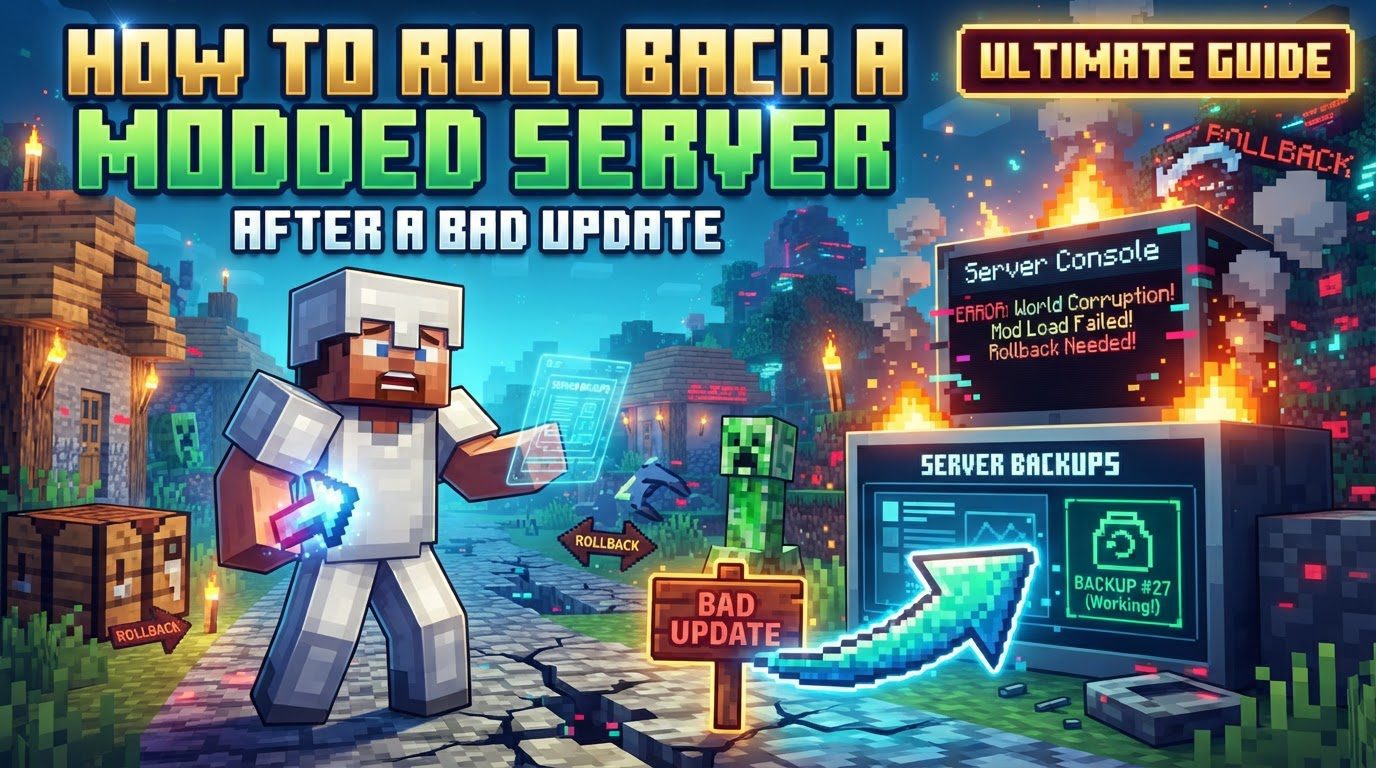
Understanding the Foundation: Backup Systems
Effective server management in a modded environment relies heavily on understanding and utilizing various backup systems. These systems are designed to capture the entire state of your server, providing a safety net against unforeseen issues.
- Server Host Backup Systems: Most reputable Minecraft server hosts provide built-in backup solutions. These often include automated daily backups, which regularly save your server’s data without requiring manual intervention. Additionally, hosts typically offer options for manual backups, allowing administrators to create a snapshot of their server at any specific moment, such as before a major update or configuration change. These comprehensive backups capture everything from your world data and server properties to plugin configurations and the list of installed mods, ensuring a complete restoration is possible.
- Dedicated Minecraft Backup Tools/Mods: Beyond host-provided services, specific Minecraft mods are designed to enhance and automate the backup process directly within the game environment. Mods like ServerBackupFabric or BackupMod can automate scheduled backups, ensuring regular snapshots are taken. They also provide manual backup capabilities, offering immediate protection before critical changes. A distinct advantage of some of these mods is their ability to facilitate individual player inventory restoration, which can be invaluable for addressing localized issues without needing to roll back the entire server state.
- CoreProtect (or Similar Plugins): For more granular control over specific changes within the game world, plugins such as CoreProtect are indispensable. These plugins operate by logging virtually every block change and player action that occurs on the server. This detailed logging allows administrators to perform targeted rollbacks of specific areas or actions, such as undoing griefing incidents, correcting accidental structural damage, or reversing unintended changes by players. The key benefit here is the ability to address localized issues without the drastic measure of restoring the entire server to an earlier state, preserving recent progress for the majority of the player base.
- The Restoration Process: Regardless of the backup system used, the core principle of restoration remains the same. It involves replacing the current, problematic server files with a previously saved, functional version. This process is critical and requires the Minecraft server to be completely stopped beforehand. Attempting to restore files while the server is running can lead to data corruption or an incomplete rollback, exacerbating the original problem. Once the old files are in place, the server can be restarted, ideally returning to its pre-problematic state.
The Rollback Process: A Step-by-Step Guide
When faced with a server issue after an update, a systematic approach to rolling back is essential for success. Follow these steps carefully to ensure a smooth recovery.
- Step 1: Stop the Server: This is the absolute first and most crucial step. Before attempting any rollback or file modification, you must halt the Minecraft server completely. Running the server while files are being manipulated or replaced can lead to severe data corruption, making recovery much more difficult, if not impossible. Ensure all server processes are terminated.
- Step 2: Access Backup Interface: Once the server is offline, you need to access your backup management system. This could be through your server host’s dedicated control panel, which typically offers a user-friendly interface for managing backups. Alternatively, you might use an SFTP (SSH File Transfer Protocol) client to manually browse and upload/download backup files if your host provides direct file system access. For servers utilizing in-game backup mods, specific commands might be available to manage backups directly from the game console, though this usually still requires the server to be in a stopped state for restoration.
- Step 3: Select the Desired Backup: Carefully review your available backup points. It is paramount to choose a backup that was created *before* the problematic update or change occurred. Backups are often timestamped, making it easy to identify the correct version. Some systems also allow for custom naming of backups, which is a good practice to implement for significant milestones or updates. Selecting an incorrect backup point could lead to restoring an even older, less desirable state, or a state that still contains the issue.
- Step 4: Initiate Restore: With the correct backup selected, proceed to initiate the restoration. This usually involves clicking a “Restore” button within your host’s control panel or executing a specific command if using an in-game mod or console. Some advanced backup systems may offer additional options, such as restoring the backup to a separate folder (allowing you to compare files) or directly overwriting the existing server files. For a full rollback, overwriting is generally the desired action. Confirm the restoration process and allow it to complete.
- Step 5: Verify Restoration: After the restoration process has finished and the server has been successfully restarted, the final step is to verify that everything is functioning as expected. Connect to your server as a player and thoroughly check the world, ensuring structures and terrain are as they should be. Confirm that all installed mods are loading correctly and that player data (inventories, positions, permissions) has been restored accurately. This verification ensures that the rollback was successful and the server is stable.
Essential Practices: Important Tips for Server Stability
Proactive measures and good administrative habits are key to minimizing downtime and ensuring a smooth recovery process.
- Backup Before Every Update: This cannot be stressed enough. Always, without exception, create a manual backup immediately before applying any significant changes to your server. This includes server version upgrades, adding new mods or plugins, updating existing ones, or making major configuration adjustments. This pre-update backup serves as your immediate safety net.
- Test Restores Periodically: Don’t wait for an emergency to learn how to restore a backup. Regularly practice the restoration process, ideally on a separate test server or a local copy of your world. This familiarity will save valuable time and reduce stress when a real rollback is necessary. It also confirms that your backups are indeed valid and restorable.
- Document Mod/Plugin Lists: Maintain a detailed record of all installed mods and plugins, including their exact versions and any specific configuration notes. This documentation is invaluable for troubleshooting issues, identifying incompatible components, or even rebuilding your server environment from scratch if absolutely necessary.
- Download Critical Backups: For crucial milestones, significant updates, or simply as an extra layer of security, download important backups to your local machine. This provides permanent, off-site storage, protecting your data even if your hosting provider experiences issues or if you decide to switch providers.
-
Utilize
/save-all: Regularly use the/save-allcommand in the server console. This forces the server to write all current world data and player information from memory to disk. Implementing an automatic save interval for your server is also highly recommended. This practice minimizes data loss in the event of an unexpected server crash or power outage, ensuring that the latest progress is always preserved.
Pitfalls to Avoid: Common Mistakes That Can Worsen Problems
While having a rollback strategy is crucial, understanding common mistakes can help you prevent issues from escalating.
- Not Having Backups: This is unequivocally the most significant and unforgivable error. Without recent backups, it is simply impossible to revert changes, leaving you with no recourse but to potentially start from scratch or accept the broken state of your server.
- Modifying Files While Server is Running: Never attempt to edit server files, world data, or configuration files while the Minecraft server is active. This practice is a primary cause of data corruption and can lead to irreversible damage. Always stop the server completely before making any file-level changes.
- Mismatched Versions: A common source of server instability and crashes is installing mods or server software that are incompatible with your current Minecraft version or mod loader (e.g., Forge or Fabric). Always double-check compatibility requirements before adding new components.
- Overwriting Without a Pre-Rollback Backup: Even when you’re about to restore a known good backup, it’s wise to first create a fresh backup of the current (even if problematic) server state. This “pre-rollback backup” acts as a failsafe, allowing you to revert to the immediate past if the chosen restoration fails, or to salvage specific files or configurations from the broken state.
- Using Client-Side Mods on the Server: Some Minecraft mods are designed exclusively for the client-side experience and are not intended for server installation. Attempting to run such mods on your server can lead to severe errors, crashes, and instability. Always verify if a mod has a server-side component or is purely client-sided.
- Adding Too Many Mods Simultaneously: When introducing new mods, avoid adding a large batch all at once. If the server then fails, it becomes incredibly difficult to pinpoint which specific mod or combination of mods is causing the issue. Instead, add mods incrementally, testing the server’s stability after each addition or small group of additions.
- Expecting Automatic Mod Updates: Unlike some software, Minecraft mods and mod loaders typically do not update automatically with new Minecraft versions. They require manual updates by the server administrator. Always ensure your mods are compatible with your current Minecraft version and mod loader, and manually update them as needed.
- Improper Downgrading: Downgrading a Minecraft server to an older version is a complex operation that often carries significant risks. It can frequently cause world corruption, as newer world data formats may not be compatible with older server versions. If a downgrade is absolutely necessary, it often requires deleting current world files before restoring an older version, effectively losing all progress made on the newer version.
Tags:
YOU MAY ALSO LIKE...