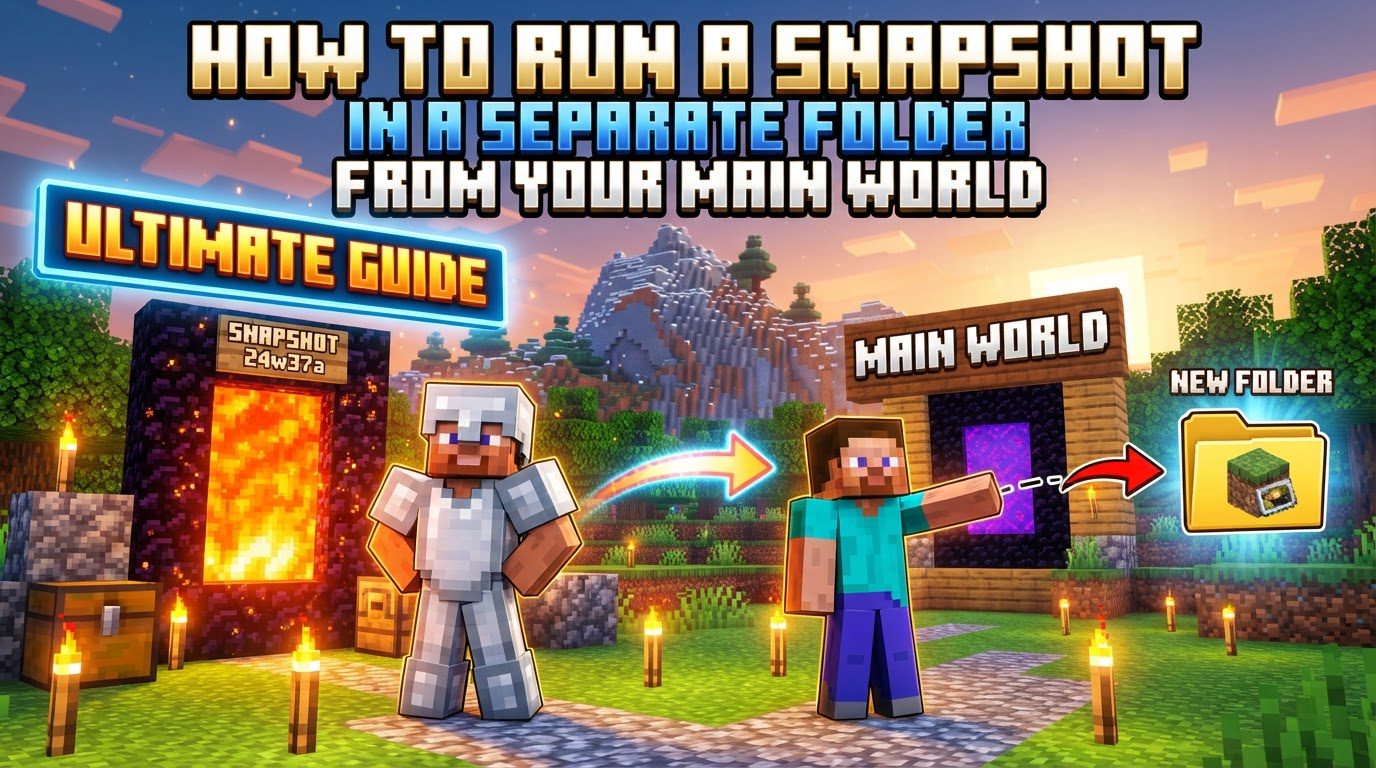
Running a Snapshot in a Separate Folder From Your Main World, Explained
Minecraft snapshots offer an exciting glimpse into the future of the game, allowing players to test upcoming features and changes before their official release. These experimental versions, periodically released by Mojang Studios for Java Edition, provide an opportunity to explore new mobs, blocks, items, and game mechanics. Due to their unfinished and experimental nature, snapshots are inherently unstable and may contain bugs, glitches, or cause world corruption. Features introduced are not final and can be changed, removed, or reworked. To protect your main Minecraft worlds and ensure a smooth testing experience, it is crucial to run snapshots in a separate folder. This guide details the comprehensive process for setting up a dedicated environment.
Key Mechanics of Minecraft Snapshots
-
Experimental Test Versions: Minecraft snapshots are preliminary, unfinished test versions of upcoming Java Edition updates. They are released by Mojang Studios to gather feedback and allow players to preview future content.
-
Preview New Features: These versions enable players to experience new additions such as mobs, blocks, items, or fundamental game mechanics well in advance of their official launch.
-
Inherent Instability: Snapshots are prone to bugs, glitches, and the potential for world corruption, making them unsuitable for long-term or valuable worlds.
-
Non-Final Features: Any feature presented in a snapshot is subject to change. Mojang Studios may modify, remove, or completely rework content before the stable release of the update.
Step-by-Step Process for Client-Side Snapshot Setup
To safely run a Minecraft snapshot in its own isolated environment, follow these detailed steps within your Minecraft Launcher:
-
1. Open the Minecraft Launcher: Begin by launching the official Minecraft application.
-
2. Enable Snapshots: Navigate to the “Installations” tab. Ensure the “Snapshots” checkbox is ticked to make experimental versions visible.
-
3. Create a New Installation: Click on the “New Installation” button to open the configuration window.
-
4. Name the Installation: Provide a descriptive name for your new snapshot installation, such as “Latest Snapshot Test.”
-
5. Select Snapshot Version: From the “Version” drop-down menu, choose “Latest Snapshot” or a specific snapshot you wish to play. This dictates which experimental game files will be used.
-
6. Set a Separate Game Directory: This is the most critical step. Locate the “Game directory” option (it may be under “More Options” or require “Advanced settings”). Enable the edit slider/checkbox and click “Browse.” Select or create a new, empty folder *outside* your default
.minecraftdirectory (e.g.,C:\MinecraftSnapshots\MySnapshotTest). This ensures all snapshot files and worlds are stored separately, preventing interference with your main game. -
7. Create Installation: After configuring all settings, especially the separate game directory, click “Create” to save your new snapshot profile.
-
8. Launch the Snapshot: Return to the “Play” tab. Select your newly created snapshot installation from the version menu next to the “Play” button, then click “Play” to launch the game.
-
9. Enable Experimental Features (if applicable): When creating a new world within the snapshot, check for and enable any relevant experimental datapacks if the snapshot includes major content updates. This ensures you experience all intended features.
Important Tips for Snapshot Usage
Adhering to these best practices helps navigate snapshots safely:
-
Always Back Up Your Worlds: Before playing any snapshot, particularly if you consider loading an existing world (not recommended for main worlds), it is paramount to back up your important Minecraft worlds. This ensures your valuable progress is preserved and can be restored if issues arise.
-
Use New Worlds Exclusively: The safest approach is to create entirely new worlds when playing on snapshots. This eliminates the risk of corrupting your long-term survival worlds due to snapshot instabilities.
-
Dedicated Folders are Essential: Utilizing a separate game directory is a critical step. This dedicated folder isolates all snapshot-specific files (assets, configs, worlds), preventing interference with your main Minecraft installation and maintaining its integrity.
-
Multiplayer Compatibility: If playing on a snapshot server, all players must have the exact same snapshot version installed. Version discrepancies will lead to connection issues.
-
Server-Side Snapshots: For server owners, download the specific snapshot server JAR file from official Mojang changelogs. Set up this server JAR in a dedicated server folder, separate from any stable server installations, to prevent conflicts.
Common Mistakes to Avoid When Using Snapshots
Avoiding these common pitfalls prevents frustration and data loss:
-
Playing Snapshots on Main Worlds: Never load a valuable world into a snapshot without understanding the high risk of irreversible corruption. Snapshots are not designed for long-term play on established worlds.
-
Not Enabling Snapshots in the Launcher: Forgetting to toggle the “Snapshots” option in the “Installations” tab prevents snapshot versions from appearing in your selection list.
-
Forgetting to Set a Separate Game Directory: Without this isolation, snapshot files can interfere with your main
.minecraftfolder, causing conflicts and potential corruption of your primary installation and worlds. -
Ignoring Experimental Datapacks: For newer content snapshots, overlooking experimental datapacks during world creation means you might miss intended features. Always check and enable these when starting a new world.
-
Expecting Stability: Do not expect snapshots to be as stable as release versions. Be prepared for bugs, crashes, unexpected behavior, and potentially lost progress; they are test versions.
-
Downgrading Worlds: Attempting to open a world saved in a snapshot with an older, stable version of Minecraft is highly problematic. This can result in lost progress, missing features, or severe world corruption, rendering the world unplayable.
By diligently following these guidelines and understanding the nature of Minecraft snapshots, you can safely explore upcoming content without jeopardizing your established worlds or main game installation. Enjoy experimenting!
Tags:
YOU MAY ALSO LIKE...