

How to set up a scoreboard for tracking player stats
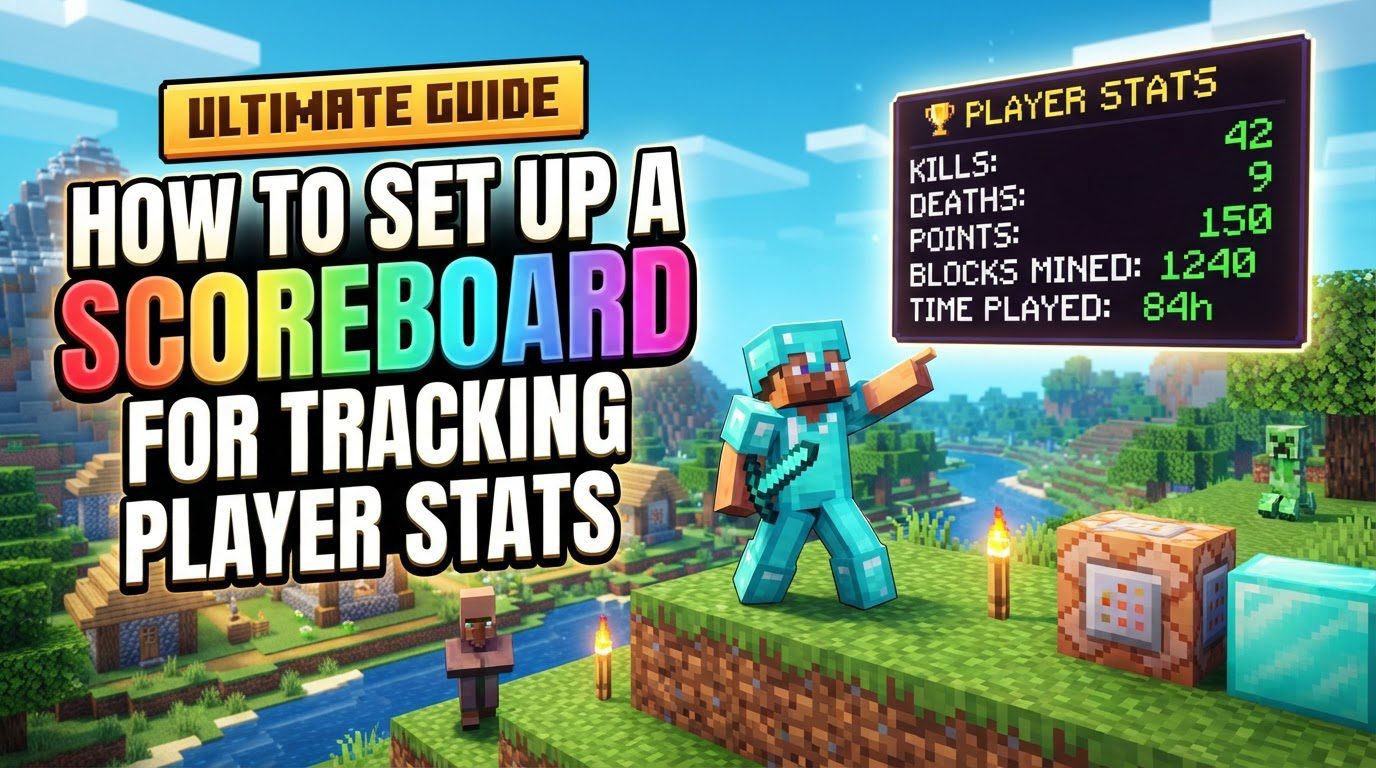
Minecraft scoreboards are an incredibly powerful and versatile feature within the game, designed to track player statistics, facilitate the creation of custom game mechanics, and significantly enhance overall gameplay experiences. At their core, scoreboards enable players to store and display various numeric values that can be associated not only with individual players but also with other entities present in the Minecraft world.
Key Mechanics of Minecraft Scoreboards
Understanding the fundamental mechanics of scoreboards is crucial for effectively utilizing their capabilities. These core principles dictate how scores are managed, updated, and displayed within your game world.
- Scoreboards function by tracking numeric values, referred to as scores, which are assigned to players and other entities. These scores are organized under specific, named objectives.
- Each objective is defined by a criteria type. This criteria is what determines how the scores within that objective are updated. For instance, some criteria automatically track game events, while others require manual manipulation.
- The
dummycriteria type is particularly versatile and is frequently employed for scores that you intend to change manually through commands. This allows for complete control over the score’s value. In contrast, other criteria types automatically track specific game events. Examples includeplayerKillCount, which tracks the number of players a player has killed;deathCount, which records how many times a player has died;health, which can track a player’s current health;food, for tracking hunger levels;level, for experience levels;mined:minecraft.diamond_ore, which counts how many diamond ores a player has mined; orwalkOneCm, tracking distance walked in centimeters. - Scores can be presented to players in three distinct display locations within the game interface:
- The sidebar, which typically appears on the right side of the screen.
- The player list, accessible by pressing the Tab key, where scores can be shown next to player names.
- Below a player’s nametag, providing a more immediate and localized display for individual players.
- Beyond just player-specific statistics, scoreboards are capable of tracking more abstract concepts. This includes values like elapsed time, distances covered by entities, or other custom metrics that aren’t directly tied to a player’s in-game actions but are defined by your game logic.
Step-by-Step Process for Setting Up a Scoreboard
Implementing a scoreboard involves a series of commands, each serving a specific purpose in defining, displaying, and manipulating scores. Follow these steps to set up your own custom tracking system.
1. Add an Objective
The first step is to create a new scoreboard objective. This objective will serve as the container for the scores you wish to track.
- Use the command:
/scoreboard objectives add <name> <criteria> [display name] <name>: This is the internal identifier for your objective. It must be a single word, without spaces, and will be used in all subsequent commands to refer to this specific objective (e.g.,kills,deaths,money).<criteria>: This defines what the objective will track.- If you want to manually control the scores, use
dummy. This is ideal for custom counters or points systems that you manage via other commands. - For automatic tracking of game events, choose from options like
deathCount(to count player deaths),playerKillCount(to count player kills),health(to display current health),food(for hunger),level(for experience levels),mined:minecraft.diamond_ore(for tracking mined diamond ore), orwalkOneCm(for distance walked).
- If you want to manually control the scores, use
[display name]: This is an optional, human-readable name that will be shown on screen to players. It can include spaces and special characters, but must be enclosed in double quotes if it contains spaces (e.g.,"Total Kills","Player Deaths"). If omitted, the internal name will be used as the display name.- Example: To create an objective named “kills” that automatically tracks player kills and displays as “Total Kills”:
/scoreboard objectives add kills playerKillCount "Total Kills" - Example: To create a custom objective named “money” that you will manually control, displayed as “Player Money”:
/scoreboard objectives add money dummy "Player Money"
2. Display the Objective
Once an objective is created, it won’t be visible to players until you explicitly set it to a display slot. You can choose where the scores appear.
- Use the command:
/scoreboard objectives setdisplay <slot> [objective] <slot>: This specifies where the scoreboard will be shown.sidebar: Displays the objective on the right side of the screen. This is commonly used for persistent stats.list: Shows the objective in the player list (accessed by pressing Tab), next to each player’s name.belowName: Displays the objective directly below a player’s nametag in the game world.
[objective]: This is the internal name of the objective you wish to display in the chosen slot.- Example: To show the “kills” objective on the sidebar:
/scoreboard objectives setdisplay sidebar kills - Example: To show the “money” objective in the player list:
/scoreboard objectives setdisplay list money - Clearing a display: To remove an objective from a display slot, simply use the command with the slot name but without specifying an objective:
/scoreboard objectives setdisplay sidebar
3. Manipulate Player Scores (for dummy objectives)
For objectives created with the dummy criteria, you will need to manually change players’ scores using specific commands. These commands allow you to set, add to, remove from, or reset a player’s score for a given objective.
- Set a player’s score:
/scoreboard players set <player> <objective> <score>- This command assigns an exact score to a player.
- Example: To set player ‘Steve’s’ money to 100:
/scoreboard players set Steve money 100
- Add to a player’s score:
/scoreboard players add <player> <objective> <amount>- This command increases a player’s current score by the specified amount.
- Example: To give player ‘Alex’ 50 more money:
/scoreboard players add Alex money 50
- Subtract from a player’s score:
/scoreboard players remove <player> <objective> <amount>- This command decreases a player’s current score by the specified amount.
- Example: To take 20 money from player ‘Steve’:
/scoreboard players remove Steve money 20
- Reset a player’s score:
/scoreboard players reset <player> <objective>- This command completely removes a player’s entry for the specified objective from the scoreboard, effectively resetting their score and making them no longer appear for that objective until their score is set again.
- Example: To reset ‘Alex’s’ money score:
/scoreboard players reset Alex money
<player>can be a specific player name (e.g.,Steve), a target selector (e.g.,@pfor the nearest player,@afor all players,@rfor a random player,@efor all entities), or a “fake player” name.
4. List Existing Objectives
At any point, you can view all the scoreboard objectives that have been created in your world, along with their criteria types.
- Use the command:
/scoreboard objectives list - This command is useful for checking the names and types of your objectives, especially when you have many set up.
Important Tips for Advanced Scoreboard Usage
To truly unlock the potential of scoreboards, consider these advanced usage tips:
- The
dummycriteria is incredibly versatile. It allows you to create custom counters for virtually anything you can imagine, from a player’s “karma” score to the number of times they’ve interacted with a specific block. You have full command-based control over these scores, making them perfect for custom game logic. - Scoreboards are not limited to tracking just players. They can track any entity in the game, such as zombies, villagers, or even dropped items. Furthermore, you can use “fake players” – arbitrary names that don’t correspond to actual players – to store scores that are not tied to any physical entity. This is useful for global counters, game timers, or storing configuration values.
- For complex systems and automated score changes, integrate scoreboards with command blocks. Specifically, repeating command blocks can continuously check conditions or add/remove scores, while chain command blocks can execute a sequence of commands based on scoreboard values, allowing for intricate game mechanics.
- The
/executecommand is a powerful companion to scoreboards. It allows you to run commands conditionally based on a player’s score. For instance, you can use/execute if score @p <objective> matches <range> run ...to trigger actions only if a player’s score falls within a specified range. This enables score-gated events, progression systems, or conditional rewards. - Scoreboard operations provide a way to perform mathematical calculations between scores. The command
/scoreboard players operationallows you to add, subtract, multiply, divide, modulo, or assign values from one score to another. This is invaluable for resource management systems, crafting recipes that consume resources, or more complex scoring algorithms. - Remember that to clear a scoreboard display from a slot, you simply use the
/scoreboard objectives setdisplay <slot>command without specifying an objective. This will remove any objective currently being displayed in that slot.
Common Mistakes to Avoid
When working with scoreboards, it’s easy to encounter issues. Being aware of common pitfalls can save you time and frustration:
- Incorrect syntax: Minecraft commands are very precise. They are case-sensitive, and require exact arguments. Even a small typo can prevent a command from working. Always double-check your command syntax, including objective names and player selectors.
- Forgetting to set a display: A common oversight is creating an objective but then wondering why it isn’t visible. An objective will not appear on screen until you use the
/scoreboard objectives setdisplaycommand to assign it to a display slot (sidebar, list, or belowName). - Misunderstanding criteria: Using the
dummycriteria when an automatic tracking criteria (likedeathCountorplayerKillCount) would be more appropriate means you’ll have to manually update scores that could otherwise be handled by the game. Conversely, trying to manually update an objective with an automatic criteria won’t work as expected; it will be overwritten by the game’s automatic tracking. - Assuming scores are automatically visible: Just because an objective exists and players have scores for it doesn’t mean it will be displayed. You must explicitly use
/scoreboard objectives setdisplayfor it to appear in one of the three available slots. - Issues with command block chains (Bedrock Edition): If you are working in Bedrock Edition, ensure that command blocks in a chain are correctly configured. This includes making sure they are facing the same direction, and that their settings (repeating, chain, conditional, unconditional, always active) are appropriate for the desired functionality. Inconsistencies here can lead to commands not executing or scores not updating as intended.
- Forgetting objective names and display names are distinct: It’s important to remember that the internal name of an objective (e.g.,
kills) is what you use in commands, while the display name (e.g.,"Total Kills") is purely for player visibility. Mixing these up in commands will result in errors.
By mastering these concepts and avoiding common mistakes, you can effectively leverage Minecraft’s scoreboard system to create dynamic, engaging, and personalized gameplay experiences in your worlds.
Tags:
YOU MAY ALSO LIKE...


