

Setting Up a Server MOTD and Custom Icon (Step by Step)
Setting up a compelling Message of the Day (MOTD) and a distinctive custom icon is crucial for any Minecraft server looking to make a strong first impression. These elements are the first things potential players see in their multiplayer server list, acting as your server’s digital storefront. A well-crafted MOTD can convey your server’s theme, rules, or current events, while a custom icon provides instant brand recognition. This guide will walk you through the comprehensive process of configuring both, ensuring your server stands out.
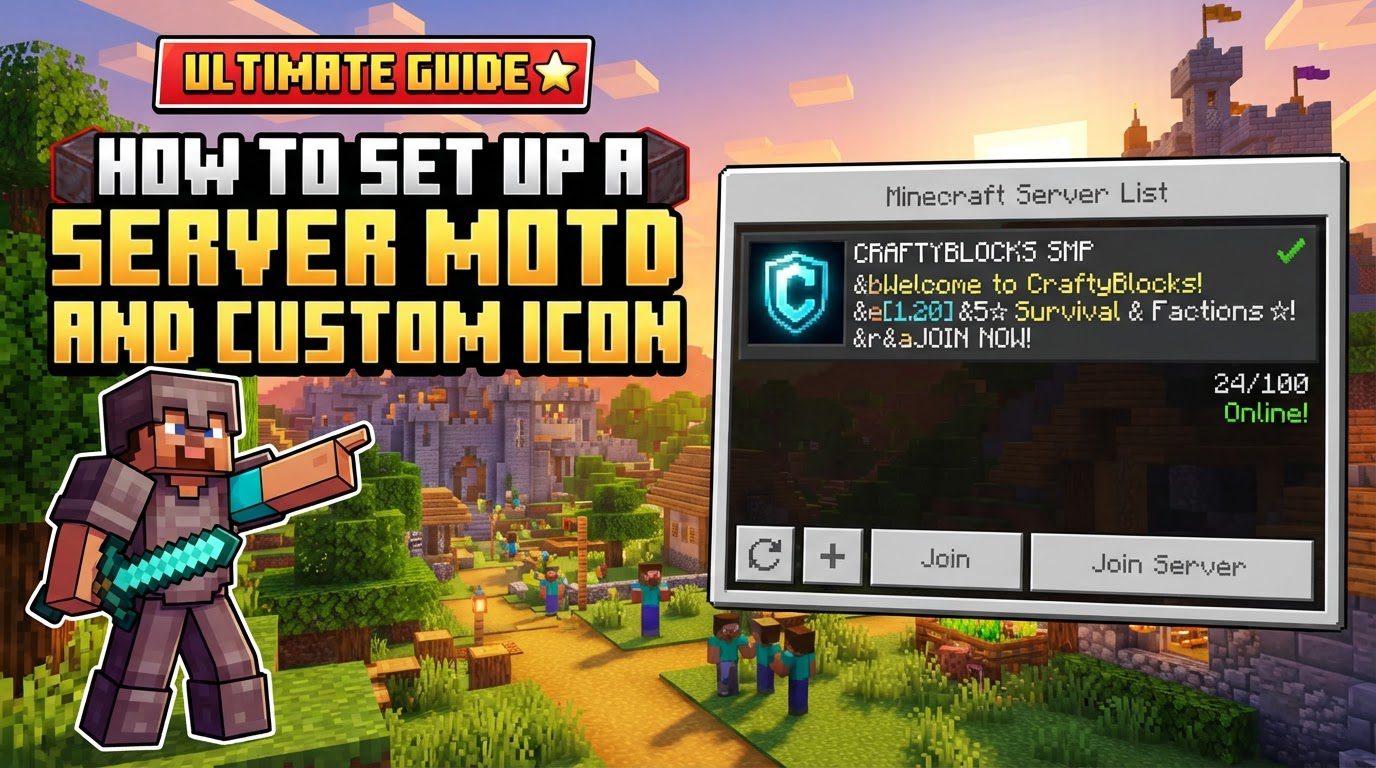
Understanding the Basics: MOTD and Custom Icons
Before diving into the setup, it’s important to understand what the MOTD and custom server icon are and how they function.
- The MOTD (Message of the Day) is a short text description displayed under your server’s name in the multiplayer server list. It gives players a quick glimpse into your server.
- MOTDs can be formatted with colors, bold, italic, underline, strikethrough, and obfuscated (glitch) effects to enhance their appearance.
- The custom server icon is a 64×64 pixel image displayed next to the server name in the multiplayer list. It serves as a visual identity for your server.
- Both the MOTD and icon are configured in the server’s root directory. The MOTD is set via the `server.properties` file, and the icon requires a specific image file in the same location.
- Server hosting panels often provide user-friendly interfaces to easily edit these settings, simplifying the process.
- Plugins like MiniMOTD, BetterMOTD, or PerfectMOTD offer advanced MOTD customization, including RGB gradients, animated MOTDs, and permission-based messages, extending default capabilities.
Setting Up Your Server’s Message of the Day (MOTD)
Configuring your server’s MOTD involves editing a specific line within your server’s main configuration file. Follow these steps carefully to set your desired message and apply formatting.
- Step 1: Access Your Server’s Files. Access your server’s file system, typically through your hosting panel’s file manager or an SFTP client.
- Step 2: Locate `server.properties`. Navigate to the server’s root directory, where `server.jar` and other core files reside. Open the `server.properties` file.
- Step 3: Find the MOTD Line. Locate the line that begins with `motd=`.
- Step 4: Edit Your Message. Enter your desired message after `motd=`. Keep it concise for readability. For example, `motd=Welcome to My Awesome Server!`
- Step 5: Add Colors and Formatting. Incorporate color codes using the `\u00A7` symbol followed by a character (e.g., `\u00A7c` for red, `\u00A7l` for bold). Online MOTD generators (like `motd.gg` or `minecraft.tools`) can help create these codes reliably.
- Step 6: Create a Two-Line MOTD. Insert `\n` (newline character) where you want a line break. For example, `motd=\u00A7aWelcome to\n\u00A7bMy Server!` for a two-line message.
- Step 7: Save the File. Save the `server.properties` file back into its original location.
- Step 8: Restart Your Server. A full server restart is required for MOTD changes to take effect and be visible in the multiplayer list.
Setting Up Your Server’s Custom Icon
A custom server icon provides a unique visual identity. The process is straightforward but requires adherence to specific image requirements.
- Step 1: Prepare Your Image. Your custom icon must be a PNG file, exactly 64×64 pixels, and named `server-icon.png` precisely (filename and extension). Any deviation will cause it to fail. Use an image editor or online tool to resize and save it to these specifications.
- Step 2: Access Your Server’s Files. Access your server’s file system via your hosting panel or an SFTP client.
- Step 3: Upload the `server-icon.png` File. Upload your prepared `server-icon.png` file directly into your server’s root directory (the same folder as `server.properties` and `server.jar`). It must be in this top-level directory.
- Step 4: Replace Existing Icon (If Applicable). If a `server-icon.png` already exists, delete it before uploading your new custom icon to ensure your intended image loads.
- Step 5: Restart Your Server. A server restart is necessary for the new custom icon to be recognized and displayed in the multiplayer list.
Important Tips for MOTD and Custom Icons
To maximize the impact of your MOTD and custom icon, consider these helpful tips:
- Utilize Online MOTD Generators: Tools like `motd.gg` or `minecraft.tools` are invaluable. They offer intuitive interfaces to create formatted MOTD text with correct `\u00A7` color codes, simplifying the process of styling your message.
- Understand Color Code Syntax: When manually adding color codes in `server.properties`, always use the `\u00A7` prefix (e.g., `\u00A7c` for red). This Unicode escape sequence for the section symbol is more robust and recommended for `server.properties` than the raw `§` symbol, ensuring correct interpretation.
- Precision for Icon Dimensions: Your custom icon must be precisely 64×64 pixels. Incorrect dimensions will cause Minecraft to ignore it, displaying a default icon instead.
- Image Editing Tools: Use an image editor or online resizer to achieve the exact 64×64 pixel dimensions and save your image in the required PNG format.
- Keep MOTD Concise: Aim for a brief, clear, and readable MOTD. Overly long or cluttered messages can be overlooked. A two-line MOTD often provides the best balance of information and readability.
- Icon Design Principles: For icons, prioritize simple, recognizable designs with high-contrast colors. Complex details or small text are often unreadable at 64×64 pixels, so a bold, distinct graphic will stand out more effectively.
- Advanced Customization with Plugins: For features beyond default MOTD options, explore server plugins. They offer dynamic messages, animations, and player-specific MOTDs for a highly personalized server list experience.
Common Mistakes to Avoid
Even with clear instructions, certain errors frequently occur. Being aware of these can save you significant troubleshooting time.
- Incorrect Icon Naming: The custom icon file must be named `server-icon.png` exactly, including case. Any deviation will prevent it from displaying.
- Incorrect Icon Dimensions/Format: An image not precisely 64×64 pixels or not in PNG format will fail. Minecraft will display a default icon. Animated GIFs are not supported; only static PNGs work.
- Not Restarting the Server: This is a common oversight. Changes to both MOTD and icons require a full server restart to apply; a simple `/reload` command is insufficient.
- Misplacing the Icon File: The `server-icon.png` must be in the server’s root directory, not in any subdirectory.
- Using Raw Color Codes in `server.properties`: Pasting the `§` symbol directly into `server.properties` for MOTD formatting might not work consistently. Always use the Unicode escape sequence `\u00A7` (e.g., `\u00A7c`) for reliability.
- Overly Complex MOTDs: While formatting is good, an MOTD that is too long, uses too many colors, or employs excessive effects can become visually overwhelming and difficult to read. Strive for clear communication.
- Animated GIFs for Icons: Minecraft only supports static PNG images for server icons. Animated GIFs will either display a static first frame or not at all.
Tags:
YOU MAY ALSO LIKE...


