

Setting Up Rank-based Chat Colors — A Quick Guide
63
views ❘
July 8, 2026
Setting Up Rank-Based Chat Colors in Minecraft
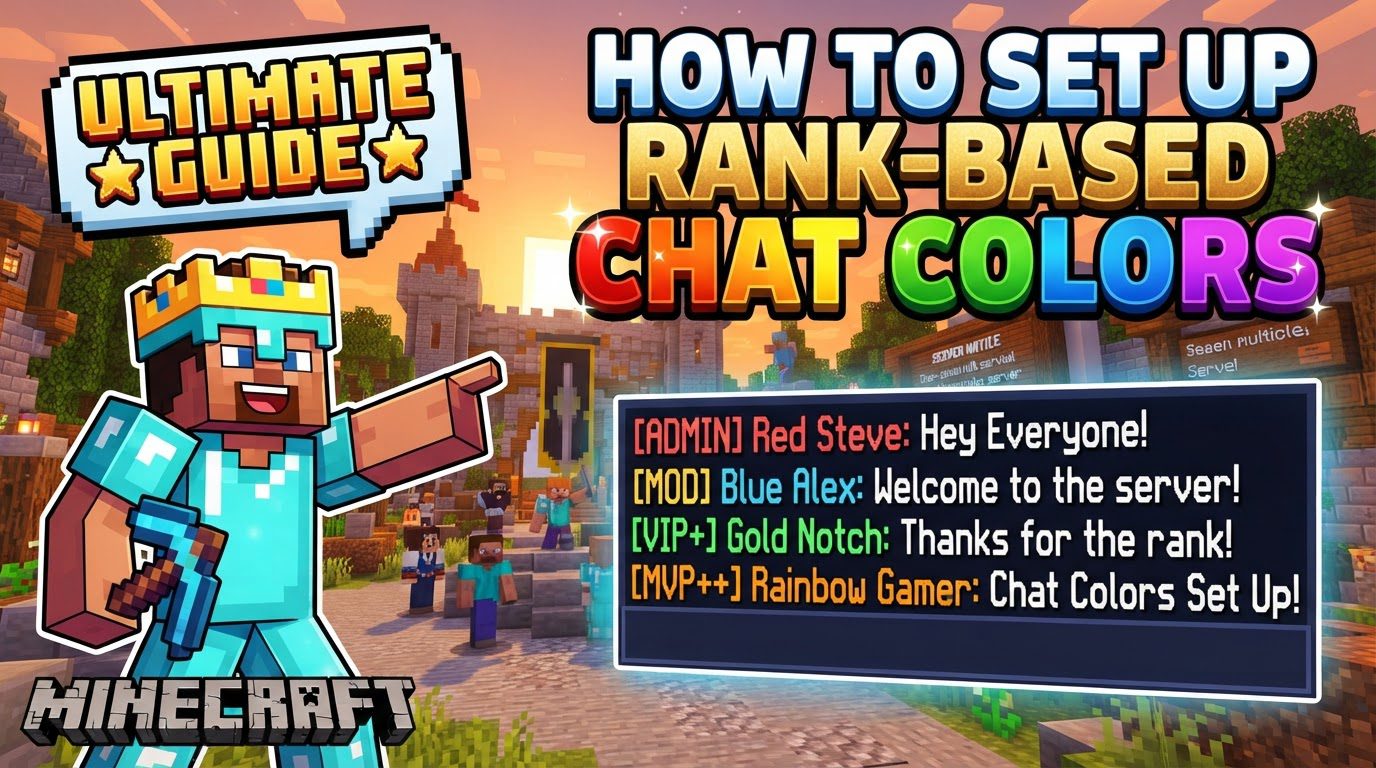
Implementing rank-based chat colors in Minecraft significantly enhances server aesthetics and player experience by visually distinguishing different player groups. This guide will walk you through the process, primarily focusing on server-side implementations using plugins for Minecraft Java Edition and behavior pack add-ons for Minecraft Bedrock Edition.
Key Mechanics of Chat Coloring
Understanding the fundamental components is crucial before diving into the setup process.
-
Color Codes: Minecraft utilizes special character codes to apply colors and formatting to text. These codes typically consist of an ampersand (
&) or a section symbol (§) followed by a letter or a number. For instance,&acommonly represents green, while&lmakes text bold. Familiarity with a comprehensive Minecraft color code chart is highly recommended for selecting desired colors and styles. - Plugins/Add-ons: On Minecraft Java Edition, server owners commonly rely on a combination of plugins. Permissions management is often handled by plugins like LuckPerms, while chat formatting is configured through plugins such as EssentialsX Chat or dedicated chat color plugins like “ChatColor by Sulphate.” For Minecraft Bedrock Edition, similar functionality is achieved through behavior pack add-ons.
- Permission Systems: A robust permission system, exemplified by LuckPerms, is integral to assigning specific ranks to players. These systems are used to grant players or entire ranks the necessary permissions to use certain color codes or to access commands that allow them to change their chat colors.
- Chat Formatters: A chat formatting plugin or a custom Skript is responsible for defining the overall structure of messages displayed in the chat. This includes determining where rank prefixes, player names, and the actual chat message will appear, and how they will be colored.
Step-by-Step Process for Setting Up Chat Colors
For Minecraft Java Edition (using plugins):
This process involves several stages, primarily focusing on plugin installation and configuration.
-
1. Install Core Plugins: Begin by downloading and installing the foundational plugins required for rank management and chat formatting. This typically includes:
- Vault: A crucial dependency for many server plugins, acting as an API for permissions, chat, and economy.
- A Permissions Plugin: LuckPerms is a popular and powerful choice for managing player ranks and permissions.
- A Chat Formatting Plugin: Options include EssentialsX Chat (part of the EssentialsX suite) or a dedicated chat color plugin. This plugin will handle how messages are displayed.
-
2. Configure Ranks in Permissions Plugin: Utilize your chosen permissions plugin, such as LuckPerms, to define your server’s ranks (e.g., Member, VIP, Moderator, Admin). Within this plugin, you will set the prefixes or suffixes for each rank. To embed a color directly into a rank’s prefix, you might use a command like
/lp group <group> meta set prefix "&c[Admin] &r", where&cmakes “Admin” red and&rresets the color for the player’s name and message. Alternatively, some plugins allow setting a specific color meta value for a group, e.g.,/lp group <group> meta set color <color>. -
3. Edit Chat Formatter Configuration: Locate and open the configuration file (commonly named
config.yml) of your chat formatting plugin. In this file, you will define the precise format of chat messages. This involves using placeholders that the plugin recognizes to insert elements like rank prefixes, player names, and the actual chat message. Crucially, you will insert Minecraft color codes (e.g.,&followed by a letter or number) directly into the format string to color the rank prefix. Ensure that the format string includes placeholders for the prefix from your permissions plugin and the player’s message. -
4. Grant Permissions: For players to be able to use chat colors, they need the appropriate permissions. This involves granting specific permissions nodes to individual players or, more efficiently, to entire ranks. Examples of such permissions might include
chatcolor.custom, which allows players to use general&codes in their chat, or more specific permissions likechatcolor.changeto use commands or GUIs to alter their chat color, orchatcolor.color.<color>to grant access to specific color codes. -
5. Reload/Restart: After making any modifications to plugin configurations or permissions, it is essential to either reload the affected plugins (often with a command like
/plugman reload <plugin_name>or a plugin-specific reload command) or restart your Minecraft server entirely. This ensures that all changes are applied and take effect.
For Minecraft Bedrock Edition (using an add-on):
Bedrock Edition typically relies on behavior pack add-ons for similar functionality.
- 1. Download Add-on: Obtain a suitable chat ranks add-on from a reputable source. Ensure the add-on is compatible with your version of Minecraft Bedrock Edition.
-
2. Import to Game: Once downloaded, double-click the
.mcpackfile. This action will automatically import the add-on into your Minecraft game client. - 3. Activate in World Settings: To use the add-on, you must activate it within your world. Either create a new world or edit an existing one. Navigate to the world settings and ensure that “Cheats” are enabled. Then, locate the “Behavior Packs” section and activate the chat ranks behavior pack for that specific world.
-
4. Grant Admin Tag: Many chat management add-ons require players to have a specific tag to access their administrative features. In-game, open the chat and use the command
/tag @s add admin(or the specific tag required by your add-on) to grant yourself (or other designated players) this administrative tag. -
5. Use In-Game GUI: After gaining the necessary tag, you can usually interact with the add-on via an in-game command. Type
!rank(or the specific command indicated by your add-on’s documentation) into the chat. This command typically opens a player manager Graphical User Interface (GUI). -
6. Set Colors: Within the opened GUI, you will have options to manage players and ranks. Select a player and use the provided interface to add or edit their rank. Here, you can define custom colors for the rank prefix, the player’s name, and their subsequent chat text. This is done by inputting the Minecraft section symbol (
§) followed by the appropriate color code (e.g.,§cfor red).
Important Tips for Success
- Refer to Color Code Charts: Always keep a Minecraft color code chart handy. This will help you select the exact colors and formatting styles (e.g., bold, italic, underlined) you desire and ensure you use the correct codes.
- Utilize GUI Plugins: Consider using plugins that offer a Graphical User Interface (GUI) for selecting colors or managing permissions. These can significantly simplify the configuration process, especially for those less familiar with command-line interfaces.
-
Use Reset Color Codes: After applying a color to a rank prefix (e.g.,
&c[Admin]), it is crucial to use the reset color code (&ror§r) immediately afterward. This prevents the player’s name and their subsequent chat message from inheriting the rank’s color, ensuring a clean and readable chat experience. - Ensure Consistency: Maintain consistency in your permission group names across all related plugins (e.g., permissions plugin, chat plugin). Inconsistent naming can lead to configuration conflicts or features not working as intended.
Common Mistakes to Avoid
Being aware of common pitfalls can save significant troubleshooting time.
-
Incorrect Color Codes: A frequent error is using the wrong symbol (
&vs.§, depending on context and plugin) or an invalid character after the symbol. This will result in uncolored text or, in some cases, errors in the chat. - Missing Permissions: Forgetting to grant players or specific ranks the necessary permissions to use color codes or access chat commands is a common oversight. Without these permissions, the chat coloring features will simply not function for those players.
- Not Reloading/Restarting: Configuration changes made to plugin files or permission settings will not take effect until the plugins are properly reloaded or the entire server is restarted. Always remember this crucial step.
- Conflicting Plugins: Running multiple chat formatting plugins simultaneously without careful configuration can lead to unexpected behavior, override issues, or only one plugin’s formatting taking precedence. Ensure your chat formatting setup is streamlined.
- Bedrock-Specific Errors: For Minecraft Bedrock Edition add-ons, common errors include failing to enable cheats in the world settings or neglecting to activate the behavior pack itself. Both are necessary for the add-on to function correctly.
-
Unintended Color Inheritance: As mentioned, not placing a reset code (
&ror§r) immediately after a colored prefix will cause the player’s username and their entire message to adopt the color of the rank prefix, which is usually not the desired effect.
Click to rate this post!
[Total: 0 Average: 0]
Tags:
YOU MAY ALSO LIKE...

The Mechanics Behind Lightning Rod Redstone Output
27
views
A single lightning strike, when intercepted by a lightning rod, generates a Redstone signal of…

The Mechanics Behind Minecart Comparator Output
29
views
One of the most frequently encountered frustrations for aspiring Minecraft automation engineers revolves around a…

The Mechanics of Block Face Detection
27
views
Many players mistakenly believe that "block face detection" in Minecraft refers to an inherent system…

The Mechanics of Chorus Flower Teleportation
38
views
Many players misunderstand the seemingly erratic nature of chorus fruit teleportation, often expecting precise control…

The Mechanics of Experience Orb Collection
60
views
A mere 7.25 blocks is all it takes for the glowing green and yellow essence…

The Mechanics of Falling Block Suffocation Detection
39
views
Many a seasoned miner has met their untimely end not at the claws of a…

The Mechanics of Minecart Hopper Timing
61
views
A minecart with a hopper boasts an astonishing item transfer rate of 1 item per…

The Mechanics of Minecart Riding Physics
56
views
One of the most common frustrations for new and even seasoned Minecraft players building a…

The Mechanics of Redstone Clock Desync
34
views
Building a redstone clock that reliably keeps time, especially across long play sessions or server…