Smoothing Block Textures with Chisel — A Quick Guide
Minecraft, at its core, is a game of blocks. While its iconic pixelated aesthetic is beloved by many, builders often seek ways to refine and customize their creations beyond the standard block textures. The Chisel mod emerges as a powerful tool in this endeavor, offering an extensive library of alternate visual textures for a vast array of blocks. This guide will walk you through the process of leveraging the Chisel mod to achieve smoother, more refined block aesthetics in your Minecraft builds, ensuring your structures stand out with unparalleled visual diversity.
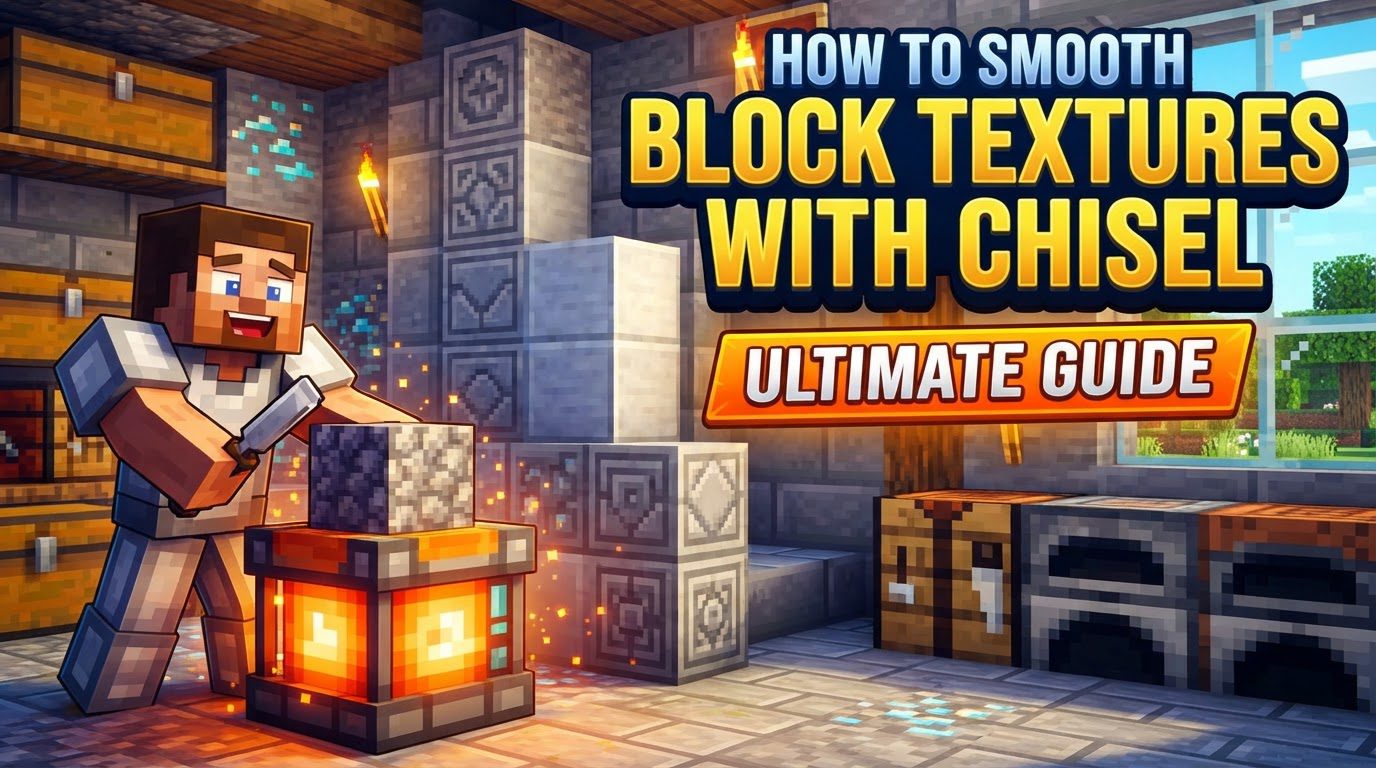
The primary function of the Chisel mod is to empower players with the ability to change the visual texture of most vanilla Minecraft blocks, as well as many new blocks introduced by the mod itself. This transformation allows for a remarkable degree of customization, moving beyond the default appearance of blocks to a wide variety of alternate designs. For those aiming for a more polished or “smooth” look, the mod provides numerous variants specifically designed to offer a sleeker aesthetic, often described as “smooth” textures, such as those available for various stone types.
At the heart of this mod is the aptly named Chisel tool. This essential item is easily crafted by combining one stick and one iron ingot within any crafting grid. Once you have your Chisel, you unlock a world of textural possibilities. The mod operates through two primary methods of block conversion: a Graphical User Interface (GUI) for efficient bulk processing and a direct in-world interaction for quick, on-the-spot changes. Understanding when and how to use each method is crucial for maximizing the mod’s potential and preserving your tool’s durability. Many of these sophisticated textures, especially those that seamlessly extend across multiple blocks, often rely on the CTM (Connected Textures Mod) library to function correctly and display their intended connected appearance, which is a vital consideration for proper mod setup.
Step-by-Step Process for Textural Transformation
Achieving smoother textures or simply diversifying your building palette with the Chisel mod is a straightforward process once you understand the core mechanics. Follow these steps to begin transforming your blocks:
- Step 1: Craft Your Chisel
Your journey begins with crafting the fundamental tool. Open your crafting table or inventory crafting grid. Place one stick in one slot and one iron ingot in another. The resulting item will be the Chisel. This tool is your gateway to a multitude of block variants.
- Step 2: Open the Chisel GUI
With the Chisel in your hand, perform a right-click. This action will open the Chisel’s dedicated Graphical User Interface (GUI). This interface is where the majority of your texture conversions will take place, offering a clear visual selection of available variants.
- Step 3: Place a Compatible Block
Within the Chisel GUI, you will find a central slot. Into this slot, place any Chisel-compatible block. You can place a single block or an entire stack of blocks. The mod is designed to process stacks efficiently, making bulk conversions incredibly convenient. The GUI will then populate with all the alternative texture variants available for that specific block type.
- Step 4: Select Your Desired Variant
Browse through the displayed alternative textures. For those aiming for a “smoother” aesthetic, look for variants explicitly described as such, or those with less pronounced details and more uniform surfaces. Once you’ve identified your desired “smoother” or preferred variant, simply click on it in the GUI. This action will instantly convert the block(s) currently in the central slot to your chosen texture.
- Step 5: Retrieve Converted Blocks
After the conversion, the newly textured blocks will remain in the central slot. Drag these converted blocks back into your inventory. They are now ready to be placed in your world, showcasing their new, refined appearance.
- Optional Step: In-World Conversion
For quick, on-the-fly texture changes to blocks already placed in the world, you can directly left-click on a block with the Chisel in your hand. This will convert the block to a random variant or, if you’ve previously selected a specific variant through the GUI, it may convert it to that last-selected variant. However, it’s crucial to note that this method consumes durability from your Chisel. For large-scale projects, using the GUI for conversions is far more efficient and preserves your tool.
Important Tips for Enhanced Building
Beyond the basic conversion process, the Chisel mod offers additional functionalities and integrates well with other aspects of Minecraft building:
- Advanced Chisel Tools: iChisel and Auto Chisel
For players seeking advanced functionality, particularly for automation and large-scale projects, look out for the “iChisel” or an “Auto Chisel.” These tools provide enhanced capabilities, often allowing for more streamlined and automated block conversions, which can be a significant time-saver in extensive builds.
- The Ender Offset Wand
Another valuable tool from the Chisel mod is the Ender Offset Wand. This specialized item allows builders to fine-tune the placement of certain textures. It can be used to shift a texture’s position, moving it up, down, left, or right. This functionality is incredibly useful for perfectly aligning intricate patterns or ensuring that connected textures flow precisely as intended across your build surfaces.
- Connected Textures for Seamless Designs
A key feature of many Chisel block variants is their support for “connected textures.” This means that when certain blocks with compatible textures are placed adjacent to each other, their textures will seamlessly extend across multiple blocks, creating a unified and continuous visual surface. This effect is particularly effective for large walls, floors, or decorative panels, contributing significantly to a smoother and more polished look.
- Compatibility with Chisels & Bits Mod
The Chisel mod is designed to be compatible with the “Chisels & Bits” mod. This compatibility opens up even more possibilities for intricate building. While the Chisel mod focuses on altering the visual texture of entire blocks, Chisels & Bits allows players to break blocks down into tiny components, enabling incredibly detailed sculpting. Together, these mods empower builders to achieve both broad textural diversity and minute structural detail in their creations.
Common Mistakes to Avoid for a Smooth Experience
To ensure a seamless and enjoyable experience with the Chisel mod, be aware of these common pitfalls:
- Forgetting the CTM Library Installation
One of the most frequent issues encountered by users is not installing the CTM (Connected Textures Mod) library. Some versions of the Chisel mod, especially those that heavily feature connected textures, require CTM to be installed alongside it. Without CTM, these specific textures may not display correctly, leading to visual inconsistencies or a complete lack of the intended connected effect.
- Confusing “Chisel” with “Chisels & Bits”
It’s crucial to distinguish between the “Chisel” mod and the “Chisels & Bits” mod. While both are excellent for builders, their primary functions differ significantly. The “Chisel” mod, as discussed here, is primarily for changing the texture of blocks. The “Chisels & Bits” mod, conversely, allows for breaking blocks into smaller components for detailed sculpting and manipulation of their physical shape. The “Chisel” mod primarily changes textures, not the physical shape to allow for true “smoothing” in the sense of removing the blocky nature of Minecraft. Both mods can be used together, but they serve different purposes.
- Inefficient Bulk Conversion with Left-Clicking
While left-clicking a block in the world with the Chisel offers convenience for single-block changes, it is highly inefficient for bulk conversions. Each left-click consumes durability from your Chisel. For converting stacks or large quantities of blocks, always utilize the Chisel’s GUI. The GUI allows you to convert entire stacks of blocks without depleting your tool’s durability, making it the preferred method for preparing materials for your builds.
- Attempting to Chisel Incompatible Blocks
Not every block in Minecraft, whether vanilla or from other mods, will have Chisel variants. Some blocks are simply not designed to be “chiselable.” If you place a block in the Chisel GUI and no variants appear, or if you try to left-click a block in the world without success, it’s likely that block is not supported by the mod. Always check compatibility if you encounter issues.
- Encountering Visual Glitches or Incorrect Connections
Occasionally, you might observe visual glitches, such as patterns connecting incorrectly, or lighting issues with certain Chisel variants. While rare, these can sometimes occur. Ensuring your Chisel mod, and any required dependencies like CTM, are updated to their latest stable versions can often resolve such visual inconsistencies and ensure optimal performance and display of textures.
By understanding these mechanics, utilizing the tools effectively, and avoiding common errors, you can transform your Minecraft builds with the Chisel mod, achieving a level of aesthetic detail and smoothness that enhances any architectural creation.
Tags:
YOU MAY ALSO LIKE...