

Submitting a Bug Report for a Mod
Submitting a bug report for a Minecraft mod is a crucial step in contributing to the modding community and helping developers improve their creations. A software bug is fundamentally an error that causes a mod to behave unexpectedly, deviating from its intended functionality. Reporting these issues correctly is paramount, as it provides developers with the necessary insights to diagnose and fix problems swiftly. Many mod developers have specific, preferred channels for bug reports, which commonly include their GitHub pages, Discord servers, or dedicated sections on official mod pages. It is important to remember that a bug report should always address an actual bug – something demonstrably broken or not working as designed – rather than a suggestion for a new feature, a personal account problem, or an issue caused by external factors such as network connectivity problems. The goal is to provide a reproducible account of an error that originates within the mod itself.
Understanding Software Bugs and Their Impact
Before diving into the reporting process, it’s essential to understand what constitutes a reportable bug. A bug is an error in the mod’s code that leads to unintended behavior, crashes, or incorrect functionality. For instance, if an item from a mod causes the game to freeze when crafted, or a block behaves differently than its description implies, these are clear indicators of a bug. Conversely, a request for the mod to add a new type of machine, a complaint about server lag (which could be network-related), or an issue with your personal Minecraft account would not qualify as a bug report for the mod. Reporting only actual, reproducible bugs ensures that developers can focus their efforts on maintaining the stability and correctness of their mod, rather than sifting through irrelevant feedback. Furthermore, a bug report should be something that can be consistently replicated, meaning if you perform the same steps, the bug occurs every time. This consistency is vital for developers to confirm the issue and test their fixes.
The Step-by-Step Bug Reporting Process
To ensure your bug report is effective and leads to a resolution, follow this structured approach:
- 1. Identify the Appropriate Platform: The very first step is to locate where the mod developer prefers to receive bug reports. This information is typically found on the mod’s official page, within the mod’s description, or on their designated community platforms. Look for a “GitHub Issues” tab, an invitation to a Discord server, or a specific forum section dedicated to bug reporting. It is absolutely critical that you do not report mod bugs to Mojang Studios, as they are responsible for the base game, not community-developed modifications. Directing your report to the correct developer saves time and ensures it reaches the right eyes.
- 2. Check for Existing Reports: Before you create a new report, take a moment to search the mod’s bug tracker, GitHub issues page, or forum. Many times, another user may have already encountered and reported the same issue. If you find an existing report, it is best to join that discussion, adding any new information or confirming that you also experience the bug. This prevents duplicate reports, which can clutter the developer’s workflow and make it harder to track unique issues.
- 3. Reproduce the Bug Reliably: A bug report is most valuable when the issue can be consistently replicated. Before submitting, try to make the bug happen multiple times by following the same sequence of actions. If the bug only occurs intermittently or under specific, hard-to-pinpoint conditions, it will be much harder for developers to diagnose. If possible, test the mod in an unmodified Minecraft environment (with only the problematic mod installed) to confirm that the issue is indeed caused by that specific mod and not by an interaction with another mod or the base game.
-
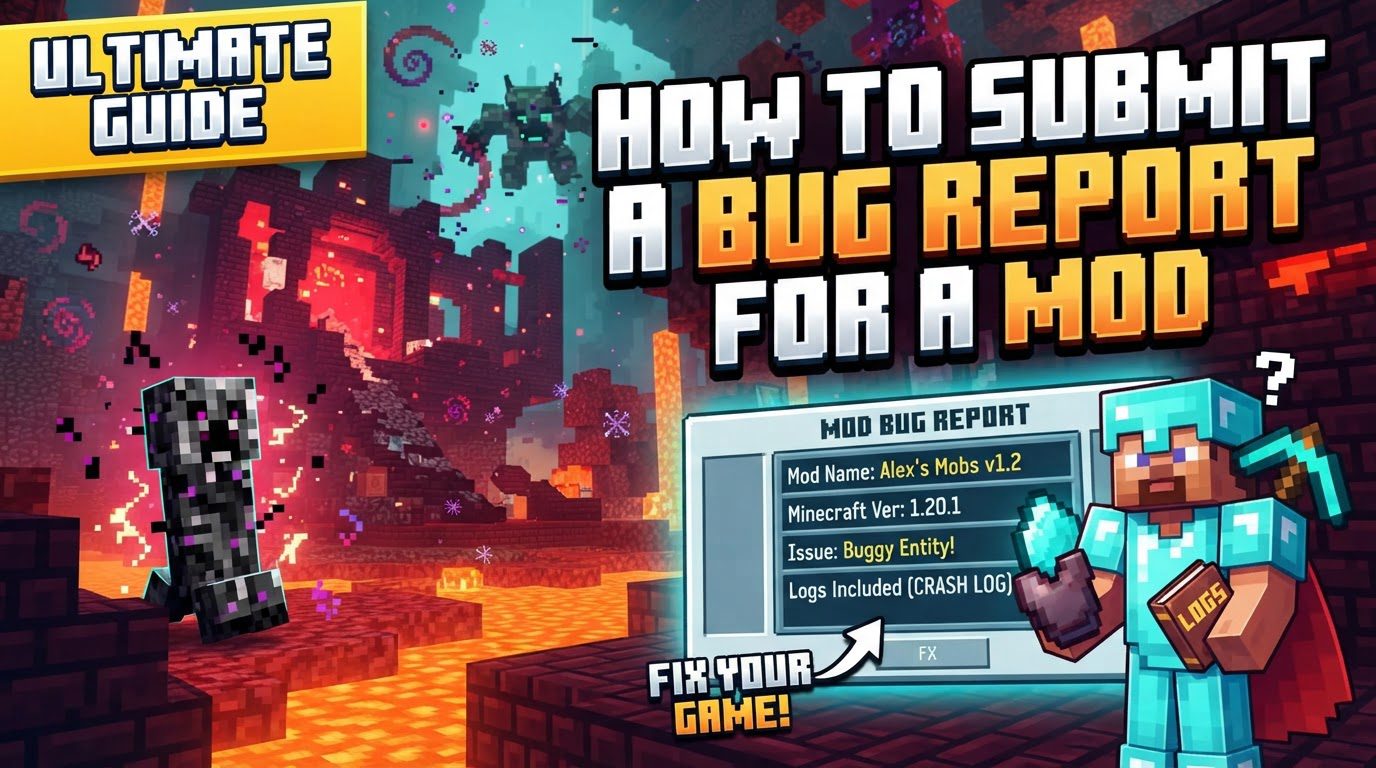
4. Gather Essential Information: This is perhaps the most critical stage, as the quality of your report hinges on the detail you provide.
- Detailed Description: Explain the issue clearly and concisely. Describe exactly what you did leading up to the bug, what you expected to happen based on the mod’s functionality, and what actually occurred. For example, instead of “The machine broke,” say, “When I placed a ‘Modded Furnace’ and attempted to smelt ‘Modded Ore,’ the furnace stopped working entirely after consuming the ore, and no smelted item appeared in the output slot. It also emitted no smoke particles, which I expected it to do.”
- Steps to Reproduce: Provide a precise, step-by-step guide on how to trigger the bug. Imagine you are instructing someone who has never seen the bug before. Each step should be clear and actionable. For example: “1. Launch Minecraft with Mod X version 1.2.3. 2. Create a new creative world. 3. Place a ‘Modded Block A’ at coordinates X, Y, Z. 4. Right-click ‘Modded Block A’ with ‘Modded Item B’. 5. Observe that the game crashes.”
- Mod List and Versions: List all installed mods, including their exact versions. Additionally, specify your Minecraft version and the version of your mod loader (e.g., Forge 47.1.3, Fabric 0.15.6). This information is crucial for developers to understand your exact game environment, identify potential conflicts with other mods, or determine if the issue is version-specific.
-
Log Files/Crash Reports: These files are invaluable for diagnosing technical issues.
- If your game crashed, include the full crash report. These are typically found in your Minecraft directory under `minecraft_dir/crash-reports/`. The crash report contains a stack trace and other technical details that pinpoint where in the code the error occurred.
- For issues that don’t result in a crash (e.g., incorrect item behavior, visual glitches), the `latest.log` file can be extremely helpful. This file, located in `minecraft_dir/logs/`, records events and errors that occur during your gameplay session.
To share these lengthy files without cluttering the bug report, copy their entire contents to a pastebin-like site (e.g., Pastebin, Gist) and then share the link to the pasted content in your report. Do not paste the entire content directly into the bug report field unless explicitly instructed to do so.
- Screenshots or Videos: Visual evidence can significantly aid developers in understanding and diagnosing the problem. A picture is worth a thousand words, and a short video demonstrating the bug in action can be even more effective. Upload these to an image or video hosting site and include the links in your report.
- Config Files: Optionally, you might be asked to include the mod’s configuration file. These files (often found in `minecraft_dir/config/`) contain settings that can alter a mod’s behavior. If you do include them, remember to remove any sensitive information, such as MySQL credentials or API keys, before sharing.
- 5. Submit the Report: Once you have gathered all the necessary information, navigate to the appropriate bug tracking platform. You may need to create an account if you don’t already have one. Write a concise, descriptive title for your report that quickly summarizes the issue (e.g., “Game crashes when crafting X item” or “Modded block Y does not render correctly”). Then, paste all the gathered information, ensuring it is well-organized and easy to read.
- 6. Monitor the Report: After submission, keep an eye on your report. Developers may have follow-up questions, ask for additional information, or provide updates on their progress. Be prepared to answer promptly and provide any further details they might request to help them resolve the issue.
Important Tips for Effective Reporting
- One Issue Per Report: To maintain clarity and facilitate tracking, submit separate reports for different bugs. Combining multiple unrelated issues into a single report makes it difficult for developers to manage and address each problem individually.
- Be Concise and Clear: Use a straightforward title and easy-to-understand language throughout your report. Avoid jargon where possible, and get straight to the point. Developers appreciate reports that are easy to read and understand quickly.
- English Only: Most bug trackers and mod developers operate in English. To ensure your report is understood, write it in English unless the developer explicitly states otherwise.
- Test Without Other Mods: If you suspect a specific mod is causing an issue, try running Minecraft with only that mod and its dependencies installed. This helps confirm whether the problem lies with the mod itself or if it’s a conflict arising from interactions with other mods.
- Use the Latest Mod Version: Always ensure you are using the most recent version of the mod available. Developers frequently release updates that fix bugs, and the issue you’re encountering might have already been resolved in a newer version.
- Back Up Your World: Before adding, updating, or troubleshooting mods, always create a backup of your Minecraft worlds. This is a critical safeguard against data loss or world corruption that can sometimes occur during the modding process.
Common Mistakes to Avoid
Being aware of common pitfalls can significantly improve the quality and impact of your bug reports:
- Not Searching for Existing Reports: As mentioned, failing to search for existing reports wastes both your time and the developers’ time by creating duplicate entries.
- Reporting to the Wrong Place: Submitting mod-related bugs to Mojang Studios instead of the mod creator is a common mistake that ensures your report will not be addressed by the relevant party.
- Lack of Detail: Providing vague descriptions or insufficient information makes it incredibly difficult for developers to reproduce the bug, understand its context, and ultimately fix it. Be as specific as possible.
- Including Multiple Bugs in One Report: This mistake complicates the bug tracking process, making it harder for developers to categorize, prioritize, and resolve individual issues.
- Not Including Crash Logs/Log Files: These diagnostic files are often the most crucial pieces of information for technical issues. Omitting them forces developers to guess or ask for them, delaying the resolution.
- Ignoring Mod Dependencies: Many mods require other specific mods to function correctly. Not installing these dependencies will almost certainly lead to crashes or unexpected behavior, which are not bugs of the mod itself.
- Mixing Forge and Fabric Mods: Forge and Fabric are distinct mod loaders and are not compatible with each other. Attempting to use mods designed for one loader with the other will result in immediate crashes and is not a bug of the individual mods.
- Outdated Mod Loader or Java: Ensure that your Forge or Fabric installation and your Java version are up to date. Older versions can sometimes introduce compatibility issues or bugs that are not present in the latest releases.
- Adding Too Many Mods at Once: When adding a large number of mods simultaneously, if an issue arises, it becomes exceedingly difficult to pinpoint which mod or mod interaction is causing the problem. It is best practice to add mods in small batches.
- Not Checking Mod Version Compatibility: Installing a mod that is designed for a different Minecraft version (e.g., a 1.18 mod on a 1.19 client) will almost certainly cause the game to crash or fail to launch. Always verify that the mod’s version matches your Minecraft version.
By diligently following these guidelines, you can ensure that your bug reports are comprehensive, actionable, and significantly contribute to the ongoing development and improvement of your favorite Minecraft mods.
Tags:
YOU MAY ALSO LIKE...


