Testing Experimental Features in a Snapshot Safely — A Quick Guide
Understanding Minecraft’s Experimental Features
Minecraft, a game renowned for its continuous evolution, frequently introduces new content through snapshots and beta versions. Among these, “experimental features” stand out as a unique way for players to get an early glimpse into the future of the game. These features are, by their very definition, unfinished and still very much a work-in-progress. They serve as a testing ground for upcoming mechanics, new blocks, and significant world generation updates long before they are officially released in a stable version of Minecraft.
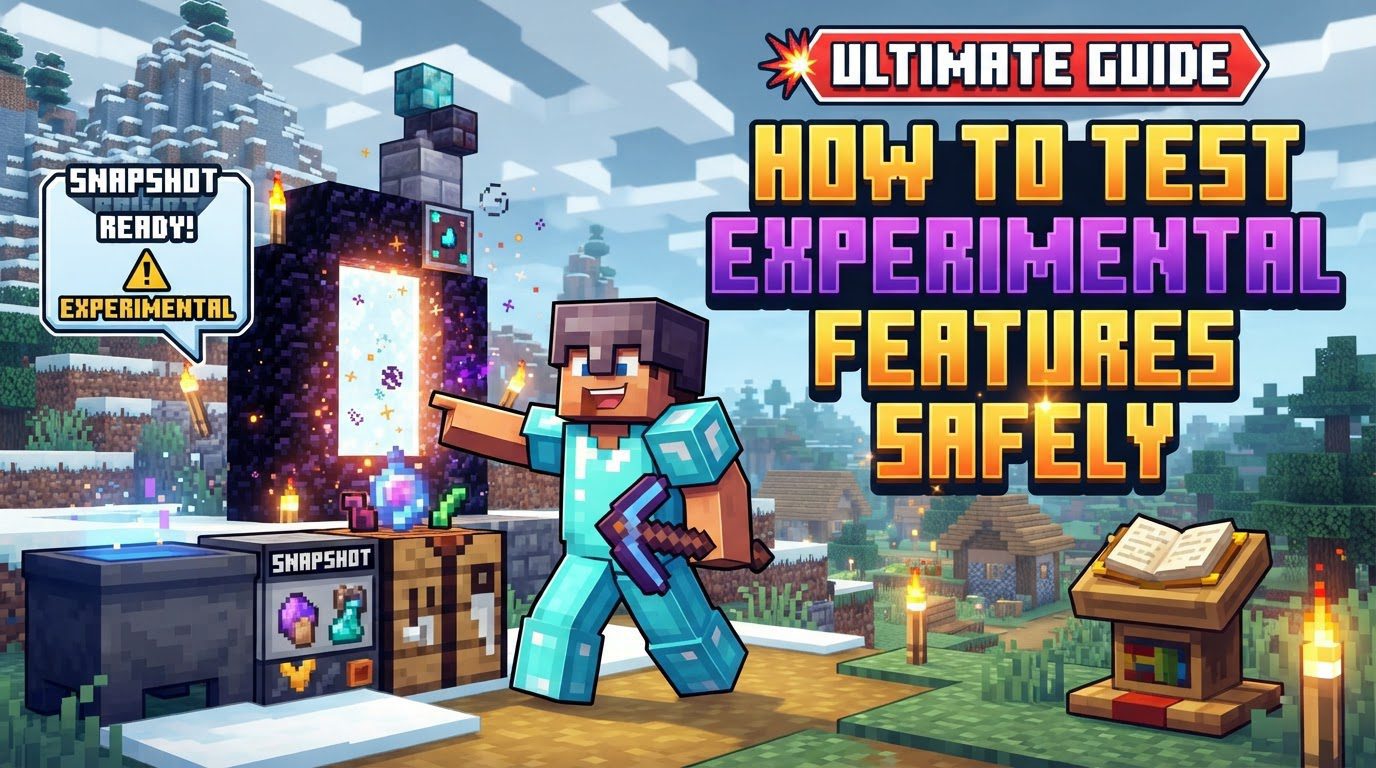
The primary purpose of experimental features is to allow the community to test and provide feedback on these nascent additions. However, given their early development stage, they come with inherent risks and require a cautious approach. Worlds created with experimental features enabled will be clearly marked with an “Experimental” tag in the world list, serving as a constant reminder of their volatile nature. It is crucial for any player venturing into this realm to understand that these features are often unstable. This instability can manifest in various ways, including unexpected game crashes, potential world corruption, or even complete incompatibility with future game updates. Therefore, safely engaging with these features is paramount to protect your existing game experiences.
Enabling Experimental Features: A Step-by-Step Guide
The method for activating experimental features differs slightly depending on whether you are playing the Java Edition or the Bedrock Edition of Minecraft.
For Java Edition Players:
- Step 1: Prepare Your Launcher. Begin by opening your Minecraft Launcher. Navigate to the “Installations” tab. Within this section, ensure that the “Snapshots” option is enabled. This will allow your launcher to display and download the latest development versions of the game.
- Step 2: Launch the Snapshot. Once snapshots are enabled, select the most recent snapshot version from the drop-down menu and launch the game. It is vital to use the very latest snapshot to ensure you have access to the most current experimental features.
- Step 3: Create a New World. When you reach the game’s main menu, choose to create a New World. This is a critical step for safety, as discussed in detail later.
- Step 4: Access Data Packs. On the New World creation screen, look for and click on the “Data Packs” button. Experimental features in Java Edition are typically packaged as data packs.
- Step 5: Activate Experimental Data Packs. Inside the Data Packs screen, you will see two sections: “Available” and “Selected.” Experimental feature data packs, such as “experimental bundle” or specific update packs like “update_1_21,” will usually be found in the “Available” section. Click on the arrow next to the desired experimental data pack(s) to move them into the “Selected” section.
- Step 6: Confirm and Create. After moving the necessary data packs, click “Done.” The game will then present you with warnings about the unstable nature of experimental features. Read these warnings carefully and click “Proceed” to acknowledge them. Finally, click “Create New World” to generate your experimental testing environment.
For Bedrock Edition Players:
- Step 1: Start Minecraft. Open your Minecraft Bedrock Edition application and select “Play” from the main menu.
- Step 2: Choose World Creation or Edit. You have two options here: either “Create New World” to start fresh, or “Edit” an existing world. If you choose to edit an existing world, the game will automatically create a copy of it before applying any experimental features. This is a built-in safety measure, but manual backups are still highly recommended.
- Step 3: Navigate to Game Settings. Within the world creation or edit screen, navigate to the “Game” settings tab. This section contains various world customization options.
- Step 4: Locate Experiments. Scroll down through the “Game” settings until you find the “Experiments” section. This is where all toggleable experimental features for Bedrock Edition are listed.
- Step 5: Toggle Features On. Toggle on the specific experimental features you wish to activate. You can enable multiple features if you desire.
- Step 6: Confirm Activation. After toggling on an experimental feature, the game will prompt you with a confirmation message, warning you about the risks involved. Click “Activate Experiments” to confirm your choice and proceed with enabling them in your world.
Essential Safety Tips for Experimental Testing
Engaging with experimental features requires a mindset of caution and preparedness. Adhering to these important tips will help minimize potential frustrations and data loss:
- Always Create a New World: This is arguably the most crucial tip. When testing experimental features, always create a brand new world specifically for this purpose. This completely isolates the experimental content from your main, cherished worlds, preventing any risk of corrupting them with unstable features or incompatible updates.
- Manual Backups Are Your Best Friend: While Bedrock Edition automatically creates a copy when enabling experiments on an existing world, manual backups provide an extra layer of precaution. It is always wise to back up any world you plan to modify, even if the game offers an automatic solution.
- Understand Non-Upgradeability: Worlds created with experimental features are generally not designed to be upgraded to future stable releases of Minecraft. This means that once a feature moves from experimental to official, your experimental world might not seamlessly transition to the new version, potentially leaving it stuck or corrupted. Treat these worlds as temporary testing grounds, not long-term projects.
- Achievements Are Disabled (Bedrock Edition): For Bedrock Edition players, it’s important to note that enabling experimental features in a world will disable achievements for that specific world. If earning achievements is important to you, keep experimental testing separate from your achievement-hunting worlds.
- Be Prepared for Instability: Expect bugs, crashes, and potential loss of progress. Experimental features are, by nature, incomplete and can be unpredictable. Approach testing with patience and the understanding that things might not always work as expected. Saving frequently and accepting that progress might be lost are part of the experimental testing experience.
Common Mistakes to Avoid
Even with the best intentions, players can sometimes fall into traps that lead to frustrating outcomes when dealing with experimental features. Being aware of these common mistakes can save you a lot of trouble:
- Activating on Cherished Worlds Without Backup: This is the most significant and common mistake. Enabling experimental features on a beloved, long-standing world without a proper backup is a recipe for disaster. The risk of corruption and future incompatibility with stable updates is extremely high, potentially leading to irreversible damage to your progress. Always prioritize backups or, better yet, use a new world.
- Expecting Finality or Guaranteed Inclusion: Do not assume that experimental features are final or that they will definitely be included in future stable releases. Mojang often uses experimental phases to gather feedback and might significantly change, rework, or even entirely remove features based on testing results and development direction. What you see in a snapshot might not be what you get in the final update.
- Attempting to Disable Toggles with External Tools: In Bedrock Edition, once experimental gameplay toggles are activated, attempting to disable them using external tools or unofficial methods can lead to severe issues. Such actions are not supported and are highly likely to crash and break your world, rendering it unplayable. Stick to official methods of world management.
- Trying to Enable Java Experimental Features on Existing Worlds Directly: For Java Edition, there isn’t an officially supported in-game method to enable experimental data packs on an existing world. While some advanced users might attempt to edit game files directly to force this, such methods are not officially supported, are extremely risky, and can easily corrupt your world. It is always safer and recommended to create a new world for experimental testing in Java Edition.
By understanding what experimental features are, how to activate them correctly in both Java and Bedrock Editions, and by diligently following safety protocols and avoiding common pitfalls, you can safely explore the cutting edge of Minecraft development. This allows you to contribute to the game’s evolution while protecting your valuable game worlds.
Tags:
YOU MAY ALSO LIKE...