

Transferring Minecraft World Saves From PC to Mobile (Step by Step)

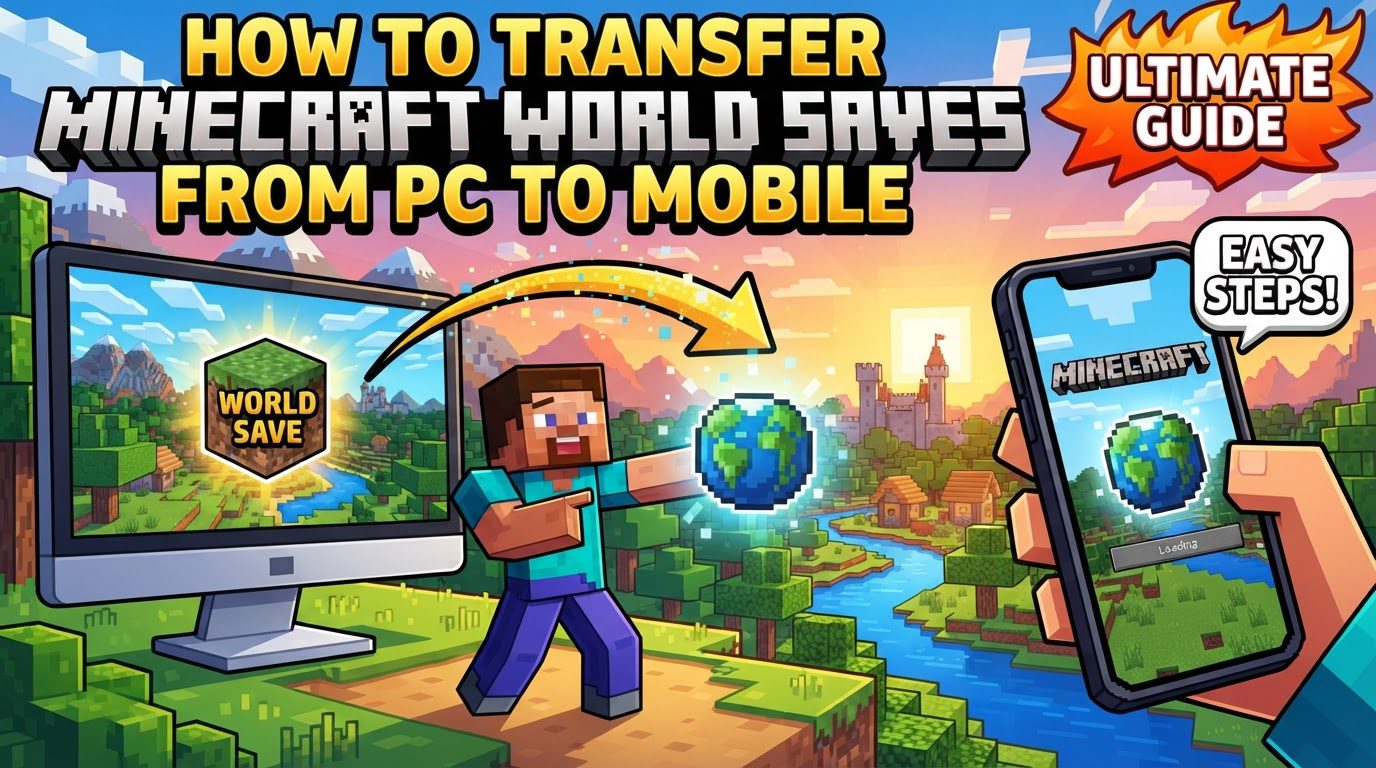
Transferring Minecraft world saves from your PC to a mobile device allows you to continue your adventures on the go. This guide focuses on the process for Minecraft Bedrock Edition, as it is the only version that offers direct compatibility between PC (Windows 10/11) and mobile (iOS/Android) platforms. Understanding the specific game editions and save file structures is fundamental to a successful transfer.
Understanding Key Mechanics
Before diving into the transfer methods, it’s important to grasp some core concepts:
- Edition Compatibility: World transfers are primarily possible between Minecraft Bedrock Edition on PC (specifically Windows 10/11) and its mobile counterparts on iOS and Android. It is crucial to note that Minecraft Java Edition worlds are not directly compatible with Bedrock Edition. This is due to fundamental differences in their underlying save file formats and game engines. Attempting to transfer a Java world to Bedrock without conversion tools (which are outside the scope of direct transfer) will not work.
- Save File Location: Minecraft worlds are stored in specific directories on both your PC and mobile devices. Identifying these precise locations is a critical first step for any manual transfer. The game organizes each world into its own distinct folder, which contains all the necessary data for that particular save. Knowing where to find and place these folders is the cornerstone of moving your worlds.
- Transfer Methods: There are generally two primary approaches for moving your Minecraft Bedrock worlds. The first involves a manual file transfer, utilizing tools like USB cables, cloud storage services, or dedicated file explorers. The second, and often more convenient method, leverages Minecraft Realms, which provides an in-game cloud-based solution for world synchronization. Each method has its own steps and considerations, which will be detailed below.
Step-by-step Process: Method 1 – Manual File Transfer (for Minecraft Bedrock Edition)
This method involves directly copying your world files from your PC to your mobile device. It requires access to the device’s file system and careful attention to folder paths.
1. Locate and Copy Your PC World
- On Windows PC:
- Navigate to the following directory:
%localappappdata%\Packages\Microsoft.MinecraftUWP_8wekyb3d8bbwe\LocalState\games\com.mojang\minecraftWorlds. You can paste this path directly into the address bar of File Explorer. - Inside this
minecraftWorldsfolder, you will find several subfolders, each representing a different Minecraft world. These folders often have cryptic names (e.g., a string of alphanumeric characters). - To identify your specific world, you can look at the “Date modified” timestamp of the folders, which will indicate when you last played on that world. Alternatively, opening each folder might reveal an
icon.jpegorlevelname.txtfile that gives a clue to the world’s identity. - Once identified, copy the entire world folder. This folder contains all the data for your world, including terrain, builds, player data, and settings.
- Navigate to the following directory:
2. Connect Mobile Device and Transfer
The process differs slightly depending on whether you are using an Android or iOS device.
- For Android Devices:
- Connect your Android device to your PC using a USB cable. Ensure your phone is set to “File Transfer” or “MTP” mode if prompted.
- On your PC, open File Explorer and navigate to your connected Android device’s internal storage.
- Locate the Minecraft game directory on your Android device. The typical path is:
Android/data/com.mojang.minecraftpe/files/games/com.mojang/minecraftWorlds. - Paste the entire world folder you copied from your PC into this
minecraftWorldsdirectory on your Android device. - Alternative for .mcworld files: In some scenarios, particularly if you have exported your world as a
.mcworldfile from the PC version of Minecraft (which can be done from the world settings), you would transfer this single.mcworldfile to your phone’s “Downloads” folder or any easily accessible location. Then, on your Android phone, you might need to install a third-party file manager, such as CX File Explorer. Use this file manager to navigate to the.mcworldfile, tap on it, and it should automatically open Minecraft and import the world. This method simplifies the folder navigation on the mobile device.
- For iOS Devices:
- Connect your iOS device (iPhone or iPad) to your PC using a USB cable.
- Open iTunes on your PC.
- In iTunes, select your device icon (usually near the top left).
- Go to the “File Sharing” section in the left sidebar.
- Select “Minecraft” from the list of apps.
- Within the Minecraft documents, you should see a “games” folder. This folder contains the
com.mojangdirectory, which in turn holds yourminecraftWorlds. You cannot directly paste into this structure within iTunes. - First, drag the existing “games” folder from iTunes to a temporary location on your PC (e.g., your desktop) to save it.
- Now, navigate into the saved “games” folder on your PC, then into
com.mojang/minecraftWorlds. Paste the entire world folder you copied from your PC into thisminecraftWorldsdirectory. - Once you’ve added your world to the modified “games” folder on your PC, drag this entire modified “games” folder back into the “Minecraft Documents” section within iTunes, replacing the original.
- Alternatively, using third-party tools: Due to the restrictive nature of iOS file systems, third-party applications like iMazing can provide more direct access to app files. These tools often allow you to browse and modify the internal file structure of apps like Minecraft, making it easier to drag and drop world folders into the correct
minecraftWorldsdirectory without the multi-step iTunes process.
3. Launch Minecraft on Mobile
- Once the world folder has been successfully transferred to the correct
minecraftWorldsdirectory on your mobile device, launch the Minecraft application. - Navigate to the “Play” menu. Your transferred world should now appear in the list of available worlds, ready for you to continue your adventure.
Step-by-step Process: Method 2 – Using Minecraft Realms (for Minecraft Bedrock Edition)
Minecraft Realms offers a more streamlined, cloud-based approach to transferring worlds, ideal if you have an active Realm subscription.
1. Upload Your World from PC to a Realm
- Launch Minecraft Bedrock Edition on your PC.
- From the main menu, click on “Play,” then navigate to the “Realms” tab.
- Select the Realm you intend to use for the transfer. You must be the owner of the Realm or have appropriate permissions.
- Go into the “Settings” for that Realm.
- Look for the option to “Replace World” or “Upload World.” This allows you to select a world from your local PC saves and upload it to one of the available world slots on your Realm.
- Choose the desired world from your PC’s world list and confirm the upload. The world data will be sent to the Realm’s cloud storage.
2. Download Your World to Mobile from the Realm
- On your mobile device (iOS or Android), launch the Minecraft application.
- Ensure you are signed in with the same Microsoft account that owns or has access to the Realm on your PC.
- Go to “Play,” then navigate to the “Realms” tab.
- Select the Realm that now contains your uploaded world.
- Go into the “Settings” for that Realm.
- Look for the “Download World” option. This will download a copy of the world from the Realm’s cloud storage directly to your mobile device’s local saves.
- Once the download is complete, the world will appear in your local world list on your mobile device.
Important Tips for a Smooth Transfer
- Bedrock Only: Always double-check that you are working with Minecraft Bedrock Edition worlds. Attempting to transfer Java Edition worlds will lead to frustration as they are fundamentally incompatible without complex conversion.
- Update Software: Before initiating any transfer, ensure that Minecraft is updated to the latest version on both your PC and your mobile device. Version mismatches can cause worlds to not load correctly or even become corrupted.
- Backup Worlds: This is a critical step. Always create a backup of your world on your PC before attempting any transfer or modification. Copy the entire world folder to a safe location on your computer. This safeguards against accidental data loss or corruption during the transfer process.
- Cloud Services: For manual transfers, cloud storage services like Google Drive, OneDrive, or Dropbox can be incredibly useful. You can upload your world folder from your PC to the cloud, and then download it to your mobile device, bypassing the need for a direct USB connection in some cases. This is especially convenient for Android users.
- File Managers: For Android users, if the default file explorer on your device struggles to recognize or correctly handle
.mcworldfiles for direct import, consider installing a third-party file manager application. CX File Explorer is a commonly recommended option that provides robust file management capabilities and often allows for easy installation of.mcworldfiles by simply tapping them.
Common Mistakes to Avoid
- Java to Bedrock Transfer Attempts: A common pitfall is trying to directly transfer a Minecraft Java Edition world to Bedrock Edition. These editions use different programming languages and save formats, making direct transfer impossible. Focus solely on Bedrock Edition worlds for this process.
- Incorrect File Paths: One of the most frequent errors in manual transfer is pasting the world folder into the wrong directory on the mobile device. Ensure you are placing the world folder specifically into the
minecraftWorldsdirectory within thecom.mojangfolder. Misplacing it, even by a single level, will prevent Minecraft from recognizing and displaying your world in-game. - Overwriting Data Without Backup: When copying files, especially during manual transfers, there’s a risk of accidentally overwriting an existing world save if you’re not careful. Always have a backup of your worlds before performing any copy or paste operations, particularly if you are moving files into a directory that already contains worlds.
- Version Mismatches: Transferring a world created in a significantly older or newer version of Minecraft to a device running a different version can lead to unpredictable results. This might include missing blocks, corrupted chunks, or the world simply failing to load. Ensure both your PC and mobile Minecraft installations are updated to the latest, or at least very similar, versions.
- Not Using Correct Tools for iOS: Due to Apple’s strict file system security, directly accessing and modifying app data on iOS devices is not straightforward. Relying on simple drag-and-drop from your desktop will not work. Always use iTunes’ File Sharing feature or a reputable third-party iOS file management tool like iMazing to correctly transfer world files to your iPhone or iPad.
Tags:
1 Comment
Leave a Comment
YOU MAY ALSO LIKE...




I have been looking for Minecraft