Triggering a Datapack Function Using a Repeating Command Block
In Minecraft, combining the power of datapack functions with the continuous execution of a repeating command block opens up a vast array of possibilities for automation, custom game mechanics, and dynamic world interactions. This guide will walk you through the essential steps and best practices to effectively trigger a datapack function using a repeating command block, transforming your world with custom logic that runs seamlessly in the background.
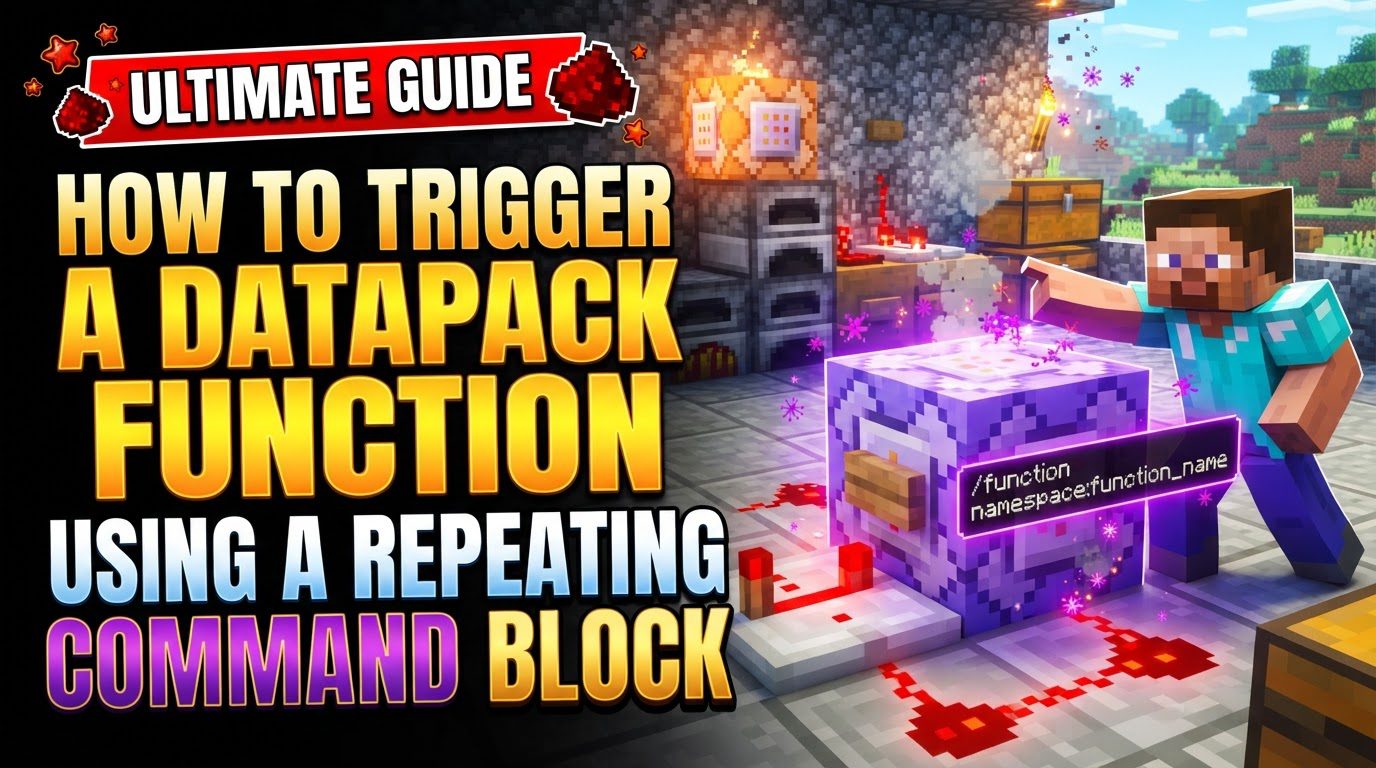
Understanding the Core Mechanics
Before diving into the setup, it’s crucial to grasp the fundamental components that make this system work:
- Datapack Functions: These are the heart of advanced custom mechanics in Minecraft. A datapack function is essentially a text file with the extension
.mcfunctionthat contains a sequence of standard Minecraft commands, one per line. By grouping commands into a function, you can execute a complex series of actions with a single call, making your custom systems organized, efficient, and easier to manage. These functions are stored within a specific folder structure inside your world’sdatapacksdirectory, allowing the game to load and recognize them. - Repeating Command Blocks: These specialized blocks are designed for continuous execution. Unlike impulse or chain command blocks, a repeating command block, when properly configured and powered, will execute the command it contains once every game tick. A game tick occurs 20 times per second, meaning any command placed within a repeating command block can run with high frequency, providing constant checks, updates, or effects within your world. They are visually distinct, often appearing purple or blue in their “Repeat” mode.
/functionCommand: This is the direct gateway to executing your custom datapack functions. When you use the/functioncommand, you specify the namespace and name of a function you’ve created (e.g.,/function your_namespace:your_function_name), and the game will immediately run all commands listed within that.mcfunctionfile. It acts as the bridge between your in-game command blocks and your external datapack logic./executeCommand: While the/functioncommand is straightforward, the/executecommand is incredibly versatile and powerful, especially when combined with functions. It allows you to modify the execution context of another command, including/function. With/execute, you can specify precisely who (usingas) will execute the command, where (usingat) the command will be run from, and under what conditions (usingiforunless) the command should even attempt to run. This granular control is essential for creating dynamic and context-aware systems.
Step-by-Step Guide to Triggering a Datapack Function
Follow these steps to set up your datapack function and trigger it with a repeating command block:
- Create a Datapack:
The first step is to establish the correct folder structure for your datapack. Navigate to your Minecraft world’s save folder. Inside, you’ll find a folder named
datapacks. Within thisdatapacksfolder, create a new folder for your specific datapack, for instance,your_datapack_name. Insideyour_datapack_name, create another folder nameddata. Withindata, create a folder for your uniqueyour_namespace(e.g., your username or project name). Finally, insideyour_namespace, create a folder calledfunctions. The full path should look like:your_world_folder/datapacks/your_datapack_name/data/your_namespace/functions/. - Create
pack.mcmeta:Every datapack requires a
pack.mcmetafile at its root level (insideyour_datapack_namefolder). This file tells Minecraft that the folder is a datapack and provides essential metadata. Create a new text file namedpack.mcmetain theyour_datapack_namefolder and add the following content:{"pack":{"pack_format":<version_number>,"description":"Your Datapack Description"}}The
pack_formatnumber is crucial and depends on your specific Minecraft version, so ensure you use the correct number for your game client. - Create Your Function:
Inside the
functionsfolder you created earlier (your_world_folder/datapacks/your_datapack_name/data/your_namespace/functions/), create a new text file. Name this fileyour_function_name.mcfunction. The.mcfunctionextension is vital for Minecraft to recognize it as a callable function. - Add Commands to Function:
Open
your_function_name.mcfunctionwith a text editor. On each new line, write a Minecraft command that you want your function to execute. It’s extremely important that you do not include the leading forward slash (/) for commands within a.mcfunctionfile. For example, instead of/say Hello World!, you would writesay Hello World!. - Reload Datapacks:
After creating or modifying any files within your datapack, Minecraft needs to be told to reload them. In-game, open your chat and execute the command
/reload. This command will refresh all loaded datapacks, making your new function available for use. - Obtain a Repeating Command Block:
To acquire a repeating command block in your world, you must have cheats enabled. Open your chat and type
/give @p minecraft:repeating_command_block. This will place the command block directly into your inventory. - Place and Configure the Command Block:
Place the repeating command block in your desired location within your Minecraft world. Right-click on it to open its Graphical User Interface (GUI). In the GUI:
- Set its “Block Type” to “Repeat”. The block’s texture will change to a distinct purple/blue color, indicating its repeating nature.
- Configure its “Redstone” mode. If you want the function to run continuously without external power, set it to “Always Active”. If you prefer to control its execution with a redstone signal (e.g., a lever, button, or redstone clock), set it to “Needs Redstone” and then provide a redstone signal to power it.
- In the “Command” field, enter the command to call your function. The most basic form is
/function your_namespace:your_function_name. Replaceyour_namespacewith the name of your namespace folder andyour_function_namewith the name of your.mcfunctionfile (without the.mcfunctionextension). - For more sophisticated control over the function’s execution context, you can use the
/executecommand. For example, to run the function as the nearest player at their current location, you would use:/execute as @p at @s run function your_namespace:your_function_name. This tells the game to execute the function as (as) the nearest player (@p) and at (at) their current position (@s, which refers to the entity specified byas).
Important Tips for Success
- Unique Namespaces: Always use a unique and descriptive namespace (e.g., your in-game name or a specific project name) for your datapacks. This prevents conflicts with other datapacks you might install or with future game updates.
- Disable Command Block Output: Repeating command blocks can generate a lot of chat messages, especially if your function includes commands like
/sayor/tellraw. To prevent your chat from being flooded, use the command/gamerule commandBlockOutput false. This will suppress most command block messages from appearing in the chat. - Use
/executefor Context: Master the/executecommand. Its subcommands likeas(who executes),at(where it executes from),positioned(fixed execution location),if(conditional execution), andunless(inverse conditional execution) are indispensable for creating dynamic and responsive systems that react to specific game states, player locations, or entity properties. - Testing: Always test your functions and command block setups in a dedicated creative test world with cheats enabled. This allows you to experiment freely, debug issues, and refine your logic without affecting your main survival worlds.
Common Mistakes to Avoid
- Forgetting
/reload: This is a frequent oversight. Any changes made to your datapack files (.mcfunction,pack.mcmeta, etc.) will not be recognized by Minecraft until you execute the/reloadcommand. - Missing
/in function files: Commands written directly into.mcfunctionfiles should never start with a forward slash. Include it, and your command will fail to execute. - Incorrect Datapack Folder Structure or
pack.mcmeta: Even a minor typo in a folder name, an incorrectpack_formatversion, or a misplacedpack.mcmetafile can prevent your entire datapack from loading. Double-check your paths and file contents. - Not enabling cheats: Command blocks are considered a cheat in Minecraft. They will not function, and you won’t be able to obtain them, if cheats are not enabled in your world settings.
- Syntax Errors: Minecraft commands are precise. A misspelled command, an incorrect argument, or a missing selector can lead to a command failing silently or producing unexpected results. Always review your commands carefully.
- Lag from Overuse: While powerful, running excessively complex or numerous functions through repeating command blocks can put a strain on your server or client’s performance, potentially causing lag. For functions that absolutely need to run every single tick constantly, consider integrating them into the
minecraft:tickfunction tag within the datapack itself. This method is often more optimized for constant, global execution than many individual repeating command blocks.
By following this comprehensive guide, you’ll be well-equipped to leverage the combined power of datapack functions and repeating command blocks, unlocking a new level of customizability and automation in your Minecraft worlds.
Tags:
YOU MAY ALSO LIKE...