

Using F3 Debug Screen to Find Coordinates
Minecraft’s vast, procedurally generated worlds offer endless exploration and building opportunities. However, navigating these expansive environments, especially when trying to return to a meticulously crafted base or a discovered stronghold, can be challenging without precise location data. This is where the F3 debug screen, a powerful and indispensable tool for Minecraft Java Edition players, comes into play. The F3 screen provides an overlay of technical information, with its most frequently utilized feature being the display of your current coordinates. Understanding and effectively using this screen is fundamental for any serious Minecraft player aiming for efficient navigation and world management.
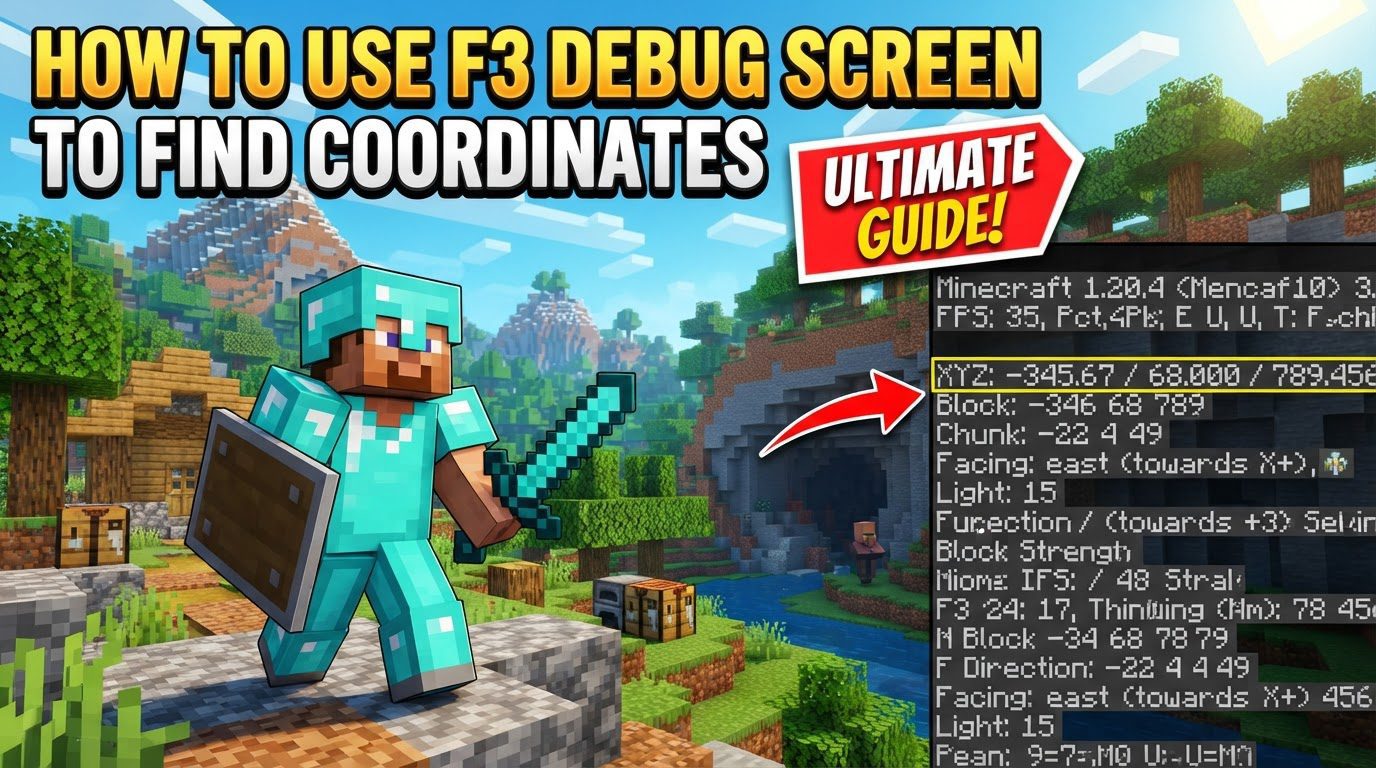
At its core, the F3 debug screen reveals your position in the game world using a three-dimensional coordinate system. These coordinates are crucial for pinpointing exact locations, sharing points of interest with friends, and ensuring you can always find your way back to important landmarks. Mastering the F3 screen is not just about knowing where you are, but about understanding the very fabric of your Minecraft world’s geography.
Key Mechanics of Minecraft Coordinates
The Minecraft world is mapped out using a Cartesian coordinate system, which means every block and every entity has a unique position defined by three values: X, Y, and Z. These values represent your location along three distinct axes:
-
The X-coordinate: This value dictates your position along the East-West axis.
- A positive X value indicates movement towards the East.
- A negative X value indicates movement towards the West.
- Imagine the sun rising in the East; moving in the positive X direction means moving towards the sunrise.
-
The Y-coordinate: This value represents your vertical position or elevation within the world.
- A positive Y value means you are moving upward, increasing your elevation.
- A negative Y value means you are moving downward, decreasing your elevation.
- The Y-coordinate is particularly important for mining, as it tells you how deep you are, and for building, as it indicates your height above sea level or bedrock. Sea level in Minecraft is typically at Y=63.
-
The Z-coordinate: This value determines your position along the South-North axis.
- A positive Z value indicates movement towards the South.
- A negative Z value indicates movement towards the North.
- If you consider a compass, the positive Z direction points towards South, while the negative Z direction points North.
When you open the F3 debug screen, you’ll typically see entries labeled “XYZ” or “Block.” The “Block” entry is particularly useful as it often displays the rounded integer coordinates for the specific block your character’s feet are currently occupying. This provides a precise, block-level location that is easy to record and reference. Beyond just coordinates, the F3 screen also helpfully indicates the direction your character is currently facing, which is invaluable for orienting yourself in the world, especially when following coordinate directions or constructing large-scale projects.
Step-by-Step Process to Find Your Coordinates
Accessing and utilizing the F3 debug screen to find your coordinates is a straightforward process, though it may require a quick adjustment in your game settings for newer versions of Minecraft Java Edition.
-
1. Disable Reduced Debug Info (if necessary):
In more recent updates of Minecraft Java Edition, a setting called “Reduced Debug Info” might be enabled by default. When this setting is active, crucial information, including your coordinate display, will be hidden from the F3 screen to reduce visual clutter. To ensure you can see your coordinates, you must disable this feature:
- From the Minecraft main menu or while in-game, click on
Options. - Navigate to
Chat Settings. - Locate the option labeled “Reduced Debug Info” and ensure it is set to
OFF. This will allow the full range of debug information, including your coordinates, to be displayed when you open the F3 screen.
- From the Minecraft main menu or while in-game, click on
-
2. Open the Debug Screen:
Once you’ve confirmed that “Reduced Debug Info” is disabled, opening the debug screen is as simple as pressing a key combination. The primary key for this function is
F3, but depending on your computer’s make and model, you might need to use a modifier key:- On most standard desktop keyboards, simply pressing the
F3key will open the debug overlay. - On many laptops and Mac computers, the function keys (F1-F12) often have secondary actions (like adjusting volume or screen brightness). To access the primary F3 function, you will typically need to press the
Fnkey (Function key) simultaneously withF3. So, the combination would beFn + F3. - For some newer Mac models, an even different combination might be required due to their specific keyboard layouts. In these cases,
Alt + Fn + F3might be the correct sequence to bring up the debug screen. If one combination doesn’t work, experiment with these common alternatives.
- On most standard desktop keyboards, simply pressing the
-
3. Locate Your Coordinates:
After successfully opening the debug screen, your game window will be overlaid with a large amount of text. Don’t be overwhelmed by the information; your coordinates are usually prominently displayed. Look towards the top-left section of this overlay.
- You will find entries clearly labeled either “XYZ” followed by three numerical values (e.g.,
XYZ: -123.456 / 64.0000 / 789.012) or “Block” followed by three rounded integer values (e.g.,Block: -123 64 789). - The three numbers displayed next to these labels represent your current X, Y, and Z coordinates, respectively. The “Block” coordinates are generally easier to use for marking specific locations as they refer to whole blocks.
- You will find entries clearly labeled either “XYZ” followed by three numerical values (e.g.,
Important Tips for Using Coordinates and the F3 Screen
Beyond simply finding your current location, the F3 debug screen and the coordinate system offer a wealth of utility for enhancing your Minecraft experience:
- Navigation and Pinpointing Locations: Coordinates are absolutely vital for navigating the vast Minecraft world. Whether you’re trying to find your way back to your main base after a long expedition, locate a specific structure like a village or a dungeon, or rendezvous with friends at a shared mining spot, coordinates provide an unambiguous method of direction. Without them, getting lost in a large world is almost inevitable.
- Recording Important Locations: Make it a habit to always note down the coordinates of any important places you discover or build. This could include your primary base, valuable resource veins, mob spawners, portals, or unique natural formations. Keeping a physical notebook, a text file, or even using in-game signs to jot down these numbers will ensure you can effortlessly return to these locations at any time. This practice is crucial for long-term survival and efficient gameplay.
- Additional Useful Data: The F3 screen is not just about coordinates. It’s a comprehensive diagnostic tool that offers a plethora of other useful data. While you’re checking your coordinates, take a moment to glance at other information such as your current frames per second (FPS), which indicates game performance; the biome you are currently in, which is useful for finding specific resources or biomes; and the current light levels, which are critical for understanding mob spawning mechanics (mobs generally spawn in light level 7 or lower).
-
Viewing Chunk Borders: For advanced players and builders, understanding chunk mechanics is important for optimizing farms, redstone contraptions, and rendering performance. The F3 screen integrates a shortcut to visualize these boundaries. By pressing
F3 + G, you can toggle an overlay that displays the borders of each chunk (16×16 block areas), which can be incredibly helpful for planning and construction. -
Customizing the F3 Screen in Newer Versions: Recent updates to Minecraft Java Edition (e.g., 1.21.9 and later) have introduced more flexibility for the F3 debug screen. Players can now customize which specific information is displayed. By pressing
F3 + F6, you can cycle through different categories of information, toggling them on or off. This includes the ability to make “Player Position” always visible, even when the full F3 screen overlay is closed. This provides a cleaner interface while still keeping your vital coordinates readily accessible, a great quality-of-life improvement.
Common Mistakes to Avoid When Using the F3 Screen
While the F3 debug screen is generally user-friendly, there are a few common pitfalls that new and even experienced players might encounter. Being aware of these can save you time and frustration:
-
“Reduced Debug Info” Enabled: This is by far the most frequent reason players cannot see their coordinates. If you’ve pressed F3 and the coordinate information is missing or minimal, your first step should always be to check your
Chat SettingsunderOptionsand ensure that “Reduced Debug Info” is disabled. Forgetting this crucial step will prevent the full debug overlay from appearing. -
Incorrect Key Combination: Another common issue stems from using the wrong key combination for your specific computer hardware. As mentioned, while
F3is standard, many laptops and Macs require theFnkey (e.g.,Fn + F3) or evenAlt + Fn + F3. If pressing F3 alone doesn’t work, try these alternative combinations before assuming the feature is broken. Keyboard layouts can vary significantly. - Attempting to Use in Bedrock Edition: It’s important to remember that the F3 debug screen, as described, is a feature exclusive to Minecraft Java Edition. If you are playing Minecraft Bedrock Edition (available on Windows 10, consoles, and mobile devices), the F3 key will not work. Bedrock Edition handles coordinate display differently; you must enable the “Show Coordinates” option within the specific world settings before loading into the game. This toggle will then display coordinates on your HUD without needing a debug screen.
- Misinterpreting Coordinate Values: A fundamental mistake is to misunderstand what each coordinate value represents, leading to incorrect navigation. Always reinforce your understanding that X is for East/West movement (positive East, negative West), Y is for vertical position (positive up, negative down), and Z is for South/North movement (positive South, negative North). Confusing these axes can send you in the completely wrong direction, wasting valuable time and resources. A quick mental check before setting off on a journey based on coordinates can prevent significant detours.
By understanding these mechanics, following the simple steps, and avoiding common errors, you can transform your Minecraft experience into a more efficient, navigable, and enjoyable adventure. The F3 debug screen is a powerful ally in the blocky world, empowering you with the knowledge to conquer its vastness.
Tags:
YOU MAY ALSO LIKE...


