How to use Modrinth’s compatibility checker for mods
Understanding Modrinth’s Approach to Mod Compatibility
Minecraft modding enriches the game experience, but ensuring all your chosen mods work together seamlessly can often be a complex challenge. Modrinth, a popular platform for discovering and downloading Minecraft mods, approaches mod compatibility not through a single, dedicated “compatibility checker tool” that assesses arbitrary mod collections, but rather through its fundamental platform design and the functionality offered by the Modrinth App. This system is designed to guide users toward compatible options, minimizing the common pitfalls of mod installation.
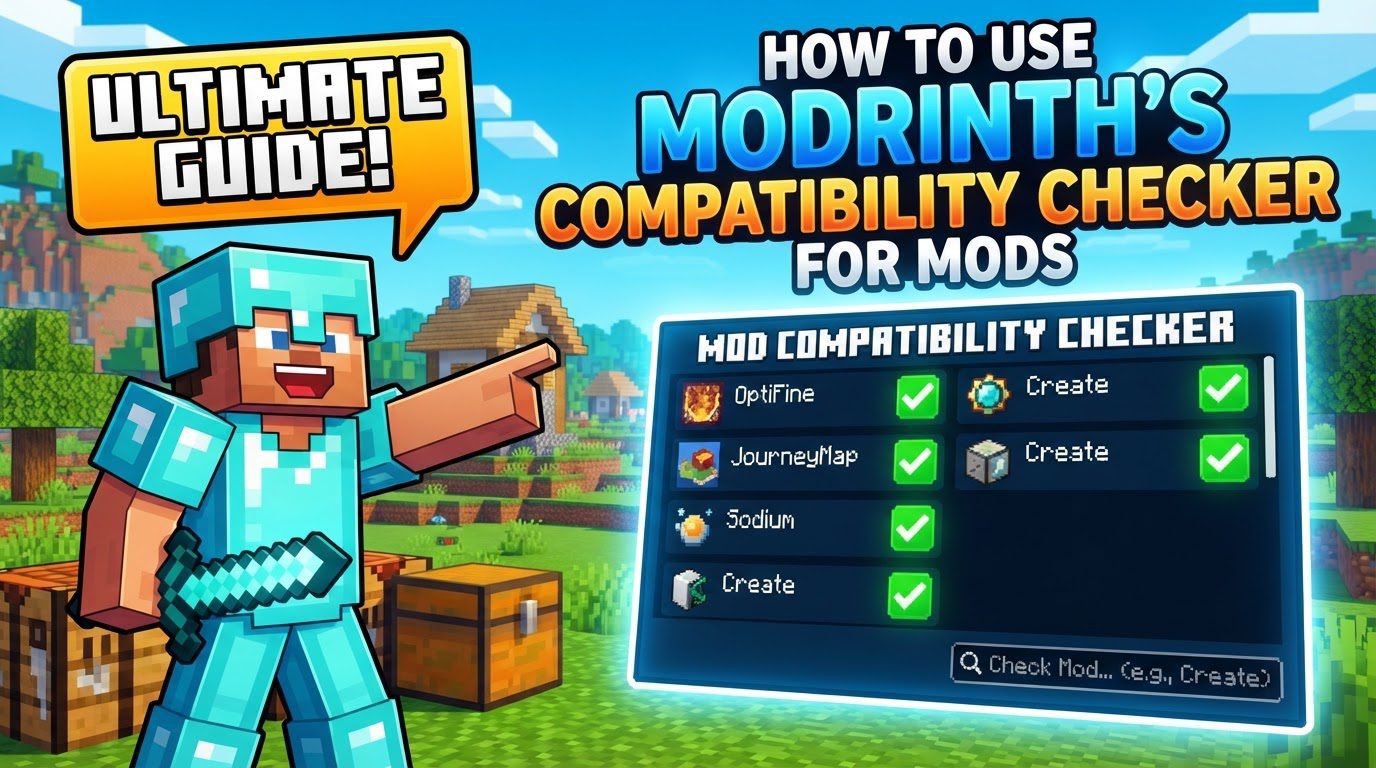
The core philosophy behind Modrinth’s compatibility facilitation revolves around clear information and automated filtering. By leveraging metadata provided by mod authors and offering robust instance management, Modrinth empowers users to build stable and functional modded Minecraft setups, whether they prefer the convenience of an app or the direct control of manual installation.
Key Mechanics of Modrinth’s Compatibility System
Modrinth’s system for managing and indicating mod compatibility is built upon several foundational mechanics:
- Metadata-Driven Compatibility: At the heart of Modrinth’s system is the comprehensive metadata supplied by mod authors. This vital information includes crucial details such as the specific Minecraft versions a mod supports, the required mod loaders (like Fabric, Forge, NeoForge, or Quilt), and any other mods it depends on to function correctly. This metadata is the backbone for all compatibility checks and filtering on the platform.
- App-Based Filtering: When utilizing the Modrinth App, users benefit from an automated filtering process. After selecting or creating a Minecraft instance and specifying its desired Minecraft version and mod loader, the app intelligently filters the vast library of available mods. It will only display mods, resource packs, shaders, and data packs that are explicitly compatible with the parameters of that specific instance, significantly simplifying the search for working mods.
- Manual Verification for Website Downloads: For users who prefer to download mods directly from the Modrinth website without using the app, a manual verification step is necessary. In this scenario, users must diligently check each mod’s project page. These pages contain all the essential compatibility details, requiring users to actively review supported versions, mod loaders, and dependencies to ensure a match with their setup.
- Dependency Management: Modrinth project pages are designed to be highly informative regarding dependencies. They clearly list any other mods that are required for a particular mod to operate. Often, these listings include direct links, making it straightforward for users to navigate to and download the necessary dependency mods. This feature is critical for preventing common issues arising from missing foundational mods.
- Instance Management: The Modrinth App provides a powerful feature for managing multiple Minecraft setups: isolated instances. Each instance can be configured with its own unique game version, mod loader, and a dedicated set of mods. This isolation is incredibly beneficial for compatibility management, allowing users to experiment with different mod combinations without affecting other stable setups, and making it easy to switch between various modded experiences.
Step-by-Step Process: Using the Modrinth App
For most users, especially those new to modding or seeking the most streamlined experience, the Modrinth App is the recommended method for ensuring mod compatibility. It automates much of the verification process:
- Download and Install: Begin by obtaining and installing the Modrinth App. It is available for various operating systems, providing a unified interface for managing your modded Minecraft experience.
- Sign In: Once the app is installed, log in using your Minecraft account. This step is necessary to manage game files and launch Minecraft.
- Create or Select Instance: The next crucial step is to create a new Minecraft instance or select an existing one within the app. During the instance creation process, you will be prompted to specify two key parameters: the desired Minecraft version (e.g., Minecraft 1.20.1) and the mod loader you intend to use (e.g., Fabric). These choices dictate the compatibility filters that will be applied.
- Add Content: Navigate to the “Add Content” section specifically for your selected instance. This is where the app’s compatibility features truly shine. The Modrinth App will automatically filter and display only those mods, resource packs, shaders, and data packs that are fully compatible with the Minecraft version and mod loader you specified for that instance. This eliminates the guesswork and reduces the chance of downloading incompatible files.
- Install Mods: From the filtered list, you can then select and install your desired compatible mods directly through the app. The Modrinth App is intelligent enough to handle the installation of any required dependencies automatically, further simplifying the process and ensuring all necessary components are present.
- Launch Game: Once your mods are installed, you can launch Minecraft directly through the Modrinth App. Upon launch, the app performs a final verification of the installed mods and confirms that the correct Java versions are being used, ensuring a smooth start to your modded gameplay.
Step-by-Step Process: Manual Installation (via Modrinth Website)
For users who prefer more direct control or are troubleshooting, manual installation via the Modrinth website is an option. However, this method requires diligent manual compatibility checks:
- Browse Modrinth Website: Start by visiting modrinth.com and using the search functionality to locate the specific mod you wish to install.
- Check Mod Page: Once on the mod’s project page, it is imperative to carefully review several key sections to ascertain compatibility:
- Mod Loader: Identify the specific mod loader required by the mod (e.g., Fabric, Forge, NeoForge). This must match the mod loader installed in your Minecraft setup.
- Supported Versions: Review the list of Minecraft versions that the mod explicitly supports. Ensure your target Minecraft version is listed.
- Dependencies: Pay close attention to any listed dependencies. These are other mods that are required for the main mod to function correctly.
- Select Correct Version: Navigate to the “Versions” tab on the mod’s project page. Here, you will find various download options. It is crucial to download the specific
.jarfile that precisely matches both your Minecraft version and your chosen mod loader. Downloading an incorrect version is a common cause of mod conflicts. - Download Dependencies: Proceed to download all necessary dependency mods. For each dependency, repeat the process of checking its project page and selecting the correct version that matches your Minecraft version and mod loader.
- Manual Installation: After downloading all the main mod files and their respective dependencies, copy all the downloaded
.jarfiles into your Minecraft installation’smodsfolder. On Windows, this folder is typically found at%appdata%\.minecraft\mods. For other operating systems, the path will vary but usually resides within your Minecraft game directory.
Important Tips for Mod Compatibility
To ensure a smooth and enjoyable modding experience, keep the following tips in mind:
- Version Match is Crucial: Always confirm that the mod’s version perfectly aligns with your specific Minecraft version and the mod loader you are using. Even minor version discrepancies can lead to crashes or unexpected behavior.
- Reputable Sources: Download mods exclusively from trusted platforms such as Modrinth. This practice helps to ensure the authenticity, safety, and compatibility of the files you install.
- Read Creator Notes: Before proceeding with any download, take the time to read the mod creator’s descriptions, installation instructions, and any notes regarding known issues or specific requirements. These details often contain vital compatibility information.
- Allocate Enough RAM: For modpacks or setups with a significant number of mods, allocate sufficient Java memory (RAM). In the Modrinth App settings, you can adjust this. A recommendation of 6-8 GB is often suitable for large modpacks to prevent performance issues or crashes.
- Automatic Java Management: The Modrinth App is generally proficient at managing and selecting the correct Java versions for different Minecraft releases. While it allows for manual overrides, relying on its automatic management is often best unless you have specific needs.
- Test New Mods/Updates: Whenever you add new mods or update existing ones, it’s a good practice to test them in a new or separate test world first. This precaution can prevent potential corruption of your main game world if an issue arises.
- Patience with Updates: After major Minecraft updates are released, be patient. Mod developers require time to update their mods for compatibility with the new game version. Attempting to use outdated mods on a new game version will almost certainly lead to problems.
Common Mistakes to Avoid
Being aware of common pitfalls can save you a lot of troubleshooting time:
- Mismatching Minecraft Versions: A frequent error is attempting to install a mod designed for one Minecraft version (e.g., 1.20.1) into an instance running a different version (e.g., 1.19.4). This will invariably result in game errors or crashes.
- Incorrect Mod Loader: Each mod is built specifically for a particular mod loader. Trying to use a Forge mod with a Fabric instance, or vice versa, is a common mistake that will prevent the mod from loading.
- Missing Dependencies: Forgetting to download and install all required library or API mods (such as Fabric API for many Fabric mods) is a primary cause of mod failures. Modrinth clearly lists these dependencies on project pages, so always check.
- Insufficient Memory: Not allocating enough RAM for your modded Minecraft instance can lead to severe performance issues, constant lag, or outright game crashes, especially with larger modpacks.
- Outdated Mod Loaders: Running an older version of Fabric, Forge, or NeoForge with newer mods can cause compatibility problems. Always ensure your mod loader itself is updated to the correct version for your target Minecraft release.
- Ignoring Error Messages: When Minecraft crashes or mods fail to load, do not ignore the error messages. Check the Modrinth App’s console or the Minecraft crash log. These logs often provide specific details that can pinpoint the problematic mod or the nature of the incompatibility.
- Downloading from Unofficial Sources: Obtaining mods from unverified or unofficial websites is risky. Such files can be outdated, incompatible, or even contain malicious software, compromising your game and system security. Always use trusted platforms like Modrinth.
Tags:
YOU MAY ALSO LIKE...