

Minecraft Armor Mod
One of the most frustrating experiences in Minecraft modding isn’t a complex bug, but often a simple oversight: installing a mod for the wrong game version. This common pitfall highlights a crucial aspect of enhancing your blocky adventures, especially when it comes to transforming your in-game identity and protection. Minecraft armor mods significantly expand the game’s defensive capabilities and aesthetic options, moving far beyond the familiar diamond or netherite. They introduce a universe of new gear, each with unique looks, properties, and sometimes even game-changing abilities, fundamentally altering how players engage with the world and its dangers.
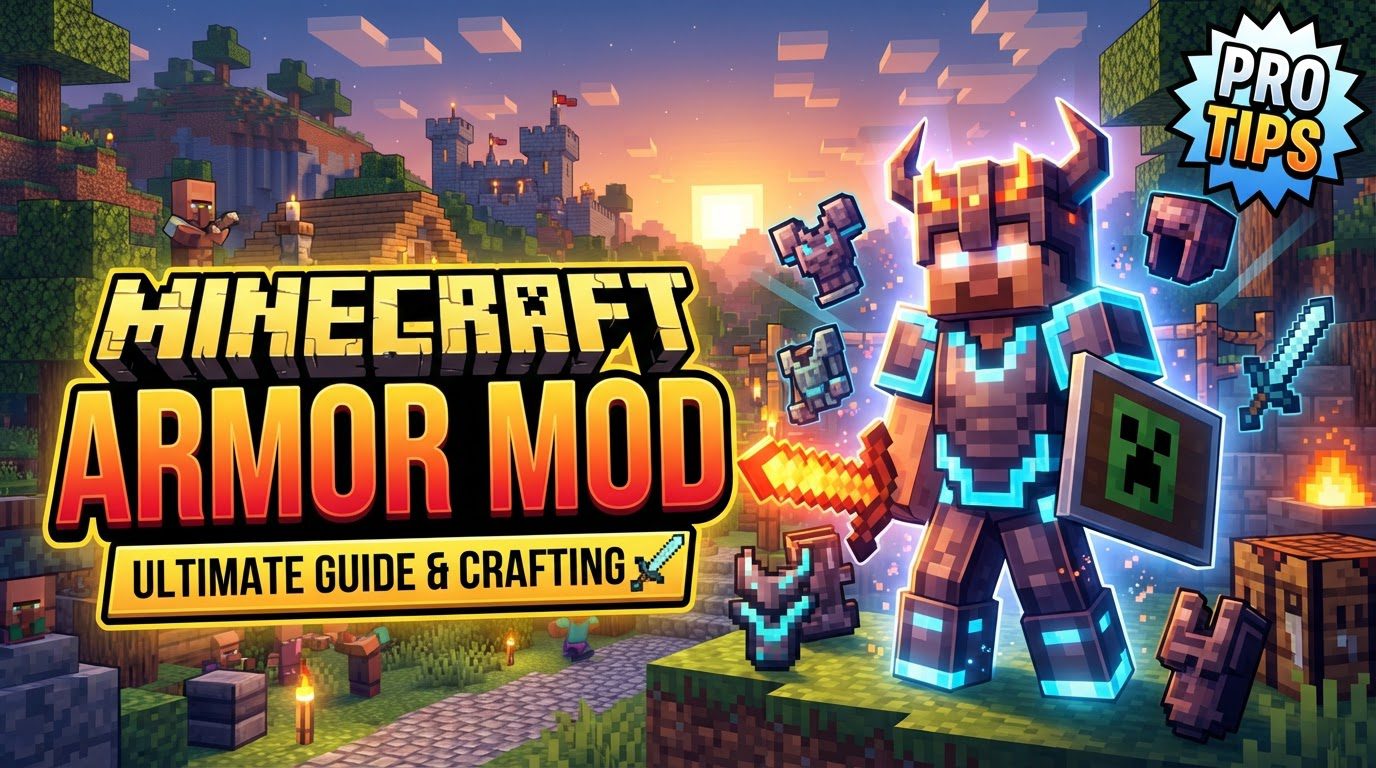
Transforming Your Defense: What Armor Mods Bring
Minecraft armor mods are not just about adding new textures; they are comprehensive enhancements that inject fresh life into your gameplay experience. They move beyond the vanilla system by offering a diverse array of protective gear, each designed to serve different purposes and cater to various playstyles. The core appeal lies in their ability to deepen immersion and offer unparalleled customization.
- A Galaxy of New Armor Sets: From Fantasy to Sci-Fi
Forget the limited palette of vanilla armor. Mods introduce a vast selection of new armor sets, drawing inspiration from nearly every genre imaginable. Players can find themselves donning elaborate fantasy-inspired plate, sleek RPG-style outfits, rugged military and tactical gear, or even iconic suits from popular franchises like Elder Scrolls or Iron Man. This variety ensures that every player can find an armor set that perfectly matches their desired aesthetic and role-playing fantasy. - Visual Overhauls: Detailed 3D Models and Textures
Many armor mods pride themselves on their visual fidelity. They often feature highly detailed 3D models and intricate textures that stand in stark contrast to the simpler designs of standard Minecraft armor. These visual upgrades can dramatically enhance the game’s aesthetic appeal, making characters look more distinct and the gear feel more substantial and unique. - Unleashing New Powers: Unique Properties and Abilities
Beyond mere damage reduction, modded armors frequently come with special effects, buffs, or entirely new abilities. Imagine armor that grants you flight, allows you to breathe underwater indefinitely, boosts your mining speed, or even provides a passive healing aura. These unique properties can fundamentally transform gameplay, offering strategic advantages and opening up new ways to explore, build, and combat. - Personal Touch: Advanced Customization Options
Some armor mods push the boundaries of personalization. They can include features for greater aesthetic customization, such as dynamic trim systems or comprehensive visual overhauls that allow players to fine-tune the appearance of their gear. This level of detail ensures that your character’s armor is not just functional but also a true reflection of your style. - Seamless Integration: Modpack Compatibility
Many armor mods are not designed to exist in isolation. They are often crafted with integration into larger modpacks in mind, perfectly fitting themes like expansive RPG adventures, hardcore survival scenarios, or magical fantasy worlds. This ensures that the new armor sets feel like a natural extension of a broader, modded experience.
Equipping Your Game: A Step-by-Step Installation Guide
Diving into the world of modded armor requires a few preparatory steps. The process is generally straightforward but requires attention to detail to ensure compatibility and functionality.
- The Foundation: Installing a Mod Loader
The vast majority of Minecraft mods, including armor mods, cannot run on their own. They require a mod loader to act as an intermediary between the game and the mod files. Popular choices include Forge, Fabric, and NeoForge. Your first step is to download the appropriate mod loader installer that matches both your desired Minecraft version and the mods you plan to use. - Sourcing Your Gear: Downloading Armor Mods
Once your mod loader is ready, you’ll need to acquire the armor mods themselves. Reputable sources like CurseForge and Modrinth are excellent places to find a wide variety of mods. Crucially, always ensure that the mod version you download is compatible with your Minecraft game version and the mod loader you’ve installed. - The Right Place: Placing Mods in Your Directory
After successfully installing your mod loader, launch Minecraft at least once using the newly created mod loader profile. This action typically generates a ‘mods’ folder within your `.minecraft` directory (which can usually be found by typing `%appdata%` into your Windows search bar and navigating to `.minecraft`). Once this folder exists, simply drag and drop the downloaded mod files (which are usually `.jar` files) directly into this ‘mods’ folder. - Launching into Adventure: Starting with Your Mod Loader Profile
Open the Minecraft launcher. Before clicking ‘Play’, ensure that you select the profile created by your mod loader (e.g., “Forge,” “Fabric,” or “NeoForge”) from the version selection dropdown menu. Launching the game with this profile will instruct Minecraft to load all the `.jar` files present in your ‘mods’ folder. - Confirmation: Verifying Your New Armor
Once Minecraft has loaded, navigate to the main menu. Most mod loaders add a ‘Mods’ button or similar entry. Click on this to see a list of loaded mods. You can also create a new world (or load an existing one) and check your creative inventory. If the new armor sets and items appear, your installation was successful!
Navigating the Modding Landscape: Essential Tips for Success
To ensure a smooth and enjoyable modded Minecraft experience, keep these valuable tips in mind:
- Version Harmony: Matching Everything Up
This cannot be stressed enough: always ensure the mod’s version precisely matches your Minecraft game version and the version of your installed mod loader. A mismatch is the most common cause of crashes. - The Power of Loaders: Forge, Fabric, NeoForge
Consistently use a mod loader. These tools are indispensable for managing mod compatibility and providing the framework for mods to operate within your game. - Building Blocks: Checking for Dependencies
Some sophisticated mods rely on other mods to function correctly, known as dependencies. Always read the mod description page carefully and install any required dependencies alongside your main armor mod. - Strategic Additions: Installing in Batches
When adding multiple mods, install them in small groups, perhaps five at a time. This approach makes it significantly easier to pinpoint which specific mod is causing an issue if your game crashes or behaves unexpectedly. - Safety First: Backing Up Your Worlds
Before installing any new mods, especially large packs, always create a backup copy of your Minecraft worlds. Modding, though generally safe, carries a small risk of world corruption, and a backup is your best defense against data loss. - Streamlined Management: Using Dedicated Launchers
Consider utilizing third-party launchers like the CurseForge App or Prism Launcher. These tools are designed to simplify the entire modding process, from downloading and installing mods to managing different mod profiles and versions with ease.
Avoid the Pitfalls: Common Modding Mistakes to Sidestep
Even experienced players can make mistakes. Being aware of common pitfalls can save you hours of troubleshooting.
- The Version Mismatch Trap
One of the most frequent errors is attempting to run a mod designed for Minecraft 1.16 on a 1.20 game client, or vice-versa. This will almost certainly lead to crashes or the mod simply not appearing. - Loader Limbo: Mixing Mod Loaders
Mods are specifically built for a particular mod loader. Trying to use a Fabric-designed mod with a Forge installation (or vice-versa) will not work. Stick to mods compatible with your chosen loader. - Misplaced Files: The Directory Dilemma
Incorrectly placing mod files outside of the designated ‘mods’ folder means the game’s mod loader won’t find them, and they won’t load into your game. - Overwhelming the System: Too Many Mods at Once
Adding dozens of mods simultaneously is a recipe for disaster. If your game crashes, identifying the culprit among a large batch of new additions becomes a monumental task. - The Unbacked World Catastrophe
Failing to back up your saved worlds before experimenting with new mods is a high-risk gamble. A corrupted world without a backup means losing potentially hundreds of hours of progress. - Stuck in the Past: Outdated Mods
Attempting to use mods that have not been updated for newer Minecraft versions is a common source of instability. Developers frequently update their mods to maintain compatibility with game updates.
Minecraft armor mods offer a rich tapestry of new experiences, allowing players to customize their defense, enhance their abilities, and visually transform their in-game persona. By understanding the core mechanics, following proper installation procedures, and heeding essential tips while avoiding common mistakes, you can unlock a new dimension of gameplay where your armor is not just protection, but a statement of power and style.
Tags:
YOU MAY ALSO LIKE...


