

Minecraft Seed Map Viewer
Many Minecraft players spend countless hours aimlessly searching for a specific biome, a hidden stronghold, or that elusive ancient city, often unaware that their entire world’s layout can be revealed in mere seconds. This is where the power of a Minecraft Seed Map Viewer becomes an indispensable tool, transforming endless exploration into strategic discovery.
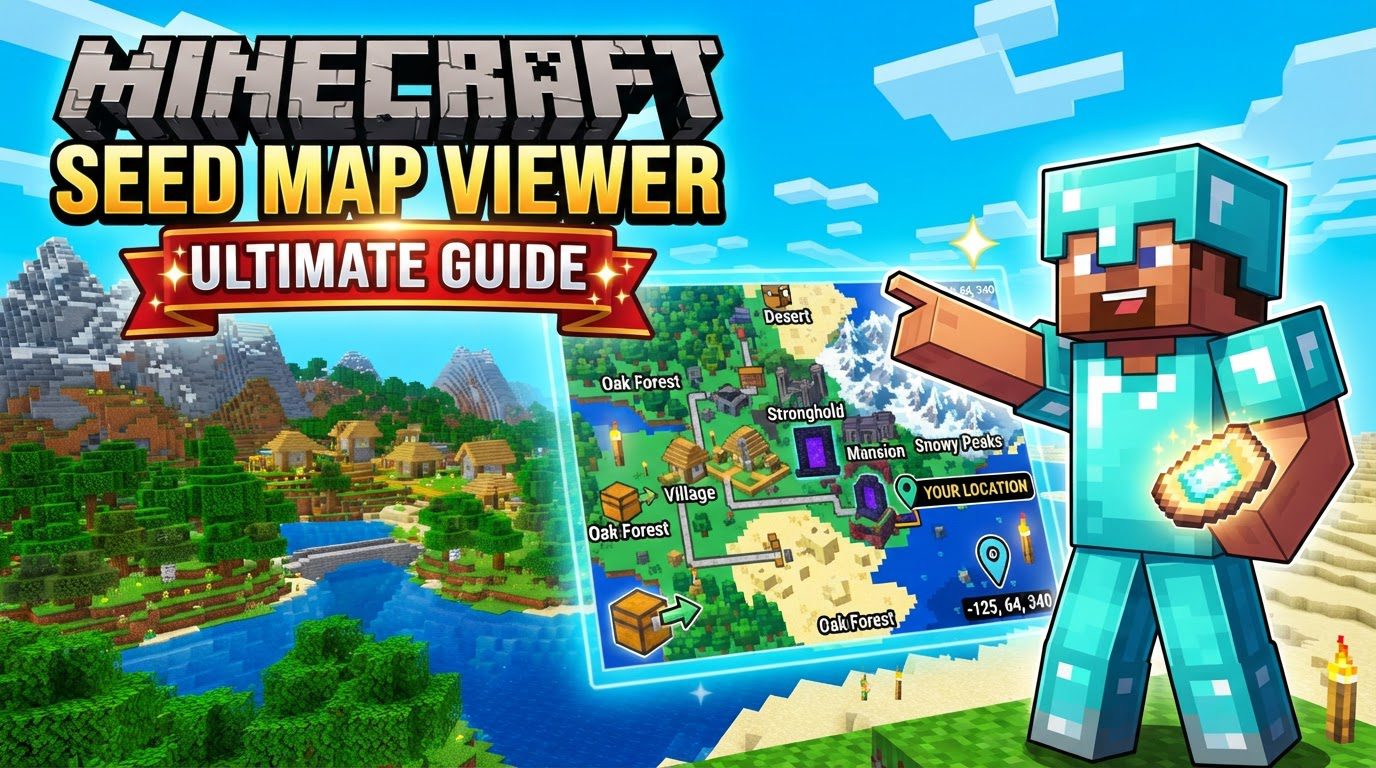
Unveiling Your Minecraft World: What Are Seed Map Viewers?
At its core, a Minecraft Seed Map Viewer is a sophisticated online utility designed to visualize and explore the generated terrain, biomes, and structures of any Minecraft world without ever needing to load the game itself. These powerful applications take your world’s unique generation code – known as its “seed” – and translate it into an interactive 2D map. Think of it as having a complete blueprint of your Minecraft universe at your fingertips, allowing you to scout for points of interest, plan your adventures, and optimize your gameplay before you even place your first block.
The magic behind these viewers lies in their ability to replicate Minecraft’s intricate world generation algorithms. By running the exact same code that Minecraft uses to create its diverse landscapes, these tools can accurately predict the location of every biome, every village, every stronghold, and countless other features. This means the map you see in the viewer is a near-perfect representation of what you will find in-game, offering an unparalleled advantage for any player.
The Mechanics Behind the Map: How They Function
Minecraft Seed Map Viewers are not just simple image generators; they are complex engines that emulate the game’s core creation process. Understanding their key mechanics helps in appreciating their utility:
- Precise World Visualization: These tools take your Minecraft world’s seed and process it through algorithms identical to those within the game. The result is a detailed 2D map that clearly displays the distribution of biomes, the topography of the terrain, and the placement of various structures across all supported dimensions.
- Accurate Seed Replication: By executing the same world-generation algorithms as Minecraft, viewers achieve remarkable accuracy. This ensures that a jungle biome shown on the map will indeed be a jungle biome at those coordinates in your game, and a village icon will correspond to an actual village.
- Comprehensive Feature Identification: Beyond just biomes, these viewers excel at pinpointing a vast array of in-game elements. This includes surface biomes, underground biomes, major structures like villages, desert temples, jungle temples, ocean monuments, strongholds, woodland mansions, ancient cities, and even specific utility areas like slime chunks.
- Multi-Dimensional Support: A comprehensive seed map viewer isn’t limited to just the Overworld. They typically provide full support for exploring the Nether, with its distinct biomes and fortresses, and The End, allowing you to locate End cities and ships.
- Intuitive Interactive Controls: User-friendliness is key. Most viewers offer smooth interactive controls, allowing players to zoom in for detailed views, pan across vast distances, and toggle specific features on or off. This customization helps players focus on exactly what they need to find.
- Web-Based Accessibility: A significant advantage is that the most popular seed map viewers are entirely web-based. This means there’s no need for any software downloads, installations, or modifications to your game files, making them accessible from any device with an internet connection.
Your First Expedition: A Step-by-Step Guide to Using a Seed Map Viewer
Utilizing a Minecraft Seed Map Viewer is a straightforward process. Follow these steps to unlock the secrets of your world:
- Retrieve Your World’s Seed: This is the unique identifier for your world.
- Java and Bedrock Editions (In-game): Open the chat window (usually by pressing ‘T’) and type
/seed, then press Enter. Your world’s seed will be displayed in the chat. Copy this number or string of characters. - Console and Mobile Editions: Navigate to your world settings from the pause menu. The seed value is typically listed there.
- From a Save File: Some advanced viewers allow you to upload your world’s
level.datfile, usually found in your world’s save folder. The viewer will automatically extract the seed for you.
- Java and Bedrock Editions (In-game): Open the chat window (usually by pressing ‘T’) and type
- Access Your Chosen Viewer: Open your web browser and navigate to a popular online Minecraft seed map viewer. Examples include ChunkBase or MC Seed View.
- Input Your Seed: Locate the designated input field on the viewer’s webpage, usually labeled “Seed” or “World Seed.” Paste or carefully type your copied seed into this field.
- Select Your Minecraft Version: This is a critical step. From the provided dropdown menu, select the exact Minecraft version your world was generated in (e.g., 1.18, 1.19, 1.20). World generation algorithms change between versions, so selecting the wrong one will lead to inaccurate maps.
- Choose Your Dimension: Decide which dimension you wish to explore. Most viewers offer options to switch between the Overworld, Nether, and The End.
- Filter and Explore the Map: Once the map loads, you’ll see your world. Use the available filters and checkboxes to toggle specific structures (like villages, strongholds, or temples) on or off. You can also highlight particular biomes. Navigate the map by clicking and dragging to pan across the landscape, and use your mouse wheel or trackpad to zoom in and out for greater detail.
- Identify and Record Locations: As you explore, click on the icons representing structures or biomes. The viewer will typically display detailed information, including their precise X, Y, and Z coordinates. You can then note these down, or some viewers even offer a direct copy-to-clipboard function for teleport commands (e.g.,
/tp @s X Y Z).
Mastering the Map: Advanced Tips for Strategic Play
To truly leverage the power of seed map viewers, consider these advanced strategies:
- Pre-Game Planning: Before even starting a new world, generate a few random seeds, plug them into a viewer, and scout for ideal spawn locations, resource-rich areas, or proximity to desired structures. This can save countless hours of in-game searching.
- Targeted Searches: If you’re hunting for a very specific combination, like a village next to a desert temple, utilize any advanced search features the viewer provides. These can often filter for multiple criteria simultaneously.
- Highlighting Rare Biomes: Use the biome highlighting feature to quickly spot elusive biomes such as Mushroom Fields, Cherry Groves, or Badlands, which can be incredibly difficult to find through in-game exploration alone.
- Collaborative Discovery: Many seed map viewers offer a “share link” feature. This generates a unique URL that preserves your current map view, including applied filters and coordinates. This is invaluable for sharing discoveries with friends on a multiplayer server or collaborating on build projects.
Navigating Pitfalls: Common Mistakes to Avoid
While seed map viewers are powerful, a few common errors can lead to frustration and inaccurate results:
- Incorrect Version Selection: This is perhaps the most frequent mistake. If the Minecraft version selected in the viewer does not precisely match the version your world was generated in, the displayed map will be incorrect, showing structures and biomes in the wrong locations or not at all.
- Mismatched Edition (Java vs. Bedrock): Be acutely aware that the same numerical or alphanumeric seed will generate two entirely different worlds between Minecraft Java Edition and Minecraft Bedrock Edition. Always ensure the viewer is set to the correct edition for your world.
- Typographical Errors in the Seed: A single incorrect character, an extra space, or a missing digit in your seed input will result in the viewer generating a map for a completely different world, leading to confusion. Double-check your seed entry carefully.
- Expecting Pixel-Perfect Biome Borders: While highly accurate, biome rendering on seed maps is an approximation. Actual in-game biome borders can sometimes shift by a few blocks. If precise placement is critical (e.g., for specific farm designs), always confirm the exact border in-game using the debug screen (F3 on Java) or coordinate display.
- Impact of World-Altering Mods/Data Packs: If you are using Minecraft mods or data packs that significantly alter world generation (e.g., custom terrain generators, amplified biomes, or custom structure packs), the seed map viewer may not accurately represent your in-game world, as it relies on vanilla generation algorithms.
By understanding how these tools work and avoiding common pitfalls, Minecraft Seed Map Viewers become an indispensable part of your Minecraft toolkit, transforming your exploration from a random walk into a strategic expedition.
Tags:
YOU MAY ALSO LIKE...


