

Render Controller Bone Binding Reference
A common misconception among Minecraft content creators is that an entity’s visual appearance is static, tied rigidly to a single geometry and texture. In reality, Minecraft’s Render Controllers shatter this limitation, providing an incredibly flexible system for dynamic entity rendering, particularly through bone binding. These powerful logic packs act as the brain behind an entity’s visual representation, dictating how geometries, materials, and textures are combined and displayed, even allowing for different parts of a model to behave independently.
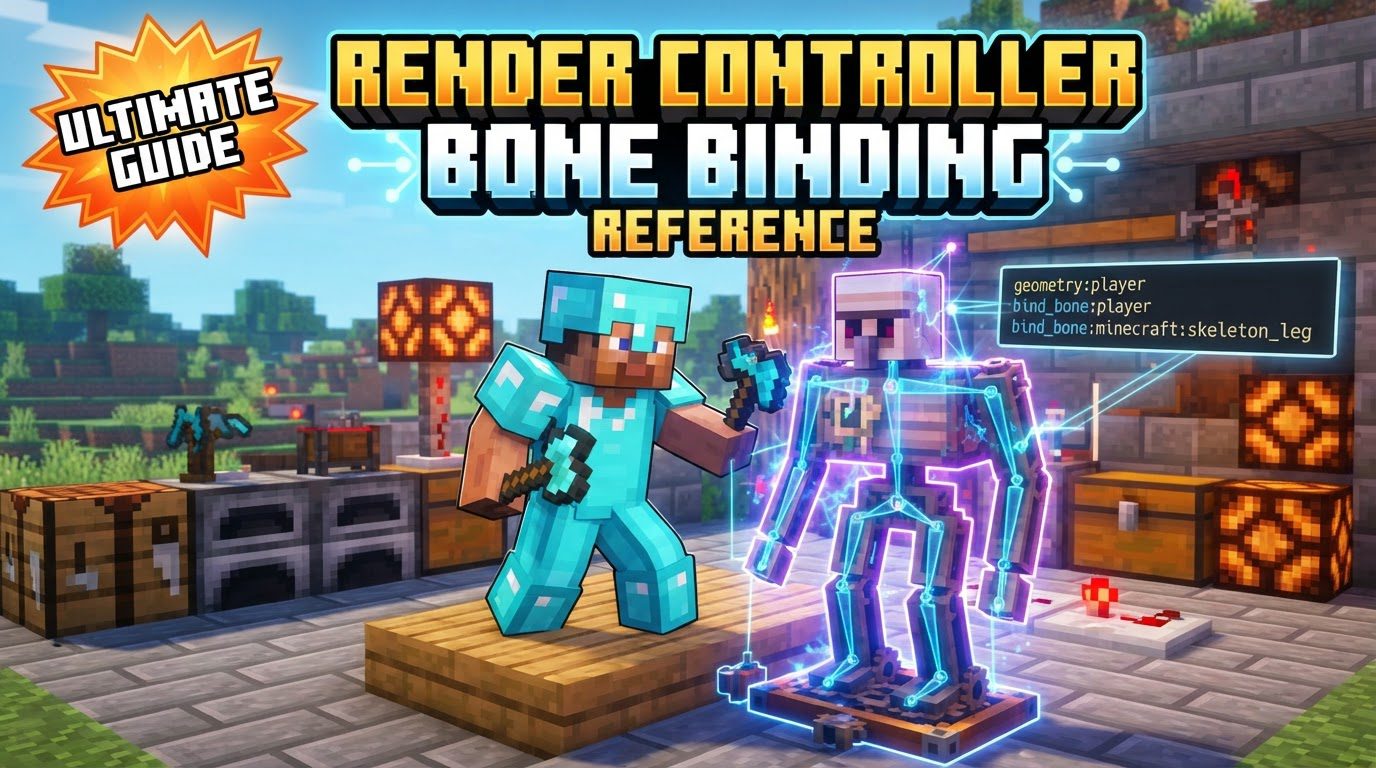
Understanding Render Controllers: The Core Concept
Minecraft’s Render Controllers are fundamental components within an entity’s resource pack that define its visual presentation. They serve as the critical link between an entity’s definition file and its actual appearance in the game world. Rather than hardcoding visual properties, render controllers offer a dynamic and modular approach, allowing creators to specify precisely which geometry, textures, and materials an entity should use under various conditions.
At their heart, render controllers operate by referencing “short-names” that are pre-defined in the entity’s resource pack (RP) entity file. Think of these short-names as internal aliases or imports for your assets-geometries, materials, and textures. The render controller then uses these aliases to fetch and apply the correct visual components. This system promotes reusability; a simple render controller can be shared across multiple entities, provided those entities define the necessary short-names for geometry, texture, and material.
Unleashing Dynamic Visuals: Bone Binding and Advanced Features
The true power of render controllers lies in their ability to manipulate individual parts of an entity’s model, often referred to as bones. This “bone-specific rendering” capability allows for an unprecedented level of visual customization and dynamism, moving far beyond a single, uniform texture.
- Defining Visual Logic: Render controllers meticulously define how entities are visually rendered. They specify which geometry, textures, and materials are applied, acting as the ultimate arbiter of an entity’s look.
- Bone-Specific Customization: One of the most impactful features is the ability to apply different materials or control the visibility of individual bones or groups of bones within a model. This enables sophisticated effects such as layered textures, where different parts of a creature might have unique material properties, or the display of multiple geometries on a single entity. Imagine a character whose armor plates have a different material sheen than its skin, or whose eyes glow with an emissive texture – all controlled per bone.
- Dynamic Selection and Visibility: Render controllers support arrays for the dynamic selection of geometries, materials, or textures. This selection often leverages Molang expressions, a powerful query language that allows for conditional rendering based on in-game states, variables, or entity properties. For instance, an entity’s texture could change based on its health, or a specific part of its body could become visible only when it performs a certain action. This extends to “part visibility,” where specific bones can be toggled on or off based on Molang-driven conditions, allowing elements to appear or disappear dynamically.
- Supported Material Types: The choice of material is crucial, as it dictates properties like opacity, emissiveness, and backface culling. Common material types supported include
entity(standard),entity_emissive(for glowing parts),entity_alphablend(for transparent, blended effects),entity_alphatest_one_sided(for cutout transparency without backfaces), andentity_alphatest(for cutout transparency with backfaces). Understanding these types is key to achieving the desired visual effect.
Crafting Your Custom Render Controller: A Step-by-Step Guide
Implementing a custom render controller involves a structured workflow, ensuring all components are properly defined and linked.
- Laying the Foundation: Asset Definition
Begin by defining the “short-names” for your materials, textures, and geometry within your entity’s resource pack entity file (e.g.,spider.json). These short-names are essential; they act as the aliases that your render controller will later reference. They are, in essence, the import statements for your visual assets. - Architecting the Controller
Create a new JSON file specifically for your render controller. This file should be placed in therender_controllersfolder of your resource pack and follow the naming convention “controller.render.<name>.json” (e.g.,cow.render.json). This file will house all the logic for your entity’s rendering. - Implementing Bone-Specific Logic (if needed)
Within your render controller JSON, you’ll reference the short-names defined earlier. For bone-specific customization:
- Per-Bone Materials: If you intend to apply different materials to different bones, ensure your 3D model (created in tools like Blockbench) has appropriately named bones. In the render controller, you can then specify which material applies to which bone name.
- Part Visibility: Utilize the
part_visibilityproperty. This property allows you to define conditions, often using Molang queries, under which specific bones of the entity should be visible or hidden. This is invaluable for dynamic effects like disappearing limbs or toggleable accessories.
- Connecting to the Entity
Once your render controller is defined, you must link it to your entity. This is done in your entity’s client entity definition JSON file, where you’ll include a reference to your newly created custom render controller. - Binding Attachables for Items
To bind an item to a specific bone (e.g., a weapon to a player’s hand), the process involves 3D modeling software:- Import your item model into a 3D software (like Blender, often with tools like Mcblend).
- Select the root bone of your item model.
- In the bone properties, locate the “Binding” text field and enter the exact, lowercase name of the target bone (e.g., ‘rightitem’) from the entity you wish to bind to.
- Adjust the item’s position and rotation relative to the binding bone in pose mode, then apply that pose as the new rest pose for the item model.
Best Practices and Strategic Tips
- Short-name Definitions are Imports: Always remember that defining short-names in the entity file is like importing assets; the render controller then *uses* these pre-defined assets. Without the definition, the controller has nothing to work with.
- Reusability is Key: Simple render controllers can be highly reusable. If multiple entities require similar rendering logic (e.g., a default geometry, texture, and material), you can use the same render controller across them, provided each entity defines the necessary default short-names.
- Embrace Molang Expressions: For any complex conditional rendering, dynamic values, or controlling animations and visibility based on in-game logic, Molang expressions are your best friend. They provide the flexibility to react to various game states.
- Case Sensitivity Matters: Minecraft’s rendering system is strict. Bone names, short-names, and other identifiers are case-sensitive. Ensure exact matching to avoid errors and invisible components.
- Organized Resource Pack Structure: Maintain a clean resource pack by creating a dedicated
render_controllersfolder at the root of your pack to house all your custom render controller JSON files.
Navigating Common Challenges: Avoiding Pitfalls
Even with a clear understanding, creators often encounter specific issues. Being aware of these common mistakes can save significant debugging time.
- Single Geometry Reference (Mostly): A render controller can reference multiple textures, but generally, it can only render one geometry at a time, even when using arrays. If you need to swap geometries, you’ll typically swap the entire geometry definition rather than applying multiple geometries simultaneously to different parts.
- Undefined Assets: A frequent error is referencing materials or textures within the render controller that have not been properly defined with short-names in the entity file. This will inevitably lead to rendering errors, often manifesting as invisible entities or parts of entities.
- Incorrect Material Combinations: Some material types have specific properties that prevent them from being combined effectively. For instance, certain blend and alpha materials cannot be simultaneously applied to the same elements, especially when dealing with particles. Always understand the properties and limitations of each material type.
- RTX Incompatibility: Be mindful that certain material setups, particularly those involving complex water effects or particles, may behave differently or not render correctly when the game is running in RTX (ray tracing) mode. Test your creations in both standard and RTX environments if applicable.
- Misunderstanding “Default” Usage in Reusability: When reusing render controllers, it’s crucial to ensure that the entity defining the render controller also defines *all* the default short-names (geometry, texture, and material) that the reused render controller expects. Missing any of these will break the rendering for that entity.
Mastering Render Controller bone binding opens up a universe of possibilities for dynamic and visually rich entity design in Minecraft. By meticulously defining assets, crafting intelligent controllers, and understanding the nuances of bone-specific logic, creators can transform static models into interactive, visually responsive game elements that truly enhance the player experience.
Tags:
YOU MAY ALSO LIKE...


