Signpost Mod (1.19.2, 1.18.2) – Signposts for Teleportation and Decoration
Signpost Mod (1.19.2, 1.18.2) is a great Mod that comes to complete all the current existing teleportation mods that are currently available for Minecraft. Because nowadays all the players are bombarded with lots of mods, it’s really hard to create something that really stands out, so all this being said the Signpost somehow managed to add something that for most of the mod’s creators seems to be impossible. The Signpost mod is an interesting teleportation mod that adds some unique features that normally you never dreamed that they can be useful into a teleportation mod.
Features:
- The waystone can be placed and named.
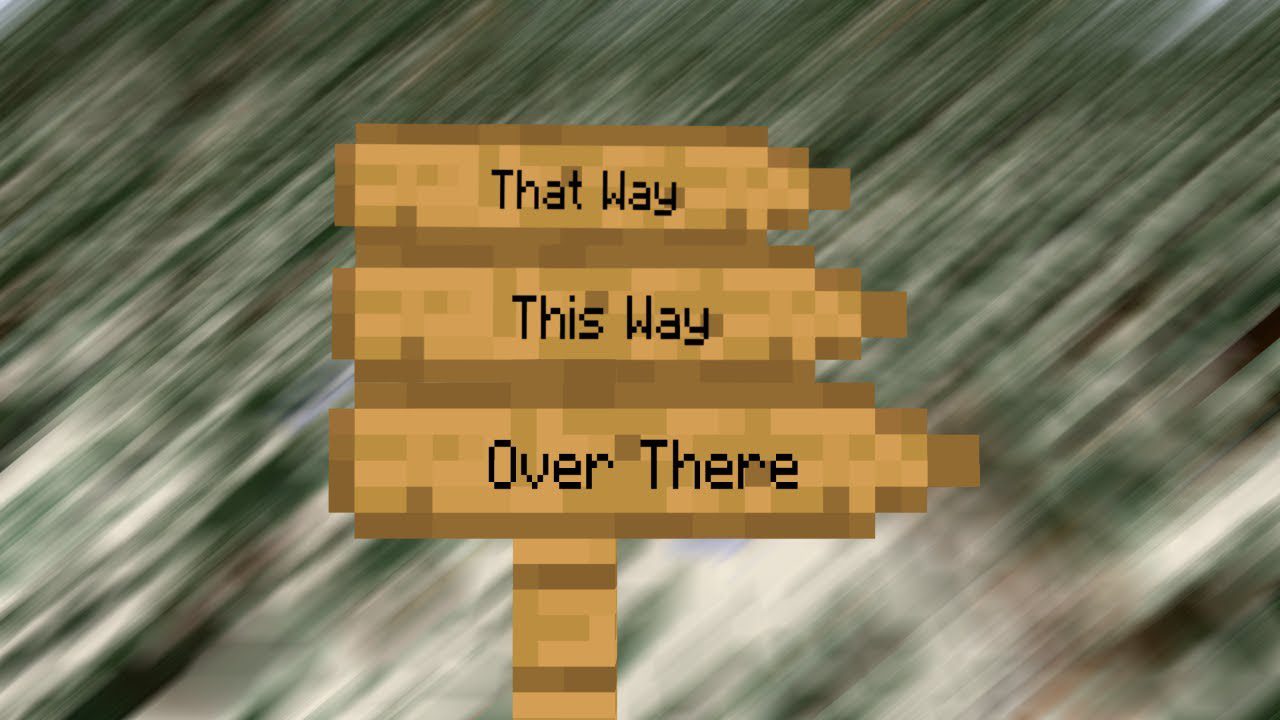
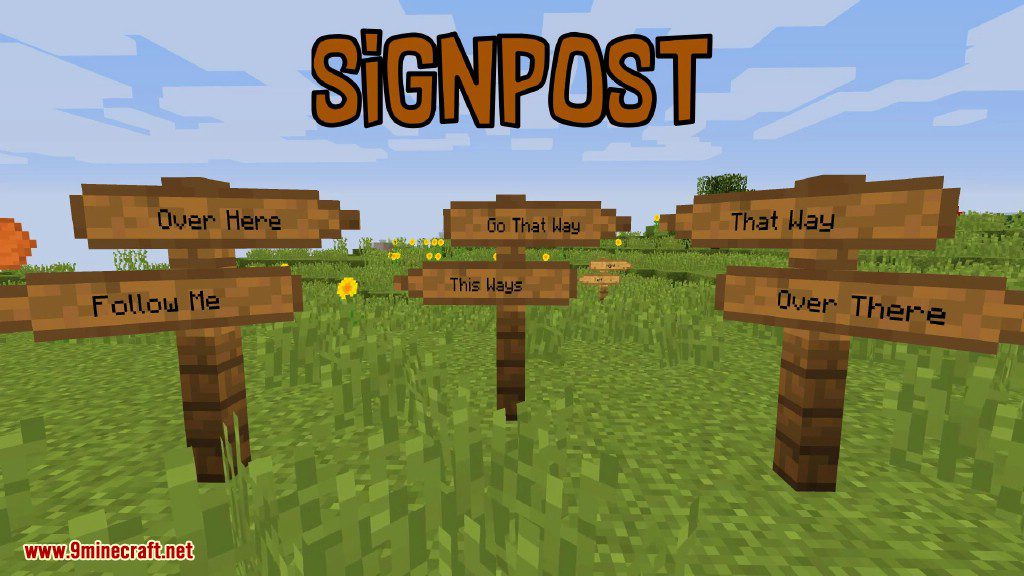
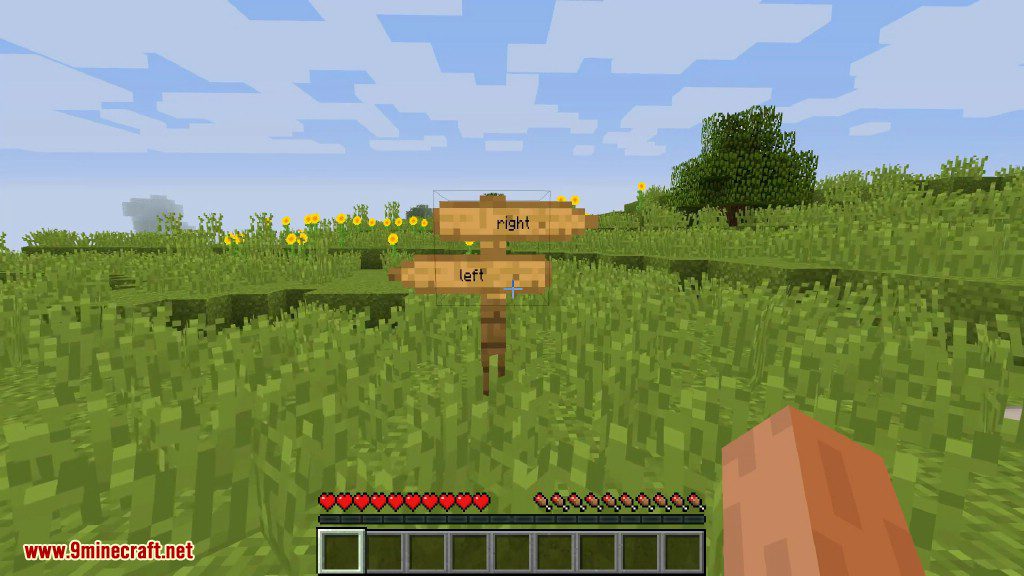
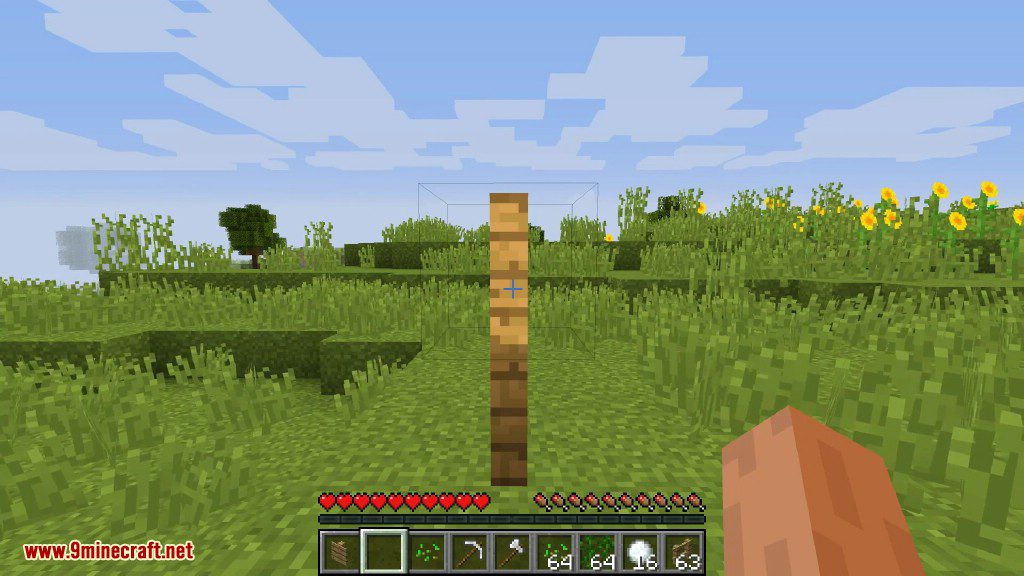
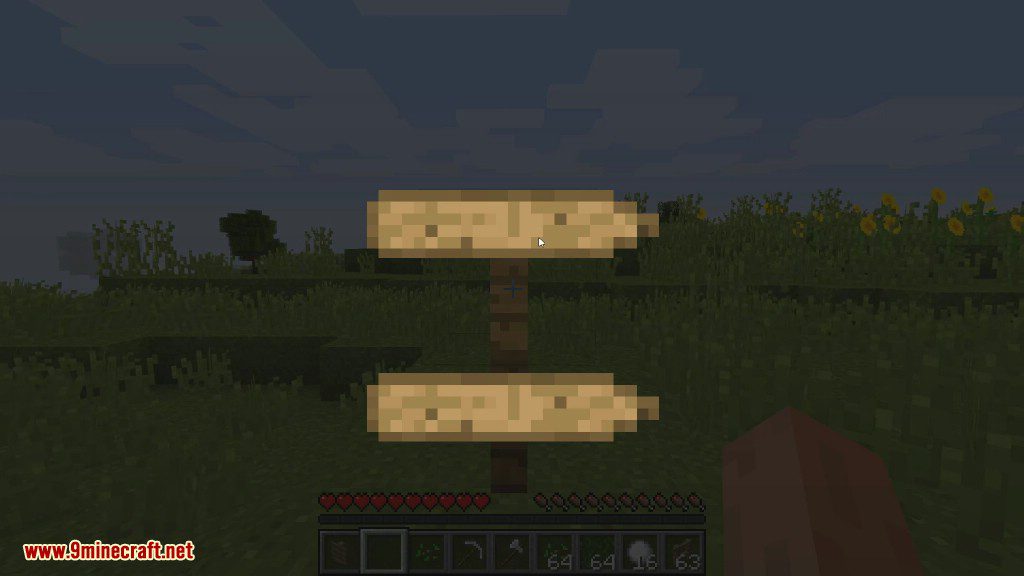
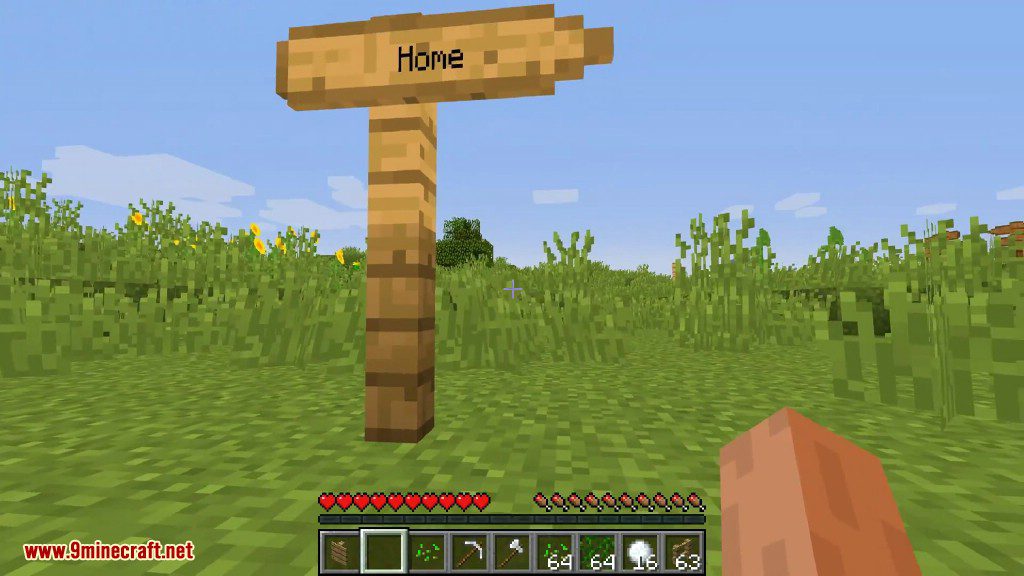
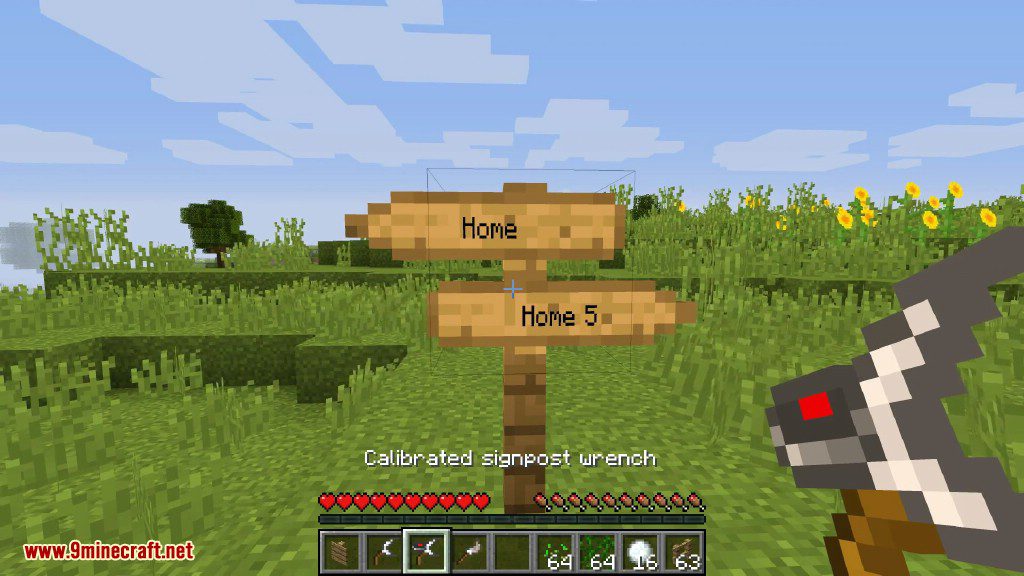
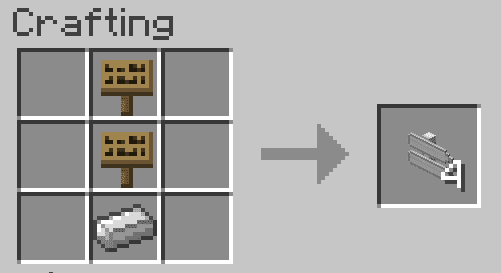
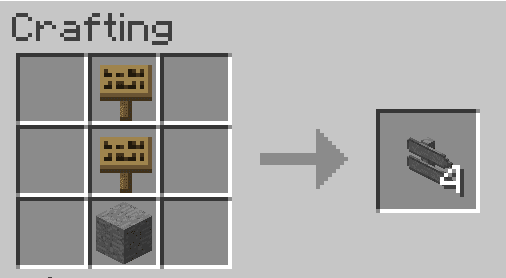
- The signpost/large signpost looks like a single fence block. The players can register up to two waystones as destinations for every post (one for large signposts). Once a signpost has a destination, an arrow-shaped sign with the destination’s name on it gets attached. After discovering a waystone (right-click), a player can use every signpost with this waystone as destination to teleport back to it.
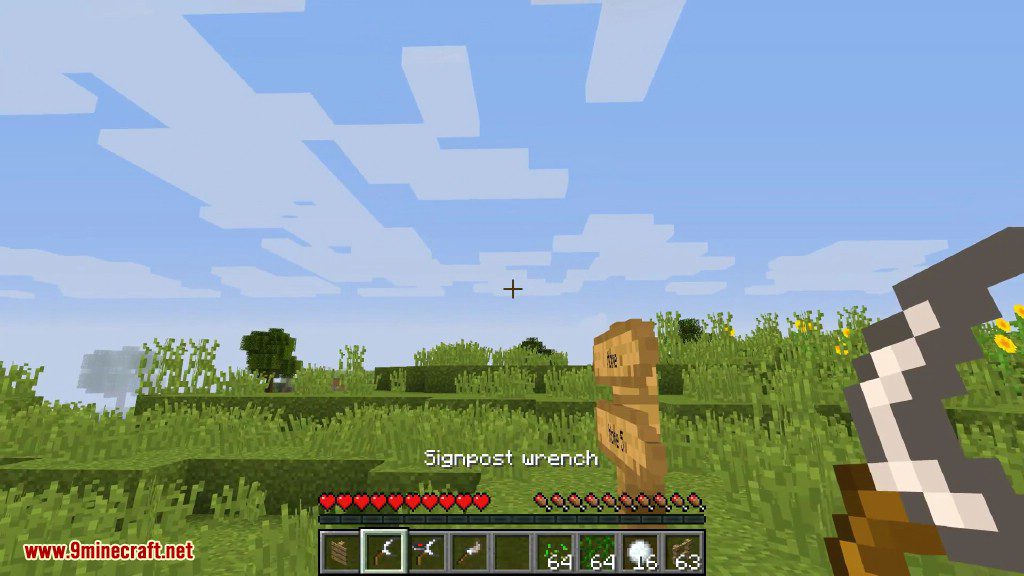
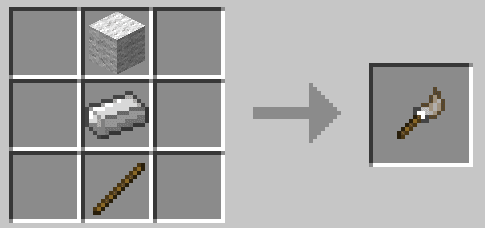
- The signpost wrench is used to rotate and flip the signs in the right direction.
Screenshots:
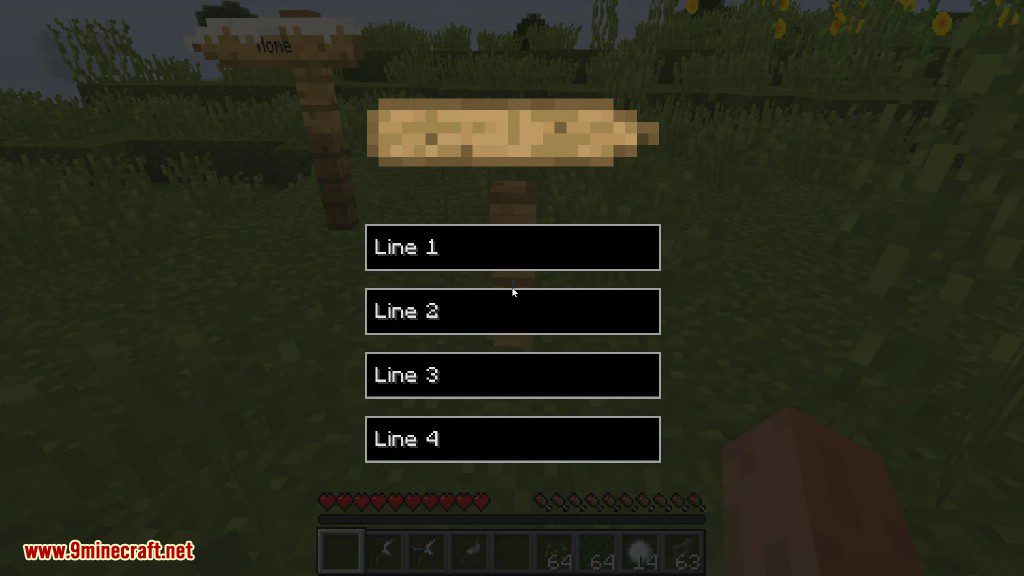
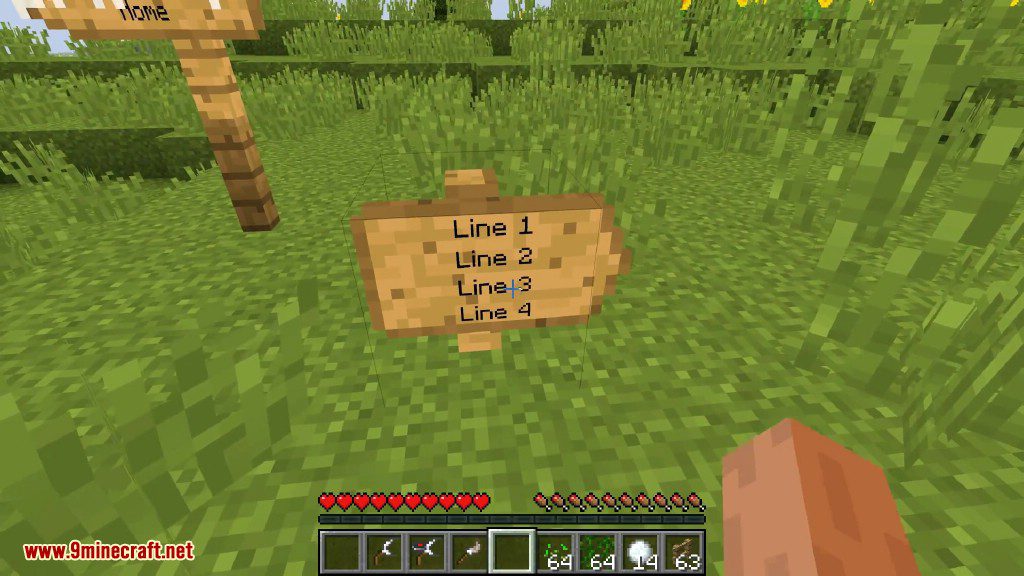
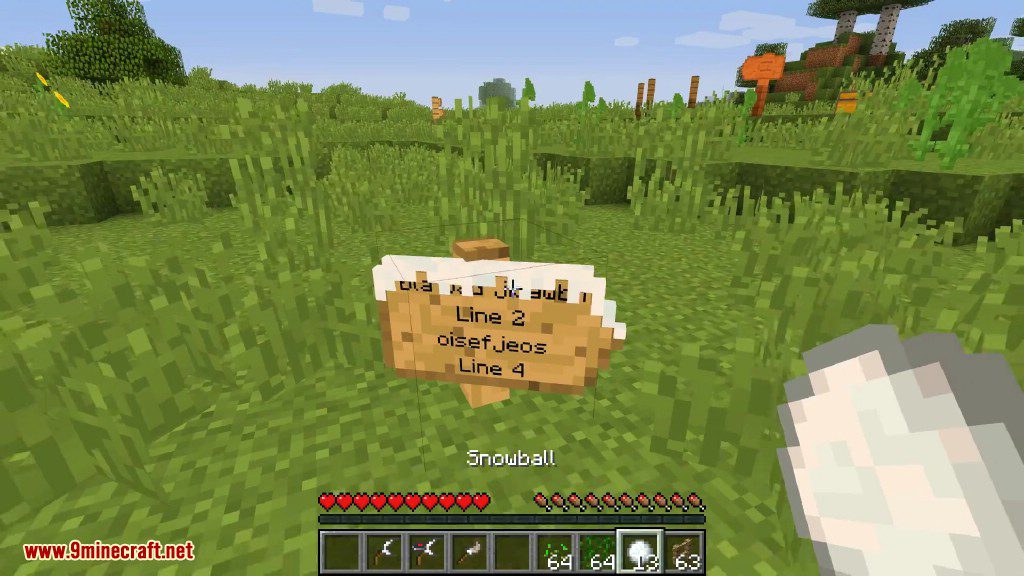
Crafting Recipes:
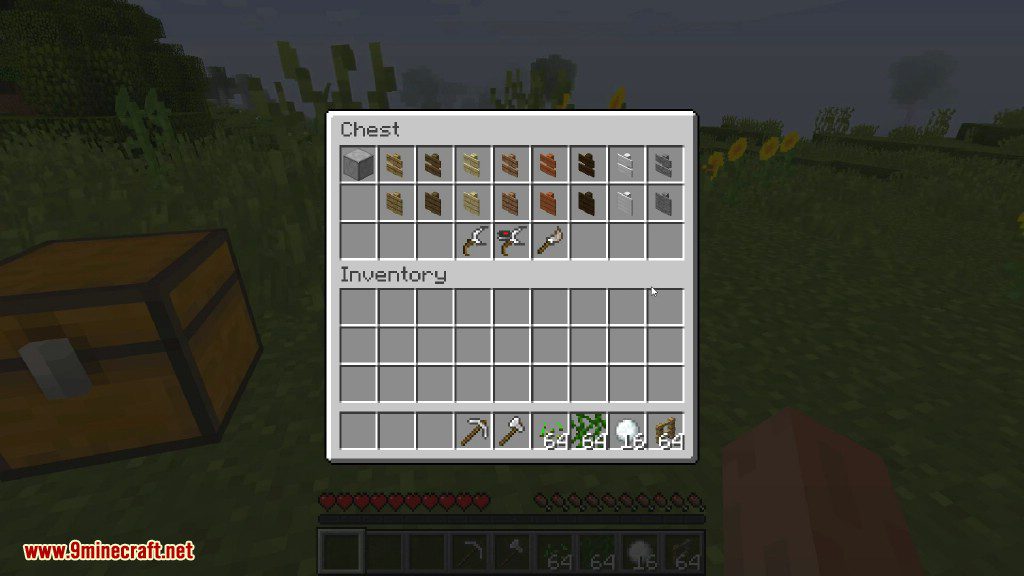
Recommend that you should install Just Enough Items (for mods using Forge) or Roughly Enough Items (for mods using Fabric) to view the full recipes included in this mod
Expensive signpost
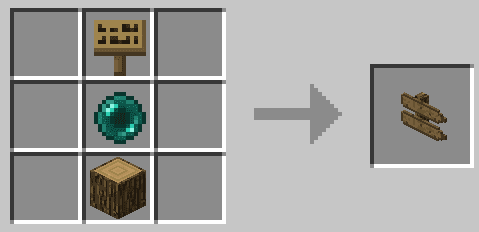
Very expensive signpost
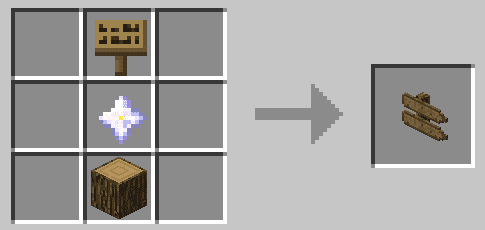
Oak
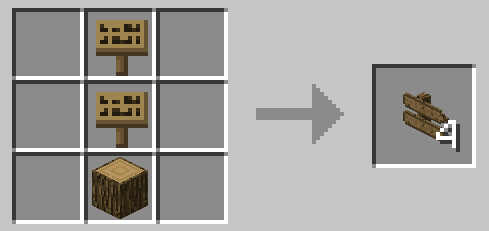
Acacia
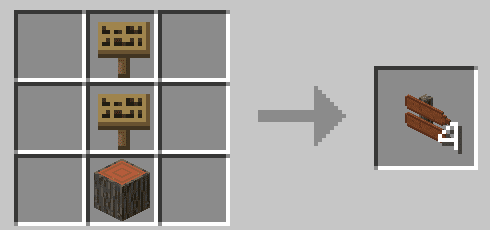
Dark Oak
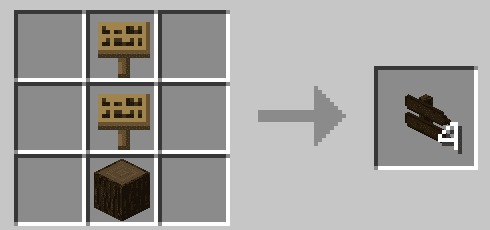
Spruce
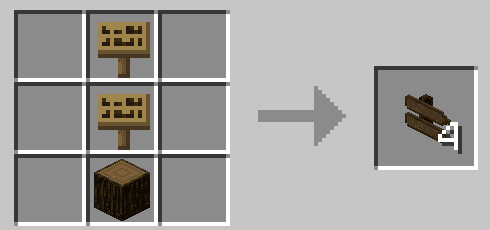
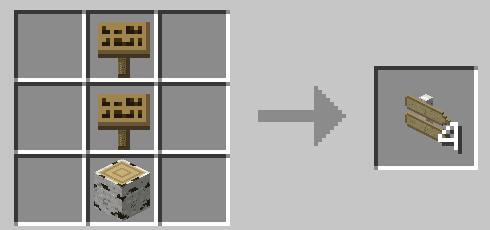
Birch
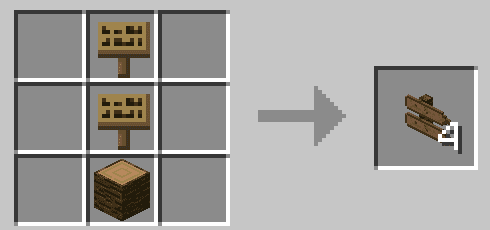
Jungle
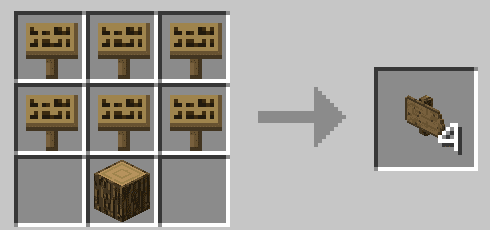
Large Signpost Oak
Signpost Wrench
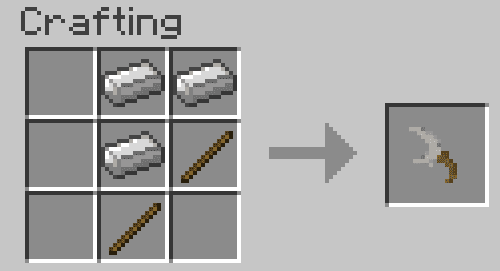
Iron
Stone
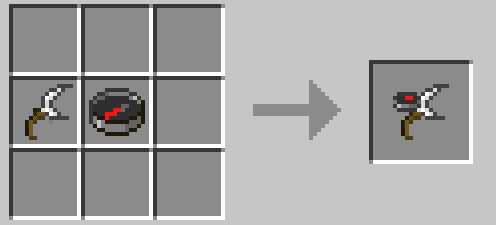
Calibrated Wrench
Brush
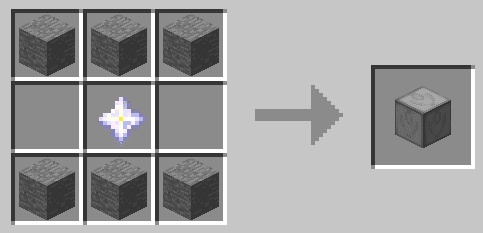
Very Expensive Waystone
How to use:
Placing a Waystone:
Show Spoiler
Normal waystone:
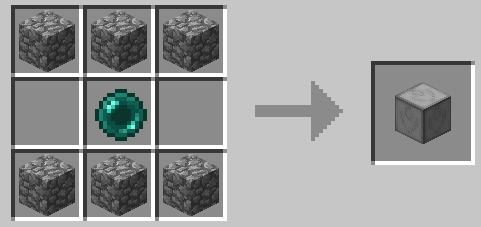
Just craft a waystone and place it. Players will teleport on top of it.
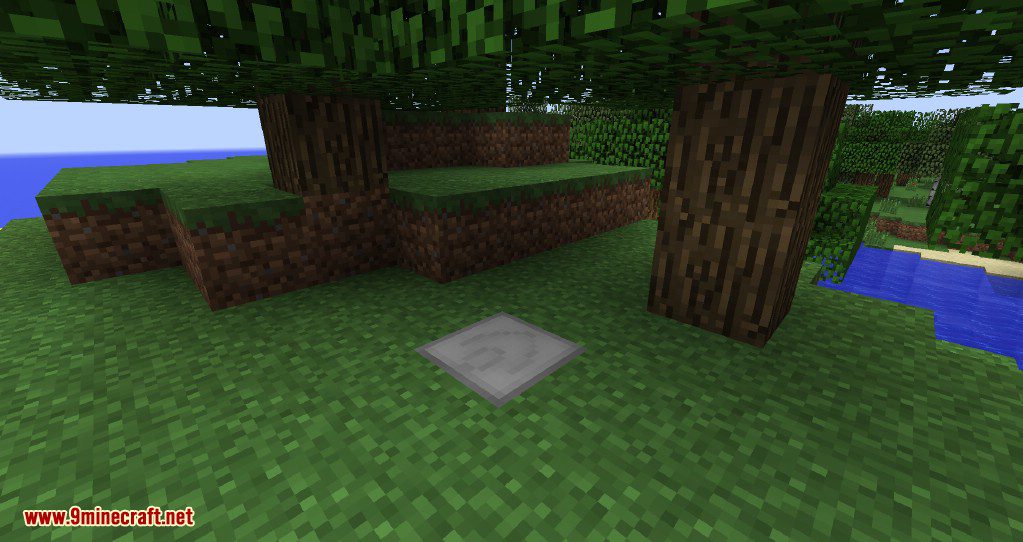
Waystone with model:
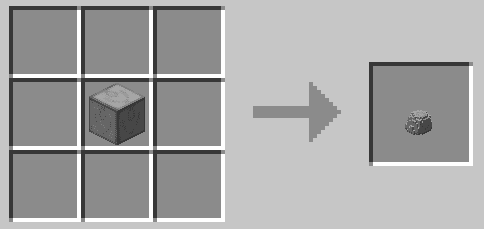
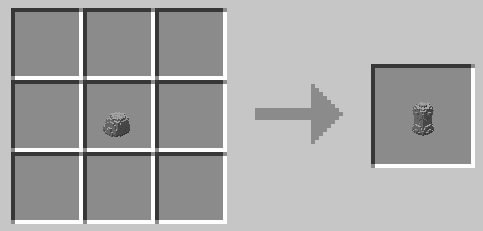
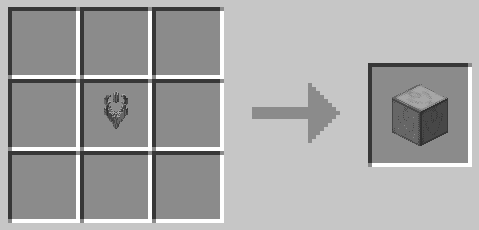
Craft a normal waystone and put it back in the crafting grid to craft a waystone with model.
Players will teleport to the position you were in when placing the waystone.
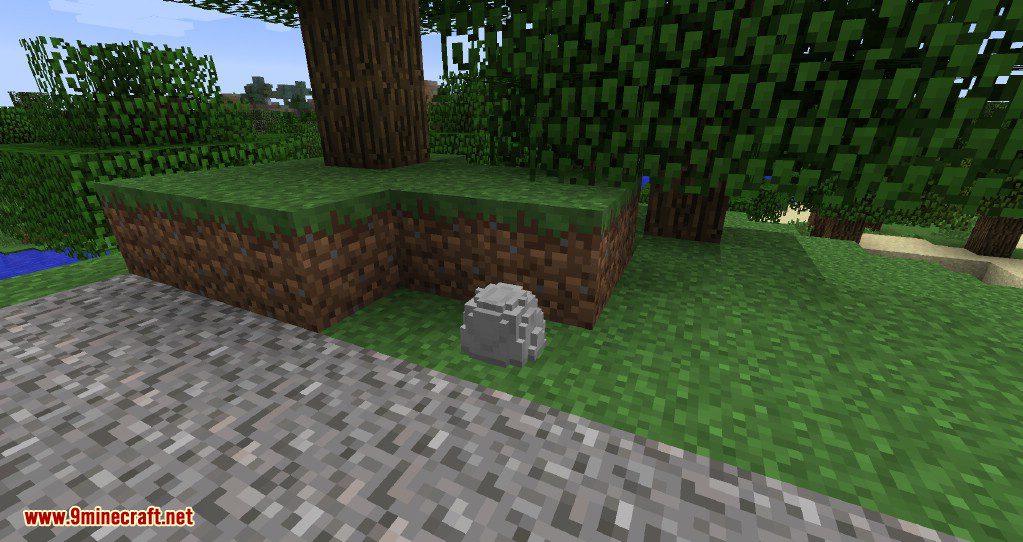
Waystone in a Signpost
Craft a normal waystone and right click a signpost with it.
Players will teleport to the position you were in when doing this.
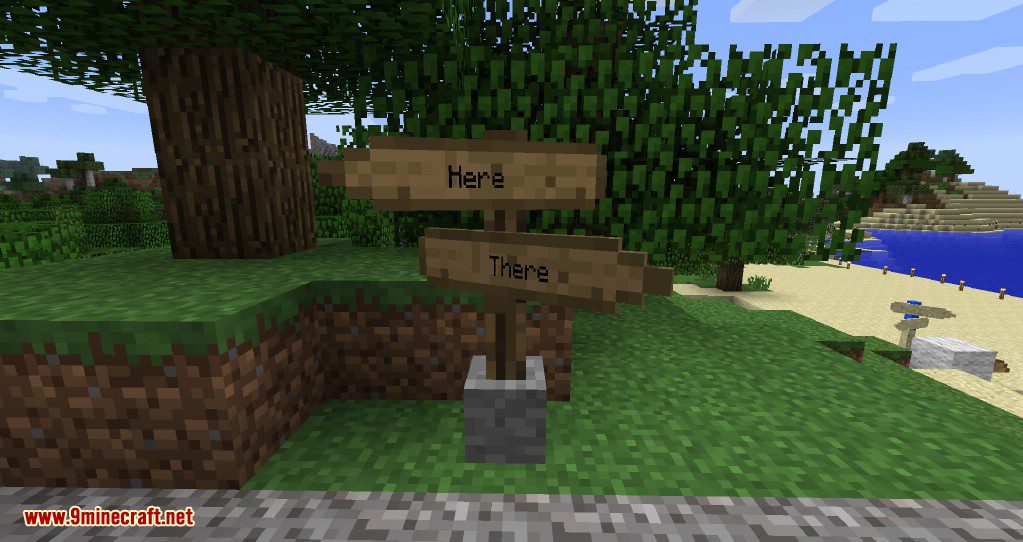
Painting a Sign:
Show Spoiler
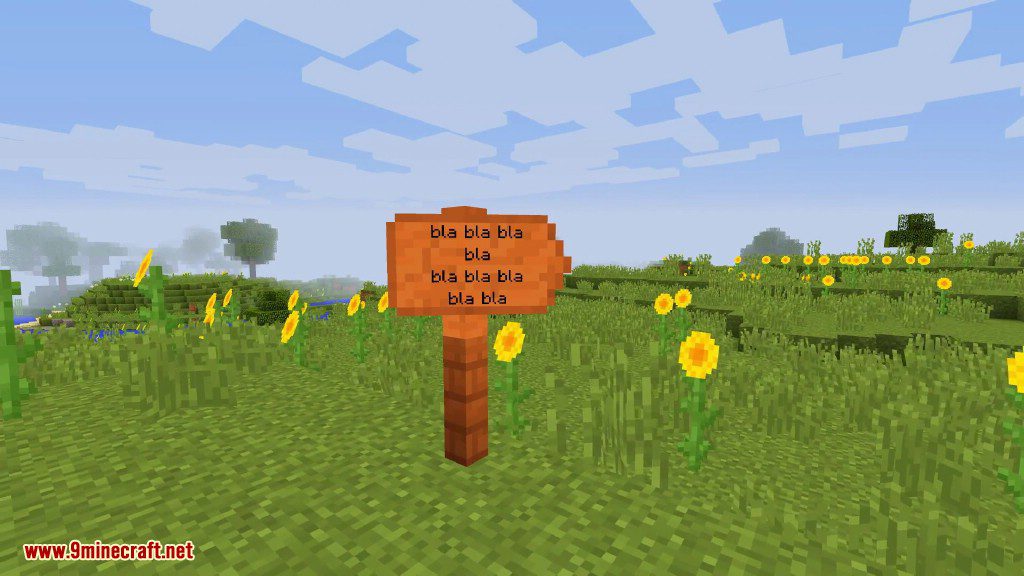
Right click a post or sign with the brush. It will now turn multi-colored. Right click it again with any block to assign its texture to the post/sign.
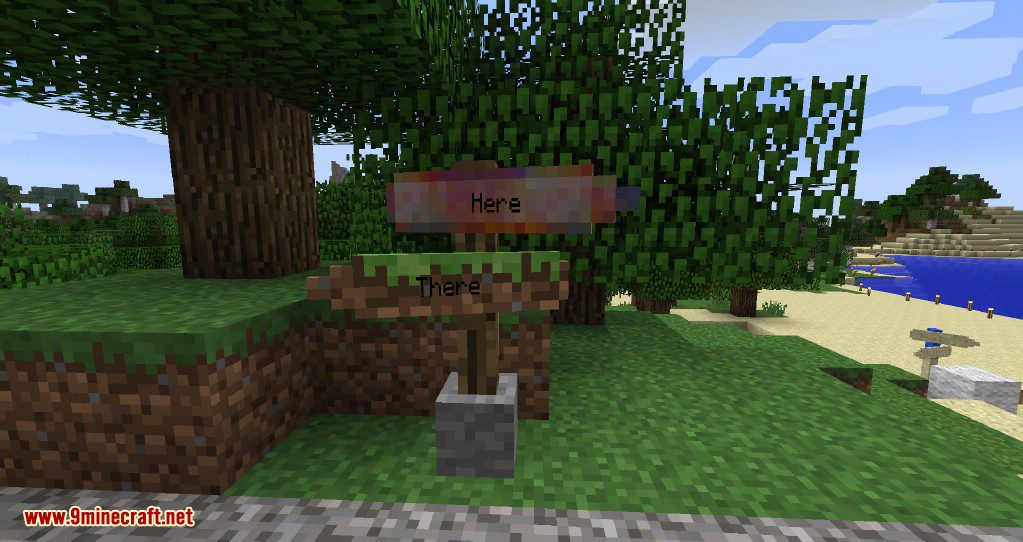
Some blocks (pumpkins, grass, …) have multiple textures. Try right clicking the post/sign with this block from different directions until you get the right texture.
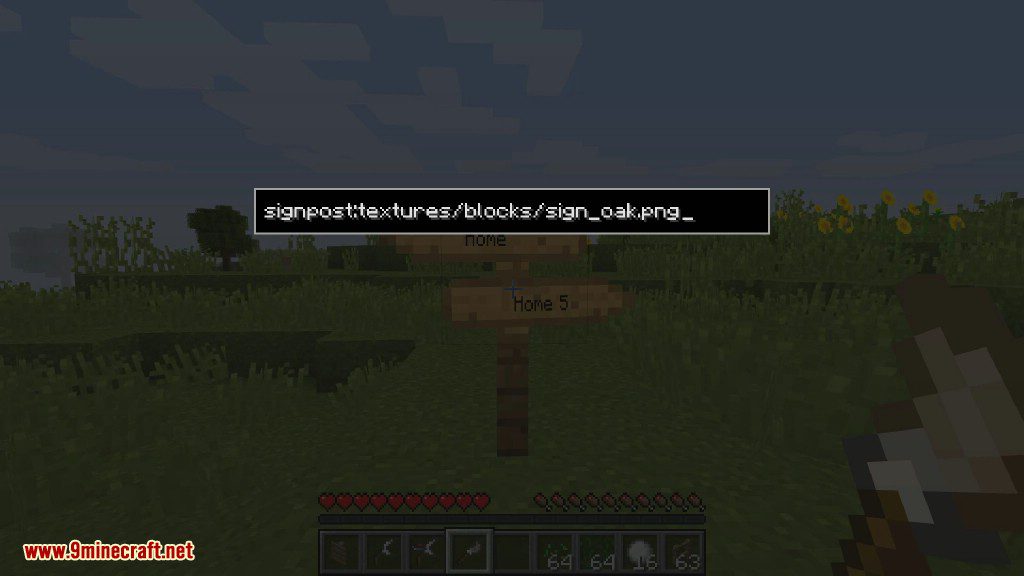
If this doesn’t work, you can still use the old method to assign any texture you want (left click a post/sign with a brush to open its old gui):
When you want to paint a sign using the brush, you will have to use the texture’s ResourceLocation.
Example:
The ResourceLocation of default oak log: “minecraft:textures/blocks/log_oak.png”
Minecraft uses the textures contained in the “assets”-Folder.
The texture “log_oak.png” is contained in “assets/minecraft/textures/blocks/” within the version’s “.jar” file.
This way, you can use every texture from any subfolder of “assets” (vanilla Minecraft, Mods, ResourcePacks):
- 1: Locate your texture inside one of these files:
- The current Minecraft version’s .jar file (.minecraft/versions//.jar)
- The mod’s .jar file
- The active ResourcePack
- 2: Get the texture’s path within the .jar/.zip file.
- It should look like this: “assets//*/.png”
- 3: Convert it to the ResourceLocation by removing “assets/” and changing the first “/” to a “:”.
- It should now be: “:*/.png”
- For vanilla textures, “*/.png” will do, it will add the “minecraft:” automatically.
- 4: Use this when painting the sign with the brush.
- 5: Eat a cookie.
Usage:
Show Spoiler
- Place a waystone.
- Open its gui (shift+right click with bare hands) and give it a fancy name. Players can now discover this waystone by simply right-clicking it.
- Place a signpost.
- Open its gui (right click) and enter the names of the desired waystones as destinations. You can force the signpost to display other names by pressing ENTER. These signs can obviously not be used for teleport.
- Use the signpost wrench to rotate (right click), counter-rotate (left click) or flip (shift+left click) one of the arrows.
- Players can now teleport to the destinations by right-clicking the signs, provided they have discovered the specified waystone.
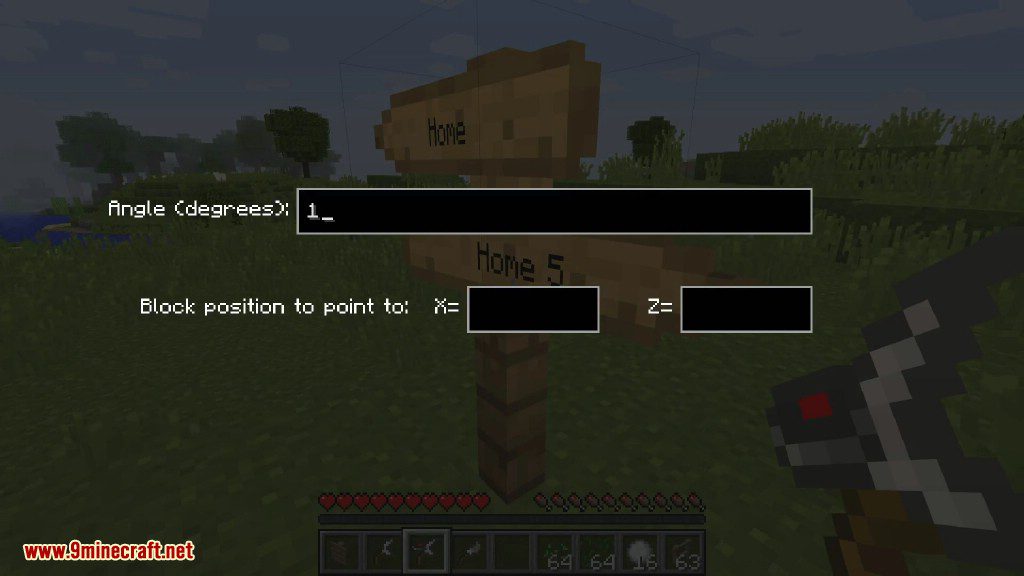
- Right click a sign with the calibrated wrench to open the rotation gui. You can now enter an angle or the coordinates of a block. Left/shift+left click a sign to make it point in the direction/opposite direction you are looking.
- You can paint a post or sign by right clicking it with the signpost brush. This will turn the post/sign multi-colored. Right click it again with a block of your choice to assign this block’s texture.
- Hitting a sign with bare hands will make it point directly at its destination. Not available in creative mode
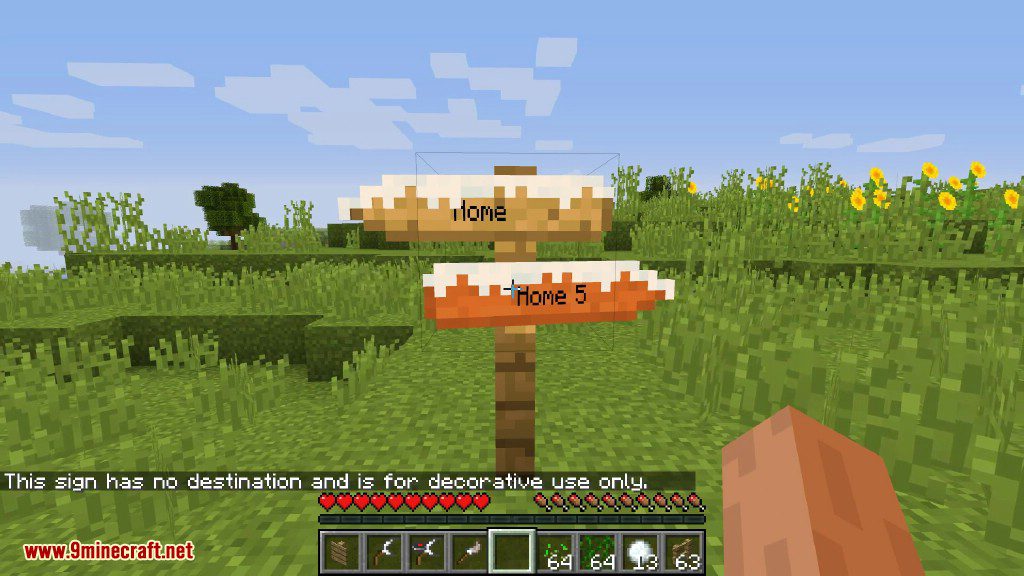
- You can add snow/gras/vine overlays to signs by hitting them with snowballs/seeds/vines. Remove them by hitting the sign with any item/block except signpost items. Not available in creative mode
Commands:
- “/getwaystonesleft [<player>]”: Display the amount of waystones you/the specified player (op only) are allowed to place.
- “/getsignpostsleft [<player>]”: Display the amount of signposts you/the specified player (op only) are allowed to place.
- “/setwaystonesleft <amount> [<player>]”: Set the amount of waystones you/the specified player are allowed to place (op only).
- “/setsignpostsleft <amount> [<player>]”: Set the amount of signposts you/the specified player are allowed to place (op only).
- “/discoverwaystone <name> [<player>]”: You/the specified player will instantly discover this waystone (op only)
Requires:
How to install:
How To Download & Install Mods with Minecraft Forge
How To Download & Install Fabric Mods
Don’t miss out today’s latest Minecraft Mods
Signpost Mod (1.19.2, 1.18.2) Download Links
Other versions:
Show Spoiler
For Minecraft 1.9.4
For Minecraft 1.10.2
For Minecraft 1.11.2
For Minecraft 1.7.10
For Minecraft 1.12.2, 1.12.1, 1.12
For Minecraft 1.15.2
Forge version: Download from Server 1
For Minecraft 1.16.5
Forge version: Download from Server 1
For Minecraft 1.17.1
Forge version: Download from Server 1
For Minecraft 1.18.1
Forge version: Download from Server 1
For Minecraft 1.18.2
Forge version: Download from Server 1
For Minecraft 1.19
Forge version: Download from Server 2
For Minecraft 1.19.1
Forge version: Download from Server 1
For Minecraft 1.19.2
Forge version: Download from Server 1
Tags:
YOU MAY ALSO LIKE...