

Solving the Mystery of Floating Blocks After Updates
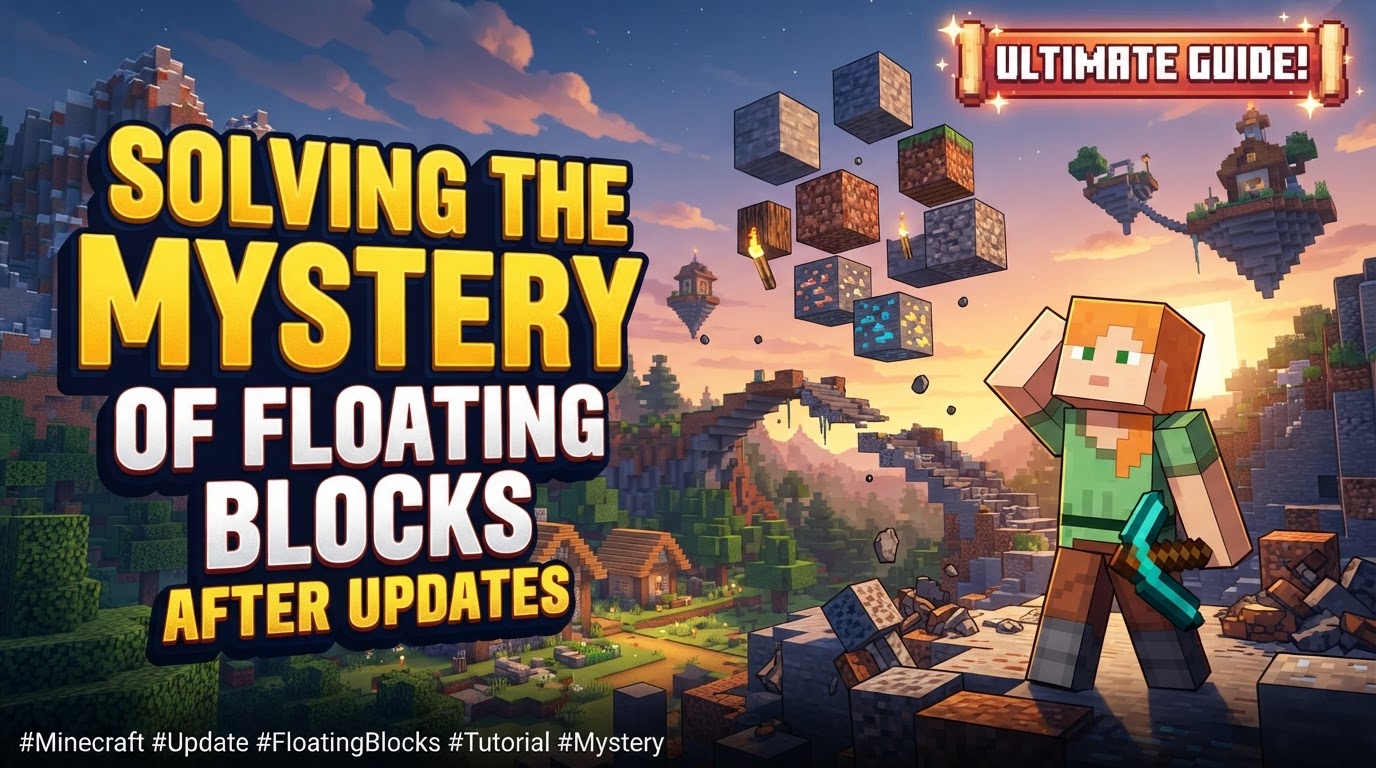
Many players instantly assume their world is irrevocably broken when they encounter blocks suspended in mid-air after a Minecraft update. This common sight, often dubbed “floating blocks,” can be startling, but it’s rarely a sign of irreparable damage. Instead, it’s a fascinating symptom of Minecraft’s complex underlying mechanics, ranging from world generation quirks to rendering glitches and, in rarer cases, genuine world corruption. Understanding the root causes is the first step towards effectively addressing these anomalies and preserving the integrity of your blocky creations.
Understanding the Enigma: Why Blocks Float
Floating blocks aren’t a single phenomenon but a collection of issues stemming from different aspects of the game’s design. Pinpointing the source is crucial for selecting the right solution.
- World Generation’s Whims: Minecraft’s terrain generation is a marvel of “chaotic noise math patterns.” These algorithms, designed to create diverse landscapes, can inherently produce naturally floating islands, arches, or other terrain features that appear to defy gravity. These are intended and not an error.
- Block Physics and Exceptions: Not all blocks obey the same rules. While gravity-affected blocks like sand, gravel, and anvils convert into falling entities when unsupported, certain blocks behave differently. Leaves, for instance, don’t immediately fall when their supporting log is removed; they decay over time. In Bedrock Edition, a peculiar edge case allows gravity-affected blocks to float if placed on the absolute final layer above the void, preventing their transformation into falling entities.
- The Shadow of Chunk Errors and Corruption: This is often the most concerning cause. Game updates, unexpected crashes, or even hardware issues can sometimes lead to “chunk errors” or “world corruption.” Chunks are 16×16 block sections of the world. When a chunk is corrupted, it might fail to load correctly, render improperly, or have its data scrambled, resulting in missing terrain, misplaced structures, or, indeed, blocks appearing to float where terrain should be.
- Client vs. Server: Where’s the Problem?: A critical distinction lies between client-side and server-side issues. Many instances of floating blocks are merely client-side rendering glitches. This means the blocks are technically present and supported in the world’s data file (server-side), but your game client isn’t displaying them correctly. Less commonly, the issue can be server-side, indicating actual problems with the world’s saved data.
- The Far Lands and Floating Point Imprecision: In Java Edition, venturing to extremely high coordinates (millions of blocks from spawn) can introduce “floating-point imprecision.” The game’s calculations for block positions become less accurate, leading to visual glitches, misaligned blocks, and seemingly floating structures due to rounding errors.
Your Action Plan: A Step-by-Step Approach to Resolution
When confronted with floating blocks, a methodical approach is key. Starting with the simplest fixes and escalating only if necessary will save you time and potential heartache.
- Diagnosing the Anomaly: Before attempting any fixes, observe the situation. Is it a single block, a small cluster, or an entire section of terrain? Does it happen consistently, or only sometimes? Does it affect only you (client-side) or all players on a server? This initial assessment helps determine if it’s a visual glitch or a deeper world data issue.
- First Line of Defense: Client-Side Solutions: For most visual glitches, simple actions can often resolve the problem.
- Reloading Chunks: In Minecraft Java Edition, the most common fix for visual chunk errors is pressing
F3 + A. This command reloads all chunks around the player, often forcing the game to re-render the area correctly and making floating blocks reappear or fall as they should. - Rejoining the World/Server: Exiting your single-player world or disconnecting from a multiplayer server and then rejoining is another effective way to clear client-side rendering issues. This forces a fresh load of all visual data.
- Interacting with the Block: Sometimes, an invisible block or a floating block’s true position just needs a “nudge.” Simply right-clicking the air where the block *should* be, or placing/breaking a block nearby, can trigger a block update that causes the phantom block to render correctly or fall.
- Reloading Chunks: In Minecraft Java Edition, the most common fix for visual chunk errors is pressing
- Tackling True World Corruption: If client-side fixes fail, or if the issue is widespread and clearly indicates missing or corrupted terrain, you’re likely dealing with world data corruption.
- The Crucial First Step: Backup Your World: This cannot be stressed enough. Always, always create a backup of your world before attempting any structural fixes or using external tools. This is your safeguard against irreversible data loss if something goes wrong.
- Leveraging Chunk Editing Tools (Java Edition): For Java Edition, powerful external tools like MCA Selector or Minecraft Region Fixer can be invaluable. These programs allow you to visualize your world’s chunks and identify corrupted or empty ones. You can then selectively delete these problematic 16×16 block chunks. When you next load your world in Minecraft, the game will regenerate the deleted chunks from scratch, often resolving the corruption. Be cautious and always back up first!
- Reinstallation as a Last Resort (Bedrock Edition): Bedrock Edition offers fewer robust external tools for direct world file manipulation. For severe, persistent corruption, reinstalling the game might be necessary. However, this carries a significant risk of world loss if you haven’t backed up your world data separately, as game uninstallation can delete associated files.
Proactive Measures and Wise Practices
Prevention is always better than cure. Adopting good habits can significantly reduce the likelihood of encountering floating block mysteries.
- The Lifeline of Regular Backups: Make routine backups of your Minecraft worlds. This is especially important before any major game updates, installing new mods, or making significant changes to your system. A robust backup strategy is the ultimate protection against data loss from corruption or unexpected issues.
- Keeping Your Software Current: Ensure your Minecraft game, launcher, and any associated software (like Java for Java Edition) are always up to date. Developers frequently release patches that fix bugs, improve stability, and address potential causes of world corruption or rendering glitches.
- Server Health Matters: On multiplayer servers, chunk errors and floating blocks can sometimes be symptomatic of server lag, insufficient resources, or improper loading. If you’re an administrator, monitoring server performance and performing regular server restarts or reloads can help maintain world integrity.
- Embracing Physics Mods (Optional): If your primary concern is the realism of unsupported blocks, consider exploring community-made physics mods. These mods often introduce more complex properties like mass and structural support, causing unsupported blocks to fall more consistently than in vanilla Minecraft.
Pitfalls to Avoid: Common Mistakes
Even seasoned players can fall into traps when troubleshooting world issues. Being aware of these common errors can save you significant frustration.
- The Peril of Unbacked Worlds: This is the most critical mistake. Attempting any fix, especially those involving external tools or reinstallation, without a recent world backup is an invitation to permanent data loss.
- Jumping to Conclusions: Ignoring Simple Fixes: Immediately assuming severe world corruption and resorting to drastic measures like chunk deletion without first trying simple client-side fixes (like reloading chunks or rejoining) can lead to unnecessary complexity and potential further issues.
- Mod Mayhem and Conflicts: Introducing or updating a large number of mods simultaneously can lead to unforeseen conflicts, data inconsistencies, and world generation issues, including floating blocks. Always add mods incrementally and test thoroughly.
- Version Incompatibility Woes: Attempting to load a world created in one game version (e.g., 1.18) with a significantly different or downgraded version (e.g., 1.16) can lead to severe world corruption, missing blocks, and unexpected behavior due to changes in block IDs and world generation algorithms.
Conclusion: Safeguarding Your Blocky Worlds
Floating blocks in Minecraft, while initially perplexing, are usually solvable. By understanding the various underlying causes, from simple rendering hiccups to genuine world data corruption, and by following a methodical troubleshooting approach, you can restore your world to its intended glory. Remember the golden rule: regular backups are your ultimate defense, ensuring that even the most stubborn mysteries don’t lead to permanent loss in your cherished blocky adventures.
Tags:
YOU MAY ALSO LIKE...


