How to fix common server connection errors
Minecraft offers an incredible multiplayer experience, but encountering server connection errors can be incredibly frustrating. This guide will walk you through the most common connection issues and provide systematic troubleshooting steps to get you back into your blocky world. By understanding the underlying mechanics and following a clear process, you can resolve many of these problems efficiently.
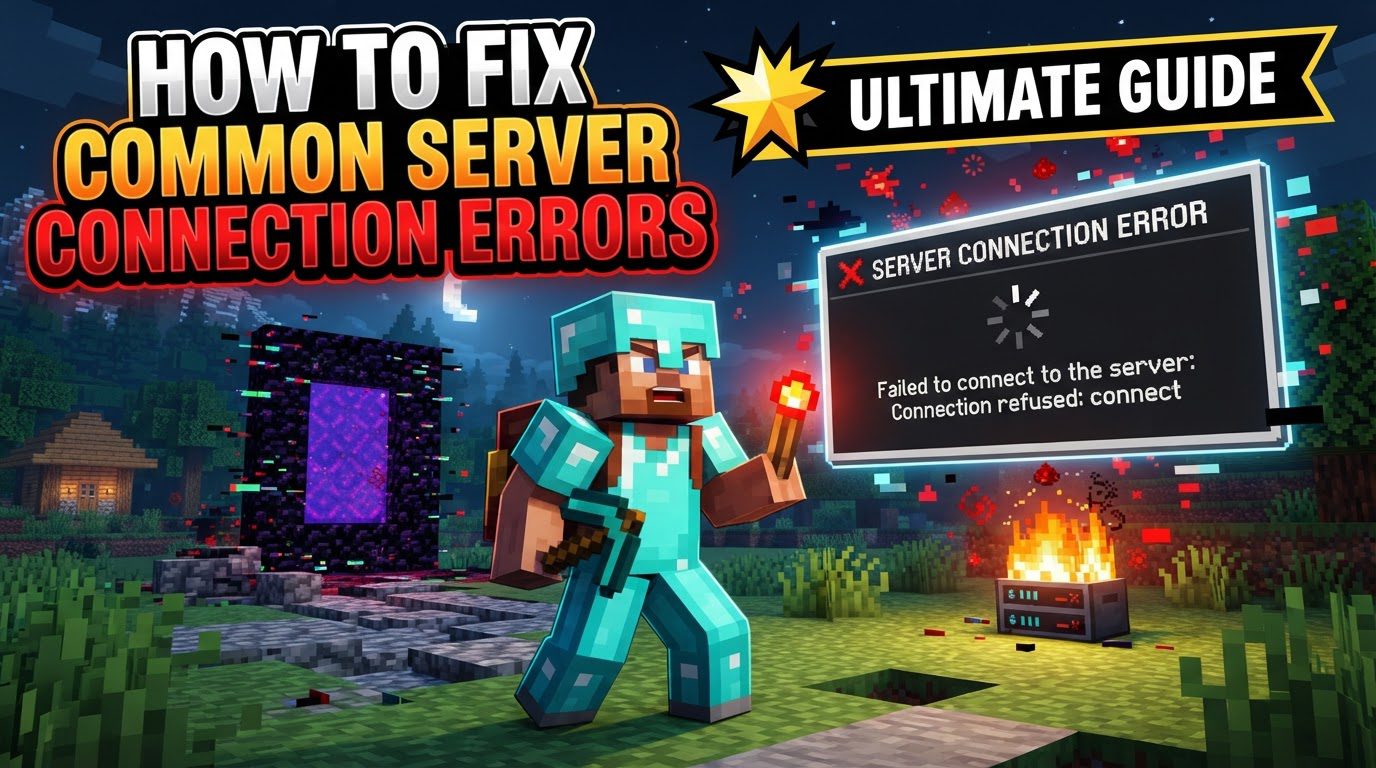
Understanding Common Connection Errors: Key Mechanics
Before diving into solutions, it’s crucial to understand what’s happening when you try to connect to a Minecraft server. A successful connection relies on your game client correctly directing itself to the server’s specific address and port number. Each common error message provides a clue about the underlying problem:
- “Connection refused”: This error typically means the server isn’t running at all, is listening on a different port than you’re trying to access, or a firewall is actively blocking your attempt to connect. It’s like knocking on a door that’s either not there, or it’s firmly locked from the inside, actively rejecting your entry.
- “Connection timed out”: This usually indicates that your connection attempt never reached the server in the first place, or no response was received within a set timeframe. This can stem from broader network issues on your end or the server’s, or a firewall aggressively blocking the connection before it even gets a response. It’s akin to knocking, but no one ever hears you or responds, perhaps due to a vast distance or an impenetrable barrier.
- “Failed to authenticate your connection”: This specific error means the Minecraft authentication servers cannot verify your account. Common causes include issues with Mojang/Microsoft’s authentication services themselves, or potentially corrupted session tokens on your client that prevent proper verification.
- Firewall or Antivirus Interference: Both your operating system’s built-in firewall (like Windows Defender) and third-party antivirus software can mistakenly identify Minecraft’s network requests as potential security threats. When this happens, they block the connections, preventing any access to multiplayer servers.
- Version Compatibility: A fundamental requirement for connecting to any Minecraft server is that both your game client and the server itself must be running the exact same version of Minecraft. A mismatch, even a minor one, will always result in a connection failure, as the game protocols won’t align.
- Port Forwarding (for Hosts): If you are hosting a server from your home network behind a router, port forwarding is an essential step. It creates a specific rule on your router that tells it to direct incoming connection requests on a particular port (e.g., 25565 for Java Edition) to the internal IP address of your server machine, making it accessible to players outside your local network. Without this, your router will block external connections.
Step-by-Step Troubleshooting Process
When faced with a connection error, work through these steps systematically to diagnose and resolve the issue. Test your connection after completing each step.
- Verify Server Status: First and foremost, confirm that the Minecraft server you’re trying to join is actually online and running. If it’s a private server, contact the administrator. If it’s a public server, check its official website, community forums, or a dedicated status page. Connecting to an offline server is the most basic cause of failure.
- Check Internet Connection: Ensure your own internet connection is stable and working correctly. Try visiting a few different websites or using other online applications to confirm general connectivity and rule out issues with your local network or ISP.
- Confirm Server Address and Port: Meticulously double-check the IP address or domain name and the associated port number entered in your Minecraft client. Even a single incorrect digit, letter, or character can prevent a connection. The default port for Minecraft Java Edition is 25565, and for Bedrock Edition, it’s often 19132 or 19133.
- Restart Network Equipment: A classic IT solution, power cycling your router and modem can resolve many temporary network glitches, refresh IP addresses, and clear out minor network congestion. Unplug your router (and modem, if separate) from power for at least 30 seconds, then plug them back in. Wait for them to fully restart and stabilize before attempting to connect again.
- Adjust Firewall Settings:
- Windows Defender Firewall: Navigate to your Windows Firewall settings (search for “Windows Defender Firewall” in the Start menu). Click “Allow an app or feature through Windows Defender Firewall” and ensure that “Java(TM) Platform SE binary” and the Minecraft executable are allowed through for both private and public networks.
- Third-Party Firewall/Antivirus: If you use a different security suite (like Norton, Avast, McAfee, etc.), its firewall might be blocking Minecraft. Temporarily disable its firewall feature for testing, or consult its documentation to explicitly allow Minecraft and Java to make outbound and inbound network connections. Remember to re-enable it after testing if you disabled it.
- Flush DNS and Renew IP: This can resolve issues with outdated IP addresses cached by your system or problems with your network adapter’s configuration. Open Command Prompt as an administrator (right-click Start button -> “Command Prompt (Admin)” or “Windows PowerShell (Admin)”) and run the commands
ipconfig /flushdnsfollowed byipconfig /renew. - Restart Minecraft: Sometimes, the simplest solution is the most effective. Fully close the Minecraft launcher and game client, then reopen them. This refreshes all game processes and network connections that Minecraft might be holding.
- Check for Version Mismatch: Always ensure your Minecraft client is running the exact same version as the server you’re trying to join. An update on one side without the other is a very common cause of connection failures. The server’s version is usually displayed on its website or in the server list.
- Port Forwarding (for Server Hosts): If you are hosting a server from home, correctly configure your router to forward the necessary ports. For Minecraft Java Edition, this is typically TCP port 25565. For Minecraft Bedrock Edition, it usually involves UDP ports 19132 and/or 19133. These ports must be directed to the local IP address (e.g., 192.168.1.100) of the PC hosting the server. Refer to your router’s manual or an online guide for specific instructions.
- Sign Out and Back Into Minecraft Launcher: If you’re encountering “Failed to authenticate your connection” errors, logging out of your Microsoft account within the Minecraft launcher and then signing back in can refresh your authentication tokens and resolve issues related to your game session.
Important Tips for Stable Connections
Beyond troubleshooting specific errors, these general tips can help maintain a more stable connection to any Minecraft server and prevent future issues.
- Use a Wired Ethernet Connection: Whenever possible, connect your PC to your router using an Ethernet cable instead of Wi-Fi. Wired connections offer significantly greater stability, lower latency (ping), and are less susceptible to interference than wireless connections.
- Choose a Geographically Close Server: Connecting to a server located closer to your physical location will generally result in lower ping and a more responsive gameplay experience, as data has less distance to travel.
- Be Aware of Network Restrictions: If you’re playing on a school, work, or public network, be mindful that these networks often have strict firewalls, content filters, or port restrictions that can prevent Minecraft connections. In such cases, you may be unable to connect unless an administrator makes an exception.
- Pause Other Network-Intensive Activities: Heavy downloads, uploading large files, streaming high-definition video, or other bandwidth-intensive applications can consume your internet’s capacity. This can lead to lag, high ping, or even connection drops in Minecraft.
- Check Online Status Pages: Websites like
downdetector.com/status/minecraft/can inform you if there are widespread outages affecting Minecraft services (like authentication servers) or specific public servers. This helps differentiate between a personal issue and a broader problem. - Router Firewall Configuration: Your router might have its own built-in firewall, separate from your operating system’s firewall. Consider temporarily disabling it for testing purposes if all else fails, or ensure that Minecraft’s required ports are allowed through in its settings.
- Set Network Type to “Private” in Windows: For local area network (LAN) play, ensure your Windows network profile is set to “Private” rather than “Public.” Public profiles have stricter firewall rules by default, which can block local network discovery and connections.
Common Mistakes to Avoid
Many connection issues stem from simple oversights. Being aware of these common mistakes can save you a lot of troubleshooting time and frustration.
- Incorrect Server Address/Port: This is perhaps the most frequent error. Always double-check every character of the IP address, domain, and port number you enter. A single typo is enough to prevent a connection.
- Forgetting Firewall Exceptions: Not allowing “Java(TM) Platform SE binary” and the Minecraft executable through your operating system or third-party firewall is a common blocker. Firewalls are designed to protect, but can be overzealous.
- Attempting to Connect to an Offline Server: Always verify the server’s status before troubleshooting your own client. If the server isn’t running, no amount of client-side troubleshooting will help you connect.
- Ignoring Version Mismatch: Trying to connect with different Minecraft versions between your client and the server is a guaranteed failure. Always ensure they are identical; check both your launcher’s profile and the server’s advertised version.
- Incorrect Port Forwarding Configuration: For server hosts, misconfiguring port forwarding on your router (e.g., wrong internal IP address for the server PC, wrong external port number, incorrect protocol like TCP instead of UDP or vice-versa) will prevent external players from joining your server.
- Confusing “Connection Refused” with “Connection Timed Out”: While both mean no connection, “refused” implies the server actively rejected it (or a firewall did), while “timed out” suggests the request never even got a response. These distinct errors point to different root causes and require tailored troubleshooting approaches.
- Using Outdated Java: Especially with modded servers or older versions of Minecraft, an outdated or incompatible Java installation can cause compatibility issues and connection problems. Ensure your Java is up to date, or matches the specific requirements of the server you’re trying to join.
- Testing Local IP from Outside the Network (for Hosts): When hosting, don’t try to connect to your *public* IP address from a machine *on the same local network* without proper NAT loopback (or “hairpinning”) support on your router. This often fails and can lead you to believe port forwarding isn’t working when it actually is. Test your public IP from an external network or use your local IP from within your network.
By systematically addressing these common problems and employing the tips provided, you should be able to resolve most Minecraft server connection issues. Remember to approach troubleshooting methodically, testing after each step, and you’ll be back to building and adventuring in no time.
Tags:
YOU MAY ALSO LIKE...