Auto-loading a Datapack on World Creation
Understanding Minecraft Datapacks
Minecraft datapacks are powerful tools that allow players to significantly modify and extend the game’s core mechanics without needing traditional mods. Operating natively within vanilla Minecraft, these packs introduce custom content and behaviors on a per-world basis. This includes everything from custom advancements and loot tables to entirely new world generation features or unique recipes. Understanding how datapacks function is the first step toward effectively integrating them into your Minecraft experience.
A datapack is typically distributed as either a .zip file or a structured folder. At its root, every valid datapack must contain a pack.mcmeta file. This file acts as the datapack’s identifier, providing essential metadata such as its description and the Minecraft version it’s compatible with. Without a correctly placed and formatted pack.mcmeta, Minecraft will not recognize the folder or .zip as a valid datapack, preventing it from loading.
Datapacks load their data in a specific order, which is crucial for their intended functionality. Later-loaded datapacks have the potential to override elements or behaviors introduced by earlier-loaded ones. This load order can be managed within the game, allowing players to prioritize certain datapacks if conflicts arise. Furthermore, it’s important to note that some datapacks are designed to work in conjunction with a specific resource pack. While the datapack handles game logic and content, the resource pack might provide necessary textures, models, or sounds to visually represent the datapack’s additions, ensuring a complete and immersive experience.
Method 1: Manually Loading a Datapack During New World Creation
For players who want to add a datapack to a specific new world without relying on external mod loaders, Minecraft provides a straightforward manual process. This method ensures the datapack is integrated from the very moment the world is generated.
- Step 1: Obtain Your Datapack
Begin by downloading the desired datapack. Datapacks are almost always distributed as a.zipfile. Ensure you know the location where the file is saved on your computer, as you will need to access it shortly. - Step 2: Initiate New World Creation
From the Minecraft main menu, select the “Singleplayer” option. This will take you to a list of your existing worlds. To create a new world, click the “Create New World” button, usually located at the bottom of the screen. - Step 3: Access the Data Packs Screen
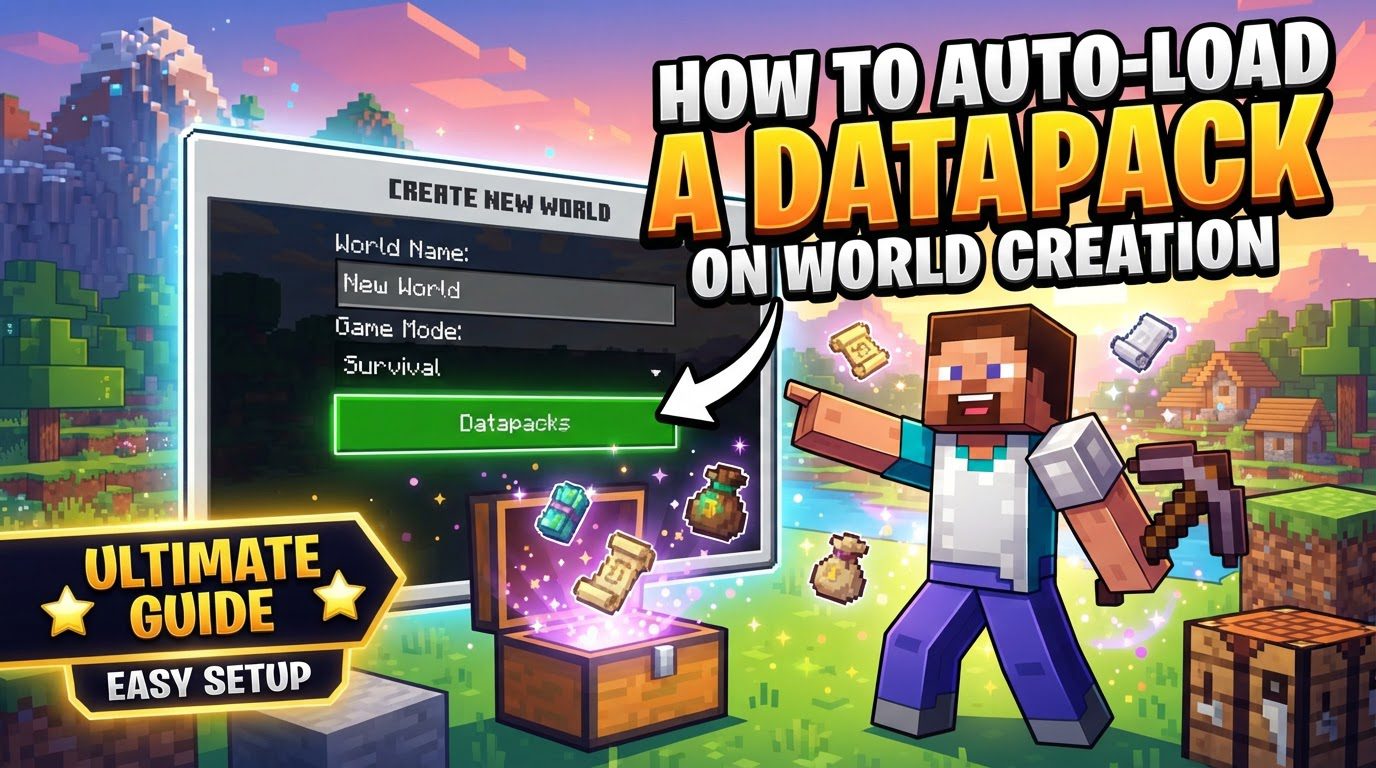
On the “Create New World” screen, where you typically set the world name, game mode, and difficulty, you will find a button labeled “Data Packs”. Click this button to open the dedicated Data Packs window. - Step 4: Add the Datapack to Minecraft
The Data Packs window will display two sections: “Available” datapacks on the left and “Selected” datapacks on the right. To add your downloaded datapack, simply drag and drop its.zipfile directly into this window. Minecraft will process the file. - Step 5: Confirm Datapack Addition (If Prompted)
Depending on the datapack and your Minecraft version, you might receive a prompt asking “Do you really want to add this datapack?”. This is a standard security measure. Click “Yes” to confirm that you wish to add the datapack to your potential world. - Step 6: Activate the Datapack
After successfully adding the datapack, it will appear in the “Available” list on the left side of the Data Packs window. To ensure it loads with your new world, you must move it to the “Selected” list on the right. Do this by clicking the small arrow button that appears next to the datapack’s name in the “Available” list. Once moved, the datapack is active for the world you are about to create. - Step 7: Finalize World Creation
With your datapack now in the “Selected” list, click the “Done” button at the bottom of the Data Packs window to return to the “Create New World” screen. From here, you can finish configuring any other world settings (such as game rules or world type) and then click the “Create New World” button. Your new world will now generate with the selected datapack fully integrated and active from its inception.
Method 2: Automatic Loading Using Mod Loaders
While the manual method is effective for individual worlds, datapacks are, by default, installed on a per-world basis. This means if you create multiple new worlds, you would have to manually add and activate the datapack for each one. For players who wish for a more consistent and automatic experience – where specific datapacks are always active in any new world created under a particular game profile – using a compatible data pack loader mod is the ideal solution.
Data pack loader mods effectively bridge the gap between the world-specific nature of datapacks and a player’s desire for global application within a modded environment. These mods are designed to automatically detect and apply specified datapacks to all new worlds created while that modded profile is active. This saves considerable time and ensures that your preferred game modifications are consistently present.
- Step 1: Install a Compatible Data Pack Loader Mod
Several mods exist that fulfill this purpose, such as Open Loader, Global Data Packs, Global Packs, or Paxi. The easiest and most recommended way to install these mods is by using a mod management application like the CurseForge app. Search for one of these mods within the CurseForge app for your specific Minecraft version and install it into your desired modpack or custom profile. This process typically involves adding the mod to your profile and letting CurseForge handle the file placement. - Step 2: Launch Minecraft via CurseForge
Once the data pack loader mod is installed, launch your Minecraft profile directly from the CurseForge app. This ensures that all installed mods, including your data pack loader, are correctly initialized and active. - Step 3: Create New Worlds
With the modded profile running, proceed to create any new Minecraft worlds as you normally would (Singleplayer -> Create New World). The data pack loader mod will now automatically detect and load the datapacks you’ve placed in the appropriate mod-specific folder (which varies by mod, but is usually intuitive within your profile’s directory). Any new worlds created under this profile will then automatically include these global datapacks, eliminating the need for manual selection during the world creation process. This provides a seamless way to ensure your favorite datapacks are always present in your new adventures.
Important Tips for Datapack Management
Effectively managing datapacks can enhance your Minecraft gameplay. Keep these tips in mind to ensure smooth operation and avoid common pitfalls:
- Per-World Installation Location: By default, datapacks are installed on a per-world basis. When you manually add a datapack to a world, Minecraft places it within the
/datapacks/folder located inside that specific world’s save directory. This means each world has its own independent set of active datapacks. - Using Multiple Datapacks: You are not limited to using just one datapack. You can simultaneously use multiple datapacks by placing all their respective
.zipfiles into the appropriatedatapacksfolder (for manual installation) or the mod-specific folder (for mod loader installation). Just be mindful of potential conflicts, especially with world generation datapacks. - Version Compatibility: Always verify that the datapack’s version is compatible with your Minecraft game version. Datapacks designed for an older or newer version of Minecraft may not function correctly, or at all, in an incompatible game version. Check the datapack’s download page or documentation for this crucial information.
- Verifying Loaded Datapacks: To confirm that a datapack has successfully loaded in your game, you can use an in-game command. If cheats are enabled in your world, open the chat and type
/datapack list enabled. This command will display a list of all datapacks currently active in your world, allowing you to quickly check if your desired pack is present.
Common Mistakes to Avoid
Even experienced players can make simple errors when dealing with datapacks. Being aware of these common mistakes can save you a lot of troubleshooting time:
- Incorrect
pack.mcmetaFile Location: This is one of the most frequent issues. Thepack.mcmetafile, along with the essentialdatafolder (which contains the actual datapack content), must reside directly at the root level of the datapack’s.zipfile or folder. If these items are nested inside an extra subfolder within the.zip(e.g.,datapack_name.zip/datapack_name/pack.mcmetainstead ofdatapack_name.zip/pack.mcmeta), Minecraft will not be able to identify it as a valid datapack, and it will not appear in your “Available” list. - Not Activating the Datapack: After dragging and dropping a datapack into the Data Packs window during world creation, it initially appears in the “Available” list. A common oversight is forgetting to click the arrow button to move it from the “Available” list to the “Selected” list. If a datapack remains in the “Available” list, it is present in the game’s directory but will not be loaded or active in your new world.
- Compatibility Issues: Not all datapacks play well together, especially those that modify world generation. Attempting to use multiple world generation datapacks, or a world generation datapack alongside certain world generation mods, can lead to unexpected terrain generation, broken features, or even prevent the world from loading correctly. In some cases, it could potentially damage existing worlds if added later. Always check for known incompatibilities.
- Extracting
.zipFiles Unnecessarily: Datapacks are almost always designed to be installed as their original.zipfiles. There is rarely a need to extract the contents of a datapack.zip. Extracting it can sometimes lead to the `pack.mcmeta` file being in the wrong location (as mentioned above) or make it harder for Minecraft to recognize. Only extract if the.zipfile itself contains multiple individual datapacks, or if the datapack’s instructions explicitly state to “unzip me” and provide further guidance. - Assuming Global Application: As highlighted earlier, datapacks are inherently world-specific. A datapack added to one world will not automatically apply to another. Expecting a datapack to be globally active across all your worlds without using a dedicated mod loader (like those mentioned in Method 2) is a common misconception. For consistent use across multiple new worlds, a mod loader is essential to bypass this per-world limitation.
Tags:
YOU MAY ALSO LIKE...