Crafting Custom Blocks Using the Chisel Mod
The Chisel mod stands as an indispensable tool for any Minecraft builder looking to elevate their architectural creations with an unprecedented level of aesthetic diversity. This mod introduces a vast array of decorative block variants, transforming ordinary building materials into stunning visual elements. Its primary purpose is to empower players to craft visually rich and detailed structures, moving beyond the limitations of vanilla block textures. The core of this mod revolves around a single, versatile tool: the Chisel itself, which allows for the transformation of compatible blocks into their numerous visual counterparts. This guide will walk you through the process of harnessing the Chisel mod’s power, from crafting the essential tool to mastering its intricate functionalities.
The beauty of the Chisel mod lies in its broad compatibility. It seamlessly integrates with most standard vanilla Minecraft blocks, providing countless new textures for materials like stone, wood, and cobblestone. Furthermore, it extends its functionality to certain blocks introduced by other mods, greatly expanding the creative potential across modded Minecraft experiences. Beyond existing blocks, the Chisel mod also introduces its own unique base materials, such as Marble and Limestone, which, once acquired, can be chiseled into an even wider array of beautiful variants. While the Chisel mod focuses on full block transformations, it’s worth noting its compatibility with other tools like the Ender Offset Wand, and it can even work alongside “Chisels & Bits” for those who desire even finer, pixel-level detail work, though these are distinct functionalities.
Crafting Your Chisel and Beginning the Transformation
The journey to unlocking a world of decorative blocks begins with crafting the essential Chisel tool. Without it, the mod’s core features remain inaccessible. Fortunately, the recipe is straightforward:
- Craft the Chisel: To forge your first Chisel, arrange one iron ingot and one stick in a diagonal pattern within any crafting grid. For instance, placing the iron ingot in the top-left slot and the stick in the bottom-right slot, or vice-versa, will yield the tool. This simple recipe ensures that even early-game players can quickly access the mod’s capabilities.
Once you have your Chisel, the real fun begins. The mod’s intuitive graphical user interface (GUI) makes block transformation a breeze:
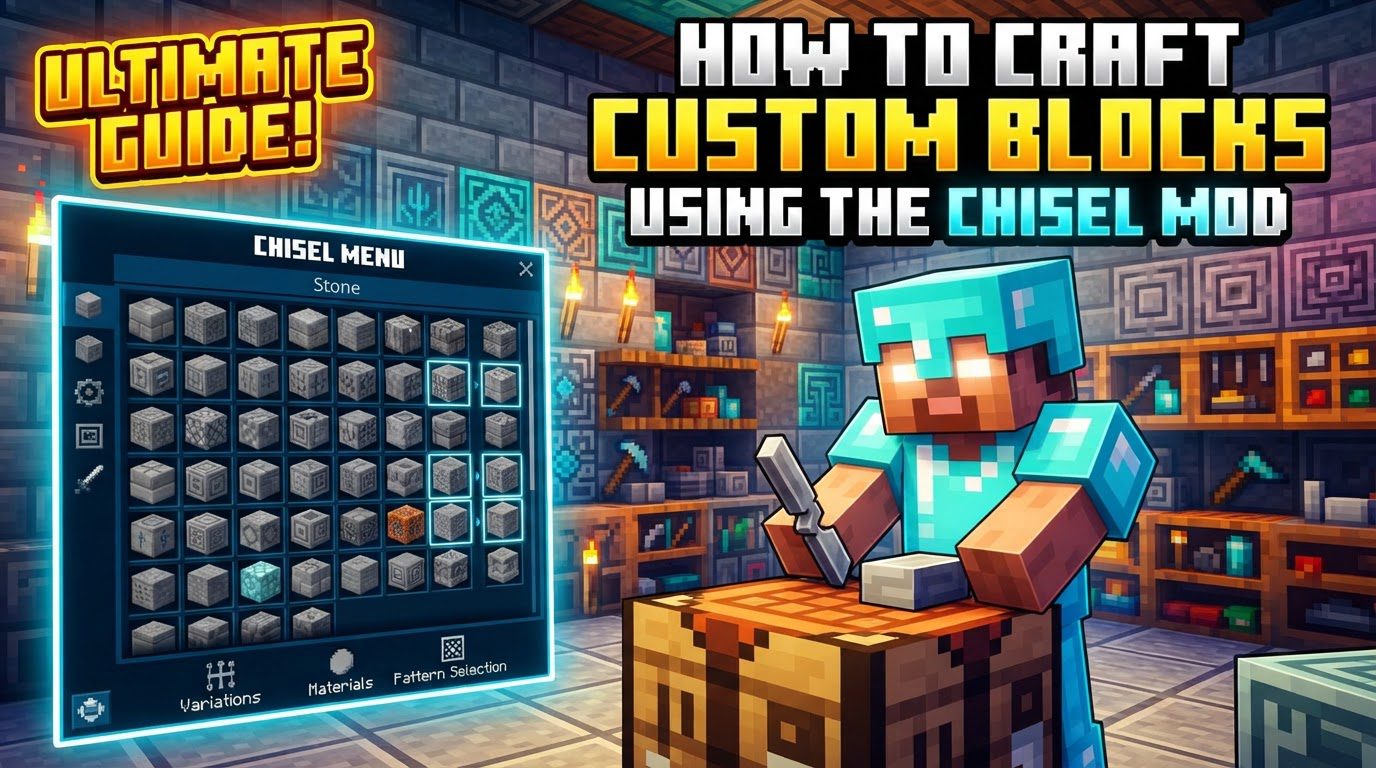
- Open the Chiseling Interface: With the Chisel held in your main hand, simply right-click. This action will open a dedicated GUI, which is your gateway to browsing and selecting block variants.
- Place a Block: Within this GUI, you will find a designated slot, typically located in the top-left corner or a central square. This is where you place the block (or a stack of blocks) you wish to transform. Crucially, the block must be “Chisel-compatible” for its variants to appear.
- Select a Variant: Upon placing a compatible block, the interface will populate with a multitude of alternative visual variants of that block. You can browse through these options and simply click on the desired variant. This action will instantaneously convert the blocks from the input slot into your chosen design.
The Chisel also offers an optional, more direct method for block transformation within the game world:
- Chisel in World (Optional): If you left-click a placed block in the game world while holding the Chisel, it will convert that block directly. There are two outcomes for this action:
- If no specific variant was “stored” in the Chisel from a previous right-click operation (explained further below), the block will transform into a random variant from its available options.
- If you had previously selected a variant in the GUI and left it “in” the Chisel’s inventory when you closed the GUI, left-clicking a block in the world will convert it to that specific, stored variant. This allows for rapid, consistent application of a particular texture across your builds.
Important Tips for Mastering the Chisel Mod
To fully leverage the Chisel mod, understanding its nuances and various features is key:
- Chisel Types: The Chisel mod isn’t limited to just one type of Chisel. There are various iterations available, including Iron, Diamond, Obsidian, Electronic, and even an Auto Chisel. These different types may offer varying levels of durability, speed, or unique capabilities. It’s particularly important to note the durability behavior of the Iron Chisel: when converting blocks via the GUI, it typically possesses infinite durability. However, when you left-click to convert blocks directly in the world, the Chisel will consume durability, similar to other tools.
- CTM Library Requirement: For certain versions of Minecraft, the Chisel mod relies on the CTM (Connected Textures Mod) library to function correctly. If you encounter issues with textures or the mod’s overall operation, ensure that the CTM library is installed alongside Chisel for your specific Minecraft version.
- Block Persistence: A highly useful feature is the ability to close the Chisel’s interface with a block still present in its central input slot. This action “leaves” the block in the Chisel. The significant advantage here is that you can then use your Chisel to left-click blocks placed in the world, converting them directly into that specific, stored variant without needing to reopen the GUI repeatedly. This streamlines the process for large-scale texturing.
- Craftable Base Blocks: The Chisel mod introduces several unique base blocks that are not found in vanilla Minecraft. These blocks, such as Fantasy Rock, Holy Stone, and Water Stone, are specifically designed to be chiseled into a vast array of variants. However, unlike vanilla blocks, they first need to be crafted themselves before they can be placed into the Chisel’s GUI for transformation. This two-step process expands the mod’s unique content significantly.
Common Mistakes to Avoid for a Smooth Experience
Even with an intuitive mod like Chisel, players can sometimes encounter issues. Being aware of common pitfalls can save you time and frustration:
- Invisible Blocks: A frequent issue reported by players is chiseled blocks appearing invisible or disappearing entirely. This problem often stems from client-side rendering issues. The typical solution involves checking the mod’s configuration file, usually named `chiselandbits.cfg` (even if you’re only using Chisel, as it might share config elements or be part of a larger suite). Within this file, locate and increase the value of the `client.performance.settings` entry. Adjusting this can often resolve the rendering glitch.
- Chiseling the Wrong Mod’s Chisel: Minecraft’s modding ecosystem is vast, and sometimes tool names can overlap. Ensure you are using the Chisel specifically from the “Chisel mod.” Other mods, such as Tinker’s Construct, might feature tools with similar names or appearances, but they possess entirely different functionalities. Using the incorrect tool will naturally lead to unexpected or non-existent results.
- Block Compatibility: It’s crucial to remember that not every block in Minecraft is compatible with the Chisel mod. While it supports a wide range, some blocks (especially complex ones or those from other mods) might simply not have chiseled variants available. If you place a block in the Chisel’s GUI and no variants appear, it’s highly probable that the block is not compatible with the mod.
- Misunderstanding Chisel vs. Chisels & Bits: While the Chisel mod and “Chisels & Bits” are often mentioned in the same breath and can be compatible, they serve distinct purposes. The Chisel mod is dedicated to providing full block variants, allowing you to change the entire texture and pattern of a block. “Chisels & Bits,” on the other hand, enables incredibly intricate, bit-by-bit manipulation of blocks, letting you carve out or add tiny details. Understand that while they both involve “chiseling,” their core functionalities are different.
- Left-Click vs. Right-Click Actions: The distinction between left-clicking and right-clicking with the Chisel is vital, particularly concerning durability. Right-clicking the Chisel while holding a block in your inventory opens the GUI, providing a precise selection method for variants and, for the Iron Chisel, does not consume durability. Conversely, left-clicking a block placed in the world converts it to either a random variant or a “stored” variant and *does* consume the Chisel’s durability. Being mindful of these differences will help you manage your tool’s lifespan and workflow efficiently.
By understanding these mechanics, tips, and potential pitfalls, you are well-equipped to integrate the Chisel mod into your Minecraft experience. Unleash your creativity and transform your builds into true works of art with the endless decorative possibilities offered by this powerful modification.
Tags:
YOU MAY ALSO LIKE...