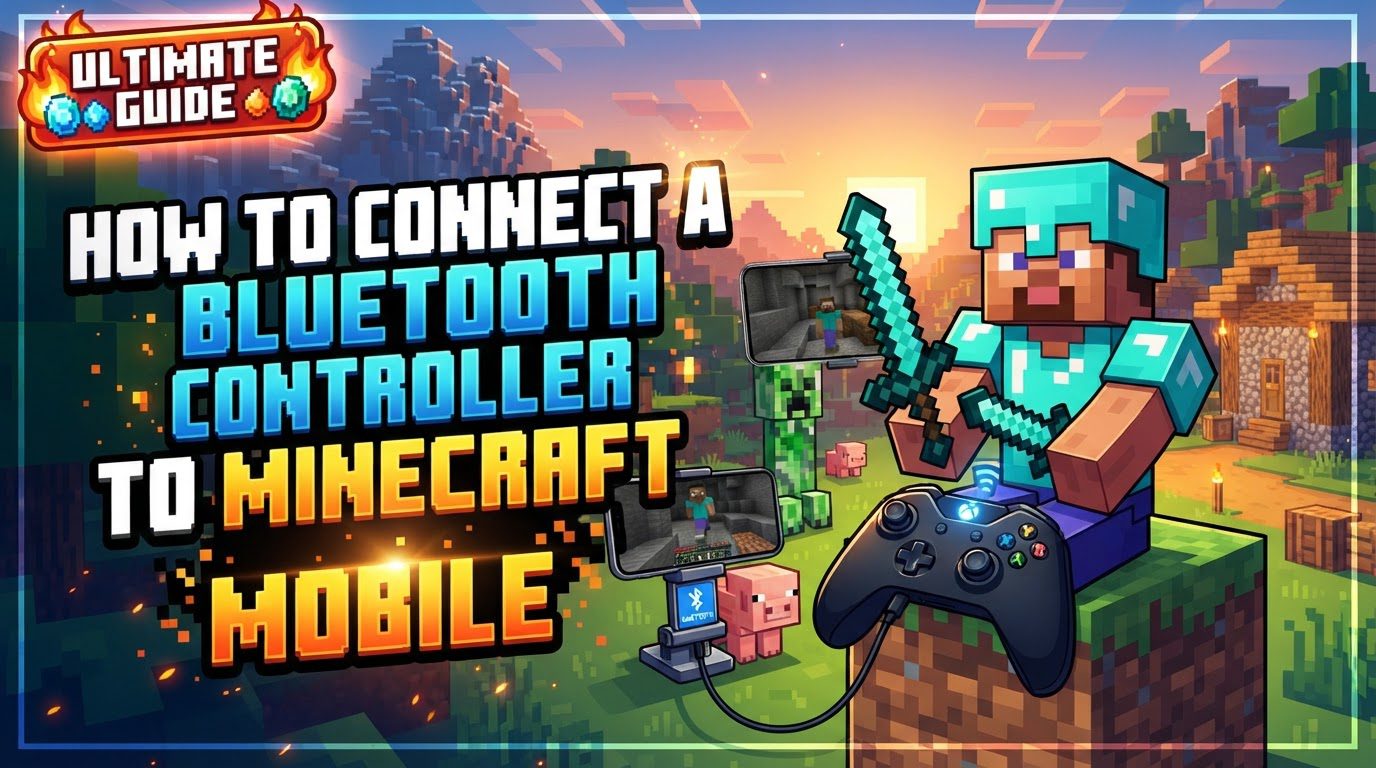
Connecting a Bluetooth Controller to Minecraft Mobile
Connecting a Bluetooth controller to Minecraft mobile can significantly transform your gameplay experience, offering enhanced precision, responsiveness, and overall comfort compared to traditional touchscreen controls. Minecraft Bedrock Edition, the version available on mobile devices, boasts robust native controller support, meaning it’s designed from the ground up to integrate seamlessly with various gamepads. This comprehensive guide will walk you through the process, from initial setup to advanced troubleshooting, ensuring you can dive into your blocky adventures with the control scheme you prefer.
Understanding Controller Compatibility and Benefits
Minecraft Bedrock Edition’s native controller support is a key advantage for mobile players. This means the game inherently understands and responds to controller inputs without the need for third-party apps or complex configurations. The compatibility extends to a wide array of modern Bluetooth-enabled controllers, making it accessible for most gamers.
- Xbox Controllers: Widely recognized for their comfort and native Windows integration, Xbox controllers (including newer models) are highly compatible with both Android and iOS devices. Their familiar layout makes them a popular choice.
- PlayStation Controllers (PS4/PS5): Sony’s DualShock 4 and DualSense controllers also offer excellent compatibility. Their unique features, while not always fully utilized by mobile games, provide a premium feel and reliable connection.
- General Mobile Gaming Controllers: Beyond the major console brands, many controllers specifically designed for mobile gaming (often with phone clips) are also compatible, offering a tailored experience for on-the-go play.
The benefits of using a controller go beyond mere preference. They fundamentally enhance gameplay:
- Better Precision: Analog sticks offer fine-tuned movement and camera control, allowing for more accurate aiming, mining, and building compared to swiping on a screen.
- Increased Responsiveness: Physical buttons provide tactile feedback and often register inputs faster than touch gestures, which can be critical in fast-paced combat or parkour scenarios.
- Enhanced Comfort: Holding a dedicated controller for extended periods is generally more comfortable than gripping a phone, reducing hand fatigue and improving overall play sessions.
Step-by-Step Connection Process
Connecting your Bluetooth controller to your mobile device for Minecraft is a straightforward process. Follow these steps carefully to ensure a smooth setup:
- Charge or Install Batteries: Before you begin, ensure your controller has sufficient power. For rechargeable controllers, plug them in and allow them to charge. For controllers that use disposable batteries, insert fresh ones. A low battery can sometimes interfere with the pairing process or cause intermittent disconnections.
- Enable Bluetooth on Your Mobile Device: Navigate to your mobile device’s settings menu. Locate the “Bluetooth” option and tap to enter the Bluetooth settings. Toggle the Bluetooth switch to the “On” position. This makes your device discoverable and allows it to search for other Bluetooth devices.
- Put Your Controller into Pairing Mode: This is a crucial step that makes your controller discoverable by your phone or tablet. The method varies slightly by controller type:
- Xbox controllers: Look for a small, circular pairing button, usually located on the top edge near the charging port or shoulder buttons. Press and hold this button until the Xbox logo light on the front of the controller begins to flash rapidly. This flashing indicates it’s actively searching for a device to pair with.
- PlayStation controllers (PS4/PS5): Simultaneously press and hold two buttons: the PlayStation logo button (located in the center bottom) and the “Share” button (PS4) or “Create” button (PS5). Continue holding them until the light bar on the top of the controller starts to flash rapidly in a distinct pattern, signaling it’s in pairing mode.
- Pair Controller with Your Mobile Device: Once your controller is in pairing mode, return to your mobile device’s Bluetooth settings. In the list of “Available Devices” or “Other Devices,” you should see your controller appear (e.g., “Xbox Wireless Controller,” “DUALSHOCK 4 Wireless Controller,” or “DualSense Wireless Controller”). Tap on its name to initiate the connection. The controller’s light should stop flashing and become a steady, solid light (or change color, depending on the controller) once a successful connection is established. This indicates your controller is now paired with your mobile device.
- Launch Minecraft: With your controller successfully paired to your mobile device, open the Minecraft app. It’s often best to ensure Minecraft is fully closed before launching it after pairing a new controller, to allow the game to properly detect the new input device.
- Verify Controller Recognition: In most cases, Minecraft Bedrock Edition will automatically detect your connected controller upon launch. You might notice on-screen button prompts changing from touch icons to controller button layouts. If the controller doesn’t seem to be working, or if you wish to customize its settings, navigate to Minecraft’s in-game settings. Look for a section specifically labeled “Controller.” Here, you can confirm that controller support is enabled and often customize button mappings to suit your play style.
Important Tips for Optimal Performance and Troubleshooting
Even with native support, occasional issues can arise. Here are some important tips and troubleshooting steps to ensure a smooth and consistent experience:
- Restart Minecraft: If your controller connects to your mobile device but doesn’t seem to respond within the game, try fully closing and then restarting the Minecraft app. This can refresh the game’s input detection and often resolves temporary glitches. Do not just minimize; ensure the app is closed from your device’s recent apps switcher.
- Forget and Re-pair: For persistent connection problems, a “hard reset” of the Bluetooth connection is often effective. Go to your mobile device’s Bluetooth settings, find your controller in the list of paired devices, and select the option to “Forget” or “Unpair” the device. Then, turn your mobile device’s Bluetooth off for a few seconds before turning it back on. Put your controller back into pairing mode and attempt to re-pair it as if it were a new connection.
- Restart Mobile Device: As a general troubleshooting step for almost any electronic issue, fully restarting your mobile device can resolve underlying software conflicts or clear temporary system glitches that might be interfering with Bluetooth connectivity or game performance.
- Update Controller Firmware: Some modern controllers, particularly Xbox and PlayStation controllers, receive firmware updates that can improve connectivity, performance, and compatibility. If applicable to your controller model, ensure its firmware is up to date. This usually requires connecting the controller to a PC or console.
- Wired Connection (Android Specific): For Android users, an alternative to Bluetooth is a wired connection using a USB OTG (On-The-Go) cable. This cable allows your Android device to act as a USB host, enabling you to plug a standard USB controller cable directly into your phone or tablet. This method can offer a potentially faster, more stable connection with zero input lag, as it bypasses Bluetooth altogether. Ensure your Android device supports USB OTG.
Common Mistakes to Avoid
Being aware of common pitfalls can save you time and frustration during the setup process:
- Not Putting the Controller in Pairing Mode: This is perhaps the most frequent mistake. Simply turning on your controller is not enough for your mobile device to “see” it. The controller must be actively broadcasting its presence in pairing mode for your phone’s Bluetooth scanner to detect it. Always confirm the indicator lights are flashing as described in the pairing steps.
- Not Fully Closing the Minecraft App: If Minecraft was already running when you paired your controller, it might not properly register the new input device. Minimizing the app and then reopening it often isn’t sufficient; the app needs to be fully closed from your device’s recent app switcher and then relaunched to ensure it initializes with the controller detected.
- Outdated Game or Controller Software: Running an outdated version of Minecraft Bedrock Edition or having old controller firmware can lead to compatibility issues. Always ensure both your Minecraft app and, if applicable, your controller’s firmware are updated to their latest versions to benefit from bug fixes and improved performance.
- Controller Recognized by Phone but Not In-Game: This specific scenario indicates that your mobile device has successfully paired with the controller, but Minecraft isn’t receiving or interpreting the inputs correctly. This often points to a need for the game to refresh its input detection. Restarting the game or following the “Forget and Re-pair” troubleshooting steps usually resolves this communication breakdown between the game and the controller.
- Issues with Chat/Keyboard: When using a controller, the on-screen keyboard for typing in chat, entering seeds for new worlds, or renaming items might not be controllable by the gamepad. In these instances, you will typically need to revert to using your device’s touchscreen to input text. This is a common limitation across many mobile games that integrate controller support.
By following this guide, you should be well-equipped to connect your Bluetooth controller to Minecraft mobile and enjoy a more immersive and controlled gameplay experience. Happy crafting, exploring, and surviving!
Tags:
YOU MAY ALSO LIKE...