How to read the F3 screen for biome information
The F3 debug screen in Minecraft Java Edition provides players with real-time technical information about their game, including current location, targeted blocks, and critical details about the environment. Historically, biome information was a standard feature of this overlay, proving invaluable for navigation, resource identification, and understanding environmental conditions.
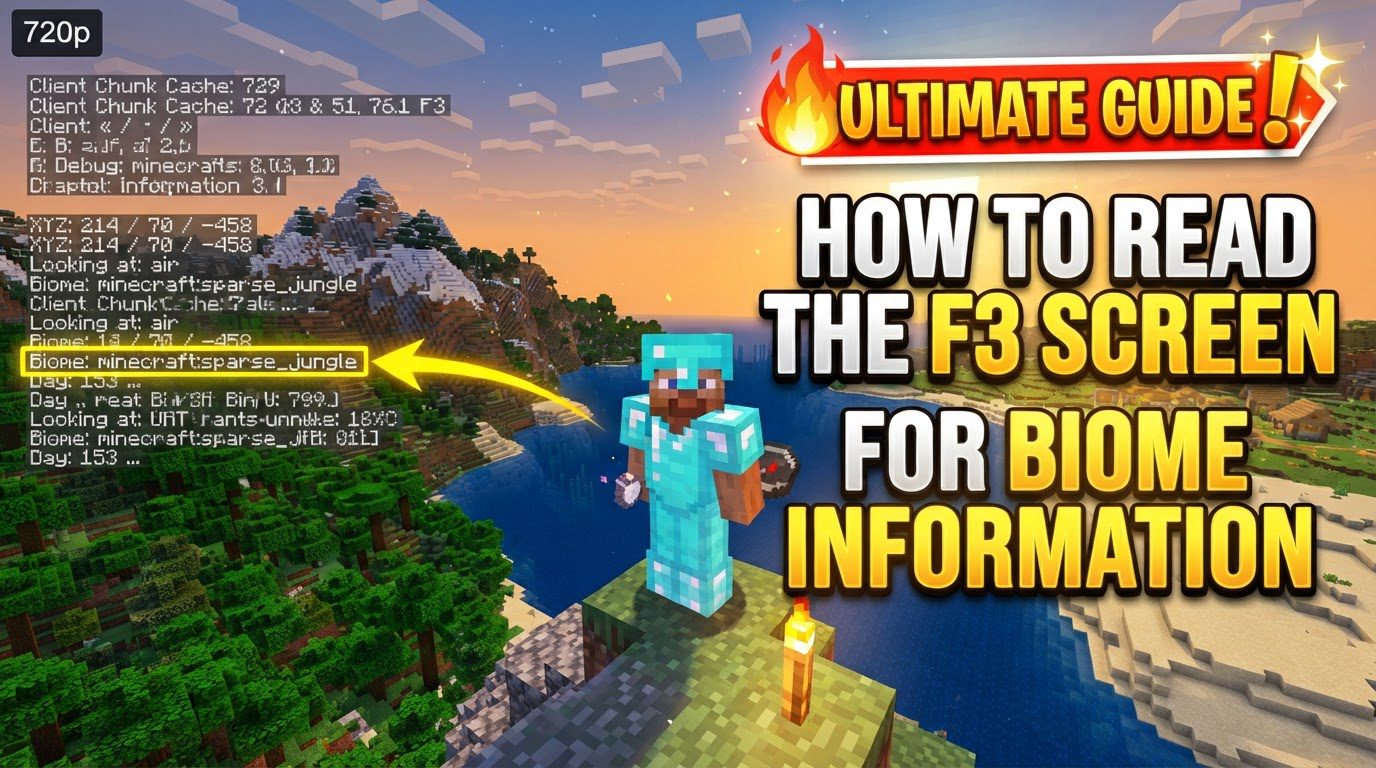
However, recent Minecraft updates, specifically versions 1.21.9 and 26.1 and beyond, introduced a change: biome information is no longer displayed on the F3 screen by default. This led to some confusion among players, but it is important to note that this information has not been permanently removed. Instead, it can be fully restored and customized through a dedicated debug options menu, allowing players to tailor its display to their preferences.
Understanding biome information is crucial for informed gameplay. For instance, biome temperature values, which can be observed on the F3 screen, offer direct insights into the climate. Warmer biomes generally exhibit higher base temperature values, a useful indicator for players seeking specific environments or anticipating certain mob spawns and resource availability. The ability to read and interpret this data enhances a player’s strategic approach to the Minecraft world.
Restoring and Customizing Biome Information Display
To re-enable and configure the display of biome information on your F3 screen, follow these precise steps, utilizing the debug options menu:
-
Step 1: Open the Debug Screen
Press the F3 key to open the debug screen. Initially, you will observe that biome details are absent, reflecting the default setting in newer Minecraft versions.
-
Step 2: Access the F3 Debug Customization Screen
While the F3 screen is active, hold down F3 and simultaneously press F6. This key combination opens the F3 debug customization screen, also known as the debug options menu, which allows for detailed configuration of the F3 overlay.
-
Step 3: Locate the “biome” Option
Within this customization menu, find the specific option labeled “biome.” This entry controls the visibility of biome data.
-
Step 4: Change the Biome Display Setting
Adjust the setting for “biome” to your desired display method. You have two main choices:
-
“in overlay”: Select this to display biome information only when the F3 debug screen is open.
-
“always”: Choose this to have the biome information constantly displayed in the top-left corner of your screen, irrespective of the F3 screen’s status.
-
-
Step 5: Exit the Menu
Exit the F3 debug customization screen, typically by pressing the Escape key. This action saves your chosen settings.
-
Step 6: Verify Biome Visibility
The biome information will now be visible according to your selection. If “in overlay” was chosen, reopen F3 to confirm. If “always” was selected, the biome name will now appear persistently in the top-left corner of your game interface.
Interpreting Biome Information and Advanced Usage
Once biome information is visible, understanding its nuances and leveraging other debug features can significantly enhance your gameplay.
-
Exact Coordinates and Biome Data
The F3 screen displays biome data corresponding precisely to your character’s exact current coordinates. This high level of precision means that even minor movements can cause the reported biome to change, especially when positioned near biome boundaries.
-
Understanding Biome Borders
When standing near a biome border, the biome information may change rapidly as you move between different biome sections. This behavior is expected and accurately reflects the game’s intricate world generation, allowing players to precisely identify transition zones.
-
Standard Biome Naming Convention
Biome names are presented in a “namespace:id” format, providing clear identification. Examples include
minecraft:plainsfor a standard plains biome, orminecraft:dark_forestfor a dark forest. The “minecraft” namespace denotes vanilla biomes. -
Additional Debug Customizations
The F3 debug customization screen (accessed via F3 + F6) offers more than just biome settings. It allows you to enable other useful information, such as the current day count, various light levels (block and sky), and detailed information about targeted blocks or fluids. Exploring these options can provide a more comprehensive understanding of your game environment.
-
Advanced Tooltips (F3 + H)
For more in-depth technical details, pressing F3 + H activates advanced tooltips. This feature provides additional information for items, such as their item IDs, when you hover over them in your inventory. While not directly related to biomes, it’s a valuable companion debug feature.
Common Mistakes and Important Considerations
To ensure you can consistently access and interpret biome information, be mindful of these common pitfalls:
-
Assuming Permanent Removal
Do not assume that biome information has been permanently removed from the F3 screen. In newer versions (1.21.9+, 26.1+), it is merely turned off by default but can be easily re-enabled through the F3 + F6 debug customization menu.
-
Overlooking the F3 + F6 Shortcut
A frequent error is not knowing or forgetting the F3 + F6 shortcut. This specific key combination is crucial for accessing the debug customization screen, which is the only place to restore and modify biome data display. Without it, you cannot re-enable the information.
-
“Reduced Debug Info” Setting
Ensure that “Reduced Debug Info” is not enabled in your Minecraft settings. This option, found in the video or accessibility settings, can hide various data points on the F3 screen, including biome information, even if you’ve configured it in the F3 + F6 menu. Always disable this setting for a full debug overlay.
By understanding these key mechanics, utilizing the customization options, and avoiding common errors, players can effectively read and leverage the F3 screen for precise biome information, significantly enhancing their exploration and strategic gameplay in Minecraft.
Tags:
YOU MAY ALSO LIKE...