Enabling the Experimental Vulkan Renderer
Understanding the Experimental Vulkan Renderer
Minecraft is constantly evolving, and a significant advancement on the horizon for its graphics rendering is the introduction of an experimental Vulkan renderer. Vulkan represents a modern graphics API, a powerful interface designed to provide developers with significantly greater control over the GPU. This enhanced control translates directly into several key benefits for players, such as improved multi-threading capabilities, which allow the game to better utilize modern multi-core processors, and a notable reduction in CPU overhead. This means your CPU can focus more on game logic and less on managing the graphics pipeline, leading to a more efficient overall system performance.
The primary goal behind this strategic switch to Vulkan is multifaceted. Firstly, it aims to deliver a substantial enhancement in game performance, offering smoother gameplay and potentially higher frame rates, especially on more contemporary hardware. Secondly, it lays the groundwork for enabling future graphical improvements, which Mojang refers to as “Vibrant Visuals,” promising a more visually rich and immersive Minecraft experience down the line. Lastly, and critically, the adoption of Vulkan ensures continued support for macOS users, as the older OpenGL API is being deprecated on Apple’s operating system. By embracing Vulkan, Minecraft secures its future compatibility and performance across various platforms.
It is crucial to understand that the Vulkan renderer in Minecraft is currently an experimental feature and an opt-in alternative. It is not yet a complete replacement for the long-standing OpenGL renderer. This experimental phase allows Mojang to gather feedback and refine the implementation before a wider rollout. When successfully enabled, players can anticipate significant performance boosts, including a noticeable increase in Frames Per Second (FPS) and a generally smoother gameplay experience, particularly on systems equipped with modern hardware. An additional advantage of enabling Vulkan is that the game will intelligently prioritize the use of a dedicated GPU over integrated graphics, ensuring that your system’s most powerful graphics hardware is put to good use for rendering Minecraft.
Enabling Vulkan: A Step-by-Step Guide
Activating the experimental Vulkan renderer in Minecraft is a straightforward process, provided you are running the correct game version. Follow these steps carefully to switch your game’s rendering API:
- Step 1: Launch Minecraft 26.2 (or a later version).
Ensure you are running Minecraft snapshot 26.2 or any subsequent version or official release that incorporates the experimental Vulkan renderer. This feature will not be available in older game clients.
- Step 2: Navigate to “Options” from the Main Menu.
Once the game has loaded and you are at the main menu screen, locate and click on the “Options” button. This will take you to the general game settings.
- Step 3: Go to “Video Settings”.
Within the “Options” menu, you will find various categories of settings. Select “Video Settings” to access all graphics-related configurations for your game.
- Step 4: Locate the new “Graphics API” dropdown menu.
Inside the “Video Settings,” scroll through the options until you find a newly added dropdown menu labeled “Graphics API.” This is the key setting for switching renderers.
- Step 5: Select “Prefer Vulkan (Experimental)”.
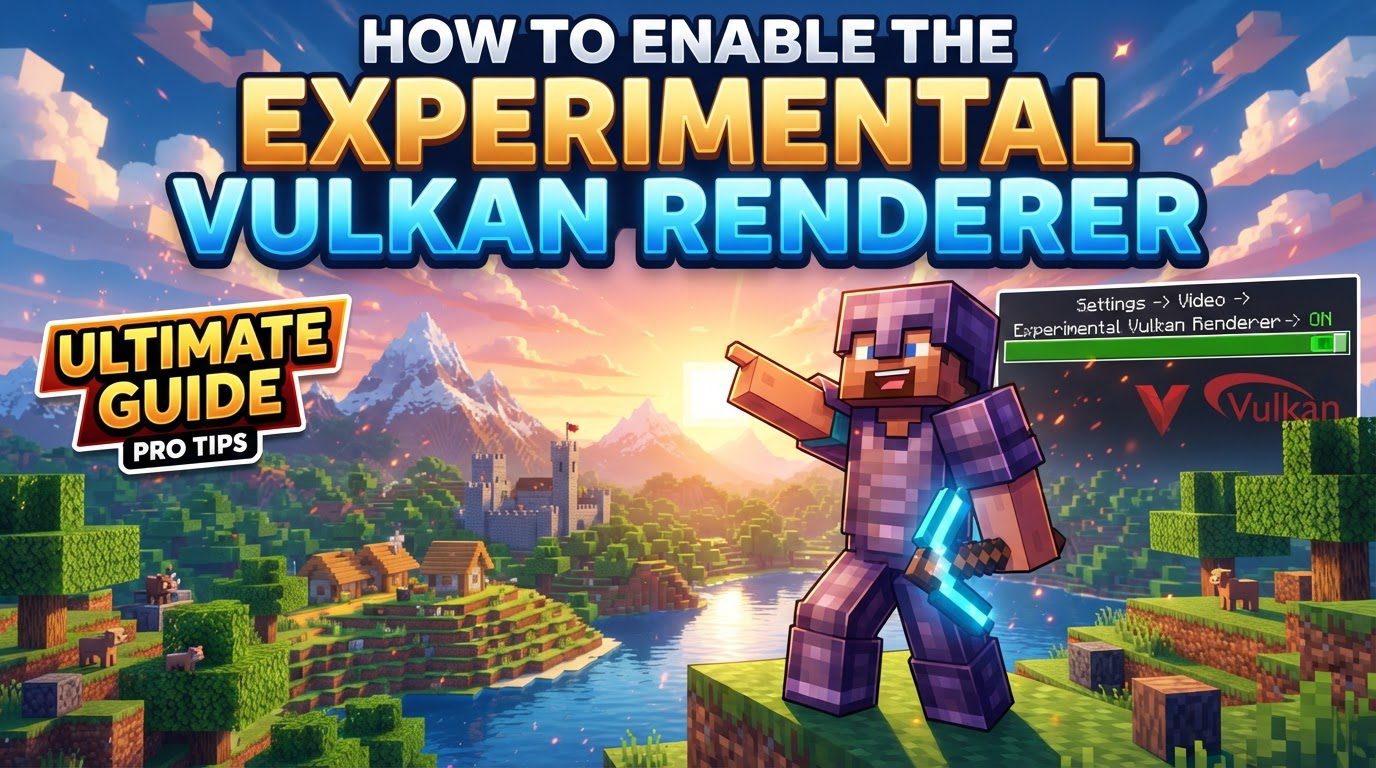
Click on the “Graphics API” dropdown menu and choose the option titled “Prefer Vulkan (Experimental).” This selection instructs the game to attempt to initialize with the Vulkan renderer first when starting or reloading the game world. Confirm your selection to apply the changes.
Crucial Tips for a Smooth Experience
To ensure the best possible experience when experimenting with the Vulkan renderer and to minimize potential issues, keep the following important tips in mind:
- Update Your GPU Drivers:
This is arguably the most critical step. Before attempting to enable Vulkan, always update your graphics card drivers to the absolute latest version available from your GPU manufacturer (NVIDIA, AMD, Intel). Outdated drivers are the most common cause of initialization failures and graphical glitches when trying to use Vulkan. Modern Vulkan features, such as dynamic rendering or push descriptor support, are often dependent on having up-to-date driver software.
- Verify Vulkan is Active In-Game:
After enabling “Prefer Vulkan (Experimental)” and loading a world, you can confirm that Vulkan is indeed active. Press the F3 key to open the debug screen. Look for the “system_specs” section, typically in the top-right or top-left corner. Next to the FPS display, you should see a “present-mode readout” that explicitly mentions Vulkan if it’s successfully running.
- Mojang’s Parallel Support Philosophy:
During this experimental phase, Mojang intends to support both OpenGL and Vulkan renderers in parallel. This means you are not forced to commit to one or the other. Players will have the flexibility to toggle between the two APIs via the “Graphics API” setting in the Video Settings. This allows you to easily switch back to OpenGL if you encounter any performance issues or instability with Vulkan on your specific system.
Avoiding Common Pitfalls and Troubleshooting
While the Vulkan renderer promises significant benefits, it’s an experimental feature, and users might encounter some challenges. Being aware of common mistakes and understanding the built-in safety mechanisms can save you a lot of frustration.
- Not Updating GPU Drivers:
As mentioned previously, this cannot be stressed enough. The most frequent reason for Vulkan initialization problems is outdated or incompatible graphics drivers. Many modern Vulkan features and extensions are implemented via driver updates. If your drivers are old, the game may lack the necessary components to run Vulkan, leading to crashes or a fallback to OpenGL. Always check your GPU manufacturer’s website for the latest stable drivers.
- Expecting Perfect Stability Immediately:
It’s important to manage your expectations. As an experimental feature, the Vulkan renderer may not yet be as performant or stable on all hardware configurations or operating systems as the long-established OpenGL renderer. You might experience occasional bugs, visual glitches, or even crashes. This is part of the testing process, and reporting these issues helps Mojang refine the renderer.
- Ignoring the Crash Safety Ladder:
Minecraft has a built-in safety mechanism to prevent you from being locked out of the game due to a problematic graphics setting. If you select “Prefer Vulkan (Experimental)” and the game crashes on startup or while loading, it will automatically revert your “Graphics API” setting to “Default” upon the next launch. If “Default” also causes a crash, the game will then try to revert to “Prefer OpenGL.” This sequence is a robust safety feature designed to ensure you can always launch and play the game, even if an experimental setting causes issues; it is not a bug.
- Outdated Hardware Limitations:
Vulkan is a modern API, and as such, it may not be fully supported by very old graphics cards. Specifically, GPUs that are 10 years old or more, or those manufactured around or before 2014, might not have the necessary hardware capabilities or driver support for Vulkan. In such cases, attempting to enable Vulkan will likely result in a fallback to OpenGL or, in extreme cases, the inability to run the game with that setting. Users with very old hardware should be aware that they might eventually be limited to OpenGL or even face compatibility issues in the future as graphics APIs evolve.
- Mod Incompatibility:
The transition from OpenGL to Vulkan represents a fundamental change in how the game renders graphics. This will inevitably impact mods that rely heavily on OpenGL for their rendering logic or custom visual effects. When you switch to Vulkan, expect that some of your favorite mods might not function correctly or might cause crashes. Mod developers will need time to update their creations to be compatible with the new Vulkan renderer. Until then, you might need to disable certain mods or revert to OpenGL if mod compatibility is a priority for your gameplay experience.
Tags:
YOU MAY ALSO LIKE...