Datapack Load Order Priority Explained
Many Minecraft players, when first dabbling with datapacks, often assume that the order in which these powerful customization tools are placed into the game’s folder is entirely random, or perhaps that simple alphabetical sorting dictates their behavior. This assumption, however, can lead to unexpected glitches, conflicting features, or even non-functional additions to their carefully crafted worlds. Understanding the precise load order priority of Minecraft datapacks is not just a technical detail; it’s the bedrock of successful customization, ensuring your game behaves exactly as intended when multiple modifications are at play.
Datapacks are essentially mini-mods that allow creators to add custom advancements, recipes, loot tables, functions, structures, and more to Minecraft without modifying the game’s core code. They are incredibly versatile, but their power comes with a critical caveat: when two or more datapacks attempt to modify the same game element, only one can ultimately prevail. This is where the concept of load order priority becomes paramount, acting as the definitive rulebook for resolving such conflicts.
The Golden Rule: Last One Wins
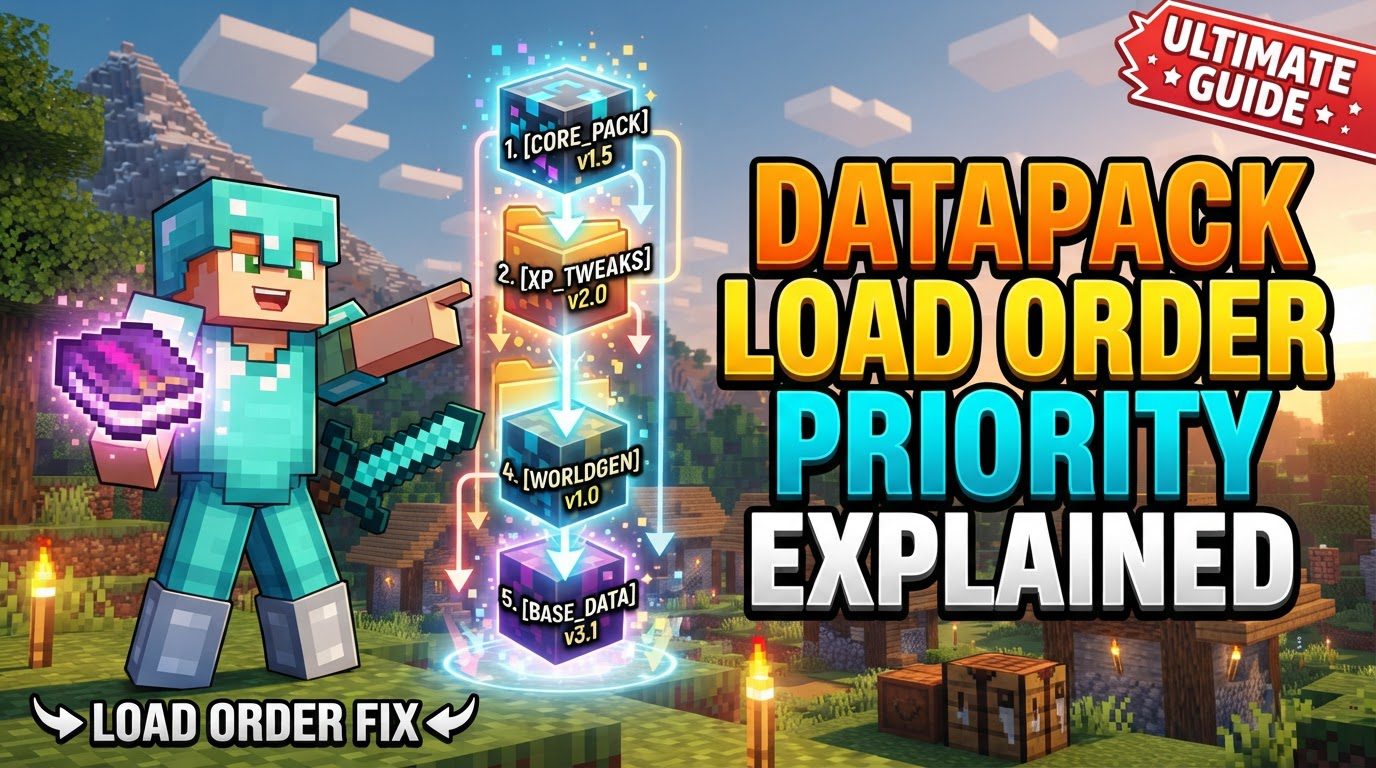
At the heart of Minecraft’s datapack system lies a fundamental principle: datapacks loaded last have the highest priority. This means that any datapack positioned later in the load sequence will effectively override or alter content and behavior defined by datapacks loaded earlier. Imagine a stack of transparent sheets, each with a different drawing. The drawing on the topmost sheet is what you see, obscuring parts of the drawings beneath it. In the same vein, if one datapack introduces a custom crafting recipe for a sword, and another datapack loaded after it introduces a *different* recipe for the *same* sword, only the latter’s recipe will be active in your game. This “last one wins” mechanic is crucial for both datapack developers and players, as it dictates how modifications interact and which changes ultimately take effect.
Initial Placement and Default Ordering
The journey of a datapack begins by placing its folder or .zip file into the datapacks directory located within your specific world’s save folder. When multiple new datapacks are introduced to this folder simultaneously, Minecraft establishes an initial load order. By default, these new additions are arranged in “javabetical” order. This isn’t strictly alphabetical but follows a specific internal Java sorting convention where numbers precede letters, and certain symbols (like underscores) have their own distinct placement between numbers and letters. For example, 1_pack might come before A_pack. While this initial sorting provides a baseline, it’s often not the desired final arrangement, especially when complex interactions are involved.
Once datapacks are loaded and their order is established, that sequence is persistently stored within your world’s level.dat file. This means the load order remains consistent across game sessions until you manually intervene and change it. It’s important to note that while the order is stored here, direct manual editing of the level.dat file is strongly discouraged, as it can corrupt your world save.
The Humble Vanilla Datapack: A Foundation
Every Minecraft world inherently contains a “vanilla” datapack, representing the default game mechanics, recipes, and functions. Crucially, this built-in vanilla datapack typically resides at the very bottom of the load order, granting it the lowest priority. This strategic placement is by design: it allows any custom datapack you add to easily override or modify vanilla data without needing complex commands or workarounds. If you want to change a vanilla crafting recipe, for instance, your custom datapack only needs to be placed anywhere above the vanilla one in the load order, and its changes will take precedence.
Mastering Datapack Control: The /datapack Command Suite
Directly manipulating the load order is achieved through a series of powerful in-game commands. These commands grant players and server administrators granular control over how each datapack interacts with the game world.
/datapack list: This command is your first line of defense for understanding your current setup. It displays all available datapacks, categorizing them as either enabled or disabled. Crucially, for enabled packs, they are listed in their current load order, from lowest priority (at the top of the list) to highest priority (at the bottom)./datapack enable: This command enables a disabled datapack, placing it at its default, often alphabetically determined, position within the existing load order./datapack disable: This command disables a specified datapack. The datapack’s files remain in the folder, but its effects are removed from the game.
Precise Order Manipulation
The true power of the /datapack enable command lies in its ability to dictate precise placement within the load order:
/datapack enable first: This command places the specified datapack at the very beginning of the load order, giving it the lowest priority among all enabled datapacks. Use this for foundational packs or those you explicitly want to be overridden by others./datapack enable last: This command moves the datapack to the very end of the load order, granting it the highest priority. This is ideal for datapacks that you want to ensure take precedence over all others, or for those that rely on overriding elements from earlier packs./datapack enable before: This command inserts the target datapack directly before an already enabled datapack. This is invaluable for fine-tuning the order when you need a specific pack to precede another./datapack enable after: Conversely, this command inserts the target datapack directly after an existing, enabled datapack. It’s perfect for ensuring one pack’s changes build upon or override specific elements of another.
Sealing the Deal: The Indispensable /reload Command
After making any changes to datapacks – whether enabling, disabling, or adjusting their load order – these modifications will not take effect immediately. To apply the changes without needing to restart your game or server, you must use the /reload command. Executing this command in-game (if you have sufficient permissions) or through the server console forces Minecraft to re-evaluate and re-load all datapacks based on their new configuration. It’s an essential tool for development, troubleshooting, and general management, saving considerable time and effort.
Strategic Insights for Seamless Datapack Integration
Beyond the commands, a few best practices can significantly streamline your experience with datapacks and prevent common headaches:
- Heed the Creator’s Wisdom: Always prioritize reading any load order recommendations or compatibility notes provided by the datapack’s author. They know their creation best and can guide you on optimal placement.
- Version Compatibility is Key: Ensure the datapack’s
pack_format, specified in itspack.mcmetafile, matches your current Minecraft version. An outdated or future-version pack format can prevent a datapack from loading correctly, regardless of its position. - The Power of Pre-Emptive Backups: Before installing new datapacks or making significant changes to your load order, always create a backup of your world. This simple step can save countless hours of frustration if something goes wrong.
- Initial Folder Naming Tactics: While the
/datapack enablecommands offer ultimate control, you can influence the initial “javabetical” load order for multiple new packs by using numerical or alphabetical prefixes (e.g.,00_CorePack,01_Extension,A_Override). - Verifying Active Packs: Regularly use
/datapack list enabledto confirm which datapacks are active and, more importantly, their current priority order. This helps in diagnosing unexpected behavior.
Navigating Common Datapack Obstacles
Even with a solid understanding of load order, issues can arise. Knowing how to identify and resolve these common pitfalls is crucial:
- The
pack.mcmetaMisplacement Trap: A frequent reason for a datapack failing to load is an incorrect file structure. Ensure thepack.mcmetafile and thedatafolder are directly at the root level of your datapack’s folder or.zipfile, not nested within another subfolder. Minecraft needs to find these critical components immediately to recognize the datapack. - Clashing Modifications: The Load Order Conflict: When two datapacks modify the same game element (e.g., both change the same loot table or function), the “last one wins” rule becomes critical for troubleshooting. If you see unexpected behavior, check the load order. The datapack you *want* to take effect must have a higher priority (be loaded later) than the one it’s conflicting with. Adjust the order using the
/datapack enable ... after/lastcommands. - The Infinite Reload Loop Nightmare: This rare but severe issue occurs when datapacks’ loading functions (often in
data//functions/load.mcfunction) inadvertently create a loop, such as one datapack trying to disable and re-enable another, which then does the same. This can lead to continuous reloads, massive server lag, or even crashes. If your server gets stuck in a reload loop, you may need to manually remove the offending datapacks from the folder while the server is offline to break the cycle. - Missing Resource Pack Dependencies: Some datapacks, especially those adding custom items or textures, rely on an accompanying resource pack to display correctly. If your custom items appear as purple-and-black checkerboards, it’s a strong indicator that you’ve forgotten to install the required resource pack, or it’s not enabled in your client. Always check the datapack’s instructions for any such dependencies.
In conclusion, mastering datapack load order priority is an indispensable skill for any serious Minecraft player or server administrator. It transforms the often-frustrating experience of conflicting modifications into a predictable and controllable process. By understanding the “last one wins” principle, utilizing the powerful /datapack commands, and following best practices, you can unlock the full potential of Minecraft’s customization features, crafting a truly unique and stable gameplay experience.
Tags:
YOU MAY ALSO LIKE...