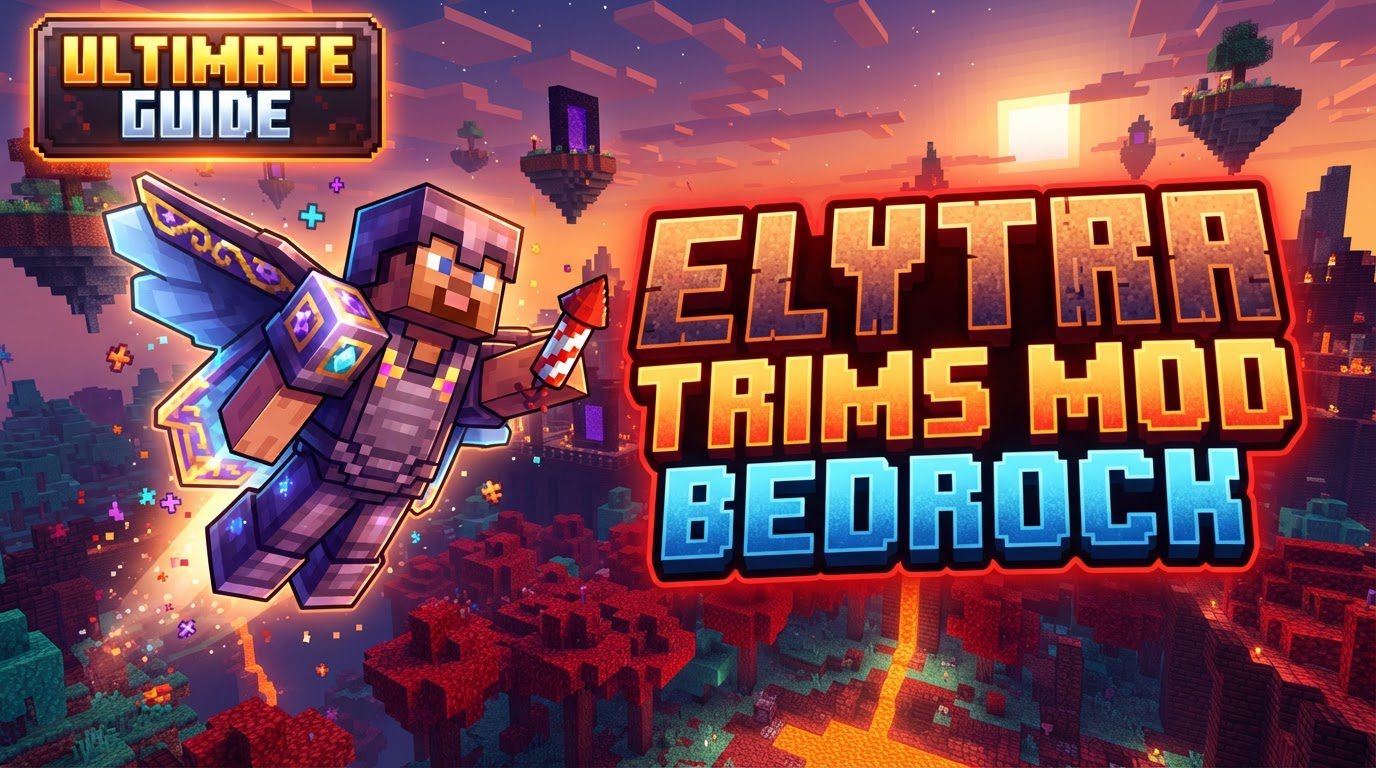
Elytra Trims Mod Bedrock
If you’ve been searching for an “Elytra Trims Mod” for Minecraft Bedrock Edition, you might be surprised to learn that what you’re likely looking for isn’t a traditional ‘mod’ in the sense of altering game mechanics. Instead, in the Bedrock ecosystem, Elytra trims are almost exclusively implemented through texture packs. This crucial distinction means the way you customize your Elytra’s appearance is fundamentally different from how such features might operate on Java Edition, impacting everything from installation to in-game interaction.
Understanding Elytra Trims in Bedrock: A Texture Pack Phenomenon
Unlike Java Edition, where dedicated mods can introduce complex new crafting recipes, dyeing mechanics, or glowing effects for Elytra trims, Minecraft Bedrock Edition handles this visual customization primarily through resource packs. These packs override the default textures of your Elytra, applying pre-designed patterns that mimic the aesthetic of armor trims. This approach has significant implications for players.
- Visual Customization, Not New Mechanics: The core function of these “trims” is purely aesthetic. They don’t add new gameplay elements, crafting stations, or item interactions. You won’t be taking your Elytra to a smithing table to apply a trim in the same way you would armor. The texture pack simply changes how your Elytra looks to you and other players using the same pack.
- Achievement Compatibility: One of the greatest advantages of the texture pack approach is that it typically allows you to keep achievements enabled. Behavioral add-ons or more intrusive mods often disable achievements, but a purely visual texture pack generally bypasses this restriction, letting you customize your look without sacrificing your in-game progress tracking.
- A Palette of Pre-Designed Styles: These texture packs come loaded with a variety of trim patterns. Developers base these designs on existing armor trim styles, offering a familiar aesthetic. Expect to find patterns inspired by materials like Diamond, Netherite, Gold, Iron, Emerald, Copper, Redstone, Amethyst, Lapis Lazuli, and Quartz. Some packs even offer variations of these styles, such as “Line” or “V” patterns, providing a good range of choices to match your personal style or armor set.
- In-Pack Customization: To change your Elytra’s trim, you won’t be doing it in-game with a crafting recipe. Instead, the customization options are embedded within the texture pack itself. This usually involves adjusting settings found in the pack’s configuration menu after it has been activated.
Why Texture Packs? The Bedrock Distinction
The reliance on texture packs for Elytra trims in Bedrock Edition stems from the platform’s architecture. Bedrock Edition’s modding capabilities, while growing, are different from Java’s. Texture packs are a fundamental and officially supported way to alter the game’s visuals without modifying core game logic. This makes them stable, relatively easy to install, and less prone to breaking with game updates compared to more complex behavioral add-ons or external ‘mods’. It offers a streamlined way for creators to deliver visual enhancements directly to players through the game’s existing resource pack system.
Getting Started: Installing Your Elytra Trim Pack
Implementing an Elytra trim texture pack is a straightforward process, akin to installing any other resource pack in Minecraft Bedrock. Follow these steps to transform your flying experience:
Step 1: Acquiring Your Pack
First, you need to download the Elytra Trims texture pack file. These are typically found on community websites dedicated to Minecraft Bedrock add-ons. The file will often be in a .mcpack format, which Minecraft Bedrock can directly import, or sometimes a .zip file, which might require a manual placement.
Step 2: Importing into Minecraft Bedrock
- For
.mcpackFiles: The simplest method is to locate the downloaded.mcpackfile on your device and simply open it. Minecraft Bedrock Edition should launch automatically and begin importing the pack. You’ll see a notification in-game indicating the successful import. - For
.zipFiles: If you’ve downloaded a.zipfile, you’ll need to manually extract its contents. Then, navigate to your Minecraft directory (often located in<user data folder>\games\com.mojang\resource_packson Windows, or similar locations on other platforms) and place the extracted pack folder directly into theresource_packsfolder.
Step 3: Activating and Customizing In-Game
Once imported, the pack needs to be activated within Minecraft:
- Launch Minecraft Bedrock Edition.
- Go to “Settings.”
- Navigate to the “Global Resources” section. This is where you manage packs that apply across all your worlds. Alternatively, if you only want the trims in a specific world, you can access “Resource Packs” within that world’s settings.
- In the “Available Packs” list, locate your newly imported Elytra Trims texture pack.
- Click on the pack and then click “Activate” to move it to the “Active Packs” list. Ensure it’s at the top of your active resource pack list if you want to guarantee its textures take precedence over others.
- If the pack offers variations (e.g., different trim styles or materials), look for a small gear icon next to the pack in the “Active Packs” list. Clicking this icon will open the pack’s settings, allowing you to select your preferred trim pattern or material. Make your selection and confirm.
- Exit the settings menu. The game will reload resources, and your Elytra should now display its new trim!
Maximizing Your Elytra’s Style: Essential Tips
To ensure a smooth and satisfying experience with your Elytra trim pack, keep these tips in mind:
- Check Supported Versions: Always verify that the texture pack you’re downloading is compatible with your current Minecraft Bedrock version. Using an outdated or incompatible pack can lead to visual glitches or prevent the pack from working altogether.
- Explore Texture Pack Settings: Don’t just activate and forget! Many Elytra trim packs offer a range of customization options within their settings menu (accessed via the gear icon). Experiment with these settings to find the perfect trim style, color, or material that suits your aesthetic.
- Look for Updates: Texture pack developers frequently release updates. These updates might include support for newer Minecraft versions, introduce new trim styles, or fix any existing issues. Periodically check the source where you downloaded the pack for newer versions.
Common Pitfalls: Avoiding Frustration
Understanding what to expect and what not to expect can save you a lot of headache when dealing with Elytra trims in Bedrock Edition.
Forget the Smithing Table!
One of the most common misconceptions for players, especially those familiar with Java Edition armor trims or certain mods, is the expectation of crafting Elytra trims using a smithing table or similar in-game mechanism. As established, Bedrock Elytra trims are purely visual overlays from texture packs. There’s no crafting involved; the pack simply changes how your existing Elytra appears.
Installation Hurdles
If your trims aren’t appearing, the most likely culprit is incorrect installation or activation. Double-check that the pack is correctly imported, activated in your “Global Resources” or world settings, and that it’s positioned correctly in your active pack list (usually at the top for maximum effect). Ensure you’ve also explored its internal settings if options are available.
Version Mismatch Woes
Attempting to use a texture pack designed for an older or newer Minecraft version than your current one is a recipe for trouble. This can result in textures not loading, visual errors, or the game crashing. Always confirm compatibility before downloading and installing.
The Java vs. Bedrock Trap
When searching online for “Elytra Trims Mod Bedrock,” you might encounter results primarily for Java Edition mods. These Java mods often boast features like dyeing, banner pattern application, or glowing effects, and they require a different installation method (e.g., through mod loaders like Fabric or Forge). It’s crucial to distinguish between these platforms. What works for Java Edition will not work for Bedrock Edition, and vice-versa. Always ensure the content you’re downloading is specifically designed for Minecraft Bedrock.
By understanding that “Elytra Trims Mod Bedrock” refers to a powerful and flexible system of texture packs, you can effectively customize your in-game appearance, maintain your achievements, and enjoy a personalized flying experience in Minecraft’s diverse world.
Tags:
YOU MAY ALSO LIKE...