Adding Custom Crafting Recipes Through a Mod
Adding custom crafting recipes to Minecraft through a mod or data pack significantly enhances gameplay, allowing for unique items, balanced progression, or simply more creative crafting options. This guide will walk you through the process, focusing on the common method of using JSON files within a data pack, as well as touching upon mod-specific tools.
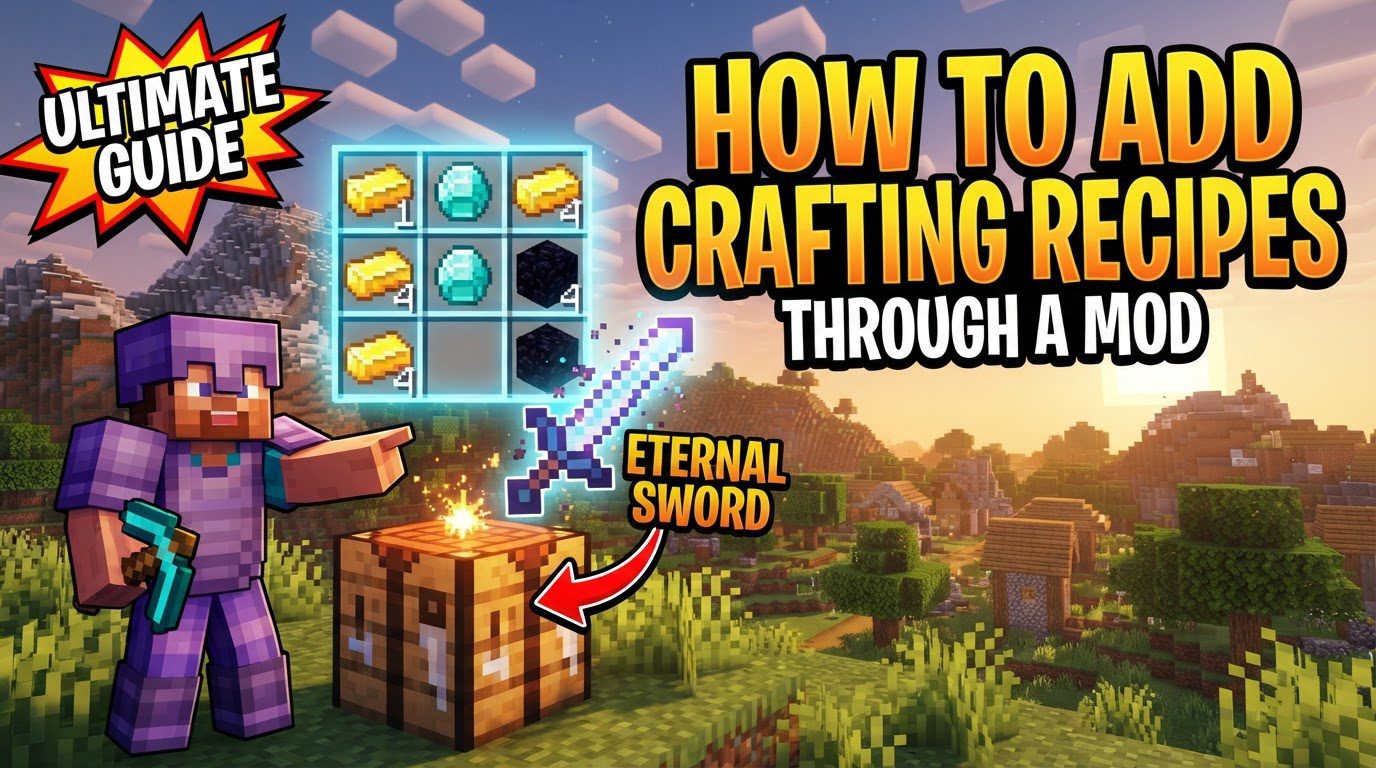
Understanding the Core Mechanics of Custom Recipes
At its heart, custom recipe definition in Minecraft revolves around structured text files known as JSON (JavaScript Object Notation) files. These files serve as the blueprint, meticulously specifying the required ingredients and the resulting item that players will receive upon crafting. The flexibility of this system allows for a wide array of crafting possibilities, from simple item transformations to complex multi-ingredient creations.
- Recipe Types: Minecraft supports various recipe types, each designed for a specific crafting scenario.
- Shaped Recipes: These are defined by a specific arrangement of ingredients within the crafting grid. The position of each item is crucial, meaning players must place ingredients in an exact pattern to yield the desired output.
- Shapeless Recipes: In contrast to shaped recipes, the order and position of ingredients do not matter for shapeless recipes. As long as all the required ingredients are present in the crafting grid, the item will be crafted.
- Furnace Recipes: These recipes are for smelting, cooking, or smoking items in a furnace, blast furnace, or smoker, respectively. They typically involve a single input item and produce a single output.
- Blasting Recipes: Specifically for the blast furnace, these recipes are designed for faster smelting of ores and armor.
- Smoking Recipes: Used in the smoker, these recipes are tailored for cooking food items at a faster rate.
- Smithing Recipes: These recipes involve the smithing table, primarily used for upgrading tools and armor, often requiring a base item and an upgrade material.
- Stonecutting Recipes: The stonecutter allows for efficient crafting of various stone-related blocks from a single block type.
- Ingredients: Ingredients for recipes can be specified in two primary ways, offering varying levels of specificity and flexibility.
- Specific Items: This method requires a particular item, whether it’s a vanilla Minecraft item or an item introduced by another mod. For example, requiring only “minecraft:oak_planks”.
- Item Tags: A more flexible approach, item tags allow you to specify a category of items rather than a single one. For instance, using the tag “#minecraft:planks” means that any type of wooden plank (oak, spruce, birch, etc.) can be used as an ingredient, simplifying recipe design and enhancing player convenience.
- Alternative Recipe Definition Methods: While JSON files are the foundational method, other tools and mods exist to streamline the process.
- CraftTweaker: This popular mod provides a scripting language that allows users to define new recipes or modify existing ones without directly manipulating JSON files. This can be particularly useful for complex recipe adjustments or for modpack creators.
- Data Packs: For newer Minecraft versions (specifically 1.21 and above), data packs have become a standard and highly effective method for adding custom recipes. They offer a structured way to introduce new content, including recipes, without requiring a full mod installation.
Step-by-Step Process for Adding Custom Recipes via Data Packs
The most common and robust way to add custom recipes, especially for modern Minecraft versions, is through the use of data packs and JSON files. Follow these steps to implement your own unique crafting creations.
- 1. Determine Your Recipe:
- Before diving into file creation, clearly define what you want to achieve. Decide on the specific input items your recipe will require, consider their arrangement within the crafting grid if it’s a shaped recipe, and determine the exact output item(s) you wish to produce. This initial planning phase helps streamline the subsequent technical steps.
- 2. Set Up Your Data Pack:
- Locate Your World’s `datapacks` Folder: Navigate to your Minecraft save folder (usually in `%appdata%\.minecraft\saves\`) and find the `datapacks` folder. This is where all custom data packs for that specific world are stored.
- Create a New Folder for Your Data Pack: Inside the `datapacks` folder, create a new subfolder. Give it a descriptive name, such as `tutorial` or the name of your mod/project. This folder will house all the content of your custom data pack.
- Create a `pack.mcmeta` File: Within your newly created data pack folder (e.g., `tutorial`), create a file named `pack.mcmeta`. This file is crucial as it tells Minecraft that the folder is a valid data pack and provides essential information about it. Without this file, your data pack will not be recognized or loaded by the game.
- Establish the Recipe Directory Structure: Inside your data pack folder, create the following nested folders: `data` -> `[your_namespace]` -> `[recipe_folder_name]`.
- For `[your_namespace]`, use a unique identifier, like `tutorial` or your mod’s ID. This helps prevent conflicts with other data packs or mods.
- For `[recipe_folder_name]`, pay close attention to your Minecraft version:
- For Minecraft 1.21 and newer, the folder name is `recipe`.
- For older versions of Minecraft, the folder name is `recipes`.
- Using the incorrect folder name for your game version is a common mistake and will prevent your recipes from loading.
- 3. Create Your Recipe JSON File:
- Choose Your Method: You can either use online tools like Miso or MCreator to generate the JSON code for your recipe, which can simplify the process, or you can write the JSON code manually using a text editor.
- Define the Recipe Type: The first element in your JSON file will be the `type` field, which specifies what kind of recipe it is. Examples include `”minecraft:crafting_shaped”` for standard shaped recipes or `”minecraft:smelting”` for furnace recipes.
- Specify Ingredients:
- For Shaped Recipes: You will define a `pattern` using characters (e.g., “XXX”, “X X”, “XXX” for a 3×3 grid). Then, a `key` section maps each character used in the pattern to a specific item or item tag that serves as an ingredient.
- For Shapeless Recipes: Instead of a pattern, you simply list all the `ingredients` required for the recipe. The order of these ingredients does not matter.
- Define the Result: The `result` section specifies the item that will be produced by the recipe. This includes its item ID (e.g., `”minecraft:diamond_sword”`) and an optional `count` if the recipe produces more than one item. Be aware that for Minecraft 1.21+, the `result` section uses `id` instead of `item` to specify the output item.
- Save the JSON File: Save your completed JSON file within the `recipe` (or `recipes`) folder you created earlier. It’s highly recommended to name the file after the item it produces (e.g., `custom_item.json`) for better organization and readability.
- 4. Reload Minecraft:
- After making any changes to your data pack, including adding new recipe JSON files, you must instruct Minecraft to reload its data. This is done by typing the command `/reload` into the chat in-game (requires operator permissions or single-player cheats enabled). The game will then process your new data pack, making your custom recipes available.
- 5. Mod-Specific Tools (If Applicable):
- If you are using a specific mod like CraftTweaker or MCreator, their procedures for adding recipes might differ. These tools often provide a graphical interface or a simplified scripting language that automates much of the JSON generation, allowing you to define recipes through a more user-friendly process. Consult the documentation for these specific mods for their detailed instructions.
Important Tips for Recipe Creation
To ensure a smooth and efficient recipe creation process, keep the following tips in mind:
- Utilize Online JSON Generators: Tools such as Miso are invaluable for simplifying the creation of recipe files. They often provide a visual interface to design your recipe, then generate the correct JSON code, reducing the likelihood of syntax errors.
- Employ Item Tags for Flexibility: Whenever possible, define your ingredients using item tags (e.g.,
"#minecraft:planks") instead of specific items (e.g.,"minecraft:oak_planks"). This allows players to use any item belonging to that tag, making your recipes more versatile and user-friendly. - Organize Your Files: For better manageability, always name your recipe JSON files after the item they produce. This makes it much easier to locate, modify, or troubleshoot specific recipes later on.
- Use a Professional Text Editor: A text editor with JSON syntax highlighting, such as Visual Studio Code (VS Code), can significantly prevent errors. It visually indicates syntax issues like missing commas or incorrect brackets, helping you catch problems before they cause in-game failures.
- Check for Mod-Specific Formats: If you are creating recipes that interact with items from a particular mod, always check if that mod provides its own recipe JSON format or utility. Some mods offer specialized integration methods that can make recipe creation easier or more powerful.
Common Mistakes to Avoid
Even experienced creators can make simple errors. Being aware of these common pitfalls can save you significant debugging time:
- Incorrect Folder Naming: A critical mistake is using the wrong name for your recipe folder. Remember that the folder name changed from `recipes` to `recipe` starting in Minecraft 1.21. Using the incorrect name for your specific game version will prevent any recipes within that folder from loading.
- JSON Syntax Errors: JSON is a strict format. Missing commas, incorrect brackets (`{}` or `[]`), or simple typos in item IDs or tags will cause the entire recipe file to fail. Always double-check your syntax, ideally using a JSON-aware text editor.
- Missing `pack.mcmeta` File: For data packs, the `pack.mcmeta` file is absolutely essential. Without it, Minecraft will not recognize your folder as a valid data pack, and none of its contents, including your recipes, will load.
- Forgetting to Reload: After making any modifications to your recipe JSON files or data pack structure, you must use the `/reload` command in-game. Failing to do so means the game is still running with the old data, and your changes will not be visible.
- Item ID Mismatches: Ensure that all item IDs (for both ingredients and results) used in your recipe JSON files precisely match the actual IDs of the items, whether they are vanilla Minecraft items or items introduced by other mods. Incorrect IDs will result in non-functional recipes.
- Recipe Conflicts: If you create multiple recipes that have the exact same input ingredients and pattern, Minecraft might not know which output to provide, or it might default to one over the other. This can lead to unexpected crafting results. Mods like Polymorph can help resolve such conflicts by allowing players to choose the desired output when ambiguities arise.
- Using `item` Instead of `id` for Result in 1.21+: In Minecraft 1.21 and newer versions, the `result` section of recipe JSON files now requires the `id` field to specify the output item, rather than the older `item` field. Using the outdated field will cause your recipe to fail.
Tags:
YOU MAY ALSO LIKE...