Adjusting Mouse Sensitivity Settings, Explained
Understanding Mouse Sensitivity in Minecraft
Adjusting your mouse sensitivity in Minecraft is a crucial step toward optimizing your gameplay experience, allowing for more precise control and comfortable interaction within the game world. Sensitivity dictates how quickly your character’s view turns and how rapidly your in-game actions respond to physical movements of your mouse or controller. Finding the right balance is key: a sensitivity setting that is too low can result in a sluggish and unresponsive feel, making it difficult to react swiftly or navigate efficiently. Conversely, a sensitivity that is excessively high can lead to erratic camera movements, causing your view to spin wildly and making accurate aiming or precise block placement nearly impossible.
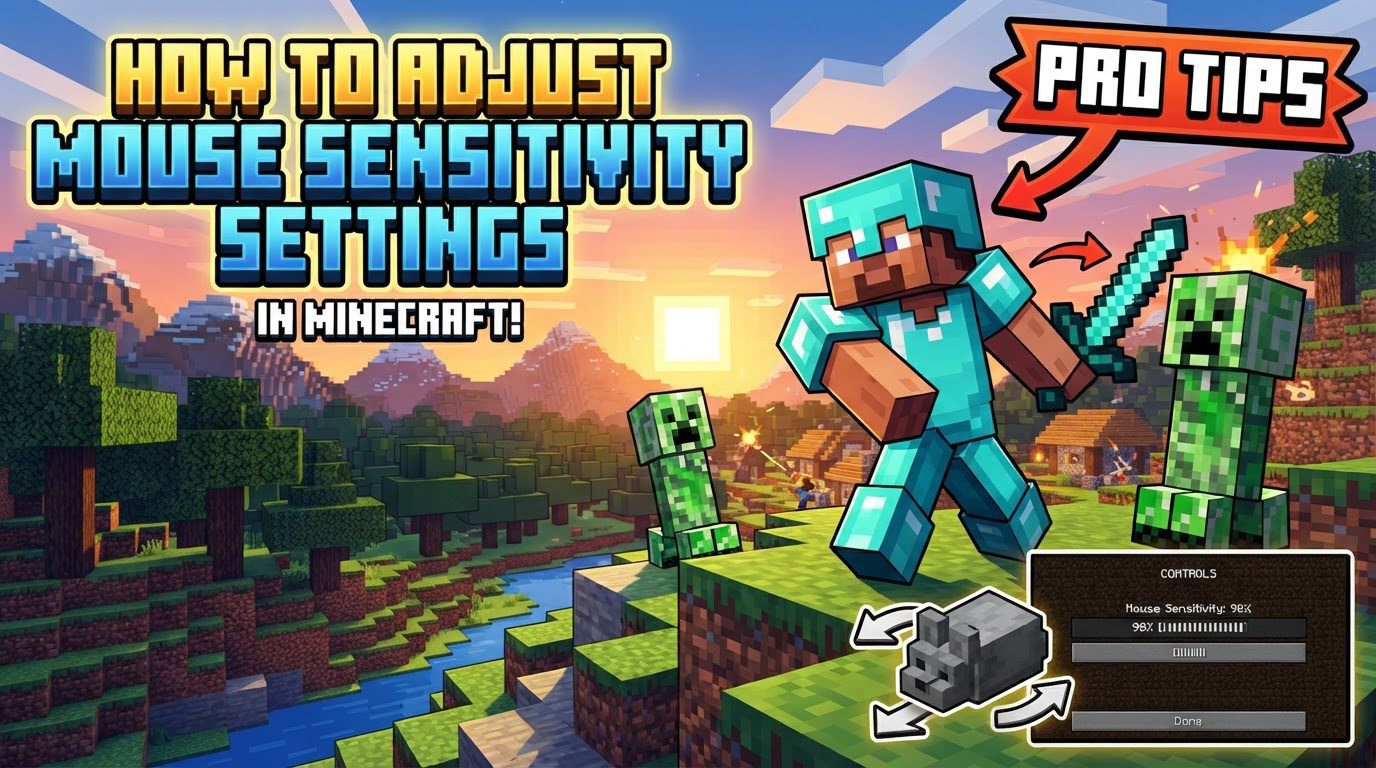
An important characteristic of Minecraft’s sensitivity system is its general consistency: the game typically applies the same sensitivity setting across both active gameplay scenarios and interactions within graphical user interface (GUI) screens. This unified approach helps maintain a consistent feel, regardless of whether you are exploring, fighting, or managing your inventory. It is also vital to recognize that your overall responsiveness in Minecraft is a product of two distinct but interconnected factors: the in-game sensitivity setting you configure and the Dots Per Inch (DPI) setting of your physical mouse, which operates outside the game’s direct control. Both elements play a significant role in determining how your inputs translate into in-game actions.
Step-by-Step Sensitivity Adjustment
In Minecraft (Java Edition)
For players using the Java Edition of Minecraft, adjusting your sensitivity is a straightforward process accessed directly through the game’s menus.
- Open Minecraft and Navigate to the Main Menu: Begin by launching the Minecraft Java Edition. Once the game has loaded, you will be presented with the main menu screen, which serves as your starting point for accessing various game settings.
- Go to “Options,” then “Controls,” and then “Mouse Settings”: From the main menu, locate and click on the “Options” button. Within the Options menu, you will find a selection for “Controls.” Clicking on “Controls” will reveal a further set of options, among which you should find “Mouse Settings.” This is where the core in-game sensitivity adjustments are made.
- Locate the Sensitivity Slider and Drag It: Within the “Mouse Settings” menu, you will see a slider specifically labeled for sensitivity. To decrease your character’s turning speed and overall responsiveness, drag this slider to the left. If you wish to increase sensitivity, making your character’s movements quicker and more reactive, drag the slider to the right. The visual feedback of the slider’s position will help you gauge your adjustment.
- Adjust in Small Increments and Test In-Game: It is highly recommended to make small, incremental adjustments to the sensitivity slider rather than drastic changes. After each minor adjustment, return to the game world to test the new setting. Engage in typical gameplay activities such as looking around, turning quickly, and performing actions that require precision. This iterative testing process is essential for finding a setting that feels truly comfortable and effective for your personal playstyle.
In Minecraft (Bedrock Edition/Console)
Players on Minecraft Bedrock Edition, including those on consoles, will find a similar but slightly different path to adjust their sensitivity settings, tailored to their specific input devices.
- From the Main Menu, Select “Settings”: Start by navigating to the main menu of your Minecraft Bedrock Edition or console version. From there, locate and select the “Settings” option. This central hub is where all game configurations are managed.
- Choose Input Device-Specific Settings: Within the “Settings” menu, you will need to select the category that corresponds to your primary input device. This could be “Keyboard & Mouse” if you are playing on a PC with those peripherals, “Controller” if you are using a gamepad on a console or PC, or “Touch” if you are playing on a mobile device.
- Adjust the “Camera Sensitivity” Slider: Once you have selected your input device category, look for a “Camera Sensitivity” slider. This control directly governs how quickly your view moves in response to your input. Dragging the slider to the left will reduce sensitivity, while dragging it to the right will increase it.
- Controller-Specific Options: For players using controllers, there might be additional, more granular sensitivity options available. Beyond the main “Camera Sensitivity,” you could potentially find separate sensitivity controls specifically for the thumbsticks, allowing you to fine-tune their responsiveness independently. Furthermore, a “deadzone” setting might be present, which defines the minimum amount a thumbstick must be moved before the input is registered, helping to prevent accidental movements from minor stick drift.
External Mouse Settings (Windows)
Beyond in-game adjustments, your operating system’s mouse settings can also significantly influence your overall sensitivity and responsiveness in Minecraft. For Windows users, these external settings can be accessed and modified as follows:
- Open the Start Menu and Select “Settings”: Begin by clicking on the Windows Start menu icon, typically found in the bottom-left corner of your screen. From the options presented, select the gear-shaped “Settings” icon.
- Click “Devices,” then “Mouse,” and then “Additional Mouse Options”: Within the Windows Settings window, locate and click on “Devices.” In the Devices menu, select “Mouse” from the left-hand navigation pane. On the right side of the Mouse settings, you will find a link or option labeled “Additional mouse options.” Clicking this will open a more comprehensive mouse properties dialog box.
- Adjust Pointer Speed in “Pointer Options” Tab: In the “Mouse Properties” dialog box, navigate to the “Pointer Options” tab. Here, you will find a slider labeled “Select a pointer speed.” Adjusting this slider will directly impact the speed of your mouse cursor across your entire operating system, including its base speed within Minecraft. This is a system-wide change, so be mindful of how it affects other applications.
- Consider Disabling “Enhance Pointer Precision”: Also within the “Pointer Options” tab, there is a checkbox labeled “Enhance Pointer Precision.” This feature, often referred to as mouse acceleration, dynamically adjusts your cursor’s speed based on how fast you move your physical mouse. While it might feel intuitive for general desktop use, it can introduce inconsistency into your aim and movements in games like Minecraft, as the relationship between physical mouse movement and on-screen cursor movement becomes unpredictable. For consistent and predictable mouse behavior, it is generally recommended to disable this option.
Important Tips for Optimal Sensitivity
- Find Your Sweet Spot: The journey to ideal sensitivity is personal. Dedicate time to experimenting with the sensitivity slider. The goal is to discover a setting that feels inherently natural and comfortable, enabling you to execute both broad, sweeping movements for quick turns and minute, precise adjustments for intricate tasks with equal ease. This ‘sweet spot’ will enhance both your reaction time and accuracy.
- In-Game Tests: Do not rely solely on menu adjustments. Actively perform specific tests within the game environment to thoroughly evaluate your chosen sensitivity. Practice turning 180 degrees rapidly to ensure you can quickly reorient yourself. Track moving targets, such as mobs or other players, to assess your ability to maintain aim. Practice precise block placement and breaking to confirm that fine motor control is maintained. These practical tests provide invaluable feedback.
- Mouse DPI: For those with a gaming mouse, leveraging its Dots Per Inch (DPI) settings is a powerful tool. A common recommendation for a balanced experience is to set your mouse’s DPI within a range of 800 to 1600. Once your DPI is established, you can then perform the fine-tuning of your sensitivity directly within Minecraft’s in-game settings. This approach allows for a good base level of precision from your hardware, which is then refined by the software.
- Mouse Grip and Arm Movement: The physical technique you employ when using your mouse can significantly impact your control. Strive to maintain a consistent mouse grip, as variations can lead to inconsistent aim. For broader, larger movements, such as turning your character quickly, consider using your entire arm. Conversely, reserve your wrist and fingers for smaller, more delicate micro-adjustments that demand high accuracy, such as precise aiming or subtle directional changes.
- Disable Mouse Acceleration: As mentioned in the external settings, it is highly advisable to turn off “Enhance Pointer Precision” (mouse acceleration) in your operating system’s mouse settings. Mouse acceleration introduces a variable element where the speed of your cursor is influenced by the speed of your physical mouse movement. Disabling it ensures a 1:1 relationship between your physical input and in-game movement, leading to far more consistent and predictable mouse behavior, which is critical for building muscle memory and improving aim.
- FOV Settings: Your Field of View (FOV) setting in Minecraft can indirectly affect how your aiming feels. A higher FOV can make targets appear smaller and further away, potentially making them harder to hit, while a lower FOV might make movement feel slower. Generally, an FOV setting between 80-110 is recommended when the “altered” FOV option is off. If “altered” FOV is turned on, a range of 60-80 is often suggested. Experimenting with FOV alongside sensitivity can help you find a visually comfortable and functionally effective setup.
Common Mistakes to Avoid
- Neglecting External Mouse Settings: A frequent oversight is to focus solely on the in-game sensitivity slider. It’s crucial to remember that your operating system’s mouse settings, particularly pointer speed and mouse acceleration, as well as your mouse’s inherent DPI, all contribute significantly to your overall sensitivity. Ignoring these external factors means you might be fighting against inconsistent or suboptimal base settings.
- Not Testing Adequately: Simply setting a number in a menu and assuming it’s perfect is a common pitfall. Sensitivity is deeply personal and requires active, thorough testing across a variety of gameplay scenarios. Without proper in-game evaluation, you won’t truly know if your setting allows for both quick reactions and precise movements.
- Ignoring Mouse Acceleration: Leaving “Enhance Pointer Precision” enabled in your operating system is a significant hindrance to consistent aim. This feature creates an unpredictable relationship between your physical mouse movement and the in-game cursor, making it incredibly difficult to develop reliable muscle memory and maintain accuracy. Always ensure it is turned off for gaming.
- Changing Sensitivity Too Often: Once you have invested the time to find a sensitivity setting that feels comfortable and effective, try to stick with it. Constantly changing your sensitivity prevents your brain and hand from building the necessary muscle memory. Consistency is key to improving your aim and overall control over time.
- Assuming One Size Fits All: Sensitivity is a highly personal preference. What works perfectly for one player, even a professional, might be completely unsuitable for another. Avoid blindly copying settings without understanding why they work for someone else. Your unique hand size, grip style, mousepad space, and playstyle all contribute to what feels right for you.
- High Mouse DPI without In-Game Adjustment: While a high DPI mouse (e.g., 8000+) offers extreme precision, using it without corresponding adjustments to your in-game sensitivity can lead to issues. If the in-game sensitivity is not lowered significantly to compensate, the high DPI can make your movements feel overly twitchy and uncontrollable. Conversely, if the in-game sensitivity is too low with a high DPI, it might still feel sluggish despite the mouse’s capability. A balanced approach is to use a moderate DPI and then fine-tune in-game.
Tags:
YOU MAY ALSO LIKE...