Checking Your In-game Statistics Page
Minecraft offers players a fascinating glimpse into their in-game journey through various statistical tracking mechanisms. These statistics provide numerical data on a wide array of player actions, progress, and interactions within the game world, allowing you to monitor your achievements, understand your playstyle, and even set new goals. However, the way these statistics are accessed and their level of detail differ significantly between the Java and Bedrock editions of the game, with additional tools available for custom tracking in both versions.
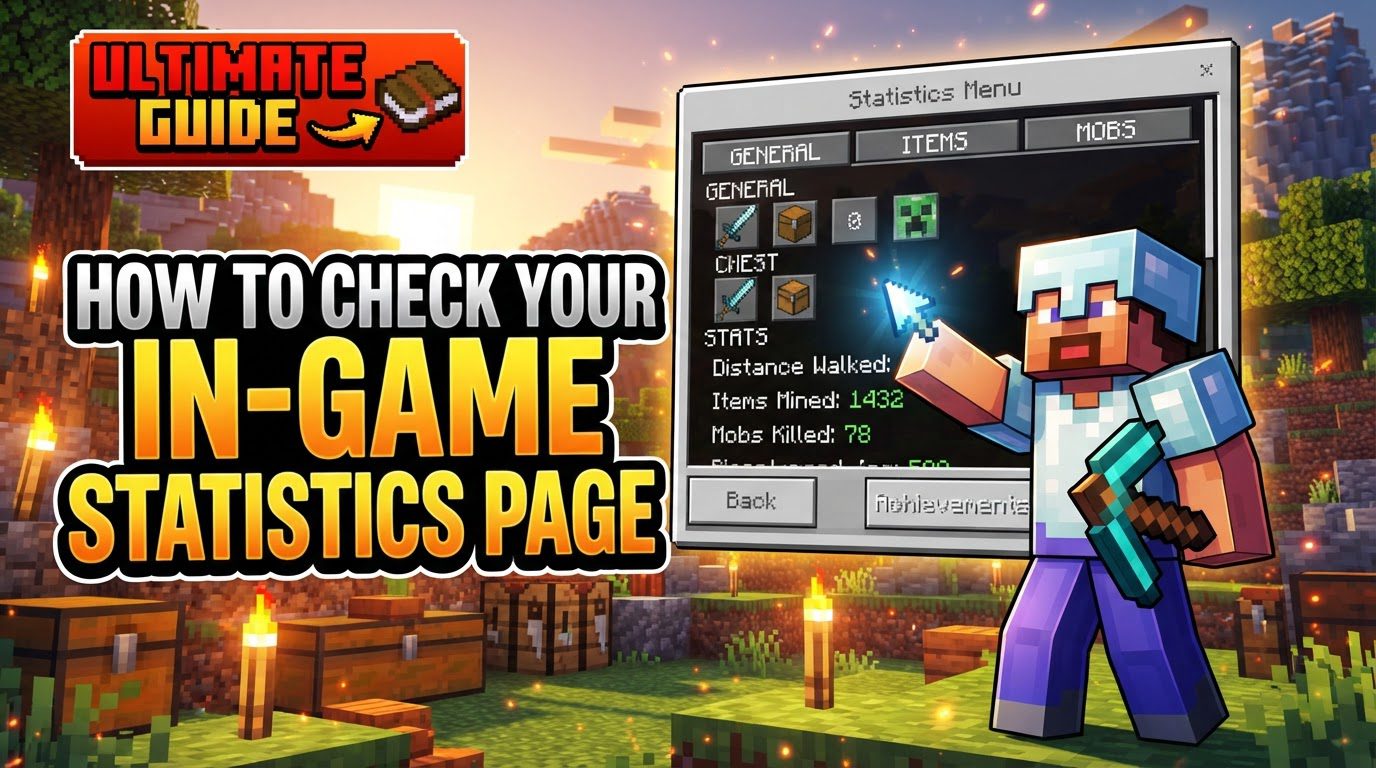
Understanding Minecraft Statistics
Minecraft statistics serve as a digital logbook of your adventures. They record everything from the most basic actions to complex interactions, giving you a comprehensive overview of your gameplay. The specific data captured and how it’s presented varies based on the game edition you are playing.
- Java Edition: This version features a deeply comprehensive in-game “Statistics” screen. It meticulously records numerical data across a vast spectrum of tasks and interactions. This includes overarching general statistics, detailed item-specific metrics, and mob-related tallies. These statistics are uniquely stored for each individual world you play in, residing within a specific JSON file associated with that world.
- Bedrock Edition: In contrast to Java Edition, Bedrock does not offer a direct, equivalent in-game statistics page accessible within the game itself. Instead, it provides access to certain lifetime statistics through your profile menu. These are typically tied to your Microsoft or Xbox account and offer a more generalized overview. Additionally, achievements are a core part of the Bedrock Edition experience and are viewable within the game.
- Scoreboards (Both Editions): Beyond the built-in tracking, both Java and Bedrock editions allow players to create custom scoreboards using in-game commands. These scoreboards can display specific statistics in real-time directly on the screen, offering a dynamic way to track progress for various objectives like blocks mined, specific mob kills, or player versus player encounters.
Accessing Statistics in Java Edition
The Java Edition provides a rich, in-depth statistics page that is easily accessible and offers a granular look at your gameplay within a specific world. This feature is a staple for players who enjoy reviewing their progress and identifying areas of achievement or improvement.
To access your in-game statistics in Minecraft Java Edition, follow these simple steps:
- Step 1: Pause the Game
While playing in any world, press the “Escape” key on your keyboard. This action will bring up the game’s pause menu, overlaying the active gameplay.
- Step 2: Click on “Statistics”
Within the pause menu, you will see several options. Locate and click on the button labeled “Statistics.” This will open the dedicated statistics interface.
- Step 3: Browse Through Categories
Once inside the statistics screen, you can navigate through different categories to view various data points. The main categories available are:
- General: This section covers broad gameplay metrics such as your total time played in that specific world, the total damage you have dealt to entities, the total damage you have taken from various sources, and the number of times you have died. It also includes statistics like distance traveled by foot, boat, or minecart, and other overarching player actions.
- Items: This category provides detailed information about every item in the game. You can see how many times a specific item has been crafted, used (e.g., how many times you’ve swung a sword or placed a block), broken (how many tools or armors have worn out), picked up, or dropped. This allows for a very granular understanding of your interaction with the game’s vast item catalog.
- Mobs: The Mobs section tracks your interactions with the various creatures of Minecraft. Here, you can find out how many of each type of mob you have killed, as well as how many times you have died specifically due to different mobs. This can be useful for understanding combat effectiveness or identifying common causes of demise.
Accessing Statistics in Bedrock Edition
The Bedrock Edition’s approach to statistics is different, focusing on lifetime achievements and a more consolidated view rather than detailed per-world tracking. While it lacks the comprehensive in-game statistics page of its Java counterpart, it still offers valuable insights into your overall gameplay across all worlds linked to your account.
To view your lifetime statistics in Minecraft Bedrock Edition, follow these steps:
- Step 1: Navigate to the Main Menu
From within a world or upon launching the game, ensure you are on the main menu screen. This is typically where you select to play worlds, change settings, or access the marketplace.
- Step 2: Go to Your “Profile”
On the main menu, locate and click on your “Profile” icon or section. This usually displays your character skin and offers options related to your account and cosmetic settings.
- Step 3: Click on the “Stats” Button
Within your profile menu, look for a “Stats” button. This is commonly positioned in the top right corner of the screen. Clicking this will display a summary of your lifetime statistics. These statistics are intrinsically tied to your logged-in Microsoft account and reflect your progress across all worlds played with that account. Examples of statistics you might find here include total time played, blocks broken, mobs defeated, and total distance traveled.
- Alternative: Xbox Console Companion App
For players on Windows, Android, or iOS, some statistics can also be viewed externally through the Xbox Console Companion app (or the Xbox app on newer Windows versions). This app provides a broader overview of your gaming activity across all Xbox-enabled titles, including Minecraft Bedrock Edition.
Using Scoreboards for Custom Statistics (Both Editions)
For players who desire real-time tracking of specific, customized objectives, scoreboards offer a powerful and flexible solution available in both Java and Bedrock editions. This method requires the use of in-game commands and is particularly useful for multiplayer servers, custom maps, or personal challenges.
To set up and display custom statistics using scoreboards:
- Step 1: Enable Cheats/Commands
Before you can use scoreboard commands, cheats must be enabled in your world. If you are in a single-player world, you can enable cheats when creating the world or by opening your world to LAN and selecting “Allow Cheats: ON.” On a server, you typically need operator (op) permissions.
- Step 2: Create a New Objective
Use the
/scoreboard objectives addcommand to define what statistic you want to track. The syntax involves specifying a name for your objective, the type of statistic, and optionally a display name. For example:/scoreboard objectives add Blocks_Mined minecraft.mined:minecraft.stoneThis command creates an objective named “Blocks_Mined” that specifically tracks how many stone blocks you have mined. The
minecraft.mined:minecraft.stonepart is the specific statistic ID./scoreboard objectives add MobKills totalKillCountThis would create an objective named “MobKills” that tracks the total number of mobs a player has killed. There are many different statistic types available to track a wide range of player actions.
- Step 3: Choose Display Location
Once an objective is created, you need to tell the game where to display it. Use the
/scoreboard objectives setdisplaycommand for this. Common display locations include:sidebar: Displays the scoreboard on the right side of the screen.list: Shows the scoreboard when you open the player list (Tab key in Java Edition).belowName: Displays the score beneath a player’s name tag.
For example:
/scoreboard objectives setdisplay sidebar Blocks_MinedThis command will make the “Blocks_Mined” objective visible on the sidebar for all players.
Important Tips for Statistics Tracking
- Java Edition Statistics are Per World: It is crucial to remember that statistics in Java Edition are saved within each individual world’s folder. This means that your progress and actions in one world will not contribute to or be visible in another world’s statistics. Each world maintains its own unique set of data.
- Bedrock Edition Stats are Account-Bound: In contrast, the lifetime statistics available in Bedrock Edition are directly linked to your Microsoft account. This makes them global across all worlds you play using that specific account, providing a cumulative overview of your journey.
- Scoreboards for Live Tracking: If you need real-time updates on specific actions within a single game session or for a particular challenge, scoreboards are an incredibly powerful and customizable tool in both editions. They offer dynamic feedback that the built-in statistics pages do not.
- Datapacks for Enhanced Java Stats: The Java Edition community has developed numerous datapacks that can significantly expand the number and complexity of statistics tracked. These community-made additions often automatically set up a multitude of scoreboards to provide even more detailed insights into gameplay, going beyond the default offerings.
- Backup Your Worlds: For Java Edition players, if you ever uninstall and reinstall Minecraft, your world-specific statistics might be reset or lost unless you have created backups of your world save files. Always back up important worlds to preserve your progress and statistical data.
Common Mistakes to Avoid
- Confusing Java and Bedrock Statistics: A frequent error is expecting the same level of detailed, in-game statistics in Bedrock Edition as is found in Java Edition. Bedrock’s in-game statistics are significantly more limited in scope and presentation, focusing on broader lifetime metrics rather than granular per-world data. Understanding this fundamental difference will prevent disappointment.
- Expecting Global Stats in Java Edition: Many new Java Edition players might mistakenly believe that their statistics are tracked globally across all their worlds. However, Java Edition statistics are strictly per-world. Statistics accumulated in one world will not carry over, combine with, or be visible from another world. Each world is an isolated statistical environment.
- Incorrect Command Syntax for Scoreboards: When setting up scoreboards, precise command syntax is paramount. Errors in objective names, statistic types, or display commands will lead to the scoreboard not functioning as intended or displaying error messages. Always double-check your commands for accuracy, including capitalization and proper use of colons and underscores.
- Assuming All Actions Are Perfectly Tracked: While Minecraft’s statistics are extensive, it’s important to understand that some actions might be inconsistently or incompletely tracked. Certain niche actions may not have a corresponding statistic, or overarching statistics might lack specific breakdowns you might expect. The system, while robust, is not exhaustive for every conceivable player action.
- Forgetting Cheats Need to Be Enabled for Scoreboards: A common oversight when trying to use scoreboard commands is forgetting that cheats (or operator permissions on a server) must be enabled. Attempting to input scoreboard commands in a survival world where cheats are not active will simply result in the commands not working and an error message appearing, indicating insufficient permissions.
Tags:
YOU MAY ALSO LIKE...