How to Detect Chunk Generation Inconsistencies
One of the most insidious threats to a carefully crafted Minecraft world isn’t a hostile mob or a catastrophic build error, but unseen data corruption. Detecting chunk generation inconsistencies is paramount for any dedicated player or server administrator, as these subtle anomalies can escalate from minor visual glitches into severe, game-breaking corruption that can destabilize an entire world.
Understanding the Foundation: What Are Chunks?
At its core, the Minecraft world is not a single, continuous entity but a vast collection of individual units known as chunks. Each chunk represents a 16×16 block area, extending vertically from bedrock to the world’s build limit. These fundamental units are how the game generates, loads, and saves terrain, structures, and entities. When these units are not generated or stored correctly, the integrity of your world begins to unravel, leading to what we term “chunk generation inconsistencies.”
The Genesis of Glitches: Why Worlds Waver
Chunk inconsistencies don’t appear out of nowhere; they are symptoms of underlying issues in how Minecraft processes its world data. The causes generally fall into two main categories:
World Version Updates
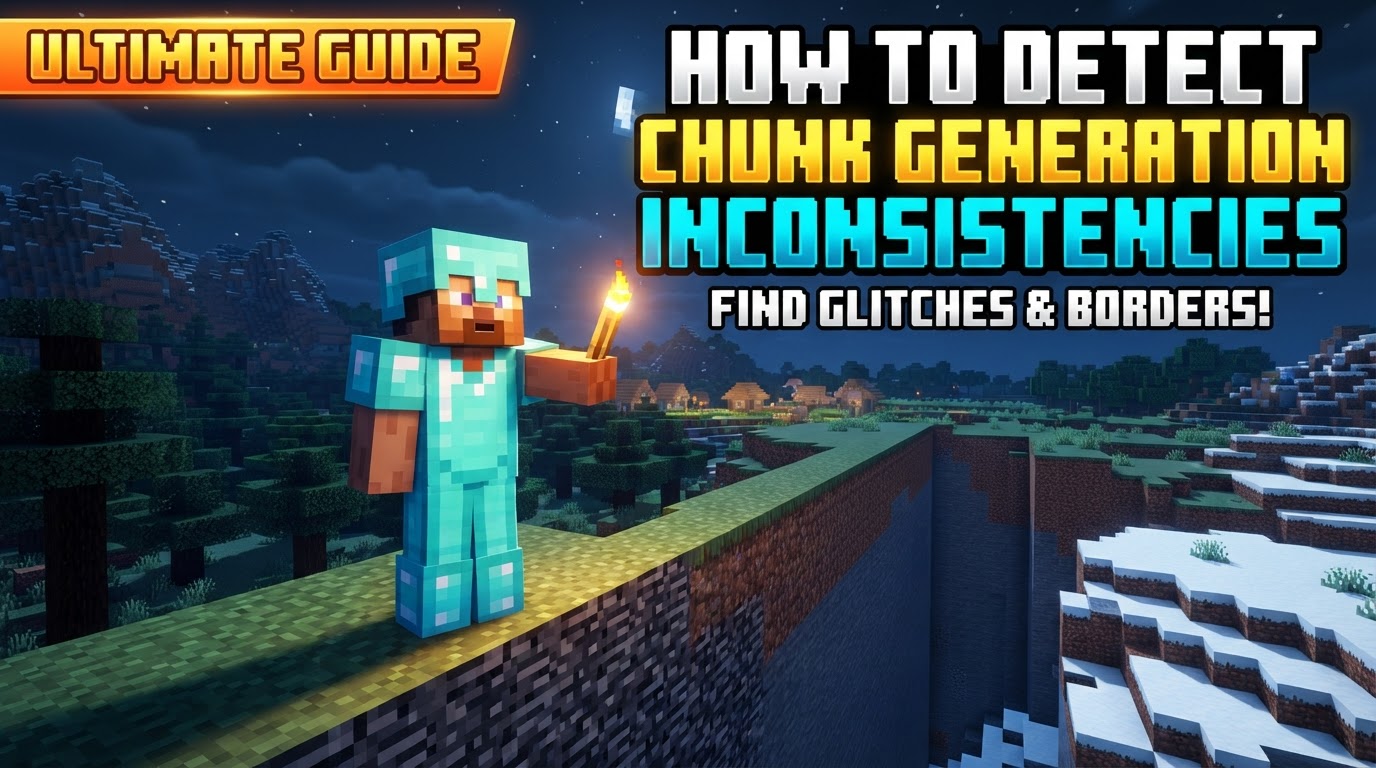
Minecraft is an evolving game, with frequent updates introducing new biomes, blocks, and generation algorithms. When an existing world, created in an older version, is loaded into a newer game version, previously unexplored areas will generate using the new rules. This often results in stark differences at the boundaries between old and new terrain. These are commonly known as “chunk borders” or “chunk cliffs,” where biomes abruptly change, or the terrain elevation shifts dramatically. While visually jarring, these are typically not true corruption but rather a natural (if sometimes unappealing) consequence of version progression.
Data Corruption
Far more serious than version borders, data corruption refers to actual damage or incorrect writing of chunk data. This can lead to chunks being unreadable, partially loaded, or filled with incorrect information. Common culprits include:
- Improper Server Shutdowns: Forcibly terminating a server process instead of using the designated
stopcommand can interrupt ongoing save operations, leaving world files in an inconsistent or damaged state. - Hardware Issues: Malfunctioning hardware, such as bad sectors on a hard drive or SSD problems, can lead to data being written incorrectly or becoming unreadable.
- Software Conflicts: Incompatible or poorly coded mods and plugins can interfere with Minecraft’s world-saving mechanisms, leading to corrupted chunks.
- Power Failures: Sudden loss of power during a crucial world save operation can result in incomplete or damaged chunk data.
- Resource Exhaustion: Running out of critical system resources, like disk space or memory, while the game or server is attempting to save world data can cause write failures.
- File System Errors: Problems at the operating system level, such as file system corruption, can directly impact the integrity of Minecraft’s world files.
Seeing the Damage: Manifestations of Inconsistencies
Recognizing chunk inconsistencies often begins with observing their varied manifestations, which can be visual, functional, or even reported directly by the server itself.
Visual Glitches
These are the most immediately noticeable signs:
- Missing or Void Chunks: Large, empty holes appearing in the world, often leading directly to the void.
- Invisible or Flashing Chunks: Areas where terrain simply doesn’t render, or blocks rapidly appear and disappear.
- Players Falling Through the World: A clear indicator that the ground beneath them has failed to load or has become non-solid.
- Blocks Reverting: Blocks placed or destroyed appearing to reset to a previous state, indicating a chunk failed to save properly.
- Unnatural Terrain Changes: Sudden, sharp transitions in terrain, often indicating a chunk border from a version update, but sometimes also a sign of a corrupted chunk attempting to generate incorrectly.
- “Lines of Grass Blocks” or “Void/Grass Stripes”: Unusual linear patterns of specific blocks or voids, which can be a more subtle sign of deeper corruption affecting how terrain layers are generated.
Functional Errors
Beyond visual oddities, inconsistencies can disrupt gameplay mechanics:
- Disappearing Inventory Items: Items vanish from inventories or chests, especially after crossing chunk borders or relogging.
- Unexpected Spawn Point Resets: Players find themselves spawning in unfamiliar locations, or their designated spawn point is ignored.
- Redstone Contraptions Failing: Complex redstone builds might cease to function correctly, particularly when components span across a corrupted chunk boundary, causing inconsistent loading.
Server Console Errors
For server owners, the console is a critical diagnostic tool:
- Messages like “Wrong location” chunk errors, indicating a chunk is attempting to load at incorrect coordinates.
- “Failed to save chunk” warnings, directly pointing to issues with the world-saving process.
IOExceptionduring region file reading, suggesting the server cannot access or interpret the world data.- NBT parsing errors, which indicate problems with the internal data format used to store chunk information.
Your Detection Toolkit: A Step-by-Step Approach
Identifying these inconsistencies requires a combination of in-game observation, log analysis, and specialized external tools.
1. In-Game Observation
- Visual Cues: Always be vigilant for the visual glitches mentioned above. Any abrupt change, missing section, or rendering anomaly should raise a red flag.
- F3 + G: Pressing
F3 + Gin-game toggles the display of chunk borders. This is invaluable for pinpointing if a visual anomaly aligns perfectly with a 16×16 chunk boundary, helping to differentiate between general rendering issues and actual chunk problems. - F3 + A: If chunks appear invisible or fail to load visually, pressing
F3 + Aforces the game client to reload all visible chunks. This often resolves client-side rendering bugs, helping you distinguish between a temporary display issue and genuine chunk corruption.
2. Server Log Analysis (for Server Owners)
Regularly reviewing your server’s console logs is crucial. Look specifically for:
- Error messages containing keywords like “chunk,” “region,” “save,” “load,” “corrupt,” “wrong location,” or “IO Exception.”
- Any repeated errors that occur when players enter specific areas or when the server attempts to save the world.
3. External Tools for Deeper Inspection
When in-game observation and logs aren’t enough, external tools offer powerful diagnostic capabilities:
- Coordinate Calculators: Online tools (e.g., Dinnerbone’s chunk calculator) can convert in-game X, Y, Z coordinates into their corresponding region file name (e.g.,
r.x.z.mca). This helps you locate the exact file on your server or world folder that might be problematic. - MCA Selector: This dedicated application allows you to visually load and inspect your entire Minecraft world. It highlights corrupted or inconsistent chunks, enabling you to select and potentially delete problematic chunks to force their regeneration upon the next game load. This is a powerful tool for targeted repair.
- Amulet Editor / MCEdit: These comprehensive world editors provide a detailed visual overview of your world’s chunk data. They can be used to verify chunk integrity, identify damaged areas, and even replace corrupted region files with healthy ones from backups.
Essential Safeguards and Best Practices
Prevention and preparedness are your best defenses against chunk inconsistencies.
- Backup Regularly, and Backup Often: This cannot be stressed enough. Maintain frequent, separate backups of your world data. In the event of severe corruption, a recent backup is often the only way to recover lost progress.
- Use the
stopCommand: Always shut down your server gracefully using thestopcommand. Never forcibly close the server process, as this is a leading cause of data corruption. - Test in Singleplayer: If you suspect a server world is corrupted, try loading a copy of it in a singleplayer instance. Sometimes, the singleplayer client has built-in recovery mechanisms or can provide more detailed error messages.
- Be Precise with Repair Tools: When using tools like MCA Selector, narrow down the exact coordinates of the issue. Deleting or modifying chunks without precision can lead to unintended data loss or further inconsistencies in adjacent areas.
- Check for Mod/Plugin Conflicts: If running a modded environment, systematically disable recently added or updated mods/plugins to identify if they are the source of the corruption.
- Understand Version Borders: Learn to distinguish between the natural (though sometimes ugly) “chunk cliffs” caused by version updates and genuine data corruption. Not every visual anomaly is a sign of a broken world.
- Avoid Blind Editing: Unless you are an expert and have a full understanding of Minecraft’s NBT data structure, avoid directly editing world files with tools like NBTExplorer. Incorrect modifications can worsen corruption. Always have a backup before attempting advanced fixes.
- Immediate Server Shutdown: If you detect or strongly suspect world corruption on a server, shut it down immediately. Continuing to run a server with active corruption can spread the damage, making recovery more difficult.
By understanding the causes, recognizing the symptoms, and utilizing the right tools and practices, you can effectively detect and mitigate chunk generation inconsistencies, ensuring the longevity and stability of your Minecraft worlds.
Tags:
YOU MAY ALSO LIKE...