Enabling RTX Ray Tracing in Minecraft (Step by Step)
Minecraft’s visual fidelity can be dramatically transformed with the integration of ray tracing technology. This advanced rendering technique, often referred to as path tracing within Minecraft, brings an unparalleled level of realism to the blocky worlds you know and love. By simulating how light behaves in the real world, ray tracing introduces dynamic and highly realistic lighting, shadows, and reflections, making every corner of your Minecraft world feel more immersive and lifelike. This feature is powered by the sophisticated Render Dragon graphics engine and leverages Physically-Based Textures (PBR) to enhance visual detail, creating truly stunning environments.
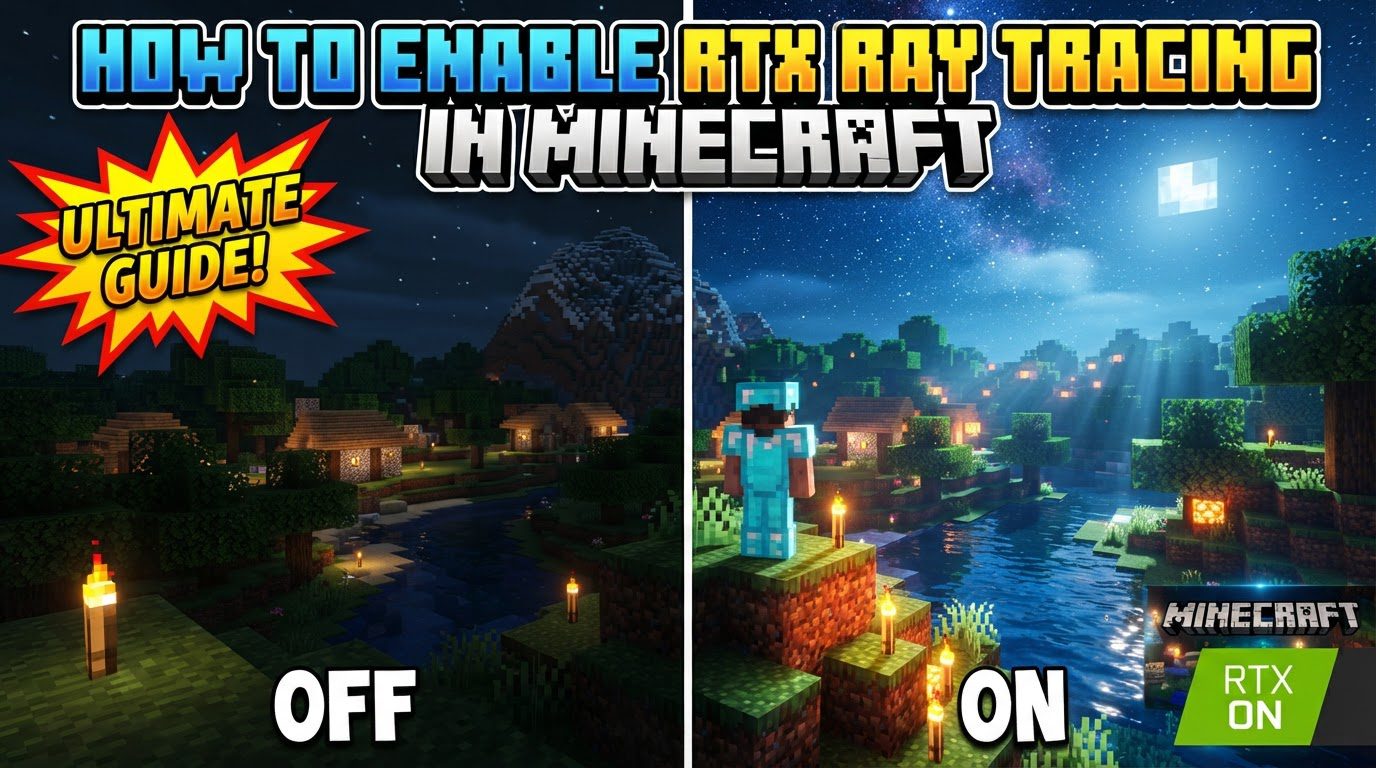
To embark on this visually enhanced journey, it’s crucial to understand that Minecraft’s ray tracing capabilities are exclusive to the Bedrock Edition. Specifically, it is available only on Windows 10 or 11 (64-bit operating systems). This guide will walk you through the necessary steps to enable and optimize ray tracing, ensuring you experience Minecraft in a breathtaking new light.
Verifying System Compatibility
Before attempting to enable ray tracing, your personal computer must meet specific hardware and software requirements. Failing to meet these prerequisites will prevent you from utilizing this advanced graphical feature. Please check the following specifications:
- Operating System: Your PC must be running Windows 10 64-bit or a higher version of Windows.
- Processor (CPU): An Intel Core i5 equivalent CPU or better is required to handle the computational demands of ray tracing.
- Memory (RAM): You need at least 8 GB of RAM to ensure smooth performance.
- Graphics Processing Unit (GPU): This is the most critical component. You must have a DirectX hardware ray tracing capable GPU. This includes NVIDIA GeForce RTX 20 Series or higher graphics cards, or AMD Radeon RX 6000 Series or higher graphics cards.
- Minecraft Version: Ensure your Minecraft Bedrock Edition is version 1.16.200 or higher. Older versions may not support ray tracing features.
Updating Drivers and Software
Once you’ve confirmed your system meets the minimum requirements, the next vital step is to ensure all your software is up to date. Outdated drivers or operating system versions can lead to performance issues or prevent ray tracing from functioning correctly.
- Windows Operating System: Make sure your Windows 10 or 11 operating system is fully updated. You can typically do this through the Windows Update settings.
- Graphics Drivers: It is imperative that your graphics drivers are the latest available from your GPU manufacturer (NVIDIA or AMD). Visit their official websites to download and install the most recent drivers for your specific graphics card model. These updates often include performance improvements and bug fixes crucial for ray tracing.
Acquiring RTX Content
Unlike standard Minecraft, ray tracing requires specific content packs to function. These packs contain Physically-Based Textures (PBR) and other assets designed to interact correctly with the ray tracing engine, enhancing the visual output.
- Minecraft Marketplace: The easiest way to find compatible content is through the Minecraft Marketplace. Open Minecraft, navigate to the Marketplace, and use the search bar to look for “RTX” or “ray tracing.” You will find a variety of ray tracing-enabled resource packs and worlds, many of which are available for free. These free worlds are excellent for testing your setup.
- Third-Party Websites: Alternatively, you can download ray tracing-enabled resource packs or worlds from trusted third-party websites. Be cautious when downloading from external sources and always ensure they are reputable. These packs are typically distributed as
.mcpackfiles.
Importing Resource Packs (if applicable)
If you downloaded a resource pack from a third-party website, you’ll need to import it into Minecraft.
- Open the .mcpack File: Simply locate the downloaded
.mcpackfile on your computer and double-click it. Minecraft should automatically launch and begin the import process. You will see a notification in-game confirming the successful import.
Activating the Resource Pack
Once imported or acquired from the Marketplace, the ray tracing resource pack needs to be activated within Minecraft.
- Global Resource Pack Activation: If you want the RTX pack to apply to all your worlds by default, go to the main menu in Minecraft, then navigate to Settings > Global Resources. In the “My Packs” section, find the desired RTX resource pack and activate it. Move it to the “Active” section.
- World-Specific Resource Pack Activation: For applying the pack to a single world, which is often recommended for specific RTX worlds, load into that world’s settings. Before launching the world, go to its settings, then locate the “Resource Packs” section. Here, you can activate the RTX pack specifically for that world. This ensures that only the intended world uses the ray tracing assets.
Enabling Ray Tracing In-Game
With the resource pack active, the final step is to toggle on the ray tracing feature within the game’s display settings.
- Load an RTX-Enabled World: First, load into a world that has an active ray tracing resource pack.
- Access Video Settings: Once in the world, open the in-game Settings menu. Navigate to the Video section.
- Activate Ray Tracing: Scroll down through the video options. You should find a “Ray tracing” slider or a “Graphics mode” option. Change this setting to “Ray Traced” (or ensure the slider is enabled). This will activate the ray tracing effects, and you should immediately notice a difference in lighting, shadows, and reflections.
Important Performance Optimization Tips
Ray tracing is graphically intensive, and while it looks incredible, it can impact performance. Here are some tips to help you achieve a smoother experience:
- Enable DLSS (NVIDIA GPUs): If you have an NVIDIA GeForce RTX GPU, enable Deep Learning Super Sampling (DLSS). This AI-powered technology renders frames at a lower resolution and then upscales them using deep learning, significantly boosting frame rates while maintaining high image quality.
- Lower Game Resolution: Consider reducing the game’s resolution. Minecraft’s distinctive blocky textures often still look great even at lower resolutions, and this can provide a substantial increase in frame rates when ray tracing is active.
- Manage VSync: If you encounter performance inconsistencies or screen tearing, try disabling Minecraft’s in-game VSync. Instead, utilize your graphics card’s control panel (NVIDIA Control Panel or AMD Radeon Software) to manage VSync settings. This often provides more stable synchronization.
- Test with Free Worlds: To properly gauge your system’s capability and see the visual enhancements without commitment, explore the free RTX worlds available in the Minecraft Marketplace. They are designed to showcase the technology and are perfect for compatibility testing.
Common Mistakes to Avoid
Enabling ray tracing can sometimes be tricky. Be aware of these common pitfalls to ensure a smooth setup process:
- Unsupported Edition: Remember, ray tracing is exclusively available for Minecraft Bedrock Edition on Windows 10/11. It is not supported on Minecraft Java Edition or other platforms.
- Insufficient Hardware: Attempting to run RTX without a compatible GPU (NVIDIA RTX 20 Series/higher or AMD RX 6000 Series/higher) will simply not work. If you search for “RTX” in the Minecraft Marketplace and no RTX content appears, it’s a strong indicator that your device might not be compatible.
- Missing Resource Pack: Ray tracing requires a specific ray tracing-enabled resource pack to be active. Without one, the option to enable ray tracing in the video settings may be greyed out, or the feature will not function correctly, resulting in standard Bedrock visuals.
- Glitches or Glossy Textures: If you notice textures appearing overly glossy, reflective, or otherwise glitched, it’s a common issue. Often, simply restarting Minecraft or reloading the world will resolve these visual anomalies.
- Outdated RTX Packs: Some older resource packs, especially those created early on by NVIDIA for testing, might not work optimally or be fully compatible with the latest versions of Minecraft Bedrock Edition. Always try to use up-to-date packs.
- Unsupported Headsets: It’s important to note that Virtual Reality (VR) and Mixed Reality (MR) headsets are currently not supported for ray tracing in Minecraft. The feature is designed for traditional display outputs.
By carefully following these steps and tips, you will be well-equipped to experience Minecraft Bedrock Edition with the stunning visual enhancements of ray tracing. Prepare to see your favorite blocky landscapes transformed with realistic lighting, deep shadows, and breathtaking reflections, bringing a new dimension of immersion to your gameplay.
Tags:
YOU MAY ALSO LIKE...