Joining the Minecraft Preview Program on Console (Step by Step)
The world of Minecraft is constantly evolving, with new blocks, creatures, and gameplay mechanics being introduced regularly. For dedicated players who want to experience these innovations before their official release, the Minecraft Preview program offers an exclusive opportunity. This guide will walk you through the process of joining the Minecraft Preview on your console, explaining its core features, benefits, and important considerations to ensure a smooth experience.
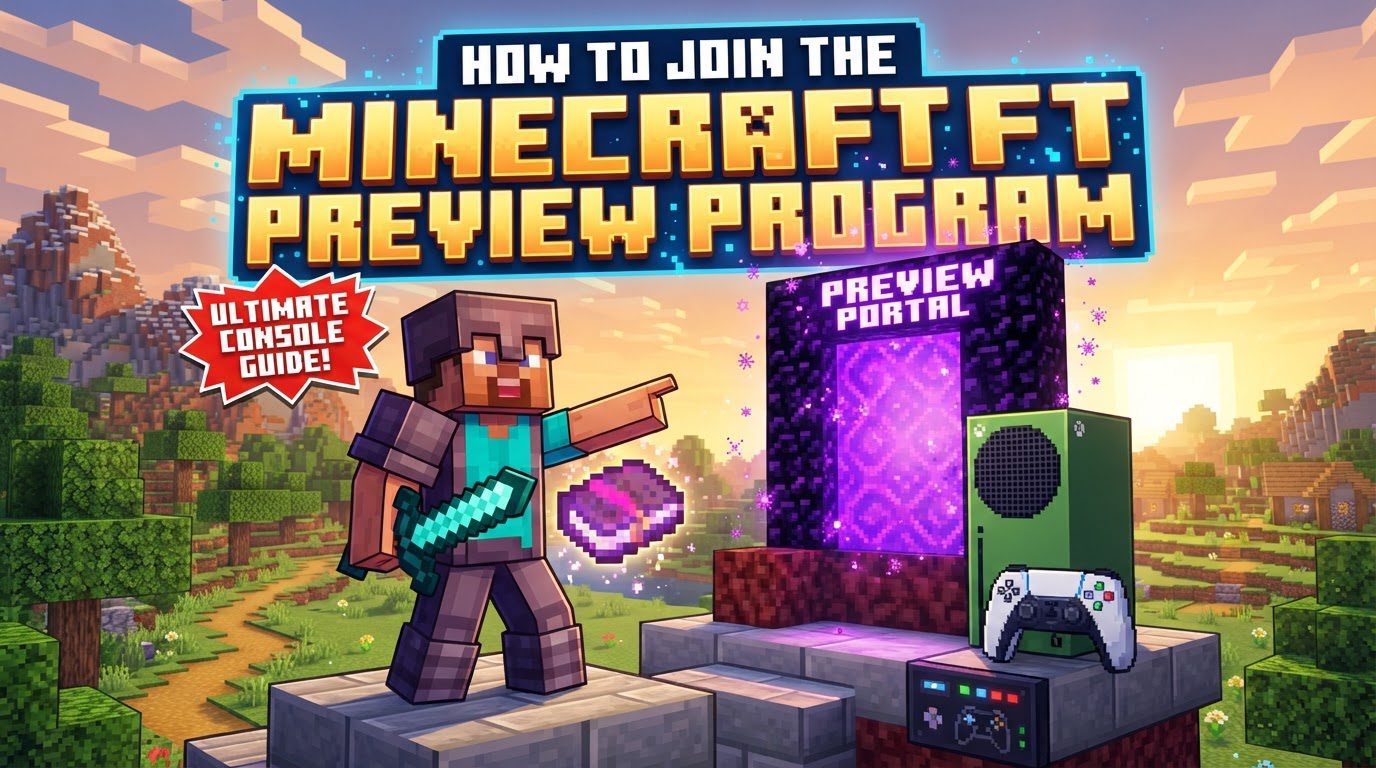
What is Minecraft Preview?
Minecraft Preview is a distinct application, entirely separate from the standard Minecraft: Bedrock Edition that you typically play. Its primary purpose is to provide players with early access to upcoming features, blocks, and gameplay mechanics that are still under development. By participating, you can test these new additions before they are officially released to the public, offering a unique glimpse into the future of Minecraft.
One of the significant advantages of the Preview program is that it allows you to test new content without affecting your main game. You can generally have both the regular Minecraft: Bedrock Edition and Minecraft Preview installed and played independently on the same console. This separation ensures that your primary game saves, progress, and settings remain untouched, providing a safe environment for experimentation.
Key Features and What to Expect
- Distinct Application and Purpose: As mentioned, Minecraft Preview is a standalone application. It’s designed for testing, meaning you’ll encounter features that might be incomplete, buggy, or subject to change. This early access allows you to experience new content like experimental blocks, new biomes, or updated game mechanics well before they are integrated into the retail version.
- World Management and Data: It’s crucial to understand that worlds created or played within the Preview are entirely separate from your retail Minecraft worlds. Progress made in a Preview world will not transfer back to your standard game. However, you do have the flexibility to import copies of your existing retail worlds into the Preview. This allows you to test new features within familiar environments, but remember that any changes made to these imported copies will not affect your original retail worlds.
- Settings and Configurations: Be aware that many settings, including Family Settings, which are configured in the retail version of Minecraft, may not be preserved or carried over into the Preview application. You might need to adjust these settings within the Preview environment if specific configurations are required for your gameplay.
- Marketplace Content: Content purchased from the Minecraft Marketplace will generally function as expected within the Preview. Furthermore, any new content that you purchase directly from the Marketplace while playing in the Preview application will transfer over and be accessible in your retail version of Minecraft. This ensures your investments in Marketplace content are not lost, regardless of which version of the game you are playing.
- Multiplayer and Realms: For the most part, Realms and multiplayer sessions with players who are not participating in the Preview program are usually not accessible in Minecraft Preview. The focus of the Preview is on testing new features, and maintaining compatibility with the retail version’s multiplayer ecosystem is often not a priority during this developmental phase.
- Achievements: While exploring new features and providing feedback, you’ll notice that achievements are typically disabled while playing in the Preview. This is a common practice in experimental versions of games, as the focus is on testing functionality rather than earning in-game accolades.
- Feedback Role: The overarching goal of the Preview program is to gather valuable player feedback. By participating, you contribute directly to the game’s development by helping to identify bugs, report issues, and provide insights that can improve new features before their official release. Your input helps shape the future of Minecraft.
How to Join Minecraft Preview on Console
For Xbox Users:
Joining the Minecraft Preview program on Xbox involves a few straightforward steps through the Xbox Insider Hub.
- Install the “Xbox Insider Hub” App: Your first step is to locate and install the “Xbox Insider Hub” application directly from the Xbox Store. This dedicated hub is your gateway to various preview programs, including Minecraft Preview.
- Launch and Sign In: Once the Xbox Insider Hub app is installed, launch it from your console’s dashboard. You will then need to sign in with your Xbox account. Ensure you use the same account you use for playing Minecraft.
- Navigate to “Previews” and Select “Minecraft Preview”: Within the Xbox Insider Hub application, look for a section or tab labeled “Previews.” Select this option to view a list of available preview programs. From this list, find and select “Minecraft Preview.”
- Choose “Join”: After selecting “Minecraft Preview,” you will see an option to “Join” the program. Confirm your enrollment by selecting this option. The Xbox Insider Hub will then process your request to join the Preview.
- Install “Minecraft Preview”: Once your registration is complete and confirmed, the Xbox Insider Hub will redirect you to the Microsoft Store. Here, you will be prompted to install the separate “Minecraft Preview” application. Install this application, and once it’s downloaded, you’ll be ready to launch and explore the latest experimental features.
For PlayStation Users:
PlayStation users have a slightly different, more integrated method for accessing the Minecraft Preview.
- Launch the Standard Minecraft Game: Begin by launching the standard Minecraft game from your PlayStation console. Ensure you are on the main menu screen.
- Go to “Settings”: From the main menu, navigate to and select the “Settings” option. This will open the game’s configuration menu.
- Scroll to “Preview”: Within the Settings menu, scroll down to the very bottom of the options. You should find and select an option labeled “Preview.”
- Click “Get Preview for PlayStation [your console model]”: After selecting “Preview,” you will see a button or option that says “Get Preview for PlayStation” followed by your specific console model (e.g., PS4, PS5). Clicking this option will initiate the download process for a separate Minecraft Preview application. Once downloaded and installed, you can launch this new application to access the preview content.
Important Tips for a Smooth Experience
- Enable Experimental Toggles: To access the newest features within the Preview, simply installing the application might not be enough. You might need to enable experimental toggles in the world settings when creating a new world or editing an existing one within the Preview. Look for options related to “Experimental Features” or similar naming conventions to unlock all the new content.
- Transitioning from Bedrock Beta: If you were previously enrolled in the older Minecraft Bedrock Beta program, it is strongly recommended that you leave that program before joining the new Preview. To avoid potential conflicts or issues, you might even need to reinstall your standard Minecraft game after leaving the old beta. This ensures a clean slate for the Preview program.
- Report Any Bugs or Issues: The Preview program thrives on player feedback. If you encounter any bugs, glitches, or unexpected behavior, make sure to report them through the designated feedback channels. For Xbox users, this often involves using the “Report a problem” feature directly on the console. Your reports are invaluable in helping developers refine and improve the game.
Common Mistakes to Avoid
- Confusing the Preview with the Regular Game: Always remember that Minecraft Preview and the standard Minecraft: Bedrock Edition are distinct applications. Progress, worlds, and settings in one do not typically affect the other. Do not expect your Preview world saves to appear in your retail game, or vice-versa, unless you specifically imported a copy into Preview.
- Expecting the Preview to be Entirely Stable: The Preview is an experimental version. It’s designed for testing and is not intended to be a perfectly stable experience. It may contain bugs, glitches, crashes, or unreleased features that are subject to change or even removal. Approach it with the understanding that you are testing early content.
- Not Enabling Experimental Features: A common oversight is expecting all new content to be automatically active just by launching the Preview app. As mentioned, you often need to manually enable experimental toggles within a world’s settings when creating or editing it. Without doing so, you might miss out on the very features you joined to test.
- On Xbox, Trying to Find “Minecraft Preview” Directly in the Store: For Xbox users, remember that the “Minecraft Preview” application is not typically found by directly searching the Xbox Store initially. You must first go through the “Xbox Insider Hub” to enroll in the program, which then directs you to the correct store listing for installation.
- Forgetting to Restart Your Console: If you experience any issues after joining the program or installing the Minecraft Preview application, a simple but effective troubleshooting step is to restart your console. This can often resolve minor conflicts or ensure that all changes have been properly applied.
Tags:
YOU MAY ALSO LIKE...