Changing Your In-game Username, Explained
Changing your in-game username in Minecraft is a common desire for many players, whether for a fresh start, a new identity, or simply to update an old handle. However, the process isn’t universally the same across all versions of the game. Minecraft has two primary editions: Java Edition and Bedrock Edition, and each handles username changes differently, primarily due to their underlying account systems. Understanding these distinctions is crucial before attempting to modify your name.
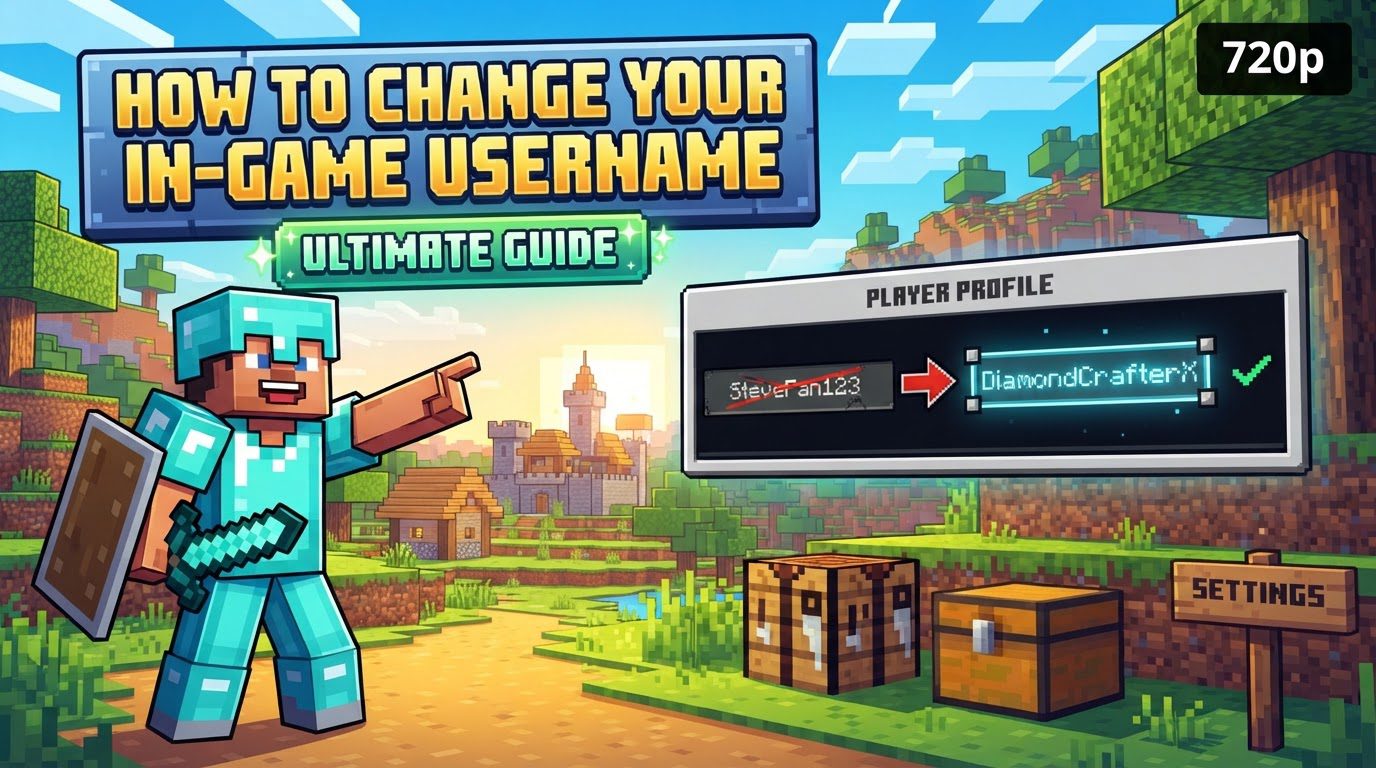
For players of Minecraft: Java Edition, your in-game name is directly linked to your Java profile name. This means any change you make here will be reflected in your Java gameplay. In contrast, for Minecraft: Bedrock Edition, your in-game name is intrinsically tied to your Xbox Gamertag. This applies to Bedrock players across various platforms, including PC, mobile, and consoles where Bedrock is the primary version. Furthermore, console versions like PlayStation and Nintendo Switch have their own distinct account systems; your Minecraft name on these platforms will match your console’s online ID or nickname.
Understanding the Key Mechanics of Username Changes
The rules and limitations surrounding username changes vary significantly between Minecraft editions. Being aware of these specifics can prevent frustration and ensure a smooth transition to your new identity.
- Minecraft: Java Edition Specifics:
- You can change your Minecraft: Java Edition username once every 30 days. This means if you change your name, you must wait a full month before you can change it again.
- When you change your Java username, your old name is not immediately released. It is held for a period of 37 days. This generous holding period includes a critical 7-day window during which you have the exclusive option to revert to your previous username if you change your mind or encounter unexpected issues. After these 7 days, your old name remains reserved for you, but after the full 37 days, it becomes available for other players to claim.
- Java usernames have specific formatting requirements: they must consist of 3 to 16 characters. Spaces are not permitted within Java usernames. Allowed characters include A-Z (both uppercase and lowercase letters), 0-9 (numbers), and underscores (_).
- It’s important to note that changing your Java username only affects your in-game display name. It does not alter your Minecraft website profile name, which might be a separate identifier used for forums or account management.
- Minecraft: Bedrock Edition Specifics:
- In Minecraft: Bedrock Edition, your in-game name is directly linked to your Xbox Gamertag. This means that to change your Minecraft name on Bedrock, you must change your Xbox Gamertag via your Microsoft account. Changes made to your Gamertag will be reflected across all Xbox services and games, not just Minecraft.
- Console Version Specifics (PlayStation, Nintendo Switch):
- For players on PlayStation, your Minecraft name will mirror your PlayStation Network Online ID.
- On Nintendo Switch, your Minecraft name will correspond to your Nintendo Switch profile nickname.
Step-by-Step Guide to Changing Your Username
Here’s how to change your username, tailored to the specific version or platform you use:
For Minecraft: Java Edition
The process for Java Edition is straightforward and managed through the official Minecraft website.
- Go to the official Minecraft website and log in using your Microsoft account credentials. (Note: If you previously had a Mojang account, ensure it has been migrated to a Microsoft account, as this is now required for Java Edition access and management.)
- Once logged in, navigate to the “My Games” screen or locate the “Profile” section of your account.
- Under the “Minecraft: Java Edition” heading, you should see an option labeled “Profile Name” or “Change Profile Name.” Click on this.
- You will be prompted to enter your desired new username. Ensure it adheres to the Java username rules (3-16 characters, no spaces, A-Z, 0-9, _).
- After entering your new name, confirm the change. The name should update almost immediately in-game once you log back in.
For Minecraft: Bedrock Edition (via Xbox/Microsoft Account)
Since Bedrock names are tied to your Xbox Gamertag, the change is managed through Xbox services.
- Go to the Xbox website and sign in with the Microsoft account linked to your Minecraft Bedrock Edition.
- Access your Xbox Profile. You can usually find this by clicking on your profile icon.
- Within your profile, look for an option to “Customize” or navigate to “My profile > Customize profile.”
- You should see your current Gamertag displayed. Click on the pencil icon located next to your current Gamertag.
- Type in your desired new Gamertag. The system will typically check for availability.
- Once you have a suitable and available name, confirm the change. This will update your name across all Xbox services, including Minecraft: Bedrock Edition.
For PlayStation
Changing your name on PlayStation affects your PlayStation Network Online ID.
- On your PlayStation console, navigate to the system’s “Settings.”
- Go to “Account Management,” then select “Profile,” and finally “Online ID.”
- Follow the on-screen prompts to select your new Online ID. The system will check for availability.
- Once confirmed, your Minecraft name will reflect this new Online ID.
For Nintendo Switch
On Nintendo Switch, your Minecraft name is linked to your console’s profile nickname.
- Start your Nintendo Switch console.
- Select your profile icon in the top-left corner of the HOME Menu to access your user page.
- Go to the “Profile” tab on your user page.
- Select the pencil icon located next to your current profile name to initiate the change.
- Enter your new desired nickname and confirm.
Important Tips for a Smooth Username Change
To ensure the best experience when changing your Minecraft username, keep these tips in mind:
- Microsoft Account Migration: If you are a long-time Java player who previously used a Mojang account, ensure your account has been fully migrated to a Microsoft account. This is a prerequisite for managing your Java profile name.
- Java Edition Cooldown: Always remember the 30-day cooldown period for Java Edition username changes. Plan your changes carefully, as you won’t be able to alter it again for a full month.
- Reverting Java Names: Should you regret a Java name change or encounter unforeseen issues, you have a 7-day window within the 37-day hold period to revert to your old name. Act quickly if you wish to reclaim it.
- Logging Out and Back In: After successfully changing your username on any platform, it’s always a good practice to fully log out of Minecraft and then log back in. This ensures that the game client refreshes your profile data and displays your new name correctly.
Common Mistakes to Avoid
While changing your username is generally straightforward, there are a few common pitfalls that players should be aware of:
- Ignoring the 30-Day Cooldown: For Java Edition players, attempting to change your username more frequently than every 30 days will result in an error message. The system strictly enforces this cooldown.
- Using Offensive Language: Regardless of the platform, using offensive or inappropriate language in your username is a serious mistake. Microsoft’s enforcement system, along with PlayStation and Nintendo’s respective moderation teams, actively filters and bans such content. Even if a name seems innocuous to you, it might violate community guidelines and lead to account sanctions.
- Java Edition Saved Data Issues: One of the most frequently reported issues after a Java Edition username change is that saved data in single-player worlds may appear to be gone or corrupted. This can manifest as lost inventory, advancements, or an inability to interact with your previously built structures. This often occurs because Minecraft’s internal player data files (playerdata) are linked to your old username’s unique ID. The good news is that this can often be fixed. You’ll need to access your world’s save folder, locate the relevant playerdata files, and rename them to match your new username’s unique ID. This re-establishes the link between your new name and your old progress.
- Confusing Edition-Specific Processes: A common error is attempting to change a Java Edition name using the Xbox Gamertag process, or vice versa. Remember that Java Edition name changes are handled on the Minecraft website, while Bedrock Edition (and thus your Xbox Gamertag) changes are managed through Xbox services. Console names are changed directly on the respective console’s system settings. Always ensure you are following the correct procedure for your specific game edition and platform.
By understanding these mechanics, following the correct steps, and being mindful of potential issues, you can successfully change your Minecraft in-game username and enjoy your refreshed identity in the blocky world.
Tags:
YOU MAY ALSO LIKE...