Customizing a Server List Ping Response
A distinctive and inviting presence in the Minecraft server list can significantly impact player engagement and growth. One of the most powerful tools at your disposal for achieving this is the customization of your server list ping response. This response is the initial impression players get of your server before they even join, offering a glimpse into its identity and purpose. Understanding and effectively utilizing these customization options is crucial for any server owner.
Understanding the Server List Ping Response
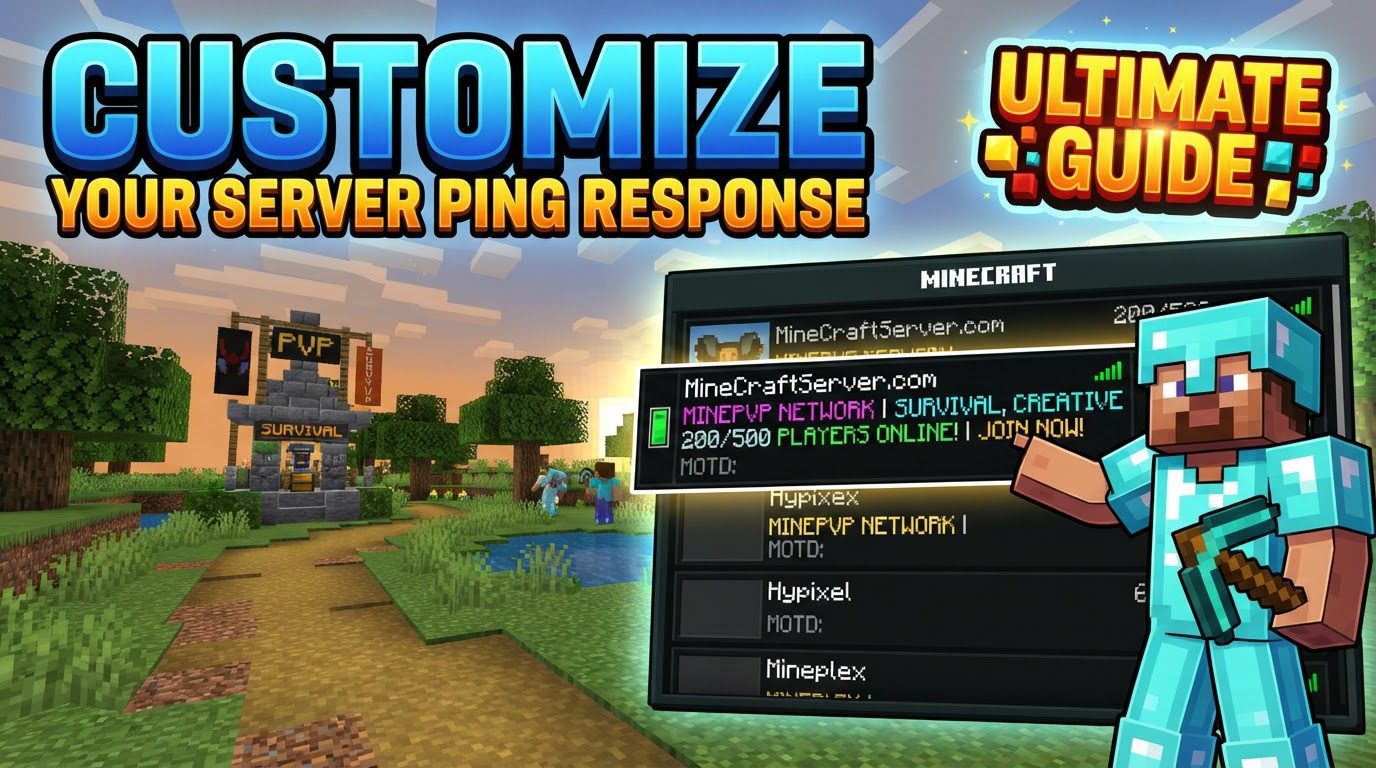
At its core, the server list ping response is the set of information that Minecraft clients receive when they attempt to connect to or refresh a server in their multiplayer list. This mechanism is built directly into the game, making it an always-enabled interface, unlike the more complex Query protocol. The primary and most visible component of this response is the “Message of the Day,” commonly known as the MOTD.
- The Message of the Day (MOTD): This is a concise text description that appears directly next to your server’s name in the multiplayer list. It serves as your server’s elevator pitch, allowing you to convey its essence in a few short lines. The MOTD isn’t just plain text; it supports a rich array of customization options. You can embed Minecraft’s specific color codes to add vibrant hues, utilize various formatting styles such as bold, italics, or strikethrough, and even include special symbols to enhance its visual appeal and convey more information in a compact space.
- Player Count Information: Beyond the MOTD, the ping response also transparently displays the current number of online players and the maximum player capacity of your server. This provides immediate transparency to potential players about server activity and availability.
- Server Version: The specific Minecraft version your server is running is also communicated, ensuring compatibility for players.
- Custom Server Icon (Favicon): A unique visual identifier, the favicon is a small, square image that appears to the left of your server’s MOTD and name. For Java Edition servers, this favicon must be a 64×64 pixel PNG image. This image is actually transmitted to the client as a Base64 encoded string within the ping response, allowing for a custom brand identity to be instantly recognizable.
Together, these elements form a comprehensive snapshot of your server, influencing a player’s decision to click and explore further.
Step-by-Step Customization Process
Customizing your server’s ping response, particularly the MOTD and favicon, is a straightforward process for most server setups.
- Step 1: Access the
server.propertiesFileFor the vast majority of vanilla Minecraft servers, and many modded or Bukkit/Spigot/Paper-based servers, the primary configuration file is
server.properties. This file is typically located in the root directory of your Minecraft server installation. You will need to access your server’s file system, either via an FTP client, a web-based file manager provided by your hosting panel, or directly on the machine if you’re self-hosting. Open this file using a plain text editor (like Notepad, Notepad++, VS Code, etc.). - Step 2: Locate the
motdFieldWithin the
server.propertiesfile, scroll through the various settings until you find a line that begins withmotd=. By default, this line might read something likemotd=A Minecraft Serveror similar. This is the entry you will modify. - Step 3: Edit Your MOTD Content
Carefully change the text that follows
motd=to your desired message. Ensure there are no extra spaces before or after the equals sign unless intended as part of the message. For example, if you want your MOTD to say “Welcome to My Awesome Server!”, the line would becomemotd=Welcome to My Awesome Server!. - Step 4: Apply Formatting and Color Codes (Optional but Recommended)
To make your MOTD truly stand out, you can embed Minecraft’s special formatting codes directly into the text. These codes always begin with the section sign symbol (
§), followed by a character that dictates the color or style. For example:§cwill make the subsequent text red.§awill make the subsequent text green.§lwill make the subsequent text bold.§owill make the subsequent text italic.§kcreates a “magic” text effect, where characters constantly shuffle.§rresets all formatting to default.
A common mistake is using an ampersand (
&) instead of the section sign (§). While some plugins might convert ampersands, the native Minecraft server requires the section sign. Online MOTD generators can be incredibly helpful for visually designing your message and automatically generating the correct string with these codes.For instance, to create a bold, red welcome message, you might type:
motd=§c§lWelcome to Our Server! - Step 5: Add a Custom Server Favicon (Optional)
To add a custom server icon, you need a 64×64 pixel PNG image. This is a strict requirement for Java Edition servers; any other size or format will likely result in the default Minecraft dirt block icon being displayed, or no icon at all. Name this image file
server-icon.pngand place it directly into the server’s root directory, the same location as yourserver.propertiesfile. - Step 6: Save Your Changes
After making all your desired modifications to
server.propertiesand ensuring yourserver-icon.pngis in place, save theserver.propertiesfile. If using an FTP client, ensure the file is uploaded back to the server, overwriting the old version. - Step 7: Restart Your Minecraft Server
Crucially, for any changes made to
server.propertiesor the addition ofserver-icon.pngto take effect, you must completely restart your Minecraft server. A simple reload or command often isn’t sufficient for these core configuration changes. - Hosting Panel Specifics: If you are using a Minecraft hosting provider, the process will be similar but often streamlined through their web-based control panel. Look for sections labeled “Server Settings,” “Configuration Files,” or “File Manager.” Within these panels, you’ll typically find an interface to edit
server.propertiesdirectly, and an option to upload yourserver-icon.png.
Important Tips for an Effective Response
Crafting a compelling server list ping response goes beyond just knowing the technical steps. Thoughtful design can significantly enhance your server’s appeal.
- Be Concise and Informative: The MOTD has a practical display limit, often around 59 characters before it starts to wrap or truncate on some clients. Aim for a message that is short, to the point, and clearly communicates your server’s theme or unique selling proposition. What makes your server special? Highlight it instantly.
- Leverage Color and Formatting: These tools are your best friends for making your server stand out in a crowded list. A splash of color or a bold statement can grab attention more effectively than plain text. Use them strategically to emphasize key words or phrases.
- Design for Impact: A well-designed MOTD provides essential information at a glance while also adding character and personality to your server. It’s an extension of your server’s brand.
- Proxy Server Considerations: If your network uses a proxy server like Bungeecord or Velocity to connect multiple Minecraft servers, the MOTD and potentially other ping response settings are typically configured within the proxy’s configuration file, often named
config.yml, rather than in each individual backend server’sserver.properties. Always consult your proxy’s documentation for exact details. - Utilize Testing Tools: Before going live or to troubleshoot, consider using online tools like mctools.org. These tools allow you to input your server’s IP address and port to retrieve its current ping response, including the MOTD, player count, and favicon, without needing to open your Minecraft client. This helps verify your changes quickly.
Common Mistakes to Avoid
Even with a clear process, certain pitfalls can prevent your customizations from appearing correctly.
- Forgetting to Restart the Server: This is arguably the most frequent mistake. Any modifications to
server.propertiesor the addition/change ofserver-icon.pngrequire a full server restart to be loaded and applied. Simply saving the file is not enough. - Using Incorrect Formatting Codes: Ensure you are using the correct Minecraft section sign (
§) followed by the appropriate character for colors and formatting. Using an ampersand (&) will not work natively and will simply display the literal text “&c” in your MOTD. - Exceeding Character Limits: While the MOTD field in
server.propertiescan hold a longer string, the practical display limit for clients is much shorter (around 59 characters per line on most clients, with two lines available). An excessively long MOTD will either be truncated or wrap awkwardly, diminishing its impact. Always test how your MOTD appears in the actual Minecraft client. - Incorrect Favicon Dimensions or Format: The
server-icon.pngfile must be precisely 64×64 pixels and in the PNG format. Using a JPG, a different resolution, or an incorrectly named file will result in the default server icon being displayed or no custom icon appearing at all. - Firewall Issues: Ensure that your server’s port (default 25565) is not blocked by a firewall, either on the server machine itself or by your network provider. If the port is blocked, clients won’t be able to ping your server at all, let alone receive its custom response.
- Server Being Offline: This might seem obvious, but a server must be actively running and accessible for it to respond to pings. If your server is down, no ping response can be generated.
By carefully following these steps, understanding the underlying mechanics, and heeding the common pitfalls, you can create a highly customized and inviting server list ping response that effectively represents your Minecraft server and attracts new players.
Tags:
YOU MAY ALSO LIKE...