Fixing a Frozen or Unresponsive Game Window — A Quick Guide
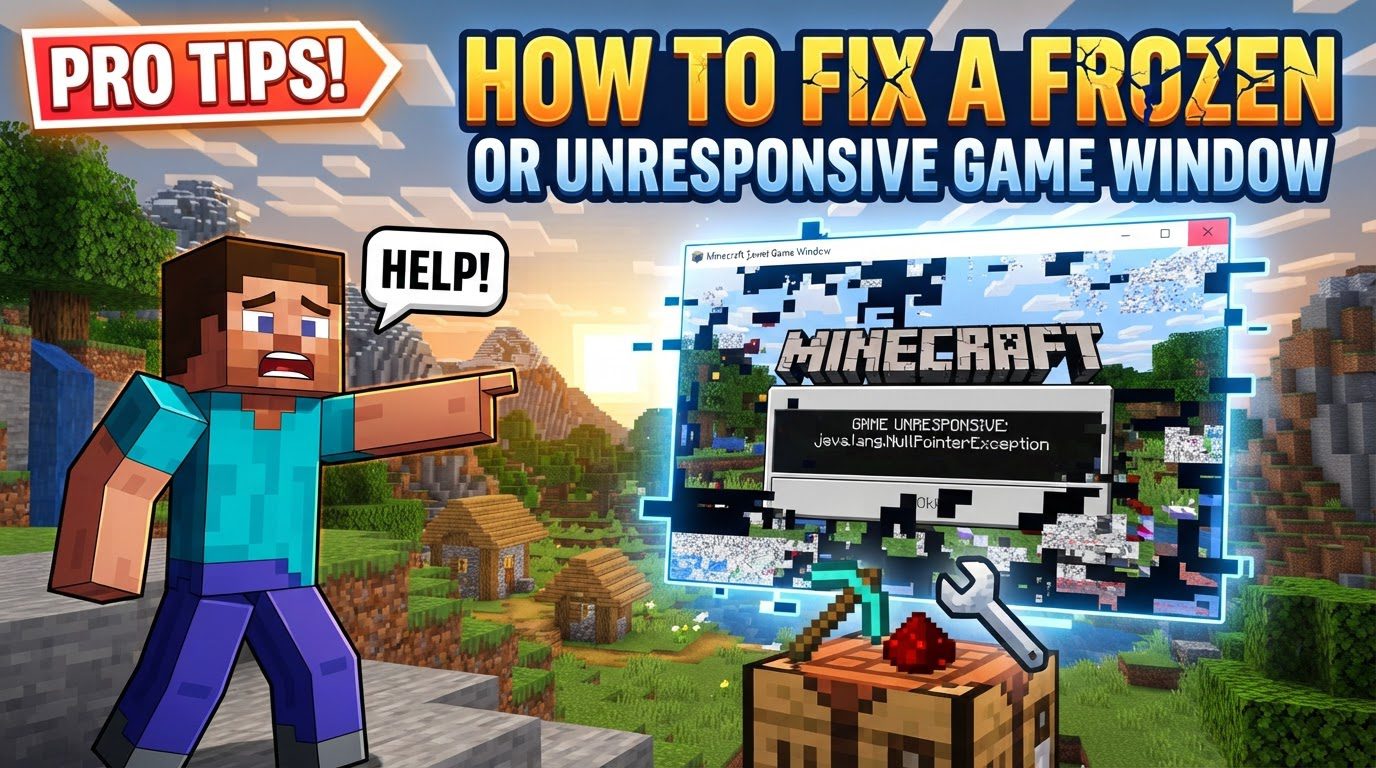
Experiencing a frozen or unresponsive Minecraft game window can be incredibly frustrating, halting your adventures and creative endeavors. This comprehensive guide outlines the common causes behind such issues and provides a structured approach to troubleshooting and resolving them, ensuring you can get back to building and exploring without interruption.
Understanding Why Minecraft Freezes: Key Mechanics
Before diving into solutions, it’s crucial to understand the underlying reasons why Minecraft might freeze or become unresponsive. Several factors can contribute to these performance issues, ranging from hardware limitations to software conflicts.
- Resource Allocation: Insufficient RAM allocated to Minecraft is a primary culprit, especially when players utilize numerous mods or resource-intensive texture packs. If the game doesn’t have enough memory to operate efficiently, it can lead to severe lag, freezing, and eventual unresponsiveness.
- Graphics Drivers: The graphics drivers on your system are the software interface between your operating system and your graphics card. Outdated, corrupted, or incorrectly configured graphics drivers are a very frequent cause of game freezes, visual glitches, and even full game crashes, as the system struggles to render the game correctly.
- Software Conflicts: Other applications running concurrently in the background can interfere with Minecraft’s performance. Notably, in-game overlays provided by communication software like Discord, or system utilities like Xbox Game Bar and NVIDIA Overlay, are known to cause conflicts that result in freezing or instability.
- Game File Integrity: The integrity of Minecraft’s game files is vital for its smooth operation. Corrupted or incomplete game files, perhaps due to a faulty download, an interrupted update, or disk errors, can prevent the game from launching correctly or cause it to freeze unexpectedly during gameplay.
- Java Version (Java Edition): For those playing Minecraft Java Edition, the Java Runtime Environment (JRE) is a critical component. Minecraft Java Edition relies on an up-to-date and correctly installed Java version for proper functioning. An outdated or improperly configured Java installation can lead to various stability issues, including freezing.
- System Overload: Pushing your system beyond its capabilities is another common reason for freezing. High in-game graphics settings, such as increased render distance, complex shaders, or detailed textures, combined with a large number of active background processes, can strain your computer’s CPU and GPU, causing the game to slow down, stutter, and eventually freeze.
- Dedicated GPU Usage: Modern computers often come with both an integrated graphics processor (usually part of the CPU) and a more powerful dedicated graphics card. Minecraft might sometimes default to using the less powerful integrated graphics instead of the dedicated GPU, resulting in significantly lower performance, frame drops, and freezes, particularly in graphically demanding situations.
Step-by-Step Troubleshooting Guide
When your Minecraft window becomes frozen or unresponsive, a systematic approach to troubleshooting is the most effective way to identify and resolve the issue.
- End Task & Reset Game/Launcher:
If the game is completely frozen, your first step is to forcefully close it. Open the Task Manager by pressing Ctrl+Shift+Esc. In the “Processes” tab, look for “Minecraft” or “javaw.exe” (for Java Edition). Select the process and click “End task.”
For the Windows app version of Minecraft, a more thorough reset might be necessary. Go to Windows Settings, then “Apps,” and select “Apps & Features.” Locate “Minecraft” in the list, click on it, and choose “Advanced options.” From there, you can select “Terminate” to force-close it, then “Repair” to attempt to fix any minor issues, and finally “Reset” if problems persist, which will reinstall the app’s data (though your worlds should remain safe).
- Update Graphics Drivers:
Outdated graphics drivers are a frequent cause of instability. Visit the official website of your graphics card manufacturer (NVIDIA, AMD, or Intel) to download and install the latest drivers specifically for your GPU model. Ensure you perform a clean installation if the option is available.
- Close Background Programs & Overlays:
Unnecessary applications consuming system resources can lead to Minecraft freezing. Open Task Manager (Ctrl+Shift+Esc) and review the “Processes” tab. Close any programs that are not essential for your system’s operation or Minecraft. Additionally, disable in-game overlays from applications like Discord, Xbox Game Bar, and NVIDIA/AMD software, as these are known to cause conflicts with games.
- Allocate More RAM (Java Edition):
For Minecraft Java Edition, insufficient RAM allocation is a common bottleneck. To increase the allocated memory, open the Minecraft Launcher. Navigate to the “Installations” tab. Hover over your problematic game profile (e.g., “Latest release”) and click the three dots that appear, then select “Edit.” In the profile editor, click “More options.” Under “JVM Arguments,” you will find a line that starts with
-Xmx(e.g.,-Xmx2G). Change this value to allocate more RAM, for example,-Xmx4Gfor 4GB, or-Xmx6Gfor 6GB, depending on your system’s total RAM. Ensure you don’t allocate more than half of your total system RAM. - Lower In-Game Graphics Settings:
High graphics settings can overwhelm your system. Launch Minecraft and go to the “Video Settings” menu. Reduce options such as “Fullscreen Resolution” if it’s set too high. Set “Graphics” to “Fast,” turn “Smooth Lighting” and “Clouds” off, set “Particles” to “Minimal,” and disable “VSync.” Gradually increase settings from these low points until you find a stable balance.
- Update Java (Java Edition):
For Minecraft Java Edition players, having the latest version of Java installed is crucial for stability and performance. You can typically find the latest Java Runtime Environment (JRE) on Oracle’s official website. Reinstalling Minecraft Java Edition can also help ensure that the correct and compatible Java files are included with the game’s installation.
- Verify Game File Integrity/Reinstall:
Corrupted game files can cause a variety of issues. Many game launchers, including the Minecraft Launcher, offer a repair option that scans and fixes corrupted or missing files. If a repair doesn’t resolve the problem, consider a full reinstallation. Before reinstalling, it’s critical to back up your Minecraft worlds to a separate location to avoid losing your progress.
- Run as Administrator & Disable Fullscreen Optimizations:
Right-click on the Minecraft launcher executable file (or its shortcut). Go to “Properties” and then to the “Compatibility” tab. Check the box labeled “Run this program as an administrator.” Also, check the box for “Disable fullscreen optimizations,” as these Windows features can sometimes interfere with game performance and stability.
- Configure Graphics Settings (Windows):
Windows offers specific graphics settings that can impact game performance. Go to Windows Settings, then “System,” and select “Display.” Scroll down and click on “Graphics settings.” Here, ensure that “optimizations for windowed games” and “hardware-accelerated GPU scheduling” are enabled. Crucially, add Minecraft (or its launcher executable) to the list and explicitly set it to use your dedicated high-performance GPU instead of the integrated graphics.
Important Tips for Prevention and Further Troubleshooting
Beyond the immediate fixes, certain practices can prevent future freezes and assist in deeper troubleshooting.
- Regularly update your Windows operating system and all relevant drivers, including your GPU, chipset, and motherboard BIOS. Keeping your system current ensures optimal compatibility and performance.
- Always back up your Minecraft worlds before attempting significant troubleshooting steps, especially before reinstalling the game. This safeguards your progress against accidental data loss.
- Consider installing optimization mods like OptiFine. OptiFine is well-known for significantly improving Minecraft’s performance and offering advanced video settings that can help tailor the game to your system’s capabilities.
- If you use mods, ensure that your Forge/Fabric loader and Java installation are up to date. Always check for mod incompatibilities, as conflicting mods are a common source of crashes and freezes.
- If software fixes don’t work, test your PC hardware (CPU, RAM, GPU) for instability. Tools like MemTest86 for RAM or FurMark for GPU can help identify underlying hardware issues.
- Experiment with switching graphics APIs if available in game settings. Some games allow you to choose between DirectX12, DirectX11, or Vulkan. A different API might offer better stability on your specific hardware.
- Resetting your BIOS to factory defaults can sometimes resolve system instability issues that might be caused by incorrect or overly aggressive overclocking settings.
Common Mistakes to Avoid
Being aware of common pitfalls can save you time and prevent unnecessary frustration when troubleshooting Minecraft freezes.
- Neglecting Driver Updates: Failing to regularly update your graphics, chipset, and motherboard drivers is a significant oversight. Outdated drivers are a leading cause of instability and poor game performance.
- Under-allocating RAM: Not providing enough RAM to Minecraft, especially when playing with many mods or high-resolution texture packs, will inevitably cause performance bottlenecks, lag, and freezes. Always allocate sufficient memory for Java Edition.
- Ignoring Background Processes: Allowing numerous unnecessary applications and overlays to run concurrently consumes vital system resources that Minecraft could otherwise use. Always close non-essential background programs.
- Overlooking Software Conflicts: It’s easy to assume the problem is solely with Minecraft. However, other software or overlays on your system can clash with the game, leading to unexpected freezes.
- Overly High Graphics Settings: Setting in-game graphics options too high for your computer’s specifications is a guaranteed way to induce freezing and poor performance. Always match settings to your hardware’s capability.
- Exclusive Focus on Game Issues: Assuming the problem lies solely with Minecraft itself is a common mistake. The root cause might be an underlying system issue, such as an outdated operating system, conflicting software, or even hardware instability.
- Ignoring Mod Compatibility: For modded Minecraft players, installing mods without verifying their compatibility with each other or with your current Forge/Fabric/Java versions is a recipe for crashes and freezes.
- Using Integrated Graphics: Not ensuring Minecraft uses your more powerful dedicated graphics card instead of the less capable integrated GPU is a frequent cause of poor performance and freezes, especially on laptops or PCs with both types of GPUs.
By systematically working through these steps and avoiding common mistakes, you significantly increase your chances of resolving frozen or unresponsive Minecraft game windows, allowing you to enjoy your game without interruption.
Tags:
YOU MAY ALSO LIKE...