How to Fix Missing Icons on Custom Items
The dreaded black and purple checkerboard, a stark visual representation of a missing texture, is a sight all too familiar to Minecraft players and creators alike. It signifies that your custom item, painstakingly designed and implemented, has failed to load its intended icon. This isn’t just an aesthetic issue; it breaks immersion and can render custom content unusable. Fortunately, this common problem is almost always solvable by meticulously reviewing your resource pack’s structure and configuration.
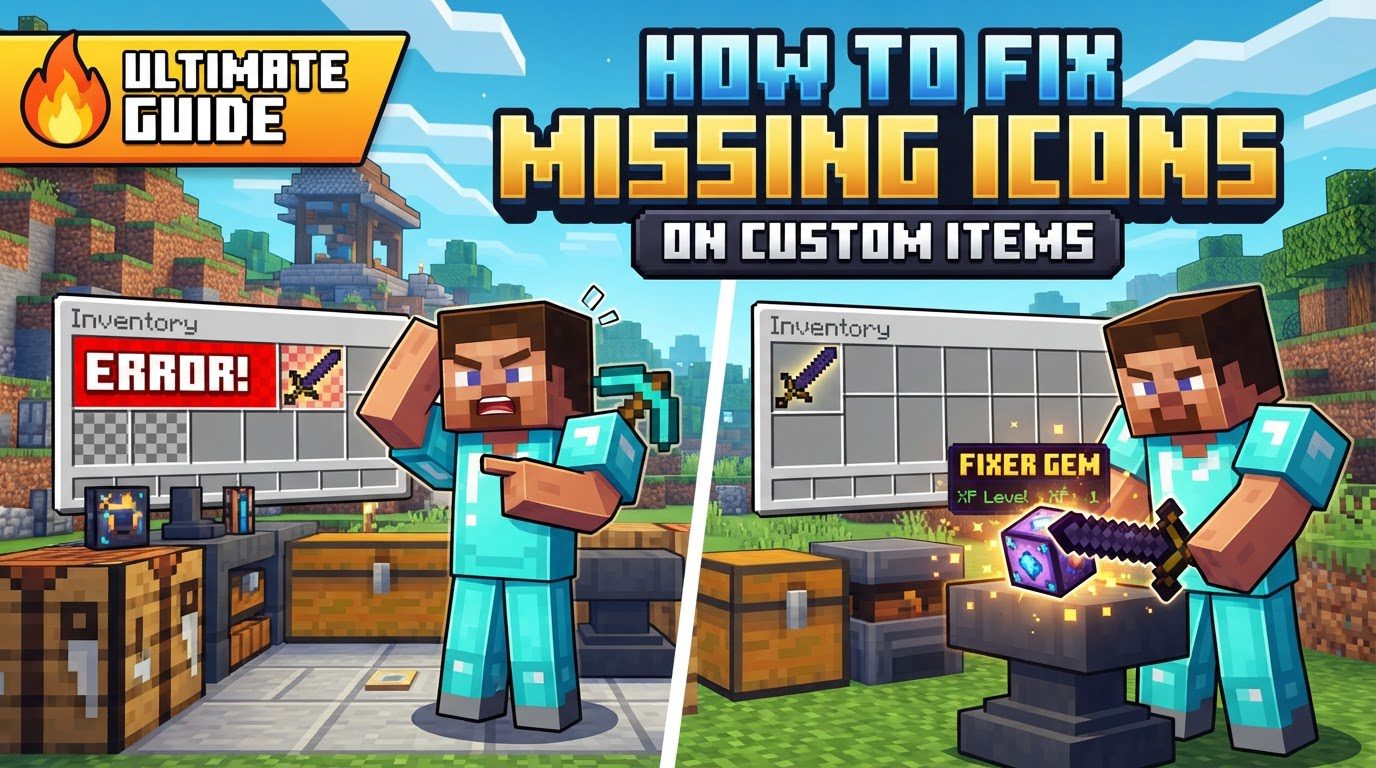
Fixing missing custom item icons in Minecraft hinges on a deep understanding of how the game interprets and loads external assets. Whether you’re working with Java Edition’s intricate model JSONs and Custom Model Data or Bedrock Edition’s behavior and resource pack components, precision in file paths, naming conventions, and syntax is paramount. This guide will navigate you through the essential mechanics, step-by-step troubleshooting, and critical best practices to ensure your custom items display flawlessly.
Understanding the Foundation: Resource Packs and Asset Loading
At its core, Minecraft relies on **resource packs** to modify or add game assets, including custom item icons. These packs are essentially compressed folders containing specific file structures that the game reads. For custom items, two primary types of files are involved:
- Texture Files: These are the actual
.pngimages that define the item’s appearance. - JSON Files: These text-based files act as instructions, telling the game how to use those textures, defining item models, and linking them to specific game items.
Crucially, **file paths and naming conventions** are strictly case-sensitive and must be exact. Any deviation, no matter how minor, will result in the game failing to locate the asset. Furthermore, your resource pack must be **compatible with the Minecraft version** you are playing; an outdated pack format can lead to unexpected issues.
Edition-Specific Mechanics: Java vs. Bedrock
- Java Edition: Custom icons often leverage **Custom Model Data (CMD)**. This powerful NBT tag allows you to assign unique models or textures to items based on their specific data values, enabling a vast array of custom items from a single base item (like a wooden pickaxe). The item’s model JSON file then directs the game to the correct texture.
- Bedrock Edition: Icons are defined within an item’s Behavior Pack (BP) file using the
minecraft:iconcomponent. This component references ashortnamewhich, in turn, is defined in a globalitem_texture.jsonfile within the Resource Pack (RP). This creates a clear chain of command from item definition to texture display.
The Diagnostic Journey: Step-by-Step Troubleshooting
When an icon goes missing, a systematic approach is your best friend. Follow these steps to pinpoint and resolve the problem:
1. Verify Resource Pack Application
First and foremost, ensure your resource pack is correctly applied and active in Minecraft’s settings. Navigate to Options > Resource Packs and move your pack from the “Available” column to the “Selected” column. Confirm it’s at the top of the list if you have multiple packs, to ensure it takes priority.
2. Check Folder Structure
The internal hierarchy of your resource pack is critical. For item textures and models, the standard structure is:
assets/<namespace>/textures/item/(for.pngtexture files)assets/<namespace>/models/item/(for item model.jsonfiles)
The <namespace> is typically minecraft for vanilla overrides or a custom name (e.g., my_pack) for new items. Ensure all folder names are spelled correctly and are in lowercase.
3. Validate JSON Files
JSON syntax errors are a common culprit. Even a single missing comma, an extra bracket, or unclosed quotation marks can render the file unreadable by the game. Use a reliable JSON linter (many free online tools are available, such as jsonlint.com) to check all your .json files for syntax errors. This includes model JSONs, item_texture.json, and any other relevant JSON definitions.
4. Inspect Item Model JSON (Java Edition)
For Java Edition, open the specific item model .json file located in assets/<namespace>/models/item/. Pay close attention to:
- The
"texture"path: Ensure it correctly points to your.pngtexture file. The path should start from *inside* thetextures/folder and should not include the.pngfile extension. For example,"layer0": "my_pack:item/custom_sword"would look forassets/my_pack/textures/item/custom_sword.png. - Correct use of commas and quotation marks: Every key and string value must be enclosed in double quotes, and objects/arrays must be properly delimited.
- Custom Model Data (CMD): If you’re using CMD, verify that your
overridesarray in the model JSON is configured correctly, linking specificcustom_model_datavalues to the corresponding item models. - Minecraft 1.21.4 and newer: Be aware that newer versions may require additional files or specific configurations in the
itemsfolder alongside the model and texture for certain custom items.
5. Inspect item_texture.json and BP File (Bedrock Edition)
For Bedrock Edition, the process involves two key files:
item_texture.json: This file should be correctly named and located, typically atRP/textures/item_texture.jsonwithin your resource pack. Verify that your custom item’sshortnameis defined here and points to the correct texture path.- Behavior Pack (BP) File: Open your item’s BP file. Ensure the
minecraft:iconcomponent within this file matches theshortnameyou defined initem_texture.jsonexactly. For example, ifitem_texture.jsondefines"custom_icon": {"textures": "textures/items/my_custom_item"}, then your BP file should have"minecraft:icon": "custom_icon".
6. Reload Textures In-Game
After making any changes to your resource pack files, you must instruct Minecraft to reload them. In Java Edition, press F3 + T. This reloads all textures and resource pack data without needing to restart the game, saving valuable troubleshooting time.
7. Check Game Output Log (Java Edition)
This is often the most overlooked yet powerful troubleshooting tool. In your Minecraft Launcher settings, enable “Open output log when Minecraft starts.” This log provides detailed error messages, warnings, and information about what the game is trying to load and where it encounters problems. Look for lines indicating “Couldn’t find texture,” “Failed to parse JSON,” or similar errors related to your resource pack’s paths.
Proactive Measures and Best Practices
Adopting these habits can prevent many common icon display issues before they even arise:
- Lowercase Naming: Always use lowercase letters for all file and folder names within your resource pack. Avoid spaces and special characters. This minimizes cross-platform compatibility issues and case-sensitivity conflicts.
- Texture Path Formatting: When referencing textures in JSON files, never include the
.pngfile extension. The path should begin from *inside* thetextures/folder relative to your namespace. - Version Match: Confirm that your resource pack’s
pack_formatinpack.mcmetaaligns with the Minecraft version you are playing. Mismatches can cause packs to not load or behave unexpectedly. - Isolate Issues: When troubleshooting, activate only the custom item’s resource pack. This rules out conflicts with other active packs, making it easier to identify the source of the problem.
- File Extensions: Ensure your operating system is configured to show file extensions (e.g.,
.png,.json). This prevents accidental misnaming liketexture.png.png. - Zip Structure: When creating your
.zipresource pack, theassetsfolder and thepack.mcmetafile must be at the *root* level of the archive, not nested inside an extra subfolder. - Loading Order: If you use multiple resource packs, place your custom item pack at the top of the loaded packs list. This ensures its assets override any conflicting vanilla or other pack assets.
Spotting the Culprits: Common Pitfalls
Many icon display problems stem from a few recurring mistakes:
- Incorrect File Naming or Paths: This is by far the most frequent issue. A single typo, incorrect capitalization, or misplacement of a file within the folder hierarchy will lead to a missing icon.
- Version Incompatibility: Trying to use a resource pack designed for an older or newer Minecraft version without updating its structure or
pack_formatcan cause assets to fail loading. - JSON Syntax Errors: As mentioned, JSON files are unforgiving. Missing commas, unclosed brackets, or incorrect quotation marks will prevent the game from parsing the file and using the defined model or texture.
- Forgetting to Reload: Making changes to pack files but not pressing
F3 + T(Java) means the game is still using the old, possibly incorrect, data. - Missing
pack.mcmeta: This essential file, located at the root of your resource pack, contains metadata like the pack format and description. Without it, Minecraft won’t recognize your folder as a valid resource pack. - Incorrect Archive Structure: Zipping the resource pack incorrectly, such as including an extra parent folder inside the
.zipbefore theassetsfolder andpack.mcmeta, will make the pack unusable. - Black and Purple Textures: This is the universal sign that the game couldn’t find the texture file. It almost always points to an issue with the texture’s path in the model JSON, the texture file’s existence, or its internal corruption.
Resolving missing custom item icons in Minecraft is a test of patience and precision. By systematically checking your resource pack’s structure, validating your JSON files, understanding edition-specific mechanics, and using the in-game tools at your disposal, you can transform those frustrating black and purple squares into the vibrant custom creations you envisioned. Remember, every error message in the log is a clue, and every missing texture is an opportunity to refine your resource pack mastery.
Tags:
YOU MAY ALSO LIKE...