How to Identify Chunk Corruption Patterns
One of the most disheartening experiences for any Minecraft player or server administrator is discovering their meticulously crafted world has been irrevocably altered, often due to a phenomenon known as chunk corruption. This insidious issue can transform vibrant landscapes into broken voids, render entire areas unplayable, and even bring a server to its knees. Identifying these patterns early is not just about troubleshooting; it’s about preserving countless hours of creativity and adventure.
Understanding the Foundation: What is a Minecraft Chunk?
Before diving into corruption, it’s crucial to grasp what a “chunk” truly is in Minecraft. Imagine your sprawling world divided into an invisible grid. Each square on this grid, measuring 16 blocks by 16 blocks horizontally, represents a chunk. These chunks extend vertically from the absolute bottom of the world (bedrock) to the very top (sky limit), encompassing all 256 blocks of height. The game saves all data within these 16x16x256 block volumes – terrain, blocks, entities, lighting, and more – as individual files or sections within region files. Chunk corruption occurs when the digital data associated with one or more of these crucial units becomes damaged, unreadable, or inconsistent with the game’s expectations, leading to a cascade of in-game problems.
The Tell-Tale Signs: Recognizing Chunk Corruption Symptoms
Corrupted chunks rarely go unnoticed for long, manifesting in a variety of ways that range from subtle visual glitches to severe server instability. Recognizing these symptoms is the first step in diagnosis:
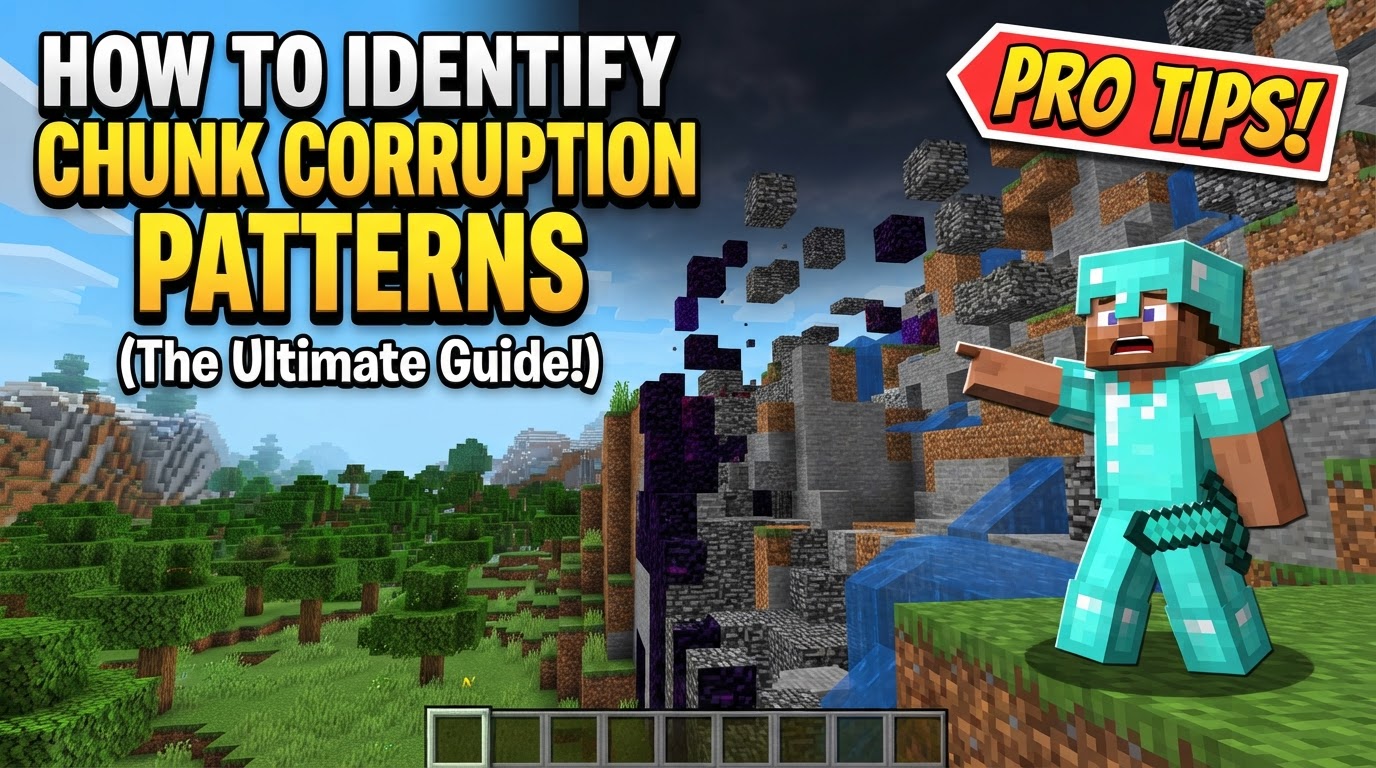
- Visual Anomalies: These are often the most obvious indicators. You might encounter gaping holes in the world, perfectly aligned with the 16×16 chunk borders, revealing the void below. Terrain might suddenly disappear, becoming invisible, or appear as stark “chunk cliffs” where one chunk is drastically different in elevation or biome from its neighbor, as if cut by a knife. Sometimes, blocks within a corrupted chunk might render incorrectly, appearing as endless lines of grass or void stripes that stretch across the landscape, or even display incorrect textures.
- Inaccessible Areas: Attempting to enter a severely corrupted chunk might result in the game pushing you back out, as if an invisible wall exists. In other cases, you might be able to enter, but specific blocks like chests, furnaces, or beds within that area become invisible, unusable, or disappear entirely, rendering structures within the chunk non-functional.
- Performance Issues: A common symptom, especially on servers, is significant lag whenever players approach or enter a specific area. This lag can escalate into world data failing to save correctly, frequent server crashes, or even the server failing to start up altogether if the corruption is severe enough in a spawn chunk or critical area.
- Server Log Errors: For server administrators, the server console and log files are invaluable diagnostic tools. Corrupted chunks frequently trigger specific error messages. Look for “SEVERE” errors, “Wrong Location” errors (indicating the game is trying to load a chunk at an unexpected coordinate), or other messages that explicitly mention chunk coordinates or region file issues.
Behind the Glitches: Common Causes of Chunk Corruption
Understanding the root causes of chunk corruption can help in prevention and identification:
- Improper Shutdowns: Abruptly closing the game or server without allowing it to properly save all world data is a primary culprit. This can leave chunk files incomplete or partially written, leading to corruption.
- Hard Drive Issues: A nearly full hard drive, failing storage device, or even bad sectors can prevent Minecraft from correctly writing or reading chunk data, resulting in corrupted files.
- World Upgrades/Downgrades: Loading a world created in an older Minecraft version into a newer version can sometimes cause issues, though the game often handles this gracefully. However, loading a world created in a newer version into an incompatible older version will almost inevitably lead to severe and often unfixable corruption, frequently resulting in “chunk cliffs” where new terrain generation algorithms clash with existing data.
- Mod Conflicts: Certain mods or plugins, particularly those that heavily modify world generation, block behavior, or entity interactions (like complex wire systems from Immersive Engineering or high-density entity mods), can sometimes introduce bugs that corrupt chunk data.
level.datFile Corruption: Thelevel.datfile holds critical world-specific data, including the world seed. If this file becomes corrupted or deleted, and a new world is created with the *same name*, Minecraft might reuse existing chunk files but generate new terrain based on a *new* seed. This mismatch leads to what appears as drastic chunk errors or biome borders where old and new terrain violently collide.
Your Detective’s Toolkit: A Step-by-Step Guide to Identification
Identifying chunk corruption requires a systematic approach, combining in-game observation with external tools:
- Observe Visual Cues: Start by simply playing the game or flying around your world. Actively look for any of the visual anomalies described above: sudden cliffs, unnatural holes, invisible blocks, or terrain that abruptly changes biome or elevation at a 16×16 border. These are your most direct hints.
- Check for Lag Spikes: If you experience noticeable lag or stuttering, try to pinpoint the exact location. Walk or fly slowly, noting where the lag begins and ends. If the lag consistently occurs when entering a specific area, it’s a strong indicator of a problem chunk.
- Monitor Server Logs: For server owners, keep your server console or log files open and observe them actively. Look for any “SEVERE” errors, “Wrong Location” messages, or other unusual warnings that contain chunk coordinates (e.g., “Chunk (-5, 12) failed to load”). These coordinates are invaluable for pinpointing the exact problematic chunk.
- In-Game Chunk Reload (Temporary Check): If you encounter missing or invisible terrain, press
F3 + A(on Java Edition) to reload all rendered chunks. If the terrain reappears after this, the issue might be a temporary rendering glitch rather than permanent chunk corruption. However, this action can also sometimes refresh the visual display of a corrupted chunk, making it appear normal momentarily before reverting. - Utilize External Tools: For more definitive diagnosis, external world editors are indispensable. Tools like MCEdit (for Minecraft versions 1.12 and prior) or Amulet Editor (for 1.13 and newer versions) allow you to load your world outside the game client. These editors display the world in a grid-like fashion, making it much easier to visually spot corrupted or malformed chunks that align with the 16×16 grid. They can also often highlight chunks with errors. Tools like Dinnerbone’s coordinate tool (online) can help translate in-game X/Z coordinates into region file names, which can be useful if you’re attempting manual recovery or deletion.
Expert Strategies for Pinpointing Corruption
Beyond the basic steps, these tips can refine your identification process:
- Backup Regularly: This cannot be stressed enough. Before *any* attempt to fix corruption, and as a general best practice, maintain frequent, reliable backups of your world. A recent backup is your ultimate safety net.
- Isolate the Area: If lag or crashes are occurring, focus on determining the general location or specific chunk coordinates. If logs provide coordinates, great. If not, systematically explore the world, perhaps using creative mode flight, to narrow down the affected region.
- Distinguish from Server Lag: Understand the difference. Temporary server lag often results in terrain loading slowly but eventually resolving itself, or rubber-banding players. Actual chunk corruption results in permanently broken, missing, or glitched terrain that does not resolve itself with time or a simple F3+A reload.
- Test in Single Player: If you are a server owner, download a copy of your world and load it in single-player mode. This allows you to confirm corruption patterns without affecting your players or risking further damage to the live server.
- Check for Entity Overload: Sometimes, severe lag is caused not by chunk corruption, but by an excessive number of entities (mobs, items, dropped blocks) within a small area. Use `/kill @e[type=item]` or similar commands (with caution) to test if lag resolves, indicating an entity problem rather than chunk data corruption.
Avoiding Common Pitfalls in Corruption Diagnosis
Even seasoned players can make mistakes when dealing with chunk corruption. Be aware of these common pitfalls:
- Not Backing Up: The single biggest and most dangerous mistake. Attempting to “fix” a corrupted world without a recent backup is like performing surgery without anesthesia – it’s risky and can lead to irreversible damage.
- Confusing Lag with Corruption: Not every instance of lag signifies chunk corruption. Temporary rendering issues, high entity counts, or even network latency can cause similar performance dips. Always seek other symptoms before concluding corruption.
- Incorrectly Identifying Causes: Assuming a visual glitch is always permanent corruption when it might be a temporary rendering error that
F3 + Acan resolve can lead to unnecessary panic or drastic measures. - Modifying World Files Without Knowledge: Directly editing region files (e.g., using a hex editor) without a deep understanding of Minecraft’s NBT data structure is extremely risky. It’s far more likely to cause further, more severe corruption than to fix anything. Always use dedicated, reputable world editing tools.
- Downgrading World Versions: Attempting to load a world created in a newer Minecraft version into an older version is almost guaranteed to result in massive, unfixable corruption and data loss. Minecraft worlds are generally forward-compatible, but rarely backward-compatible.
Identifying chunk corruption patterns is a critical skill for any dedicated Minecraft player or server administrator. By understanding what chunks are, recognizing the diverse symptoms, knowing the common causes, and employing a systematic approach with appropriate tools, you can effectively diagnose problems and take steps towards recovery, safeguarding your cherished digital worlds.
Tags:
YOU MAY ALSO LIKE...